








Laptop Stand for Desk Use: What Height and Angle Work Best?

A laptop stand can make a desk setup feel dramatically better, but only when height and angle are chosen with care. Most discomfort comes from a simple mismatch. The screen sits too low, the keyboard sits too close, or the tilt forces the wrists and shoulders into positions that feel acceptable for a few minutes and tiring by the end of the day. The goal is not to raise the laptop as high as possible or tilt it as steeply as possible. The goal is to create a working position that supports clear viewing, relaxed shoulders, practical keyboard placement, and a desk surface that still feels usable.
That is why a laptop stand should be treated as part of a larger workspace system. The stand affects how the eyes meet the screen, how far the hands reach, and how much room remains for a keyboard, mouse, notebook, or lamp. In many cases, small adjustments create the biggest improvements. A careful combination of stand height, stand angle, chair height, and desk depth will usually outperform a more dramatic setup that looks impressive but feels awkward in real use. The right combination of workspace accessories can help turn a desk into a place that supports longer, calmer, more focused work.
Screen height matters more than stand height
The best laptop stand height is not really about the stand itself. It is about where the screen lands once the laptop is open. A laptop can sit on a relatively low stand and still place the display well if the user is shorter, sits higher, or works on a desk with generous depth. Another user may need a higher stand because their torso is longer or their chair position is lower. What matters most is the screen position in relation to the eyes.
For many desk users, the most comfortable starting point is to place the top portion of the screen at or slightly below eye level. This helps reduce the tendency to drop the head forward, which is one of the most common posture problems in laptop use. When the display is too low, the neck bends downward, the upper back rounds, and the shoulders often start to collapse inward. A laptop stand works best when it interrupts that pattern.
Eye level should guide the setup
A useful rule is to sit naturally first, then evaluate the screen. If the chin drops to meet the display, the laptop is likely too low. If the chin lifts and the eyes strain upward, the screen may be too high. The right position usually feels visually easy rather than dramatic. The head stays more balanced over the shoulders, and the eyes meet the screen without a strong tilt up or down.
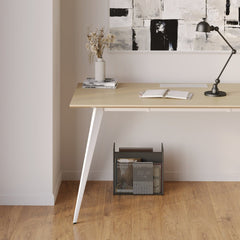
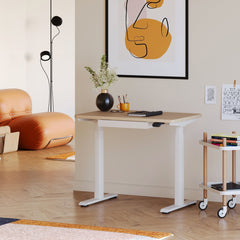
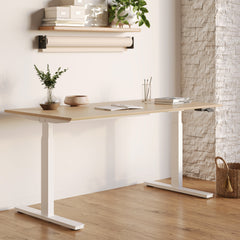
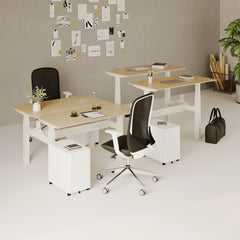
This is one reason the desk itself matters so much. A well-proportioned work surface gives the stand room to do its job properly. On deeper desks, the screen can be lifted and still remain at a comfortable viewing distance. On cramped desks, the same height can place the screen too close to the face. Choosing from office desks designed for ergonomic work can make laptop stand placement more effective because surface depth and usable work area strongly influence what height will feel comfortable.
Seated posture changes the answer
Two people can use the same stand and report completely different results. The reason is simple. Their desk-chair relationship is different. If the chair is too low, the arms reach upward toward the keyboard area. If the chair is too high, the knees and hips may not feel supported. A stand should not be expected to correct every mismatch in the setup. It works best when the seated position is already reasonably aligned.
That makes chair height the first setting to stabilize. Once the arms can rest comfortably near the desk surface, the laptop stand height becomes much easier to judge. The best position usually supports three things at once: a clear screen view, relaxed shoulders, and a keyboard placement that does not force the wrists into an extreme angle.
Laptop stand angle shapes both wrist comfort and screen visibility
Height tends to get more attention, but angle plays a major role in comfort. The best angle depends on whether the user types directly on the laptop keyboard or uses external input devices. Those are two very different desk experiences, and they should not be treated as the same setup.
A slight incline can make a laptop keyboard feel more accessible for short work sessions. It can also improve airflow and reduce the flat, downward glance that often comes with a laptop resting directly on the desk. But once the angle becomes too steep, typing directly on the laptop can start to load the wrists, forearms, and shoulders.
Lower angles tend to suit laptop-only use
When the built-in keyboard is still the main keyboard, a modest tilt usually makes more sense than a steep one. The hands can still reach the keys naturally, and the wrists do not have to bend sharply upward. This kind of setup is often useful for shorter work periods, occasional admin tasks, or flexible spaces where the laptop needs to remain self-contained.
A low to moderate tilt can also make the screen feel a bit easier to read without creating too much visual or physical separation between screen and keys. That matters for users who are constantly switching between looking, typing, scrolling, and navigating.
Steeper angles work better when the laptop becomes a display
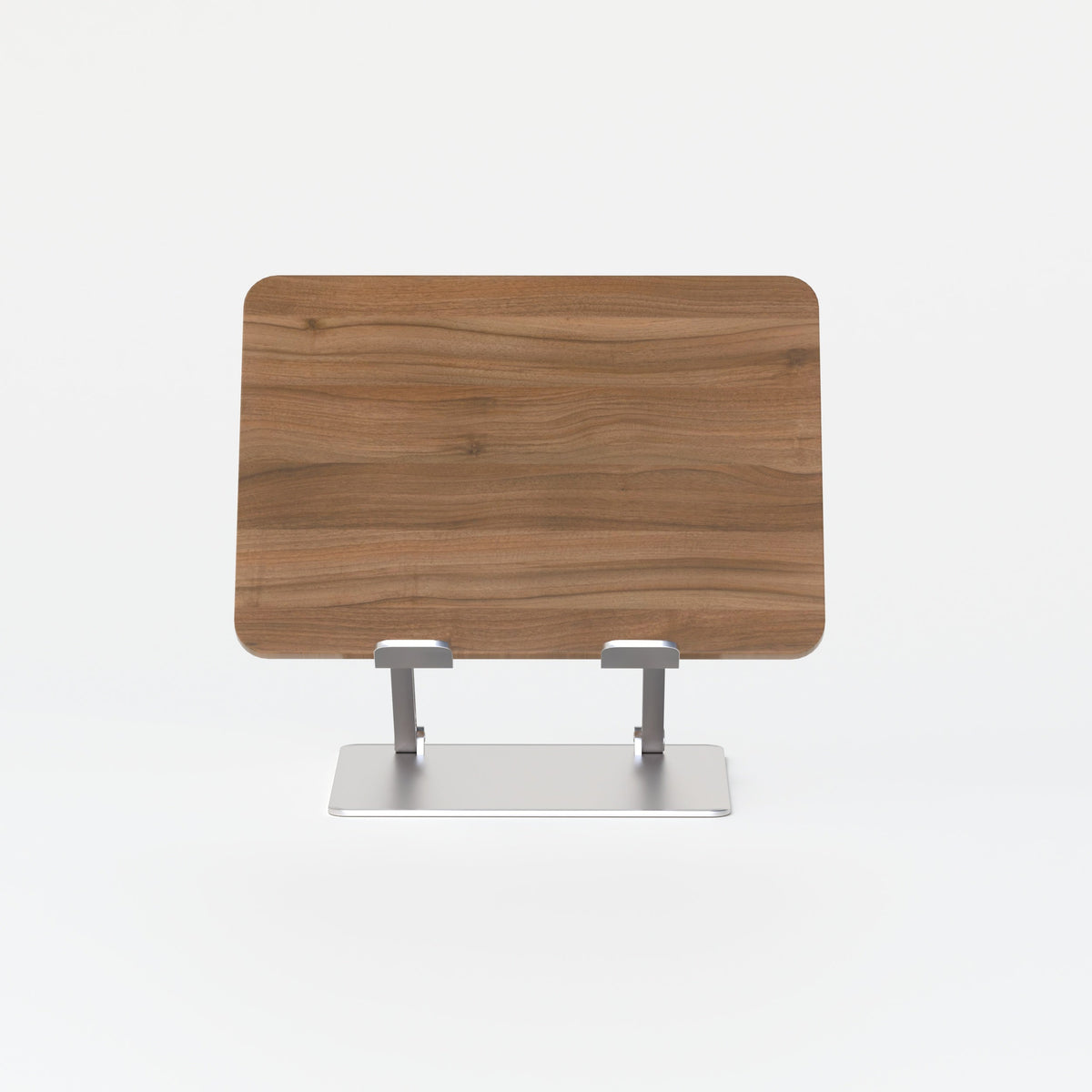
Once an external keyboard and mouse enter the setup, the logic changes. The laptop no longer needs to function as the primary typing surface. At that point, the stand can be used more aggressively to improve viewing height and screen angle. That is where an adjustable laptop stand becomes especially useful. It supports experimentation across different tasks, whether the desk is used for writing, design work, video calls, or long reading sessions.
A steeper angle can help lift the display into a more monitor-like position, which often reduces neck flexion. It can also improve screen legibility in spaces where glare or low contrast makes the display harder to read. Still, more angle is not always better. If the screen is too upright or too close, visual fatigue can appear even when posture looks improved on paper.
The best setup depends on how the laptop is used throughout the day
A laptop stand should support real work patterns, not an idealized version of them. Some people spend most of the day answering messages and jumping between tabs. Others spend hours in uninterrupted focus. Some need better camera framing for calls. Others need a cleaner desk with minimal visual clutter. The right height and angle come from the work itself.
Mixed desk tasks benefit from moderation
For email, planning, browsing, and light typing, a moderate stand height often works well. The screen lifts enough to reduce excessive neck bending, while the typing position remains fairly accessible. This kind of setup is especially effective when desk sessions are shorter or broken up throughout the day.
Users in this group often do well with a stand that creates a noticeable but not dramatic difference. The setup feels cleaner and more intentional, but it still remains easy to use without a fully separate keyboard zone.
Deep-focus work rewards a more separated setup
Longer work blocks often benefit from greater separation between screen and hands. When the laptop is used like a monitor and the hands move to an external keyboard and mouse, the body can settle into a more stable arrangement. The eyes face forward more easily, the shoulders stay lower, and the keyboard can be positioned where the forearms feel supported rather than crowded.
This setup is often better for writing, coding, design tasks, and spreadsheet work because it reduces the constant compromise built into laptop-only typing. It also makes micro-adjustments more meaningful. A slight change in screen height or keyboard distance can noticeably improve the feel of a full work block.
Calls and visual presentation create different demands
Video calls change what feels ideal. The user often wants the camera to sit higher and more directly in front of the face. That can tempt people to raise the laptop too far. A better approach is to balance camera framing with sustainable screen position. A call may last 30 minutes, but the posture pattern it creates can influence the rest of the day.
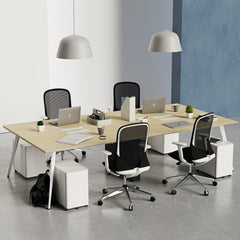
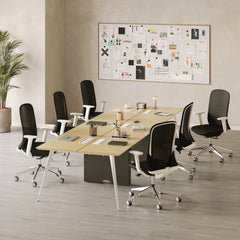
For users designing a more cohesive workspace around these needs, modern ergonomic office furniture can support a more balanced arrangement by improving how the stand, desk, lighting, and surrounding layout work together as one environment.
Desk depth and keyboard placement often decide whether a stand feels right
A laptop stand does not exist in isolation. It occupies part of the desk, changes viewing distance, and affects where the keyboard and mouse can go. One of the most common reasons a stand feels disappointing is not the stand itself, but the amount of space available around it.
Shallow desks create hidden compromises
A shallow desk can make a high laptop stand feel uncomfortable very quickly. The screen may end up too close, even if its height looks better. This can increase eye fatigue and encourage the head to pull backward or the chin to angle upward. In some cases, lowering the stand slightly creates a better overall result because it restores more natural distance.
That is why the best height is always tied to desk depth. A setup that feels balanced on a spacious surface can feel cramped on a narrow one.
Keyboard and mouse position matter just as much as the screen
Once a stand lifts the laptop, the hands still need a place to work. The keyboard should usually sit where the elbows can stay close to the body and the shoulders do not rise. The mouse should be near enough that it does not pull one arm outward for long periods. When these tools are too far away because the stand takes up too much central space, the whole setup starts to feel tense.
In tighter desk environments, a compact laptop stand can make more practical sense because it preserves valuable work surface while still lifting the laptop into a more useful position. A smaller footprint can help maintain cleaner keyboard placement and reduce the crowded feeling that often pushes accessories into awkward positions.
A useful comparison for common desk-use scenarios
| Desk-use scenario | Height approach | Angle approach | Best fit |
|---|---|---|---|
| Laptop-only, short sessions | Low to moderate lift | Gentle tilt | Flexible, casual work |
| Hybrid use with occasional external keyboard | Moderate lift | Moderate tilt | Mixed task days |
| Full-day work with external peripherals | Moderate to higher lift | Screen-focused tilt | Writing, coding, design |
| Compact desk with limited depth | Conservative lift | Modest tilt | Smaller work surfaces |
A short testing process usually works better than guessing
Many people buy a stand and immediately lock it into one position. A better approach is to test it in stages. Small adjustments often reveal more than major ones. The aim is to find the point where the screen becomes easy to view and the rest of the body does not have to compensate.
Use this sequence to find a better position
1. Set the chair height first so the forearms can rest comfortably near desk level.
2. Place the laptop on the stand and open it to the angle you would normally use.
3. Raise the stand until the screen no longer pulls your head downward.
4. Adjust the tilt until the display feels easy to read without forcing the shoulders or wrists upward.
5. If using an external keyboard, slide it into a position that keeps the elbows close and relaxed.
Work for at least 20 to 30 minutes before deciding whether the setup is right.
This kind of short real-world test is more revealing than a quick visual check. A setup can look clean and still feel wrong after sustained use. The body usually notices what the eye misses.
Signs the stand is too low or too high
If the stand is too low, common signs include a dropped chin, rounded shoulders, and the urge to lean in. If it is too high, the user may lift the chin, feel visual strain, or notice the shoulders tensing while typing or navigating. The best position usually feels quiet. It does not call attention to itself because it is not asking the body to fight the setup.
Lighting often changes what angle feels best
Screen comfort is not only physical. It is visual. A laptop stand angle that feels perfect in the morning can feel irritating in the evening if the lighting conditions change. Glare, contrast, and brightness all influence how the head and eyes respond to the screen.
Better task lighting reduces the urge to lean forward
When a workspace is too dim, people often move closer to the screen without realizing it. When the light is harsh or poorly placed, they may tilt the laptop into a position that reduces glare but creates a worse posture. Good task lighting can reduce both problems. A thoughtfully placed multi-use desk lamp can support clearer near-field work and make it easier to keep the laptop at a comfortable angle rather than constantly repositioning it to chase better visibility.
Softer ambient light can improve evening work
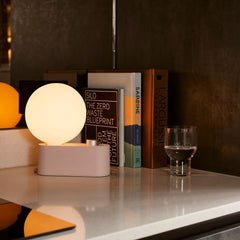
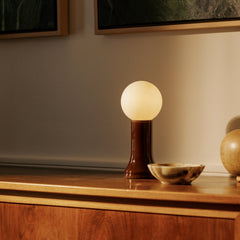
Not every desk needs only direct task light. In some spaces, a softer secondary source helps balance the room and reduce contrast between screen brightness and surroundings. A recycled glass table lamp can support that kind of layered lighting approach, especially in environments where the desk needs to feel calmer and less visually sharp during later work sessions.
The point is not to overload a desk with lighting. It is to shape a visual environment where the laptop screen remains readable without forcing poor tilt decisions.
Common laptop stand mistakes that make good setups feel uncomfortable
A stand can be well made and still feel wrong if it is used without regard for the rest of the desk. Most setup issues come from a few repeat mistakes.
Raising the laptop while continuing to type on it for long hours
This is one of the most common ergonomic conflicts. A higher screen usually improves neck position, but it also raises the built-in keyboard. That can put the hands and shoulders into a strained position during extended typing. If the laptop must stay elevated, external input devices usually make the arrangement far more workable.
Going for maximum height instead of balanced alignment
Users often assume that more height equals better posture. In practice, too much height can be just as disruptive as too little. The display may end up above the comfortable viewing zone, and the body starts adapting in less obvious ways. A balanced setup almost always outperforms an extreme one.
Ignoring the desk as a working surface
A desk is not a pedestal for accessories. It is an active work area. A stand that blocks comfortable keyboard placement, crowds notebooks, or forces the mouse too far to the side may create as many problems as it solves. The best setups preserve enough open surface to support natural workflow.
The most effective laptop stand setup is the one that stays comfortable over time
The right height and angle are rarely dramatic. They are usually the result of measured, practical choices that support real work. For many people, that means lifting the screen enough to reduce neck strain, keeping the angle moderate when typing directly on the laptop, and using more elevation when an external keyboard and mouse are part of the setup.
The strongest desk arrangements are built around consistency. The screen should be easy to view, the arms should feel supported, the desk should remain usable, and the setup should still feel sensible after a full work block rather than only during the first few minutes. A laptop stand does not need to solve everything on its own. It just needs to fit the desk, the work pattern, and the surrounding tools well enough that the body can settle into a more natural rhythm.
When height, angle, lighting, and surface space work together, the laptop stops feeling like a compromise and starts functioning like a true part of a well-considered desk environment.
Related Articles
-
 How Filing Cabinet Storage Supports Office Desk Must Haves
-
 Filing Cabinet Ideas for Better Office Furniture Accessories
-
 Best File Cabinet for Home Office Storage That Feels Easy
-
 Better Multiple Monitor Desk Setup Starts With One Stand
-
 Make Laptop and 2 Monitor Setup Work With Better Stands
-
 Why Dual Monitor Comfort Needs a Monitor and Laptop Stand


