























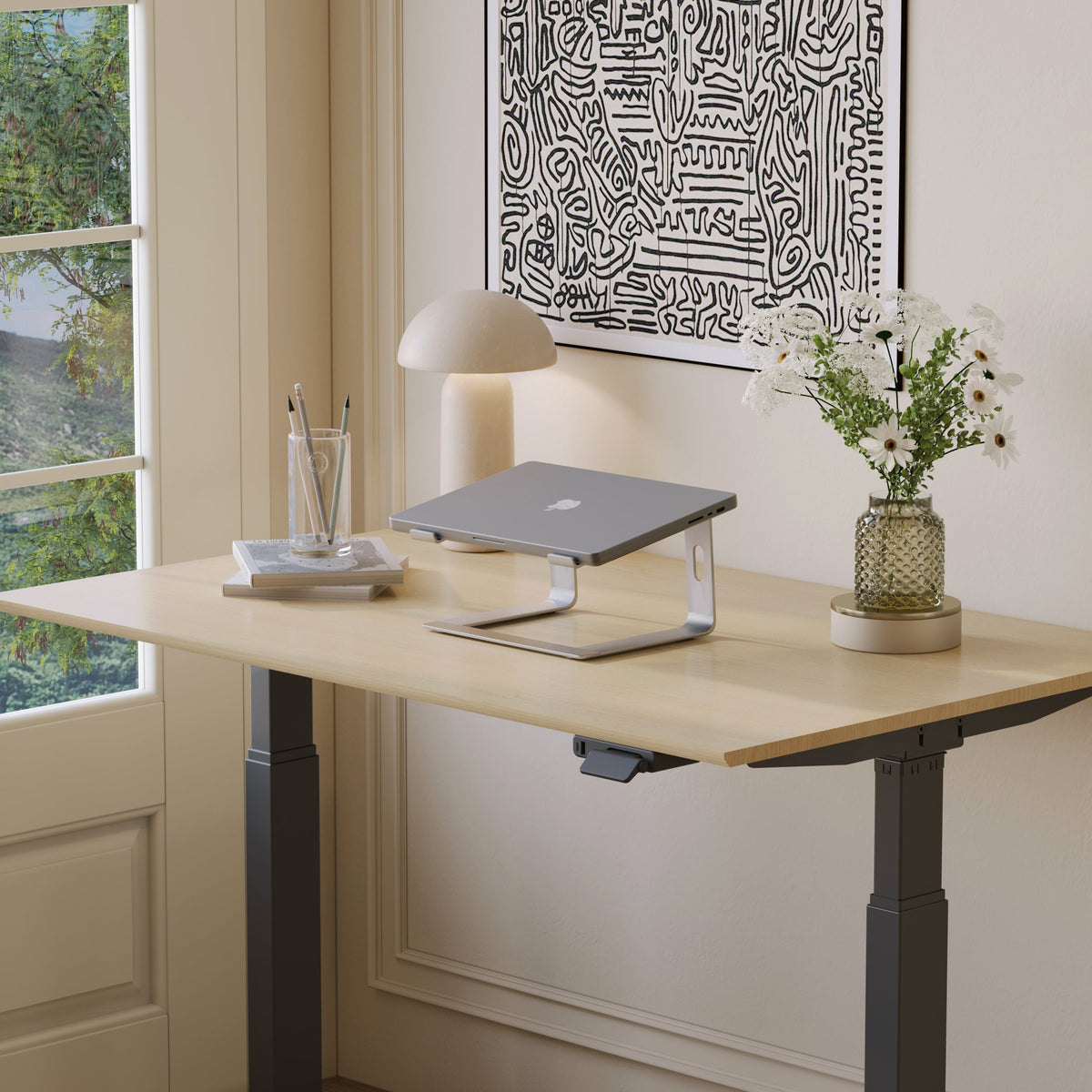
Why Dual Monitor Comfort Needs a Monitor and Laptop Stand

A laptop and an external monitor can create a more capable workspace, but extra screen space does not automatically produce greater comfort. In many dual-screen setups, the external monitor sits at a reasonable viewing height while the laptop remains flat on the desk. The result is a divided visual field that encourages repeated downward glances, side-to-side head movement, and frequent changes in viewing distance.
A monitor support and laptop stand address different parts of this problem. The monitor support controls the larger display’s height, depth, and angle. The laptop stand raises the smaller screen so it can function as a true secondary display rather than a low surface that pulls attention toward the desktop.
The most comfortable arrangement is not defined by perfect visual symmetry. It is created by coordinating both screens with the user’s primary task, desk dimensions, keyboard position, chair height, and preferred working distance.
Why Laptop and Monitor Screens Create Competing Viewing Zones
A dual-monitor workstation often begins with two devices that were not designed to sit at the same level. An external monitor usually rests on a raised base, while the laptop screen is connected to a keyboard that lies directly on the desk.
That difference creates two separate viewing zones. One screen may be near eye level, while the other requires the user to look significantly downward. The problem becomes more noticeable when both screens are used continuously rather than assigning one display to occasional reference material.
A Low Laptop Screen Changes Head Position Throughout the Day
A laptop works well as a compact, portable computer because its screen and keyboard are attached. At a permanent workstation, however, that same design limits screen placement.
When the laptop remains flat, users may lower their head to read messages, review notes, monitor a video call, or move between applications. A single downward glance is not necessarily a concern. Repeating the same movement throughout a long work session can make the setup feel less natural, particularly when the external monitor is positioned much higher.
Raising the laptop reduces the vertical distance between the two active viewing areas. It also allows the user to treat the laptop screen as a proper extension of the external display.
Different Viewing Distances Can Make Screen Switching Less Natural
Height is only one part of dual-monitor positioning. The screens may also sit at noticeably different distances.
A laptop is often placed close to the keyboard, while the monitor sits farther back. If the laptop has smaller text or a higher display resolution, the user may lean toward it even when the screen has been raised. Conversely, placing both screens too close can reduce usable desk space and create an unnecessarily crowded visual field.
The goal is to create a practical viewing arc. Both screens should be readable without repeated leaning, major head turns, or abrupt changes in focus.
Screen Priority Should Determine the Main Viewing Position
The display used most frequently should normally occupy the most neutral position. For many users, that means placing the external monitor near the body’s midline and angling the laptop slightly inward as a secondary screen.
Other workflows require a more balanced layout. A researcher may read on one screen while writing on the other. A designer may place the main canvas on the monitor and communication tools on the laptop. A financial or operations professional may divide attention evenly between two sets of information.
The correct arrangement depends on how often each screen is viewed, not simply on which device is larger.
Five Variables That Shape Dual-Monitor Comfort
1. Screen height
2. Viewing distance
3. Side-to-side position
4. Screen angle
5. Frequency of attention shifts
These variables should be adjusted together. Correcting only one may leave the rest of the workstation unchanged.
Why a Monitor Support and Laptop Stand Perform Different Jobs
A laptop stand and monitor support are complementary tools. One raises the laptop display away from desk level. The other gives the external monitor a more adaptable position.
Using both allows each screen to be placed independently, which is important because the devices differ in size, weight, shape, and typical viewing distance.
A Laptop Stand Separates Screen Height From Typing Height
Without a stand, moving the laptop screen also moves the built-in keyboard. This creates a basic conflict. The screen may be too low when the keyboard is comfortable, or the keyboard may become too high and far away when the screen is raised.
A laptop riser with adjustable height helps separate those two functions. The screen can be elevated and angled while an external keyboard and mouse remain on the desktop.
This arrangement is especially useful when the laptop is used as an active second display rather than remaining closed or serving only as the computer behind an external monitor.
Adjustment should remain practical and measured. A higher position is not automatically better. The laptop should be raised only enough to reduce excessive downward viewing while preserving stability, readability, and access to ports.
A Monitor Support Controls the Larger Display’s Position
An external monitor may come with a basic factory stand, but not every base provides enough control over height, distance, or angle. A desktop riser can add fixed elevation, while a movable support can provide more flexibility.
An adjustable monitor support arm can help reposition the external display while reducing reliance on improvised solutions such as stacked books or storage boxes.
The usefulness of an arm depends on the monitor, desk, and mounting arrangement. Compatibility should be checked before installation, including the desk edge, available surface depth, connection points, and cable movement.
One Support Cannot Correct Both Screens
Raising only the monitor may widen the height difference between the monitor and laptop. Raising only the laptop may still leave the external display too low, too far away, or poorly centered.
Dual-monitor comfort requires coordinated control:
| Workspace element | Primary function | Common problem it addresses |
|---|---|---|
| Laptop stand | Raises and angles the laptop display | Laptop screen sitting too low |
| Monitor support | Positions the external display | Monitor height, depth, or angle limitations |
| External keyboard | Separates typing from laptop placement | Reaching toward a raised laptop |
| Mouse or trackpad | Keeps pointing control near the keyboard | Uneven reach between devices |
| Desk | Provides depth and usable surface area | Crowded equipment and poor viewing distance |
The strongest setup treats these elements as one system rather than a collection of unrelated accessories.
Fixed and Adjustable Laptop Stands Support Different Work Patterns
Not every dual-monitor workstation requires the same level of adjustability. The best laptop stand depends on who uses the desk, how often the setup changes, and what role the laptop screen performs.
A Fixed Riser Suits a Stable Single-User Setup
A fixed stand can work well when the chair, desk, monitor, and laptop remain in the same positions each day. It provides a repeatable elevation without requiring frequent readjustment.
An anodized aluminum laptop riser may suit a streamlined workstation where the laptop functions as a consistent secondary screen. Its role is straightforward: lift the device and create a more organized relationship between the laptop and external monitor.
A fixed design is most practical when the user already knows the required screen height and does not regularly move between different work surfaces.
Adjustable Elevation Helps Shared and Changing Workstations
Adjustability becomes more useful in shared offices, household workspaces, hot-desking environments, and desks used for both seated and standing work.
Different users may have different chair heights, viewing preferences, laptop sizes, and primary tasks. An adjustable stand makes it easier to reposition the laptop without replacing the entire support system.
The adjustment range should not be the only consideration. Stability, surface grip, device fit, port access, and available keyboard space are equally important.
The Laptop’s Role Should Guide Stand Selection
A laptop used mainly for notifications may not require the same positioning precision as a screen used for writing, coding, editing, or live meetings.
Before selecting a stand, consider:
-
How often the laptop screen is viewed
-
Whether it is primary or secondary
-
Whether the desk is shared
-
How often the setup changes
-
Whether a separate keyboard is available
-
How much desktop depth remains after installation
A stand should support the workflow rather than force the workflow to adapt around the stand.
How to Position a Laptop and Monitor as One Workstation
Hardware alone does not determine comfort. The placement process matters just as much as the supports themselves.
The most reliable method is to build the arrangement around the primary task, then refine the secondary screen and input devices.
Identify the Screen That Carries the Main Workload
Begin by deciding which display holds the content that requires the most attention.
For document editing, design work, spreadsheets, research, or other focused tasks, the primary display should usually sit closest to the body’s midline. Lower-priority content such as chat, email, calendars, or reference notes can occupy the secondary screen.
When both displays receive similar attention, position them in a shallow curve around the user rather than placing one screen straight ahead and the other far to the side.
Position the Primary Display Before the Secondary Screen
Set the chair and keyboard first. Then place the primary monitor where it can be viewed without sustained twisting or leaning.
The physical center of the desk is not always the correct center. A monitor may need to shift slightly to account for drawers, desk legs, docking equipment, or the laptop stand. What matters is that the primary work remains aligned with the user’s natural forward position.
Raise the Laptop Into the Same General Viewing Band
The laptop and monitor do not need identical top edges. Different screen sizes and resolutions make perfect alignment less important than readable content placement.
Focus on reducing large vertical jumps between active windows. If the laptop is used for communication and reference material, its most frequently viewed content should sit within a comfortable glance from the main monitor.
The laptop may also need to sit slightly closer than the larger display because of its smaller screen.
Angle the Secondary Screen Toward the User
A laptop placed flat beside a monitor may require unnecessary head rotation. Turning the laptop slightly inward creates a more unified viewing arc.
The angle should remain modest. Too much rotation can reduce usable desk space, interfere with cables, or make the screen difficult to share during a call.
Separate Screen Position From Keyboard Position
Once the laptop is elevated, its built-in keyboard is no longer the ideal primary typing surface. Continuing to type on it may require reaching upward or forward.
A separate keyboard and mouse allow the screens to remain elevated while the hands stay close to the body. The keyboard should be centered on the primary task, not automatically centered between the outer edges of both displays.
Five-Minute Workstation Test
1. Read a paragraph on each screen.
2. Move several windows between displays.
3. Type continuously for a few minutes.
4. Join or simulate a video call.
5. Note any repeated leaning, twisting, or reaching.
6. Make small adjustments to height, angle, and distance.
Testing with real tasks is more useful than judging the setup from a photograph.
Desk Depth and Chair Position Set the Foundation for Screen Alignment
Monitor and laptop supports can improve positioning, but they cannot compensate for a desk that is too crowded or a chair that places the user at the wrong working height.
Desktop Dimensions Control Viewing Distance and Equipment Space
A dual-screen setup needs enough depth for the monitor, laptop stand, keyboard, mouse, and cable connections. A shallow surface may force the displays too close or leave insufficient room for comfortable input placement.
A broader collection of office desks for individual and team workspaces can help users compare workstation formats based on available space, collaboration needs, and equipment requirements.
Desk width matters as well. Two screens should fit without pushing the primary display far to one side. There should also be space for frequently used documents or accessories without blocking the keyboard zone.
Chair and Keyboard Position Should Come First
Screen height should be adjusted after establishing a stable working position.
A practical sequence is:
1. Set the chair or standing position.
2. Place the keyboard and mouse.
3. Position the primary monitor.
4. Raise and angle the laptop.
5. Check cable reach and screen readability.
Starting with the screens may cause the user to raise the chair, lift the shoulders, or reach toward the keyboard to match the display arrangement.
Cable Placement Should Allow Controlled Movement
Power cords, charging cables, display connections, and docking cables can restrict adjustment when they are too short or pulled tight.
Leave enough controlled slack for the monitor and laptop to move without straining connectors. At the same time, cables should not cross the keyboard area, hang where they can catch on legs, or interfere with the monitor arm.
A visually clean desk is useful, but safe and functional cable routing matters more than hiding every connection.
Screen Content and Display Settings Influence Physical Comfort
A workstation can be physically well arranged and still feel uncomfortable if the two screens are difficult to read together.
High-Attention Content Belongs on the Most Neutral Screen
Tasks that require continuous focus should remain on the display with the easiest viewing position. Secondary content can be assigned to the laptop when it requires only periodic attention.
This reduces unnecessary screen switching and helps preserve the purpose of the dual-monitor setup. More screen space should reduce window management, not create constant head movement.
Text Scaling Can Matter as Much as Hardware Position
A smaller laptop display may use a different resolution or interface scale than the external monitor. If text appears significantly smaller, the user may lean forward despite having raised the screen.
Adjust operating-system scaling, browser zoom, and application text size before moving the hardware repeatedly. The objective is consistent readability across both displays, not identical technical settings.
Brightness and Glare Should Be Balanced Across Both Screens
One display should not feel dramatically brighter or more reflective than the other. Large brightness differences can make attention shifts feel more abrupt.
Check for window reflections, overhead light, glossy surfaces, and screen tilt. Small changes to angle or brightness can create a more balanced visual field without requiring a major workstation redesign.
Dual-Monitor Comfort Should Extend Into Shared Workspaces
Individual desks are only one part of a modern office. Teams also move between focused workstations, shared desks, meeting areas, and hybrid calls.
Flexible Workstations Need Resettable Screen Positions
Shared desks should allow each user to establish a workable screen arrangement without a lengthy setup process.
A simple reset sequence can help:
1. Adjust the chair.
2. Place the keyboard and mouse.
3. Center the main monitor.
4. raise or lower the laptop.
5. Confirm cable access.
Furniture selected for adaptable offices should support these changes without creating unnecessary clutter. A coordinated range of modern furniture for creative workspaces can help connect individual desks, seating, and accessories within a consistent working environment.
Meeting Areas Require a Different Screen Strategy
A permanent monitor arm and laptop riser may make sense at an assigned desk, but shared meeting areas often need a simpler arrangement.
A round table for small meetings can support short discussions, laptop sharing, and collaborative review by keeping participants oriented toward one another. Portable laptop stands or a shared room display may be more appropriate here than fixed dual-monitor hardware.
The goal changes from sustained individual viewing to clear communication, shared visibility, and easy transitions between speakers.
Seating Still Matters During Screen-Based Collaboration
Longer presentations and hybrid meetings require more than a well-positioned display. Participants also need seating that supports the way the room is used.
Appropriate conference seating for meeting rooms can help create a more coherent environment for planning sessions, presentations, and collaborative discussions.
The screen should remain visible without requiring participants to twist continuously, while the seating layout should preserve sightlines between people in the room.
Common Dual-Monitor Mistakes That Remain After Adding Stands
Buying a laptop stand and monitor support does not guarantee a well-positioned workstation. Several common errors can preserve the original discomfort.
Raising the Laptop but Continuing to Type on It
An elevated screen may improve viewing height while making the built-in keyboard harder to reach. A separate keyboard and mouse are usually necessary for sustained use.
Matching Screen Edges Instead of Active Content
Two screens can look perfectly aligned while displaying content at different heights. Menu bars, application windows, text scaling, and bezel dimensions all affect the real viewing area.
Align the content that receives attention, not just the outer frames.
Centering the Furniture Instead of the Main Task
A symmetrical desk can still create an off-center workload. The primary display should follow the user’s main activity, even if that makes the overall arrangement slightly asymmetrical.
Buying Supports Before Measuring the Workspace
Measure the laptop, monitor, desk depth, desk thickness, cable lengths, and available keyboard area before choosing supports.
Also confirm:
-
Device fit
-
Port accessibility
-
Monitor mounting requirements
-
Surface stability
-
Required adjustment range
-
Clearance for documents and accessories
A support should fit the workstation as it actually exists, not an idealized version of it.
A Coordinated Dual-Monitor Workstation Can Adapt With Changing Tasks
Dual-monitor comfort depends on more than raising two screens. The laptop stand controls the smaller display, the monitor support positions the external screen, and the desk and chair establish the working foundation.
The most effective setup reduces unnecessary downward viewing, excessive side rotation, awkward reaching, and repeated leaning. It also remains flexible enough to accommodate different applications, screen priorities, users, and work modes.
A workstation does not need to look perfectly symmetrical to function well. It needs to place the most important content where it is easiest to view, keep input devices within practical reach, and allow both screens to operate as one coordinated system.
Related Articles
-
 How Filing Cabinet Storage Supports Office Desk Must Haves
-
 Filing Cabinet Ideas for Better Office Furniture Accessories
-
 Best File Cabinet for Home Office Storage That Feels Easy
-
 Better Multiple Monitor Desk Setup Starts With One Stand
-
 Make Laptop and 2 Monitor Setup Work With Better Stands
-
 How a Monitor and Laptop Stand Fixes Screen Height Issues


