























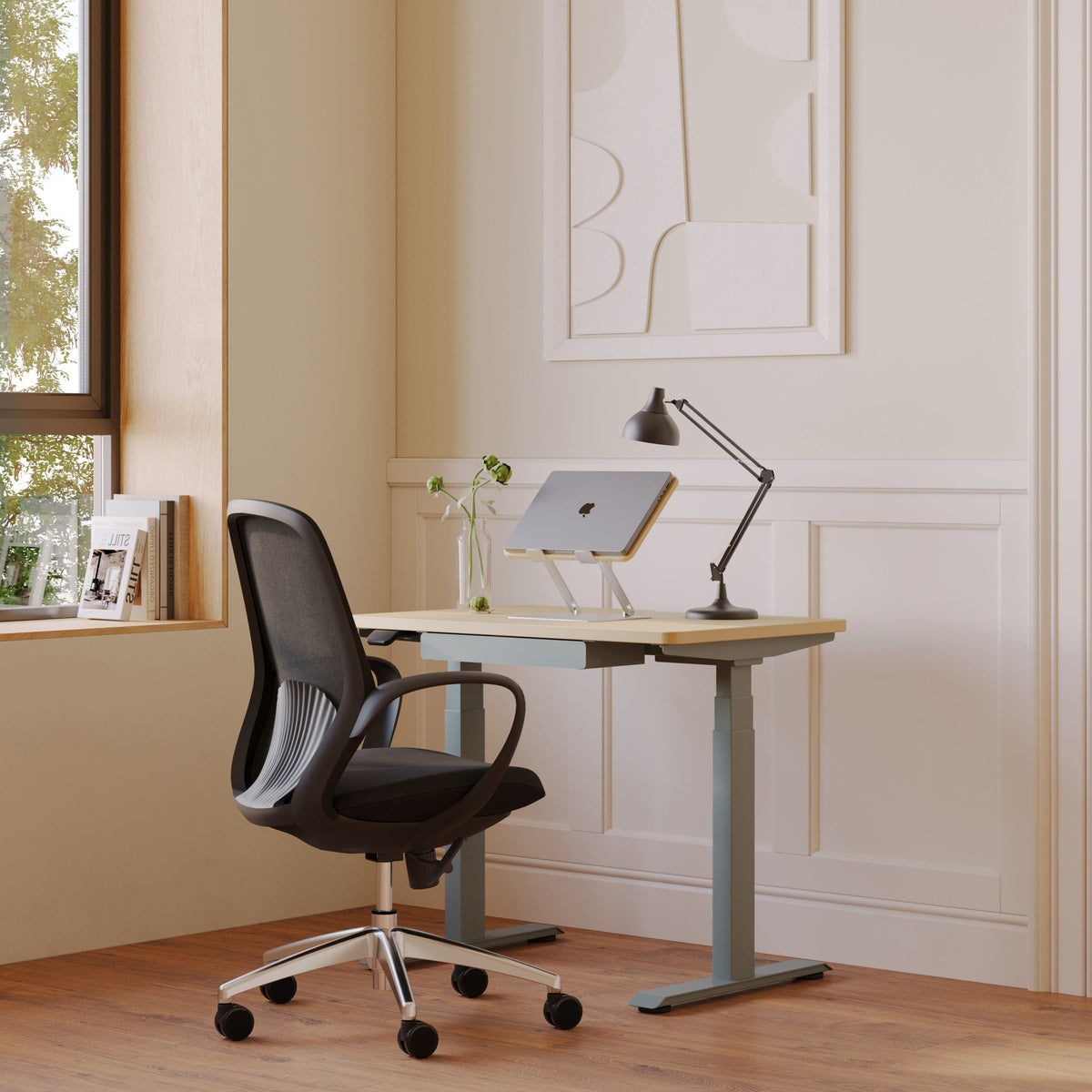
Better Multiple Monitor Desk Setup Starts With One Stand

Adding a second or third screen can make a desk look more capable, but screen count alone does not create a better workspace. When monitors sit on mismatched factory bases, the primary display may be too low, the secondary display may be too far to one side, and valuable desktop space can disappear beneath oversized feet.
A more effective multiple monitor desk setup begins with one stable reference point. Position the main screen correctly first, then arrange every other component around it. One stand can establish the height, distance, angle, and visual center that guide the rest of the workstation.
An ergonomic monitor arm provides adjustable support for the screen that matters most. Once that display is positioned around the user rather than the desk’s physical center, it becomes easier to place secondary monitors, align the keyboard, manage cables, and preserve room for focused work.
One Monitor Stand Establishes the Geometry of the Entire Desk
A multiple monitor desk setup works best when each screen has a defined role. The primary display carries the main task, while secondary screens support reference material, communication, monitoring, or comparison. Without that hierarchy, users often arrange screens for visual symmetry instead of practical movement.
The Primary Display Defines the Forward-Facing Position
Start by identifying the screen used for the greatest share of focused work. That monitor should normally sit in front of the user, aligned with the keyboard and chair.
OSHA recommends placing the primary monitor directly ahead so the head, neck, and torso can remain forward-facing. For multiple monitors, OSHA also advises placing secondary screens beside the primary display. When two screens receive equal use, they can be positioned next to each other within a comfortable viewing angle.
This means the mechanical center of the stand does not always belong in the center of the desktop. A clamp may need to sit slightly left or right for the mounted display to align with the user. The correct reference point is the working position, not the midpoint of the furniture.
One Arm Can Improve a Multi-Screen Arrangement
One arm can be enough when it supports the primary monitor and the remaining displays can be positioned around it. It does not need to hold every screen to influence the entire layout.
Lifting the main monitor off its original base also clears the surface beneath it. That space can hold a notebook temporarily, accommodate a keyboard during noncomputer tasks, or remain open to make a compact desktop feel less congested.
Separate arms or a dedicated multi-monitor mount may be preferable when every display needs independent movement. The decision should follow actual workflow, monitor specifications, and desk construction rather than screen count alone.
Monitor Stand Compatibility Comes Before Visual Arrangement
A stand must safely connect to both the monitor and the desk. A layout can look ideal on paper and still fail if the mounting pattern, weight capacity, or clamp position is incompatible.
Check the Mounting Pattern and Monitor Weight
Many display mounts use VESA-compatible hole patterns, but compatibility should never be assumed. Check the mounting holes on the back of each monitor and compare them with the stand’s supported specifications.
Weight should be checked with the original monitor base removed. When a stand supports more than one display, review the capacity assigned to each arm, not only a combined total.
Screen size is not a substitute for weight information. Two monitors with the same diagonal measurement can use different materials, panel depths, and internal components. Curved displays may also extend their weight farther from the mounting point, which can affect how the arm behaves.
Inspect the Desk Above and Below the Surface
Clamp-mounted stands need an accessible rear edge. Look underneath the desktop for framing, drawers, cable trays, control boxes, or support rails that could block the clamp.
Grommet mounting uses an opening through the work surface, either an existing cable hole or a compatible drilled location. This approach can be useful when the rear edge is obstructed, but the desktop must still be suitable for the mounting method.
Eight Checks Before Selecting a Monitor Stand
1. Confirm the monitor’s mounting-hole pattern.
2. Record its weight without the original base.
3. Check the supported weight for each mounting position.
4. Measure the desktop thickness.
5. Inspect the underside for structural obstructions.
6. Measure the clearance between the desk and wall.
7. Confirm the required height and extension range.
8. Plan the cable path before mounting the screen.
A freestanding riser may be more appropriate when clamping or drilling is not suitable. It offers less articulation than an adjustable arm, but it can still create a more consistent screen height on temporary or restricted work surfaces.
Desk Width and Depth Determine What the Setup Can Support
A better multiple monitor arrangement depends on more than whether the screens physically fit. The desktop must also preserve enough depth for viewing, enough width for angled displays, and enough room for frequently used input devices.
Measure the Monitors by Physical Width
Monitor size is usually expressed as a diagonal screen measurement. It does not reveal how much horizontal surface the monitor occupies.
Measure the complete width of each display, including its bezel. Then add the space required for inward angles, speakers, lighting, a laptop, and clearance near the desk edges. Screens placed at an angle may consume less apparent width, but they often require greater depth.
A simple planning formula is:
Combined monitor width + spacing + accessory clearance + edge margins = minimum practical desk width
This calculation is only a starting point. A cardboard outline or removable tape can provide a more realistic preview of how the screens will interact with the working area.
Preserve Enough Depth for Comfortable Viewing
OSHA advises providing enough desk depth to place the monitor at a readable distance without leaning forward. Its workstation guidance generally identifies a viewing range of about 20 to 40 inches, while recognizing that text size, display size, and individual needs affect the final position.A shallow desk may force a large display too close, even when the screen fits within the desk’s width. A mount can help by removing the original base and allowing the monitor to move farther back, provided there is enough wall clearance.
When planning a new workstation, an office desk collection for different workspace sizes makes it possible to compare compact, fixed-height, standing, and shared formats before committing to a screen arrangement. The desktop should be selected around the equipment, work habits, and available room rather than appearance alone.
Primary, Secondary, Vertical, and Stacked Screens Serve Different Workflows
There is no single best multiple monitor layout for every user. The right configuration depends on which screen carries the main task, how often information moves between displays, and how much head movement the arrangement requires.
A Centered Primary Screen Supports Unequal Workloads
For general office work, research, writing, design, or project management, one display usually carries more visual attention than the other. Center that monitor with the keyboard and angle the secondary screen inward.
Place high-frequency content near the inside edge of the secondary display. Messaging, reference documents, calendars, or preview windows can remain visible without occupying the most comfortable viewing zone.
Equal-Use Displays Need a Shared Center
Analysts, developers, translators, and other users who divide attention evenly may prefer two screens meeting near the forward line of sight. This gives both displays similar priority, although the inner bezels may sit directly in front of the user.
The setup should still minimize unnecessary rotation. If one monitor gradually becomes dominant, shift the pair so that screen moves closer to the center rather than preserving symmetry that no longer reflects the work.
Vertical Screens Should Follow Vertical Content
Portrait orientation can suit long documents, code, messaging feeds, or reference material. It is less suitable when the primary applications rely on wide toolbars, horizontal timelines, or side-by-side panels.
A vertical secondary monitor also extends higher than a landscape screen of the same size. Align the most frequently viewed content area, not necessarily the top or bottom edges of both displays.
Stacked Displays Trade Width for Vertical Movement
Stacking can help when a desk lacks horizontal room. The lower monitor should usually carry the higher-frequency task, while the upper display holds dashboards, previews, status information, or other content checked less often.
An upper screen positioned too high may encourage repeated upward viewing. Stacking should solve a genuine width limitation, not simply create a dramatic visual arrangement.
| Monitor arrangement | Best suited to | Stand’s main role | Main trade-off |
|---|---|---|---|
| Centered primary with angled secondary | General office work and research | Establishes the main viewing position | Secondary tasks require some head movement |
| Equal-use side-by-side displays | Analysis, coding, and comparison | Balances access to both screens | The center bezel divides the forward view |
| Primary with vertical secondary | Writing, code, and long documents | Coordinates different orientations | Mixed heights require careful alignment |
| Stacked displays | Narrow desktops and monitoring tasks | Conserves horizontal space | The upper screen increases vertical viewing |
| Ultrawide with side display | Editing and complex multitasking | Stabilizes a broad central canvas | Requires substantial desk width |
| Monitor with raised laptop | Hybrid and mobile work | Aligns different screen types | Laptop placement needs a separate input plan |
Screen Height, Viewing Distance, and Angle Must Work Together
Monitor height should support a natural gaze without requiring the user to lift the chin, bend the neck, or lean forward. OSHA’s general guidance places the top of the monitor at or slightly below eye level, with the center of the display below the horizontal line of sight. Individual adjustments may still be necessary.
Use Eye Level as a Starting Point, Not a Rigid Rule
The correct height changes with the user, chair, desk, screen size, and working posture. People who wear bifocals or progressive lenses may need a lower screen position to avoid tipping the head backward.
Adjust one variable at a time. Set the chair and input position first, then move the monitor toward the user’s natural line of sight. Raising the chair solely to reach a high monitor can create new problems if the feet lose support or the keyboard becomes too low.
Adjust Text Before Pulling the Screen Too Close
Small interface elements can make an otherwise reasonable viewing distance feel uncomfortable. Before moving the display closer, check resolution and operating-system scaling.
The screen should remain readable while the back is supported and the head stays balanced over the torso. A stand offers useful flexibility here because distance and height can be adjusted independently.
Test Real Work Before Tightening Every Joint
Open the applications used most often. Read a long document, join a video call, move windows between screens, and work with the keyboard for a sustained session.
Only finalize the stand tension and screen angles after observing how the setup performs. A perfectly even row of monitor edges may look organized while still placing the most important content in the wrong position.
A Laptop Can Join the Setup Without Recreating the Height Problem
A laptop can serve as the main computer, a communication screen, a video-call display, or a closed device connected to external monitors. Its physical position should follow that role.
Leaving an actively viewed laptop flat on the desktop creates a large height difference between screens. It can also occupy the same area needed for a keyboard, notebook, or pointing device.
Adjustable Support Works for Changing Laptop Roles
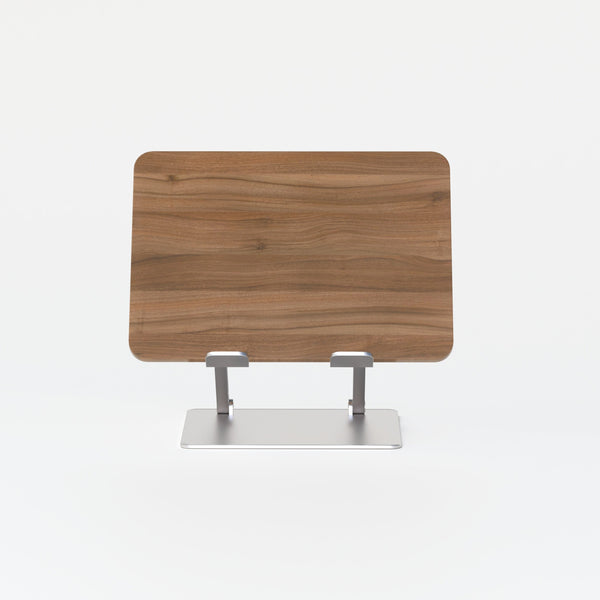
A height-adjustable laptop platform suits workstations where the portable screen needs to move between different positions. It can help coordinate the laptop with an external display while allowing the setup to change when another person uses the desk.
The goal is not to force the top edges of every screen into a perfect line. Instead, place the laptop’s most frequently viewed area where it can be checked without a pronounced downward movement.
Fixed Support Keeps a Consistent Arrangement Simple
An anodized aluminum laptop stand fits a more stable layout where variable height is not required. A fixed stand can keep the computer elevated while maintaining a straightforward visual footprint.
When the laptop is raised for extended use, pair it with an external keyboard and mouse. OSHA recommends keeping the keyboard directly in front of the user at a distance that allows the elbows to remain close to the body.
Cable Management Should Preserve Full Monitor Movement
Cable routing is not complete until the monitor can move through its useful range without pulling a connector, lifting a power strip, or tightening a bundle.
Route Cables According to the Stand’s Motion
Connect every screen before securing the final cable path. Extend the arm, raise and lower the display, rotate it in both directions, and test portrait orientation where applicable.
Leave controlled slack near moving joints. Too little slack strains connections, while excessive slack can fall into the input area or catch on equipment.
Separate Connections by Function
Group cables into clear categories:
-
Monitor power
-
HDMI or DisplayPort
-
USB-C connections
-
Docking-station cables
-
Camera, speaker, and peripheral wiring
Labeling both ends can simplify future troubleshooting. This is particularly useful when several black cables follow the same route beneath the desktop.
Account for Sit-Stand Movement
On an adjustable desk, test cable length at the highest working position. Components attached to a fixed wall or floor point need enough vertical allowance to move with the desk.
The cleanest routing sequence is to position the screens, connect the equipment, test movement, adjust slack, and then secure the cables. Tidiness should follow function.
Software Placement Completes the Physical Monitor Layout
The stand controls where a screen can go, but software determines how often the user needs to look there. A strong setup coordinates physical position with application priority.
Assign Applications by Viewing Frequency
Keep the highest-frequency task on the best-positioned screen. A designer might center the creative canvas and place references to the side. An analyst may give two displays nearly equal status. A remote manager might reserve the laptop for video calls and communication.
Occasional tools belong farther from the center. Frequently checked panels should sit near the inside edge of a secondary monitor, reducing the distance the eyes and head must travel.
Match Scaling Across Unequal Screens
Monitors with different resolutions or physical sizes can display text and controls at noticeably different scales. Adjusting interface scaling can make cursor movement and window transitions feel more consistent.
Brightness and color temperature also affect visual priority. One unusually bright screen can attract attention even when it carries secondary content. For normal office use, approximate consistency is often more useful than maximizing every display independently.
Common Monitor Stand Mistakes Weaken the Entire Setup
Most disappointing multiple monitor arrangements fail because of planning errors, not a lack of equipment.
Buying by Screen Count Alone
A product labeled for two monitors is not automatically appropriate for every two-monitor combination. Weight, mounting pattern, screen depth, and arm capacity still need to match.
Centering the Mount Instead of the User
The clamp can sit off-center while the primary monitor remains centered. Forcing the hardware into the desk’s midpoint may push the working screen away from the keyboard and chair.
Raising Screens for Appearance
A high row of displays can look impressive in photographs but feel uncomfortable during sustained work. The correct height should be judged from the user’s seated or standing position, not from across the room.
Ignoring the Keyboard and Mouse
A monitor arrangement is incomplete if it forces the keyboard sideways or pushes the mouse beyond easy reach. Frequently used input devices should remain in the primary work zone. OSHA specifically recommends placing the keyboard directly in front of the user and keeping commonly used equipment within comfortable reach.
Finalizing the Layout Too Soon
Use the workstation before locking every joint and securing every cable. Warning signs include leaning toward the primary screen, repeatedly turning toward a high-frequency secondary application, or avoiding one display because it is inconveniently positioned.
Shared Offices Need Clear Boundaries Between Focus and Collaboration
Multiple monitor desks perform best when they remain dedicated to concentrated screen work. Using the same surface for meetings, storage, equipment staging, and individual work creates visual and physical conflict.
Standardize Equipment Without Standardizing Every Person
Teams can use consistent desks, mounting methods, cable routes, and docking connections while preserving individual adjustment. Users should still be able to change monitor height, distance, and screen priority according to their tasks.
This balance makes workstations easier to manage without assuming that every employee has the same body dimensions or workflow.
Move Discussions Away From Screen-Heavy Desks
A separate conference chair for collaborative spaces can help define a dedicated meeting area instead of gathering people around cables, monitors, and personal input devices.
For smaller reviews or laptop-based conversations, a round meeting table creates a distinct surface for shared discussion. Separating collaboration from the focus desk protects the monitor arrangement from constant repositioning.
Coordinated furniture solutions for creative workspaces can also connect desks, seating, meeting surfaces, and accessories into a more deliberate environment. The purpose is not to make every zone identical. It is to give each area a clear job.
Let the Stand Determine the Next Screen Decision
A better multiple monitor desk setup begins by positioning the most important display correctly. Once that screen establishes the visual center, every other choice becomes easier to evaluate.
Desk dimensions can be measured against real equipment. Secondary monitors can follow task frequency. A laptop can be raised, docked, or closed according to its actual role. Cables can move with the screens instead of restricting them.
Before adding another display, examine whether the existing monitors are supported, assigned, and positioned effectively. One thoughtfully placed stand can create more usable space, clearer screen hierarchy, and a workstation that responds to the person using it rather than forcing the person to adapt to the hardware.
Related Articles
-
 How Filing Cabinet Storage Supports Office Desk Must Haves
-
 Filing Cabinet Ideas for Better Office Furniture Accessories
-
 Best File Cabinet for Home Office Storage That Feels Easy
-
 Make Laptop and 2 Monitor Setup Work With Better Stands
-
 Why Dual Monitor Comfort Needs a Monitor and Laptop Stand
-
 How a Monitor and Laptop Stand Fixes Screen Height Issues


