










How to Use a Monitor Stand with a Laptop for a Better Hybrid Setup

A hybrid workspace only works well when it supports both movement and consistency. That balance is harder to achieve than it sounds. A laptop makes it easy to work from different rooms, move between home and office, and reset the desk at the end of the day. At the same time, a laptop on its own often creates a cramped viewing angle, limited screen height, and a posture pattern that becomes uncomfortable when a short task turns into a full workday.
Using a monitor stand with a laptop helps solve that problem, but only when the setup is built with intention. Raising one screen without thinking about desk depth, keyboard reach, chair height, or visual comfort can create a workspace that looks improved while still feeling awkward after an hour or two. A better hybrid setup is not just about putting the screen higher. It is about creating a workstation where the laptop, monitor, seating, lighting, and desk surface all support the same goal: clearer sightlines, more natural hand position, and less physical friction throughout the day.
That is why the most effective setups are usually the simplest in principle. The primary screen should be easy to see without lifting the chin or dropping the neck. The keyboard and mouse should sit where the shoulders can stay relaxed. The desk should give enough depth to create distance between the eyes and the display. The lighting should reduce strain instead of competing with the screen. Once those basics are aligned, a monitor stand becomes part of a system that feels steady, useful, and adaptable.
Why a Monitor Stand Matters in a Laptop-Based Hybrid Workspace
A laptop is designed first for portability. That is its strength, and it is also the reason many people struggle with it during longer work sessions. When the keyboard and screen are attached, one usually ends up in the wrong place. If the screen is low enough to type comfortably, the neck tends to tilt downward. If the laptop is raised high enough for a better viewing angle, the keyboard becomes too high to use well for extended periods.
A monitor stand changes that relationship. It gives the screen a more intentional position within the workspace, which can help reduce the habit of leaning forward, hunching the shoulders, or collapsing toward the desk. In a hybrid setup, that matters even more because the workspace often needs to shift between deep work, quick check-ins, video calls, and shared living arrangements.
The real benefit is not only physical comfort. A better screen position can also support mental clarity. When the display is easier to see, the desk feels less crowded, and the tools for typing and navigation are placed more naturally, the workday tends to feel less improvised. That difference is especially noticeable for people who alternate between focused solo work and collaborative online tasks.
What a monitor stand improves beyond screen height
A well-used monitor stand can support several improvements at once:
-
A more natural viewing angle for reading and video calls
-
Better separation between visual tasks and typing tasks
-
Cleaner use of desk depth
-
Easier organization around the laptop, keyboard, and accessories
-
A more defined workstation inside a room that serves multiple purposes
These changes may seem small in isolation, but together they make a hybrid desk feel more dependable.
Choose the Primary Screen Before You Arrange the Desk
One of the most common setup mistakes is trying to give equal priority to every screen. In practice, most people work more comfortably when one screen leads and the other supports. Deciding that early makes the rest of the layout easier.
If the external monitor handles the majority of reading, writing, spreadsheets, design work, or research, it should sit directly in front of you. The laptop can then move to the side as a secondary display for messaging, reference tabs, calendars, or meeting controls. This arrangement usually works well for longer desk sessions because the main viewing position stays centered.
If the laptop is still the primary device and the external monitor is only used occasionally, the laptop can remain centered on a stand while the monitor is positioned as an additional screen. This is often the better choice for smaller desks or setups that need to be reset often.
How to decide which screen should be centered
The simplest rule is this: center the screen you look at most.
That sounds obvious, but many hybrid setups ignore it. The result is a desk where the body keeps turning toward the display that matters most, even though the furniture suggests a different position. Over time, that repeated twist can make the setup feel more tiring than it needs to be.
Secondary screens should support, not compete
A second screen works best when it handles lighter tasks. Good secondary-screen uses include:
-
Email and chat
-
Meeting windows
-
File navigation
-
Reference notes
-
Dashboards that do not require constant focus
Once both screens are trying to be primary, the setup tends to become visually and physically scattered.
Build the Setup From the Bottom Up
A monitor stand works best when it is not treated as the starting point. The strongest setups are built from the chair upward, then refined at the screen level.
Start with seating before adjusting the screen
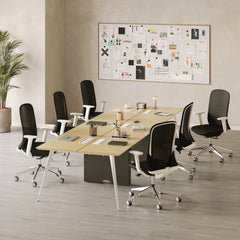
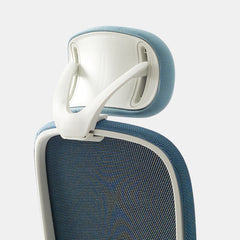
The height of the chair affects where the elbows rest, how the shoulders settle, and whether the wrists stay neutral while typing. A screen can be positioned correctly in theory and still feel wrong if the seat encourages forward leaning or inconsistent posture. That is why a setup built around office chairs designed for ergonomic support often creates a more stable foundation for the rest of the desk.
Use the desk as the structural base of the setup
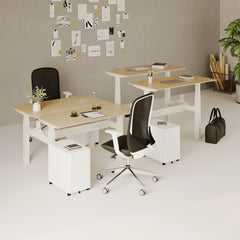
The desk determines whether there is enough space to create proper viewing distance, place a keyboard comfortably, and keep the main work zone clear. Depth matters as much as width because a shallow desk can force the screen too close, even when the monitor height looks right. Setups built on adjustable office desks for different spaces can make it easier to balance posture, visual distance, and room layout without crowding the work surface.
Raise the screen, then separate it from typing height
Once the chair and desk are in a workable position, raise the primary screen so the viewing angle feels more natural. For many people, that means the eyes land around the upper portion of the display rather than the center or lower half. The goal is not to place the monitor as high as possible. The goal is to reduce the need to look down constantly.
After that, protect typing comfort. If the laptop is elevated, relying on the built-in keyboard for extended work usually creates unnecessary strain. An external keyboard and mouse allow the hands to stay lower and more relaxed while the screen remains higher and easier to view.
A reliable order for setup adjustments
1. Set chair height so the body feels grounded and balanced
2. Confirm desk height and depth
3. Center the primary screen
4. Raise the monitor or laptop to a more natural sightline
5. Place keyboard and mouse within easy reach
6. Fine-tune lighting, accessories, and secondary screen placement
This order reduces the urge to fix one problem while unintentionally creating another.
Three Effective Ways to Use a Monitor Stand with a Laptop
There is no single perfect hybrid layout. The best arrangement depends on the desk size, type of work, and how often the setup needs to transition between tasks.
External monitor centered, laptop used as a support screen
This is one of the most practical layouts for hybrid work. The monitor stays directly in front for writing, reading, research, and project work. The laptop sits to one side for communication tools, meeting controls, or secondary references.
This arrangement works well because it preserves a clear focal point. It also helps the laptop remain useful without forcing it into the main visual position. For many professionals, this creates the best balance between comfort and multitasking.
Laptop on a stand as the main setup for smaller spaces
Not every workspace has room for a full monitor-centered arrangement. In a compact room, a raised laptop can still create a meaningful improvement when paired with external input tools and careful placement. This setup favors simplicity, easier pack-up, and less visual clutter.
It is particularly useful when the desk serves multiple purposes or when the workspace is integrated into a bedroom, living room, or shared area.
Monitor plus flexible support for more adjustable positioning
Some setups benefit from greater screen flexibility than a fixed stand can provide. In those cases, an ergonomic arm for monitor positioning can help refine the screen angle and free up usable desk surface. That can be especially helpful when the desk depth is limited, the workday includes different tasks, or the screen needs occasional repositioning for meetings and focused work.
Desk Depth, Reach Zones, and Accessory Placement
A monitor stand improves the screen position, but the desk still determines how the whole workstation functions moment to moment. A better hybrid setup should support natural reach and reduce the number of small interruptions that break concentration.
Why desk depth affects comfort
If the screen sits too close, the eyes work harder and the workspace can feel crowded. If the keyboard is pushed too far forward because the monitor base consumes the center of the desk, the shoulders and wrists may begin compensating. Proper depth helps the screen, keyboard, and writing space coexist without forcing tradeoffs.
Organize the desk by frequency of use
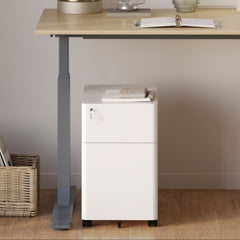
The most efficient desk layouts keep everyday tools in the primary reach zone and occasional items farther out. This makes the workspace feel more intentional and less reactive. Useful additions from office furniture accessories for desk function can support this structure when chosen carefully and placed with purpose.
A practical reach pattern looks like this:
-
Primary zone: keyboard, mouse, notebook, water, main task light
-
Secondary zone: charger, headphones, reference materials
-
Outer zone: decorative items, storage pieces, infrequently used tools
The goal is not to remove personality from the desk. It is to prevent useful space from being slowly consumed by objects that interrupt movement.
Small desks need even more discipline
Compact workstations can still perform well, but they require clearer priorities. Every item on the surface should justify its presence. When the desk is small, the monitor stand should support the work, not become another object that blocks it.
Lighting Becomes More Important Once the Screen Is Elevated
When a screen is raised into a better viewing zone, the relationship between light and display becomes more obvious. A setup that looked acceptable before may suddenly reveal glare, shadows, or contrast issues that make the workspace feel harsher.
Use task lighting to support focused work
Task lighting helps define the work area and can make reading, note-taking, and keyboard use more comfortable without overwhelming the screen. In setups that need a clean, functional light source near the desk, the Alumina multi-use LED lamp fits naturally into a workstation built around flexibility and controlled illumination.
Add softer ambient light to balance the room
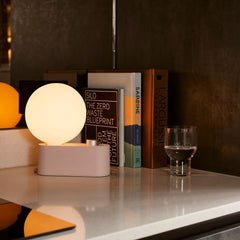
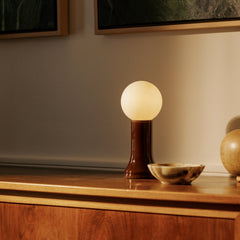
Not every workspace benefits from bright, direct light alone. In many hybrid environments, especially those that share space with living areas, softer ambient lighting helps the desk feel more integrated into the room. The Shore recycled glass table lamp can work well in setups that need visual warmth around the workspace without turning the desk into a purely utilitarian corner.
Reduce glare before blaming the monitor height
Sometimes the issue is not the stand itself. It is the window angle, overhead reflection, or placement of a light source behind the user. Before changing the screen position repeatedly, it helps to test the workspace at different times of day and adjust the light direction, desk orientation, or shade placement where possible.
Common Setup Mistakes That Make a Monitor Stand Less Effective
A monitor stand can improve a hybrid workspace, but it cannot overcome a group of conflicting choices. Many uncomfortable setups result from several minor issues working together.
Typing on a raised laptop for too long
This is one of the most common mistakes. A higher screen may look more ergonomic, but if the hands are forced upward to match it, the benefit quickly fades. A raised laptop usually works best with separate input tools.
Placing the laptop too low beside a main monitor
When the external monitor is centered and the laptop is used as a second screen, the laptop should not sit so low that every glance requires a steep downward drop. Secondary screens do not need to match perfectly, but the difference should not be extreme.
Ignoring chair support while adjusting screens
A user may keep changing monitor height when the real problem begins lower in the setup. Poor seat support can cause leaning, shoulder lift, and forward head posture even when the screen looks properly placed.
Letting accessories crowd the core work zone
The desk should support the work first. When chargers, decorative objects, storage boxes, and miscellaneous tools collect around the center of the surface, the workstation stops functioning as intended.
Matching the Setup to Real Hybrid Work Patterns
The best hybrid workspace is not the one with the most parts. It is the one that supports repeated daily use with the least friction.
For compact home workstations
A smaller setup benefits from discipline, vertical thinking, and clean zoning. The laptop may remain the primary device, with a stand creating visual lift and a separate keyboard protecting typing comfort. The desk should stay open enough for one clear working lane rather than trying to imitate a larger office.
For all-day desk work with frequent meetings
A monitor-centered setup usually performs better here. The external display becomes the main focal point, the laptop supports secondary tasks, and the lighting should work for both productivity and camera presence. In these setups, consistency matters more than novelty.
For homes that double as work environments
A hybrid workspace often needs to look composed, not temporary. That does not mean styling comes before function. It means the setup should feel coherent enough to support work without making the room feel overtaken by equipment. In cases where a broader workspace refresh is being considered, workspace planning for modern office furniture can be a useful direction when the goal is to create a more complete and better-aligned environment.
Build a Setup That Feels Intentional Every Day
A monitor stand is most effective when it is part of a thoughtful sequence rather than a single isolated fix. The laptop, external display, chair, desk, and lighting should work together so that no one element has to compensate for the others. That is what turns a desk from a temporary arrangement into a hybrid setup that supports clear work, cleaner posture, and better daily rhythm.
The strongest workspaces rarely depend on complexity. They rely on alignment. When the primary screen is centered with purpose, the typing position remains natural, the desk surface stays usable, and the room supports focus instead of competing with it, the setup begins to feel quietly reliable. That is the real value of using a monitor stand with a laptop. It helps shape a hybrid workspace that works with the body, supports the task at hand, and feels ready for the full range of the modern workday.
Related Articles
-
 How Filing Cabinet Storage Supports Office Desk Must Haves
-
 Filing Cabinet Ideas for Better Office Furniture Accessories
-
 Best File Cabinet for Home Office Storage That Feels Easy
-
 Better Multiple Monitor Desk Setup Starts With One Stand
-
 Make Laptop and 2 Monitor Setup Work With Better Stands
-
 Why Dual Monitor Comfort Needs a Monitor and Laptop Stand


