










How to Pair a Laptop Stand with a Monitor for a Cleaner Dual-Screen Workspace

A cleaner dual-screen workspace rarely comes from adding more gear. It comes from arranging two screens so they behave like part of the same working system. When a laptop sits too low, too far off to the side, or too close to the keyboard, the whole desk starts to feel improvised. The monitor may be fine on its own, but the combination feels visually busy and physically awkward. A laptop stand changes that relationship by lifting the secondary screen into a more deliberate position, which helps the desk look calmer and the workflow feel more natural.
The pairing works best when each piece has a clear role. The monitor usually handles the most demanding visual work, while the laptop supports communication, research, reference material, or overflow tasks. Once those roles are clear, every other decision becomes easier. Desk depth, screen spacing, keyboard placement, cable routing, and lighting all begin to support the same goal: a dual-screen arrangement that looks intentional and stays comfortable throughout the day.
A cleaner dual-screen setup begins with visual balance and task clarity
Why a laptop stand and monitor should function as one viewing system
Many desks look cluttered not because they have too many items, but because the eye has to work too hard to make sense of them. A monitor at one height and a laptop far below it creates a broken visual line. The result is constant up-and-down eye movement, uneven posture, and a layout that feels disconnected. Raising the laptop with an ergonomic adjustable laptop stand can help the second screen sit in a more usable position relative to the main display, especially when the laptop is actively used throughout the day. The product page presents it as an adjustable laptop stand designed around ergonomic comfort.
What makes a workspace feel clean instead of crowded
A clean desk is not necessarily empty. It is orderly, visually consistent, and easy to read at a glance. In a dual-screen setup, that usually means:
-
the primary monitor is centered around the main task
-
the laptop screen is raised high enough to avoid a deep downward gaze
-
the keyboard and mouse have a dedicated working zone
-
accessories stay out of the central visual field
-
cables do not cut across the front edge of the desk
That combination creates a desk that looks settled rather than temporary. It also reduces the tiny physical corrections people make all day when a setup is slightly off.
Desk proportions shape every dual-screen decision
Width determines whether the layout breathes
Dual-screen workstations often fail before the laptop stand ever arrives. The real limitation is the desk. Width affects whether the monitor can remain central while the laptop sits nearby at a useful angle. On a narrow desk, both screens are forced into competition. The laptop may push the monitor off-center, or the keyboard may end up squeezed into an unnatural position. A broader surface allows the monitor to stay primary while the laptop becomes a supporting screen instead of an obstacle.
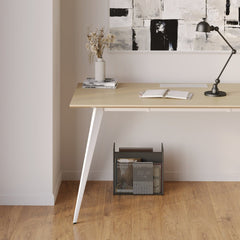
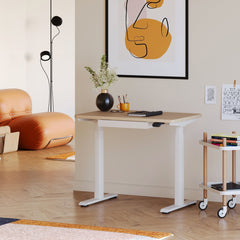
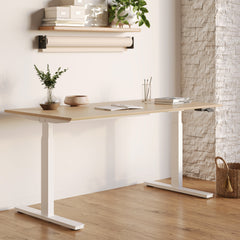
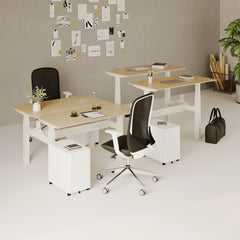
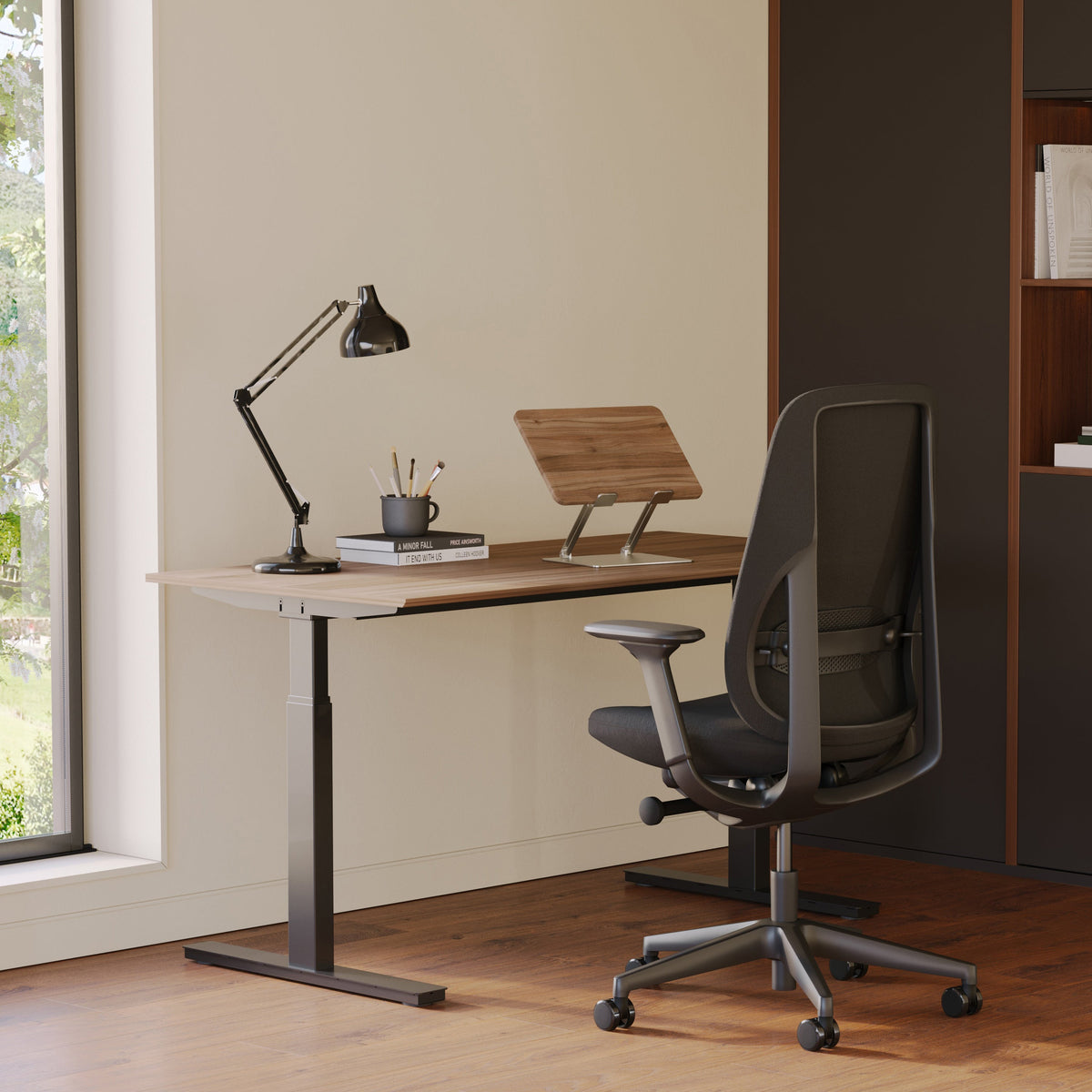
That is why screen planning should start with the furniture foundation. Collections like office desks for ergonomic workspaces are built around desk use, not just desk appearance, and the page itself is framed around adjustable ergonomic office desks.
Depth does more than create extra room
Desk depth is often the hidden factor behind a cluttered dual-screen setup. A shallow surface pushes the monitor too close, leaves little space for an external keyboard, and makes the laptop feel cramped beside it. Even visually, a shallow desk compresses the entire arrangement. The screens dominate the front edge, leaving no room for the eye to rest.
Good depth helps in three ways. It improves viewing distance, creates a real input zone for typing and mouse use, and gives cables somewhere to disappear behind the screens. That extra breathing room can make the difference between a desk that feels dense and one that feels composed.
Seeing proportions more clearly can prevent layout mistakes
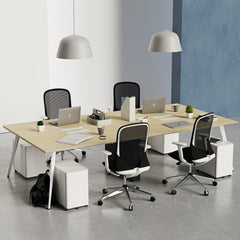
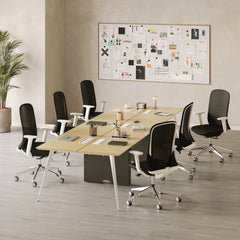
When planning a cleaner workspace, it helps to compare desks, accessories, and lighting as part of one environment rather than in isolation. A page like modern office furniture for refined work settings is useful in that context because it is focused on modern, ergonomic office furniture rather than a single product category.
The best laptop stand depends on how the laptop behaves in daily use
Active second screen versus occasional reference screen
Before choosing placement, it helps to decide how important the laptop screen really is. Some people use it constantly for messaging, research, notes, dashboards, or side-by-side document comparison. Others only glance at it for notifications, calendar checks, or music controls. Those are two very different roles.
If the laptop is an active second screen, it should be lifted closer to the monitor’s visual plane and placed where eye travel feels fast and easy. If it is mostly a reference screen, it can sit slightly lower or farther out without harming the experience.
When a low-profile stand makes more sense
A minimal arrangement often benefits from a simpler rise rather than a highly prominent structure. The slim laptop stand with a lightweight profile suits desks where the monitor clearly leads and the laptop remains secondary. The product page identifies it as a slim laptop stand and highlights a lighter design approach, which aligns with the role of a visually quieter support piece.
Matching stand height to workflow, not to a visual ideal
Many people try to align both screens perfectly, as if symmetry alone guarantees comfort. In practice, comfort comes from how the screens are used. If the laptop is referenced every few minutes, tighter height alignment matters. If it is checked occasionally, exact top-edge matching matters less than preserving desk space and a clean visual flow. The stand should support the way the eyes move during real work, not just how the desk looks in a still photo.
Monitor placement should reduce head movement and protect the productive zone
Center the primary screen first
The monitor that carries the heaviest workload should usually sit directly in front of the user. That keeps the torso square, reduces neck rotation, and preserves a stable focal point. The laptop should then be placed relative to that center, not the other way around. Reversing the logic often creates a layout that looks balanced on the desk but feels off in use.
Side-by-side is not always the best-looking arrangement
Some users benefit from nearly equal screen importance. Editors comparing source material, finance professionals working across windows, or coders referencing documentation may prefer side-by-side use with frequent shifts between screens. Even then, the screens should not be treated as mirror images. One will almost always remain slightly more central than the other.
For many work-from-home setups, a centered monitor with a slightly offset laptop feels cleaner and calmer. It creates one dominant line of attention and one supporting line, which is closer to how most tasks actually unfold.
Compare the most practical layout options
| Layout style | Best for | Strengths | Main limitation |
|---|---|---|---|
| Centered monitor with offset laptop | Writing, meetings, admin work, hybrid roles | Clean visual hierarchy, easy posture, better keyboard zone | Laptop may be less ideal for equal-weight multitasking |
| Near-equal side-by-side use | Research, editing, coding, spreadsheet comparison | Fast cross-reference between screens | Can increase lateral eye and neck movement |
| Laptop centered with monitor secondary | Laptop-led workflows, temporary setups | Familiar if laptop is still the main machine | Often wastes the ergonomic advantage of the external monitor |
| Wide spacing between screens | Rarely ideal | Creates more room for objects between screens | Breaks visual cohesion and slows task switching |
Alignment matters, but perfect symmetry is not the goal
Match the viewing experience, not just the top edges
A common mistake is chasing mathematical equality. The better aim is natural eye travel. In many setups, the monitor can sit slightly higher than the laptop, especially if it handles the main work and the laptop supports secondary tasks. What matters is that shifting between the two screens does not require repeated deep nodding or a sharp turn of the head.
A quick setup sequence prevents most alignment errors
1. Sit in a normal working posture.
2. Place the primary monitor directly ahead.
3. Position the keyboard and mouse where the arms feel relaxed.
4. Raise the laptop to the height that matches its true level of use.
5. Angle the laptop inward just enough to reduce neck rotation.
6. Adjust lighting and accessories after the screen relationship is set.
That order matters. Many desks become messy because accessories are placed first, then the screens are forced to fit around them.
Keyboard and mouse placement quietly control comfort
Even a well-raised laptop can become part of a poor setup if the keyboard is shoved too close to the desk edge or too far forward. The input devices deserve the most stable real estate on the desk because they shape posture continuously. In a successful dual-screen arrangement, the screens support the productive zone rather than crowd it.
Cable control and accessory restraint create the visual calm people actually notice
The cleanest setups hide movement lines
Most desk clutter comes from lines that cut across the work surface. Charging cables, display cords, hubs, and power leads interrupt the front-facing view and make the entire workstation feel busier than it is. A cleaner setup routes those elements behind the screens or toward the back edge of the desk. That keeps the center visually open and allows the eye to focus on the screens and immediate work tools.
Accessories should support the layout, not compete with it
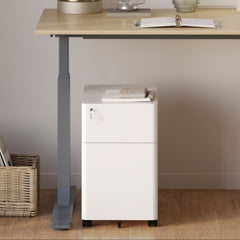
A dual-screen desk needs accessories, but not every useful object deserves front-row placement. Thoughtful collections of workspace accessories for organized desks can support order when each piece earns its space. The accessories collection is specifically dedicated to office furniture accessories rather than unrelated decor, which keeps it aligned with a work-focused setup.
A simple rule helps: if an item does not improve daily use, improve lighting, or improve storage, it should probably not sit in the core working zone.
Common accessory choices that preserve a cleaner look
Keep the central zone focused on work
The center of the desk should belong to the monitor, keyboard, mouse, and the most immediate tools. Everything else should support from the edges.
Use vertical presence carefully
Lamps, laptop stands, and monitor arms all add height. Too many tall elements can make the desk feel crowded, even when the surface itself is tidy. A cleaner look comes from spacing vertical pieces so each one has breathing room.
Lighting should support the screens, not compete with them
Side lighting usually works better than front lighting
Direct light aimed toward the face of the monitor can create glare, reflections, and contrast problems. Side lighting is usually more forgiving because it brightens the desk and immediate environment without overpowering the screens. It also softens the transition between the bright display and the darker room around it.
The lamp should fit the role of the desk
A dual-screen workspace already contains two dominant objects. The lamp should complement that composition rather than fight for attention. The Alumina Lamp for table or wall use is presented as a multi-use lamp on its destination page, which makes it relevant for workspaces that need adaptable lighting in a compact footprint.
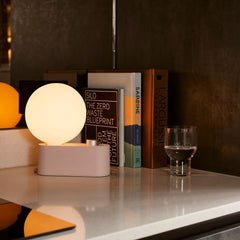
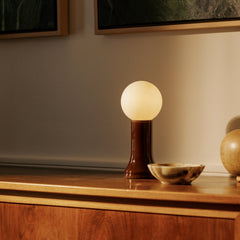
For a softer visual effect, the Shore recycled glass table lamp fits desks that need warm ambient support without making the setup feel harsher or more technical. Its product page identifies it as a recycled glass table lamp and describes it in terms of elegant light.
Good lighting improves both appearance and usability
When the desk is lit well, the dual-screen arrangement feels less like a cluster of electronics and more like a complete workspace. The surfaces are easier to read, the edges of the setup feel calmer, and the contrast between screen and room becomes easier on the eyes during longer sessions.
Common pairing mistakes that make a dual-screen desk feel disconnected
Mistakes that create visual clutter or physical strain
-
Treating the laptop stand as a separate purchase decision
A stand only works well when it is chosen relative to monitor height, desk depth, and keyboard placement. -
Letting both screens fight for the center
When neither screen clearly leads, the desk often feels cramped and the body keeps adjusting to compensate. -
Overusing bulky accessories
Large lamps, decorative objects, and visible hubs can overpower the actual work area. -
Ignoring cable routes until the end
A desk can be well furnished and still look messy if cords cross the main sightline. -
Designing around appearance alone
A setup can look symmetrical and still feel tiring if it does not match real workflow patterns.
Why the cleanest setup is usually the most realistic one
The best dual-screen desk is not the most elaborate version. It is the one that matches daily behavior with the fewest compromises. When the monitor is centered, the laptop is raised according to actual use, the keyboard has room to breathe, and lighting stays supportive, the workspace starts to feel quieter. That visual quiet often translates into better focus because less of the desk is asking for attention at once.
A cleaner dual-screen workspace lasts when the setup can adapt
The strongest laptop stand and monitor pairing is the one that stays useful as routines shift. Some weeks demand intense cross-reference work. Others rely more on calls, writing, or light admin tasks. A well-planned desk can absorb those changes without falling into clutter because its underlying relationships are sound. The monitor remains primary when needed. The laptop stays visible without taking over. The keyboard zone stays protected. Lighting continues to support, not distract.
That is what makes a dual-screen workspace feel complete. It is not just that two screens fit on one desk. It is that the desk, screens, accessories, and lighting work together in a way that looks cleaner, feels steadier, and supports focused work day after day.
Related Articles
-
 How Filing Cabinet Storage Supports Office Desk Must Haves
-
 Filing Cabinet Ideas for Better Office Furniture Accessories
-
 Best File Cabinet for Home Office Storage That Feels Easy
-
 Better Multiple Monitor Desk Setup Starts With One Stand
-
 Make Laptop and 2 Monitor Setup Work With Better Stands
-
 Why Dual Monitor Comfort Needs a Monitor and Laptop Stand


