










Do You Need a Laptop Stand If You Already Use an External Monitor?

An external monitor can dramatically improve a workstation, especially when it gives you a larger screen, better eye-level viewing, and more room for focused work. But it does not automatically answer one important question: what happens to the laptop?
For many people, the laptop does not disappear after an external monitor is added. It stays open for messages, calendars, meeting controls, notes, dashboards, research, design references, or video calls. When that laptop remains flat on the desk, the setup can still pull the neck downward, crowd the work surface, interrupt screen flow, or make video meetings feel less natural.
A laptop stand is not always necessary. If the laptop stays closed and the external monitor fully handles the visual workload, a stand may add little value. But when the laptop remains part of the active workflow, a stand can help turn it from a low secondary screen into a more intentional part of the workstation.
The best answer depends on how the laptop, external monitor, keyboard, mouse, desk surface, lighting, and daily work habits all fit together.
Why an External Monitor Does Not Automatically Fix Laptop Ergonomics
Adding an external monitor usually solves the biggest laptop problem: the built-in screen sits too low for comfortable long-term viewing. A monitor can be placed higher, centered more easily, and sized for the kind of work that needs visual space.
But many people stop the setup halfway. They raise the main screen while leaving the laptop open on the desk, slightly to the side, and much lower than the external display. That creates a split workstation where one screen supports posture and the other quietly works against it.
The Monitor May Be at Eye Level While the Laptop Still Pulls Your Gaze Down
A flat laptop creates a downward viewing angle. That may not matter if the laptop is rarely used, but it becomes important when the laptop is checked dozens of times during the day.
Common examples include keeping email on the laptop, using the laptop screen for Slack or Teams, leaving a calendar open, watching meeting controls, checking notes during a call, or referencing a document while writing on the external monitor. Each glance may feel small, but repeated downward movements can become part of the daily posture pattern.
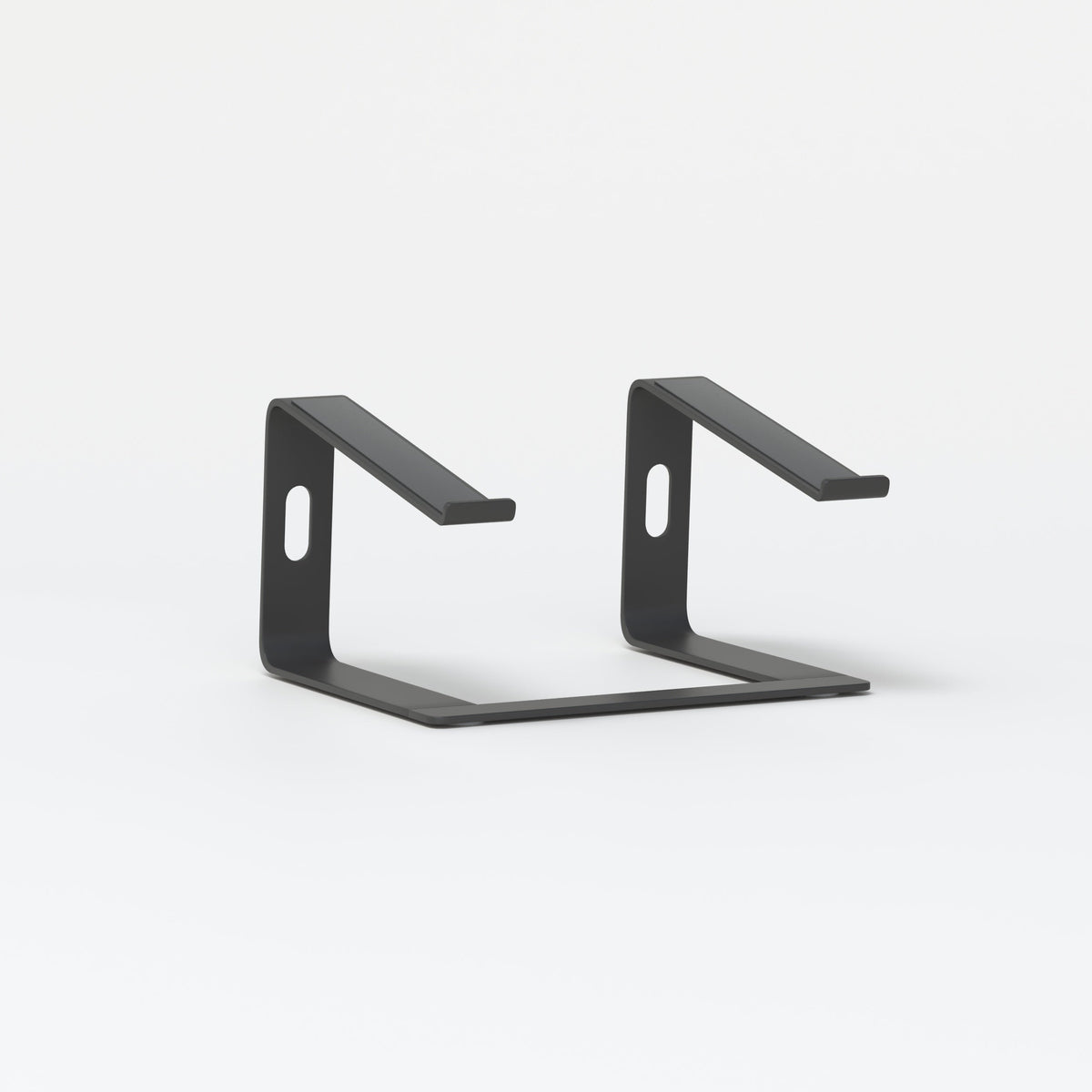
A raised laptop screen can make the secondary display easier to see without dipping the head as much. For users who keep the laptop open next to a monitor, an adjustable laptop stand can support more flexible screen positioning when the laptop needs to remain visible and active.
Dual-Screen Setups Can Create Uneven Screen Heights
Two screens are useful only when they are arranged around the way work actually happens. A laptop and external monitor can become awkward when the screens sit at very different heights, angles, or distances.
A typical problem looks like this: the monitor sits centered and elevated, while the laptop sits low and far to one side. The user writes, edits, codes, or designs on the main monitor, then repeatedly looks down and sideways to the laptop. Over time, the issue is not just screen height. It is the combined pattern of neck rotation, downward glancing, and leaning toward the smaller display.
A laptop stand helps most when the laptop is not merely “available” but clearly assigned a role. If the external monitor is for deep work and the laptop is for communication, notes, reference material, or call controls, then the laptop should be positioned like a real secondary screen.
Desk Height, Chair Height, and Screen Height Work Together
A laptop stand cannot correct a poorly arranged workstation by itself. Desk height, chair height, monitor position, keyboard placement, and mouse reach all influence comfort.
For example, a monitor might be placed at a reasonable height, but if the desk is too shallow, the keyboard may sit too close to the edge. If the laptop is placed too far back, the user may lean forward to read it. If the mouse sits beyond a comfortable reach zone, shoulder strain can still occur even with better screen height.
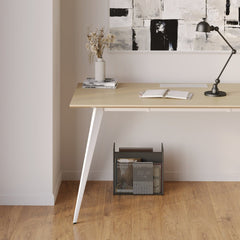
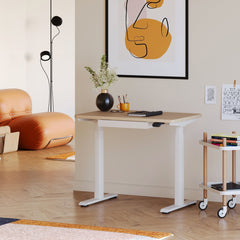
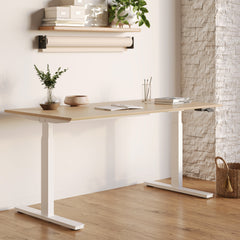
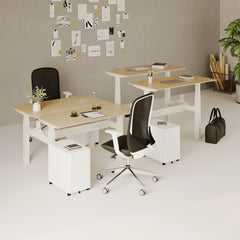
The desk surface matters because it determines whether the monitor, laptop, keyboard, mouse, lamp, notebook, and cables can fit without forcing awkward compromises. For a setup built around a monitor and laptop, desks built for monitor-based workstations are most useful when they provide enough surface area and visual simplicity to keep the main tools organized.
When a Laptop Stand Still Makes Sense With an External Monitor
A laptop stand is most useful when the laptop remains open and active. The more often the laptop is used during the workday, the more important its position becomes.
You Use the Laptop Screen as a Second Display
This is the clearest reason to use a laptop stand. If the laptop screen is part of the daily workflow, it should not sit like an afterthought.
A writer may draft on the external monitor while keeping research notes on the laptop. A designer may use the main monitor for visual work and the laptop for comments or file folders. A manager may keep a calendar, chat window, or meeting notes on the laptop while reviewing documents on the larger screen. An analyst may use the external monitor for spreadsheets and the laptop for dashboards or messages.
In each case, the laptop is not replacing the monitor. It is supporting the monitor. Raising it can make screen-to-screen movement feel more natural and reduce the need to repeatedly look down.
A Raised Laptop Can Turn a Passive Device Into a Functional Second Screen
A flat laptop often becomes a low display that is technically usable but not pleasant to reference. A stand gives it a more deliberate role. The goal is not to create a perfect matching monitor pair. The goal is to make the laptop readable, reachable, and visually connected to the primary screen.
The laptop does not always need to sit at the same height as the external monitor. In many setups, especially with large monitors, a slightly lower laptop position can still work well. What matters is reducing unnecessary movement and making the secondary screen easy to use without leaning or twisting.
You Use the Laptop Camera for Video Meetings
Many people use an external monitor for work but still rely on the laptop’s built-in camera for calls. This creates a common mismatch. The person looks at the external monitor, but the camera sits lower on the laptop, often off to the side.
A laptop stand can bring the camera closer to eye level and make video meetings feel more balanced. It can also help the user look less downward during calls, which is especially useful for client meetings, interviews, remote presentations, team check-ins, and hybrid work conversations.
This does not mean a laptop stand is the only option. An external webcam mounted on the monitor can work well too. But if the laptop camera remains the main camera, raising the laptop is a practical way to improve camera positioning without changing the entire setup.
You Move Between Laptop-Only Work and Monitor-Based Work
Hybrid work often means the laptop moves throughout the day. Someone may start at a desk with an external monitor, take the laptop to a meeting, return to the desk, then later work from another room.
A full workstation can still feel flexible if the laptop has a clear place to land. A compact stand can make the desk feel organized without turning it into a rigid desktop-only setup. For users who want elevation with a cleaner visual footprint, a slim laptop stand can make sense in a smaller workstation where the laptop remains open but the setup needs to stay minimal.
Your Laptop Runs Warm During Docked Work
External displays, charging, video calls, browser tabs, creative tools, and business software can all increase laptop activity. Some laptops are designed to vent in specific ways, and every model handles heat differently. A stand should not be treated as a guaranteed cooling solution, but lifting the laptop off a flat surface may help keep the device from being pressed directly against a surface that traps warmth.
This is most relevant when the laptop is open for long sessions, connected to multiple devices, or used for demanding applications. The safest approach is to follow the laptop manufacturer’s guidance for ventilation and avoid blocking vents.
When You Probably Do Not Need a Laptop Stand Beside an External Monitor
A laptop stand is not automatically necessary just because a laptop is connected to a monitor. If the laptop is no longer an active part of the visual setup, another kind of organization may be better.
Your Laptop Stays Closed in Clamshell Mode
In clamshell mode, the laptop stays closed while the external monitor, keyboard, and mouse handle the daily workflow. In this case, a traditional open laptop stand may not be useful because the laptop screen is not being viewed.
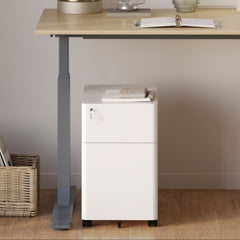
The priority becomes safe placement, cable management, airflow, and easy access to ports. Some users prefer vertical laptop storage, a docking station, a cable tray, or a dedicated area at the back of the desk. The laptop still needs a proper place, but it may not need to be raised as a screen.
Your External Monitor Handles the Entire Visual Workflow
A stand may also be unnecessary when the external monitor is the only screen in use. This is common with larger monitors, ultrawide displays, or carefully planned desktop-style workstations.
If the monitor is centered, the webcam is external, the keyboard and mouse are comfortable, and the laptop is not being referenced, then adding a laptop stand may create more visual clutter without improving the experience. In that situation, the better investment is often layout refinement rather than another raised object.
Your Desk Is Too Shallow for Another Elevated Screen
A laptop stand needs space. On a shallow desk, adding one can push the keyboard forward, force the monitor too close, reduce mouse movement, or make cables harder to route.
The best workstation is not the one with the most accessories. It is the one where everything has a useful purpose and a comfortable position. If the surface already feels crowded, office accessories that support a cleaner workstation should be chosen carefully, with organization and usability taking priority over adding more items.
Laptop Stand or No Laptop Stand: A Practical Setup Comparison
| External Monitor Setup | Is a Laptop Stand Helpful? | Why It Matters | Better Alternative When a Stand Is Not Needed |
|---|---|---|---|
| Laptop open as a second display | Yes | Helps reduce downward glancing and supports screen alignment | A dedicated second monitor |
| Laptop used for video calls | Often | Raises the built-in camera closer to eye level | External webcam mounted on the monitor |
| Laptop closed in clamshell mode | Sometimes | May help placement depending on the desk layout | Vertical storage or docking station |
| One large monitor handles all work | Usually no | Laptop is not part of the visual workflow | Cable management and laptop storage |
| Small desk with limited depth | Depends | A compact stand may help, but a bulky setup may crowd the surface | Slim stand, monitor arm, or simplified layout |
| Shared workstation | Often | Helps create more consistent laptop placement | Adjustable workstation system |
| Hybrid home office | Often | Supports transitions between laptop-only and monitor-based work | Portable riser or minimal desk setup |
The Ergonomic Chain: Screen Height, Keyboard Position, Mouse Reach, and Lighting
A laptop stand is only one part of the workstation. Its value depends on how it works with the rest of the setup.
Raising the Laptop Means You Should Use an External Keyboard and Mouse
A common mistake is raising the laptop, then continuing to type on the built-in keyboard. That may improve screen height but usually lifts the keyboard too high for comfortable long-term typing.
A raised laptop works best with an external keyboard and mouse or trackpad. The screen can sit higher, while the hands stay lower and closer to a relaxed typing position. Shoulders should feel loose, elbows should rest naturally near the body, and wrists should not be forced upward.
The Keyboard Should Support the Body, Not the Screen
The laptop screen and keyboard are physically connected, which is why laptops are difficult to optimize on their own. When the screen is comfortable, the keyboard is often too high. When the keyboard is comfortable, the screen is often too low.
A stand separates the screen-height problem from the typing-position problem, but only when paired with external input devices. That combination is what makes the setup more practical for longer sessions.
Mouse Placement Can Undermine an Otherwise Good Setup
Screen height gets most of the attention, but mouse reach matters too. If the mouse sits too far away, the shoulder may stay slightly extended throughout the day. If the keyboard is centered but the mouse is blocked by the laptop stand, the user may keep reaching around the setup.
The mouse or trackpad should sit close enough that the arm can move naturally. The keyboard should not be squeezed into an awkward position to make room for the stand. A laptop stand should improve the work zone, not interrupt it.
Lighting Changes How Comfortable Two Screens Feel
A dual-screen setup can become tiring if lighting is ignored. Bright light reflecting off the monitor, a dark room surrounding bright screens, or a lamp aimed directly into the eyes can all make the workstation feel harsher than necessary.
Task lighting is useful when it illuminates the desk surface without washing out the screens. A lamp can help define the work area, support reading or writing on paper, and reduce the contrast between a bright monitor and a dim room. The Alumina Lamp is contextually relevant for this kind of workstation because its page presents it as a lamp suited for desk or wall use.
Softer Light Helps Home Workstations Feel More Settled
Home offices often share space with bedrooms, dining rooms, or living areas. In these settings, lighting has to do more than support tasks. It also affects how the room feels before and after work.
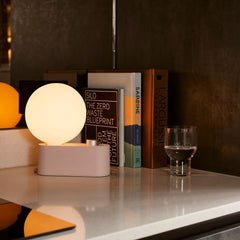
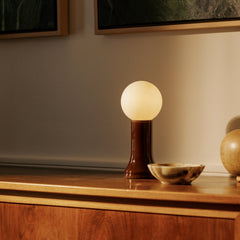
A softer table lamp can make a desk feel less temporary and more integrated into the home. The Shore Table Lamp fits this type of conversation because its page describes a table lamp made from recycled glass and positioned around mood-based lighting.
How to Position a Laptop Stand Next to an External Monitor
The laptop stand is only helpful if the placement makes sense. A raised laptop placed in the wrong spot can still create twisting, reaching, or clutter.
Center the Screen You Use Most
The primary screen should be directly in front of the user. If the external monitor handles most of the work, it belongs in the center. The laptop can sit to one side as a secondary display.
A common mistake is leaving the laptop centered because it feels like the main computer, while pushing the external monitor off to the side. If the monitor is where the real work happens, that arrangement forces the neck to rotate for long periods. The center position should belong to the screen that receives the most attention.
Align Screen Heights Without Forcing Perfect Symmetry
For many setups, it helps to bring the laptop screen closer to the visual plane of the external monitor. Matching the top edges can work well, especially with moderate-size monitors. But perfect symmetry is not always necessary.
With a large monitor, the laptop may sit slightly lower. With an ultrawide display, the laptop may function better as a side reference screen. If the laptop is used only for chat or calendar, it does not need to compete with the main display. The goal is comfortable visibility, not a showroom-style arrangement.
Angle the Laptop Toward Your Natural Line of Sight
A laptop placed to the side should usually be angled slightly inward. This makes it easier to glance at the screen without turning the whole body. The farther the laptop sits from the center, the more important the angle becomes.
The laptop should also be close enough to read without leaning forward. If the text is too small, increasing font size or interface scaling may help. A raised screen is not useful if the user still has to squint or move closer to see it.
Route Cables Around the Work Zone
External monitor setups often include power cables, USB-C cables, HDMI or DisplayPort connections, hubs, chargers, speakers, webcams, keyboards, and mice. Without a plan, cables can quickly make the desk feel messy.
Good cable routing keeps movement clear. Power can run behind the laptop. The hub can sit near the back edge of the desk. The charging cable should avoid the mouse path. Cable slack should be enough to prevent strain on ports, but not so much that loops pile up across the surface.
A laptop stand can help organize the device visually, but the cables need their own path.
Small Desk, Big Monitor: Choosing the Right Laptop Stand Footprint
The right stand depends on the size of the desk, the size of the monitor, and how often the laptop’s position changes.
Adjustable Stands Work Best for Changing Tasks
An adjustable stand makes the most sense when the setup changes throughout the day. This may include switching between sitting and standing, sharing the workstation with someone else, moving between video calls and deep work, or adjusting the laptop camera angle for meetings.
Adjustability also helps when the external monitor height is not fixed. If the monitor sits on a riser, arm, or different desk surface, the laptop may need to move with it.
Slim Stands Work Best for Minimal Workstations
A slim stand is often a better fit for compact desks, apartment workstations, or visually simple spaces. It can give the laptop a more intentional position without making the setup feel overbuilt.
This is especially useful when the laptop screen is used as a secondary display but does not need constant height changes. A slim stand can also suit users who prefer a lighter visual presence on the desk.
The Stand Should Improve the Layout, Not Add Another Obstacle
Before adding a laptop stand, test the workstation as a whole.
1. Place the external monitor where your eyes naturally face.
2. Put the laptop where it supports the work, not just where it fits.
3. Check whether you look down, twist, lean, or reach.
4. Place the keyboard and mouse where your arms stay relaxed.
5. Confirm that the stand leaves enough room for lighting, notes, and cables.
If the stand improves visibility, posture, and organization, it is doing its job. If it forces new compromises, the desk layout may need to be simplified first.
Home Office and Team Office Setups Require Different Decisions
The laptop stand question changes depending on whether the workstation belongs to one person at home or multiple people in an office environment.
Home Offices Need Flexibility and Visual Calm
A home workstation often has to fit into a room that serves more than one purpose. The desk may sit in a bedroom, living room, guest room, or dining area. In that context, a laptop stand can help create a clearer work zone, especially when the laptop is open beside an external monitor.
The visual effect matters too. A laptop lying flat among cables, notebooks, and accessories can make the desk feel temporary. A laptop placed intentionally on a stand can make the workstation feel more settled and easier to reset after work.
That said, a stand should not make the room feel more crowded. In a home office, the best setup is the one that supports work while still fitting naturally into the surrounding space.
Team Offices Need Consistent Workstation Standards
In an office with multiple desks, the goal is not just one comfortable setup. It is repeatable comfort across workstations. Some employees may use laptops open beside external monitors. Others may close the laptop and work through a docked display. Some may need the laptop camera, while others use conference room systems or external webcams.
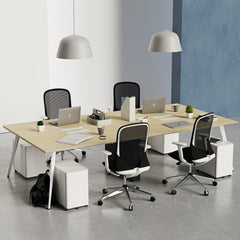
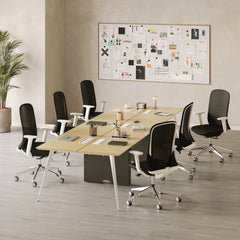
Workstations planned around desks, chairs, monitor placement, cable access, and accessories tend to be easier for teams to use consistently. For organizations furnishing shared or dedicated work areas, modern office furniture for local workspaces is relevant in the context of creating complete office environments with desks, seating, and supporting pieces.
Hybrid Teams Should Support Both Open-Laptop and Closed-Laptop Modes
Hybrid teams rarely work in one uniform way. One employee may use a laptop as a second display. Another may prefer clamshell mode. Someone else may need the built-in webcam for meetings. A shared workstation may need to work for several laptop sizes and working styles.
Because of that, the best office setup avoids rigid assumptions. A laptop stand can be helpful when laptops are used open, but the workstation should also allow for closed-laptop storage, cable routing, and external peripherals.
Common Mistakes People Make After Adding an External Monitor
An external monitor is a strong upgrade, but it can also hide problems if the rest of the workstation is ignored.
Treating the Laptop as a Second Monitor Without Raising It
The most common mistake is using the laptop screen all day while leaving it flat on the desk. This makes the laptop available but not comfortable. The user gains screen space but still repeats the same downward viewing pattern that made laptop-only work uncomfortable in the first place.
Putting the Laptop in the Center and the Monitor Off to the Side
The screen used most should be centered. If the laptop is centered only because it is the computer, but the external monitor is where the actual work happens, the setup is backwards. This can lead to constant neck rotation toward the monitor.
The laptop can still stay open, but it should support the primary screen rather than compete with it.
Buying a Stand Without Using an External Keyboard
A laptop stand raises the screen. It does not make the built-in keyboard ideal for long typing sessions. Without an external keyboard and mouse, the user may solve a neck-angle problem but create shoulder or wrist discomfort.
For longer work sessions, the stand should be part of a system that includes external input devices.
Adding Too Many Accessories to a Small Desk
A monitor, laptop stand, lamp, dock, speakers, notebook, keyboard, mouse, and décor can quickly overwhelm a compact surface. A crowded setup often looks productive but feels difficult to use.
Every object on the desk should earn its place. The laptop stand should make the layout clearer. If it makes the desk harder to navigate, a simpler setup may be better.
Ignoring Lighting Until Eye Fatigue Appears
Lighting is easy to overlook because it does not feel like part of the computer setup. But screen comfort depends heavily on the surrounding environment. A bright screen in a dark room, a lamp reflecting directly off the monitor, or daylight glare across the laptop can make dual-screen work feel more tiring.
Lighting should support both screens without competing with them.
A Practical Decision Framework for External Monitor Users
The laptop stand decision becomes much clearer when the laptop’s role is defined.
Ask What Job the Laptop Still Performs
Use these questions before deciding:
1. Is the laptop open for more than brief check-ins?
If yes, it likely deserves better positioning.
2. Do you use the laptop screen for active work?
If yes, raising it closer to your visual field can improve usability.
3. Do you use the built-in webcam?
If yes, a stand may help improve camera height.
4. Is the external monitor the only screen you look at?
If yes, a laptop stand may be optional.
5. Do you already use an external keyboard and mouse?
If no, add those before relying on a raised laptop for long sessions.
6. Does the desk have enough depth for two screens?
If no, solve the layout first.
7. Does the stand make the workstation cleaner and easier to use?
If yes, it supports the setup. If not, it may be unnecessary clutter.
Match the Stand Decision to the Work Style
| Work Style | Best Laptop Position | Stand Needed? | Reason |
|---|---|---|---|
| Writer or editor | Beside the monitor for notes or research | Yes | Reduces repeated downward glancing |
| Designer or creative worker | Angled beside the monitor for files or feedback | Often | Keeps references visible |
| Analyst or finance worker | Secondary screen for dashboards or communication | Often | Supports multitasking |
| Manager or executive | Raised for calls, calendar, or notes | Often | Improves visibility and camera angle |
| Developer | Depends on screen layout | Sometimes | Useful if the laptop shows docs, preview, or terminal |
| Clamshell user | Closed and docked | Usually no | External monitor handles the visual work |
| Minimalist single-screen user | Stored away from the main work zone | Usually no | Stand may not add functional value |
The Smarter Answer: A Laptop Stand Is Worth It When the Laptop Still Supports the External Monitor Workflow
A laptop stand is not required simply because an external monitor is present. It becomes useful when the laptop still has a job to do.
If the laptop stays open as a second screen, handles video calls, displays reference material, supports communication, or moves frequently between desk-based and mobile work, a stand can help the workstation feel more aligned and intentional. It can raise the laptop into a more usable viewing position, reduce repeated downward glances, improve camera placement, and help organize the desk.
If the laptop stays closed, tucked away, and fully replaced by the external monitor, keyboard, mouse, and webcam, a stand may not be necessary. In that case, storage, docking, cable management, and monitor placement matter more.
The strongest external monitor setup is not defined by the number of screens or accessories. It is defined by whether each piece supports the way work actually happens. When the laptop remains part of that workflow, a stand can be a simple and practical way to make the whole workstation feel more complete.
Related Articles
-
 How Filing Cabinet Storage Supports Office Desk Must Haves
-
 Filing Cabinet Ideas for Better Office Furniture Accessories
-
 Best File Cabinet for Home Office Storage That Feels Easy
-
 Better Multiple Monitor Desk Setup Starts With One Stand
-
 Make Laptop and 2 Monitor Setup Work With Better Stands
-
 Why Dual Monitor Comfort Needs a Monitor and Laptop Stand


