









Best Laptop Stand Setups for Remote Work and Hybrid Workstations

Remote work and hybrid work have changed what a productive desk looks like. The laptop is still the center of many workdays, but relying on it alone often leads to a setup that feels temporary, cramped, and harder on the body over time. A well-planned laptop stand setup solves a more important problem than simple screen elevation. It helps create a workstation that supports better posture, clearer visual organization, and smoother transitions between focused work, calls, note-taking, and end-of-day reset.
The strongest setups are rarely the most complicated. They are the ones that treat the laptop stand as part of a complete working system. Screen height, desk depth, keyboard placement, lighting, and surface organization all affect whether a workstation feels calm and sustainable or improvised and tiring. For remote workers, that system needs to support long hours without turning the room into a cluttered office. For hybrid workers, it also needs to be repeatable across different desks and spaces.
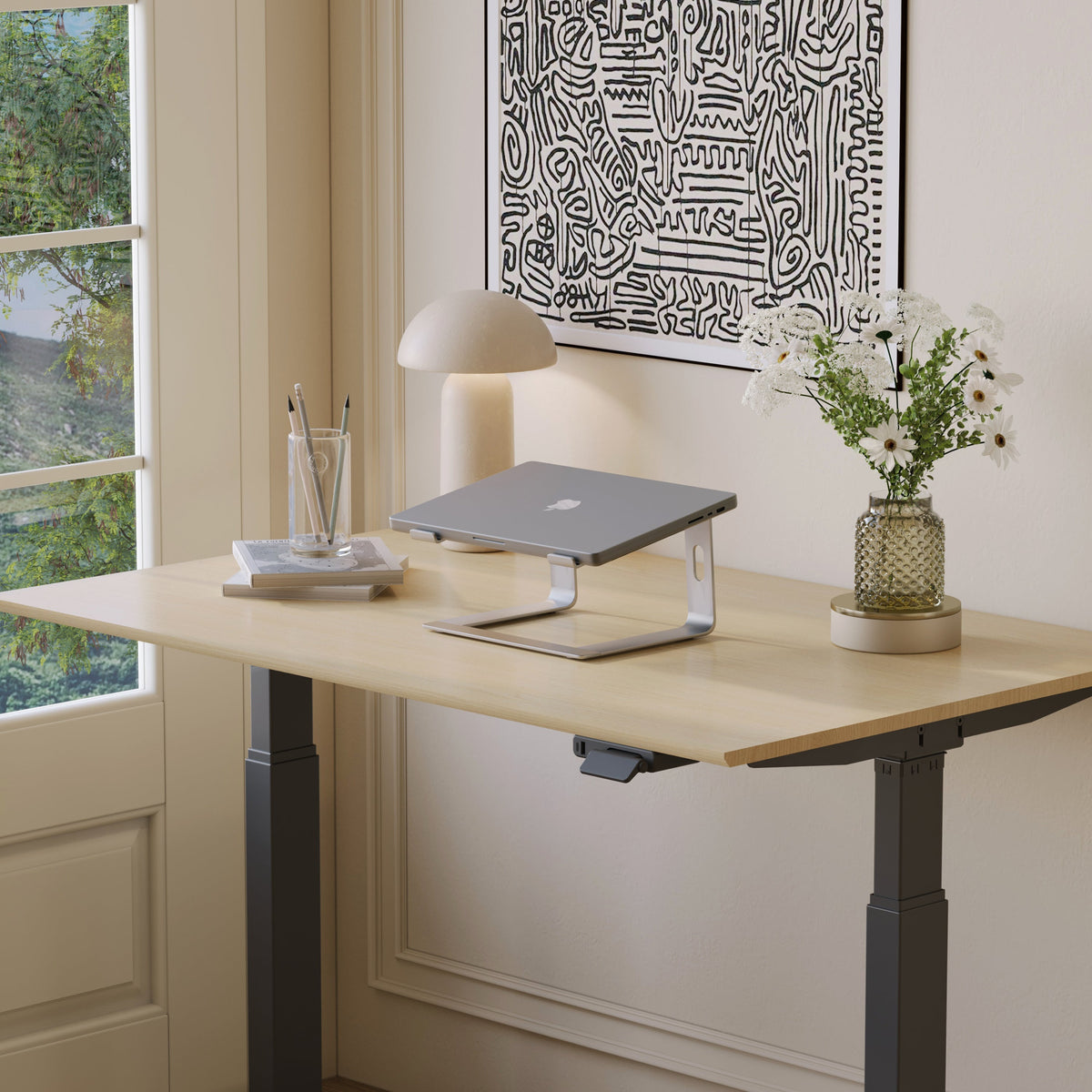
A flexible foundation often starts with an adjustable laptop stand, especially when the workday includes shifts between deeper focus sessions, video calls, and occasional movement to another workspace. The product page presents it as an ergonomic laptop stand designed to keep the laptop at a more comfortable height.
Why laptop stand setups matter more in remote and hybrid work
Traditional offices tend to reduce setup variation. The desk stays in one place, the chair is usually paired to that desk, and the room is already dedicated to work. Remote and hybrid environments are different. One person may work from a spare room, another from a bedroom corner, and another from a shared dining surface a few days a week. That variation makes setup quality more important, not less.
A poor laptop position affects more than neck angle. When the screen is too low, the entire workstation tends to collapse around it. Shoulders round forward, wrists drift into awkward positions, and papers, chargers, and lighting end up competing for the same limited area. Over time, that creates friction. The worker feels crowded, visually distracted, and less inclined to maintain the space well.
A strong laptop stand setup improves the overall relationship between the body and the desk. It encourages a more upright screen position, frees visual space, and pushes the workstation toward intentional use instead of casual laptop placement. That distinction matters most when work is not occasional, but repeated day after day.
The shift from using a laptop to building a workstation
There is a difference between checking email on a laptop and spending most of the day working from one. The first is temporary. The second requires structure. Once the laptop becomes the center of writing, calls, planning, and collaboration, the setup around it has to mature as well.
What the best setups actually optimize
The best setups do not chase novelty. They optimize five practical outcomes:
1. A screen position that reduces constant downward viewing
2. Enough front-edge space for comfortable input devices
3. Better visual order across the desk surface
4. Lighting that supports both screen work and paperwork
5. A layout that can be recreated consistently
The ergonomic logic behind a better laptop stand setup
Screen elevation is useful, but it is only one part of the equation. Raising the laptop changes where the hands should go, how far back the user sits, and how much desk depth becomes necessary. A stand solves one of the most obvious problems, yet it also reveals whether the rest of the workstation is ready to support real work.
If the laptop is lifted but the user still types directly on it for hours, the improvement may be limited. The neck may feel better, but the arm and wrist position may become less natural. If the desk is shallow, the stand can also push the keyboard zone too close to the body. That is why better results usually come from treating the stand as a structural tool rather than a standalone fix.
Why desk depth matters more than many people expect
Depth determines whether the elevated screen can coexist with an external keyboard, mouse, notebook, and light source without crowding the user. A workstation can look clean in a product photo and still feel cramped in real life if there is no room for hands to rest and move naturally.
The difference between improvement and completion
A laptop stand improves the screen position. A complete workstation aligns the screen, desk, inputs, and light so that tasks can happen with less strain and less surface chaos. That is the standard worth aiming for, especially in remote environments where small inefficiencies repeat every day.
Choosing the right laptop stand for your work pattern
Not every worker needs the same kind of stand. The best choice depends on how the workstation is used, how much surface area is available, and whether the setup stays put or moves regularly.
An adjustable model makes sense for people who switch work surfaces, change between seated positions, or want flexibility throughout the day. A lower-profile stand can make more sense on compact desks where preserving surface area matters just as much as raising the screen.
On tighter work surfaces, a laptop stand with a slim profile can fit more naturally into the layout without taking over the front half of the desk. Urbanica’s page describes this model as a slim laptop stand with a lightweight design intended to support the device while keeping the footprint restrained.
Questions that lead to a better choice
How long is the laptop used each day?
Longer work sessions usually justify a setup with stronger ergonomic intent and a more deliberate desk layout.
Does the setup stay in one place?
A fixed home office can support a more permanent arrangement. Hybrid workers may benefit more from something easier to reposition and rebuild.
How much usable desk space is available after the stand is placed?
This question matters because many setup problems begin when the stand looks right but leaves too little room for everything else.
Building the work surface around the stand
A laptop stand performs best when the desk itself supports the way work actually happens. The desk does not need to be oversized, but it should allow the screen, inputs, lighting, and working materials to coexist without forcing compromise at every turn.
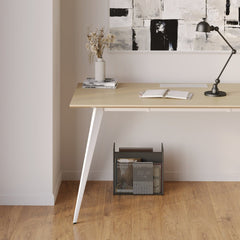
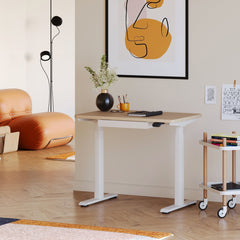
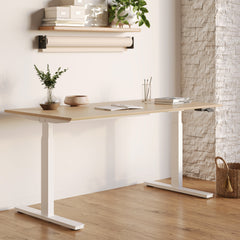
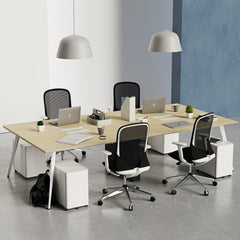
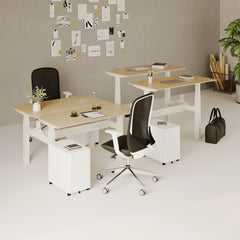
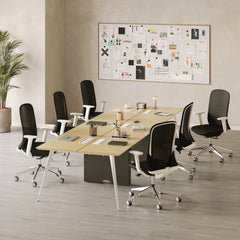
That is why pairing a stand with office desks designed for ergonomic work creates a stronger workstation foundation. Urbanica’s desks collection is positioned around ergonomic and modern office desk solutions for different spaces, which aligns well with the role desk depth and layout play in a laptop-based setup.
Workstation zones that make daily tasks easier
A useful desk layout usually includes four simple zones:
| Zone | Purpose | Why it matters in a laptop stand setup |
|---|---|---|
| Screen zone | Holds the laptop stand and screen | Keeps the focal point stable and visually centered |
| Input zone | External keyboard and mouse area | Protects comfort during longer work periods |
| Support zone | Notebook, planner, or temporary papers | Prevents overlap with the typing area |
| Lighting and charging zone | Lamp, charger, and power needs | Reduces cable sprawl and visual clutter |
This kind of zoning prevents the common pattern where every object ends up competing for the same narrow strip of usable space.
Matching the desk to the room
A spare room can handle a more settled workstation. A bedroom corner often benefits from a quieter visual profile. A dining area setup needs even more discipline because the space likely returns to another use after the workday. The best laptop stand setup changes slightly with each environment, but the logic stays the same: preserve working space first, then add only what clearly supports it.
Small-space laptop stand setups that still feel complete
Small-space workstations often fail for one reason: they try to fit too much into too little area. The answer is not to strip the desk bare until it becomes impractical. The answer is to be selective about what earns space on the surface.
A strong compact setup preserves room for the body first. Forearms, mouse movement, and note-taking need physical space. Decorative objects, oversized lamps, and duplicate organizers should never take priority over those essentials.
What to remove before adding anything new
-
Redundant storage pieces that do not change workflow
-
Large decorative objects that occupy primary desk space
-
Cables left exposed across the main working area
-
Lighting that causes glare or blocks sightlines
-
Accessories that look organized but reduce usable space
Why visual calm matters in compact workstations
In smaller rooms, visual clutter feels larger than it is. A coordinated desk can help the workstation feel more settled, which often makes it easier to begin work, maintain focus, and restore order after the day ends.
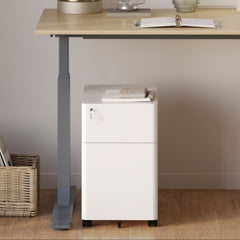
A broader range of office furniture accessories can help support that coordination. The collection page groups workspace accessories as part of a modern office setup, which makes it relevant for users shaping a more cohesive laptop-based workstation rather than buying isolated pieces at random. (URBANICA)
Hybrid workstation setups that are easy to recreate
Hybrid work adds a new challenge. The setup has to function well at home, but also remain easy to rebuild elsewhere. Consistency becomes the real goal. The user should not have to relearn posture and spacing every time the desk changes.
The three constants worth preserving
Screen relationship
The screen should sit high enough to reduce constant downward viewing and stable enough to feel reliable during calls and task switching.
Input spacing
The keyboard and mouse should return to familiar positions so hands and shoulders are not adapting to a different arrangement every few days.
Light placement
The desk should avoid reflections and harsh contrast, especially when the workstation is assembled quickly in a changing environment.
A repeatable setup routine
For many hybrid workers, a good routine matters as much as the equipment itself:
1. Place the stand first
2. Set the keyboard and mouse before opening other tools
3. Check screen angle and room glare
4. Add task lighting if the desk needs it
5. Keep one small area clear for notes or temporary materials
That sequence helps the setup come together in a consistent, low-friction way.
Lighting strategy for laptop stand workstations
Once the screen is elevated, lighting problems become easier to notice. Reflections, uneven brightness, and poor lamp placement can make a good desk feel less comfortable than it should.
Task lighting works best when it supports reading, writing, and keyboard visibility without bouncing back into the screen. Ambient support matters too. A workstation that feels too harsh or cold often becomes less inviting during longer work blocks, especially in the early morning or evening.
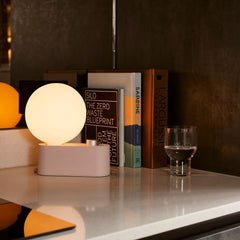
For focused directional use, a multi-use LED table and wall light can fit well into setups that need flexible placement around the desk. The product page identifies the Alumina Lamp as a multi-use LED table and wall light.
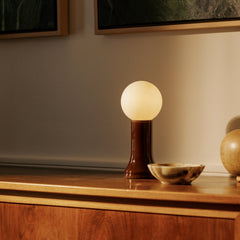
For a softer layer around the workspace, a recycled glass table lamp can help warm the desk environment while contributing to a more composed overall scene. Urbanica describes the Shore lamp as a recycled glass table lamp within its sustainable lighting offering.
Where lighting should sit
The best position is usually off to the side rather than directly behind the screen. That reduces the chance of glare and helps create more balanced visibility across both the desk surface and the user’s face during calls.
Laptop stand setups by worker type
Different work patterns call for different priorities. The most effective setup is the one that supports the actual day, not the imagined one.
Full-time remote professional
This worker benefits most from stability, desk depth, and strong surface discipline. All-day comfort matters more than extreme portability.
Hybrid professional
This worker benefits from repeatability, moderate portability, and equipment that can adapt to changing desks without making setup feel complicated.
Apartment-based remote worker
This worker benefits from surface efficiency, visual restraint, and objects that serve clear purposes without overcrowding the room.
Design-conscious home office user
This worker benefits from the same ergonomic logic as everyone else, but with closer attention to visual harmony, material consistency, and how the workstation sits within the room.
Designing a workstation that looks professional on video calls
A setup that works well on camera usually works better off camera too. Clean spacing, controlled lighting, and reduced clutter help the space feel credible without becoming staged.
What camera-ready should really mean
It should not mean overdecorated. It should not mean performing productivity. It should mean that the desk looks calm, intentional, and properly used. Cables are managed. The lamp placement makes sense. The screen is not sitting awkwardly low. The background is orderly enough to support confidence without trying too hard.
This is one reason laptop stand setups have become so important in hybrid work. They improve physical use, but they also make the workstation appear more resolved and professional in moments when the desk becomes visible to others.
Coordinated upgrades for a more complete workstation
Sometimes the issue is not the stand alone. It is the relationship between the stand, desk, lighting, and room. When those elements are chosen separately without a clear workstation plan, the result can feel mismatched and harder to maintain.
For anyone shaping a broader office refresh rather than replacing a single item, exploring modern ergonomic office furniture options can be a useful next step. Urbanica’s location page presents its offering around modern and ergonomic office furniture, which fits readers thinking in terms of a more complete workspace rather than a one-piece fix.
Future-ready laptop stand setups for evolving work routines
The best laptop stand setups are the ones that continue to work as routines change. They protect usable surface area, support better screen position, accommodate real tasks, and remain easy to maintain. That is what makes a setup feel durable.
Remote work and hybrid workstations do not need to be complex to be effective. They need to be honest about how the space is used. A thoughtful stand, enough desk room, clear input placement, and sensible lighting can turn a laptop-centered desk into a workstation that feels more comfortable, more polished, and more dependable every day.
Related Articles
-
 How Filing Cabinet Storage Supports Office Desk Must Haves
-
 Filing Cabinet Ideas for Better Office Furniture Accessories
-
 Best File Cabinet for Home Office Storage That Feels Easy
-
 Better Multiple Monitor Desk Setup Starts With One Stand
-
 Make Laptop and 2 Monitor Setup Work With Better Stands
-
 Why Dual Monitor Comfort Needs a Monitor and Laptop Stand


