























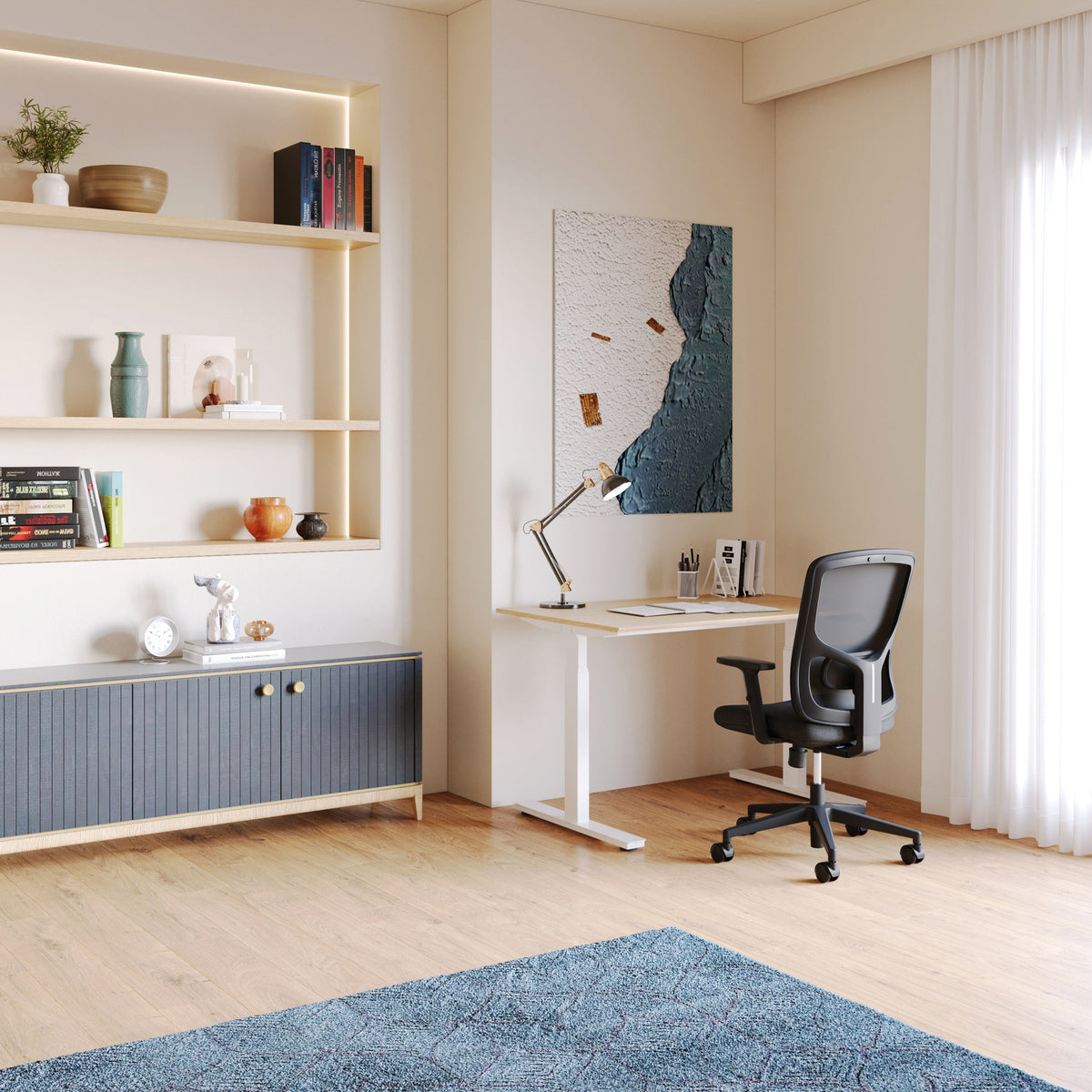
Office chair back pain: quick answers to common questions

Desk-chair back pain has patterns you can spot fast with a simple “stack check”
Feet contact and weight distribution: why your low back works harder when your feet float
When back pain starts at a desk, the first clue is almost always below the waist. If your feet do not feel stable on the floor, the body tends to search for support by gripping through the hips and low back. That can look like a subtle slide forward in the seat, an exaggerated arch, or a collapse into a rounded posture. All three create extra work for the muscles that should be sharing load with the chair.
A quick check that works in almost any chair:
-
Plant both feet and notice whether one foot feels lighter.
-
Shift your weight slightly left and right and see if your pelvis follows easily or feels “stuck.”
-
Let your knees rest comfortably and check whether you are pulling your feet back under the chair to feel stable.
If foot contact is inconsistent, the low back often becomes the stabilizer of last resort. That is why “my chair feels fine but my back hurts” is so common. The chair might not be the only variable, but the posture strategy you are forced into can still be chair-related.
If you are looking for a range of seating styles with different proportions and adjustability options, start with our office chair collection.
Pelvis and ribcage stacking: how slumping quietly overloads the lumbar area
Most desk back pain is not a single dramatic mistake. It is a slow drift. The pelvis rolls backward, the ribcage falls behind it, and the head follows by sliding forward. That posture reduces how well your backrest can support you because the contact point is no longer aligned with your natural curve.
Here is the simplest cue we use when helping customers dial in their setup. Aim for “stacked” not “straight.”
-
Pelvis feels centered, not tucked under.
-
Ribcage feels balanced over the pelvis, not leaning back or collapsing forward.
-
Shoulders hang, not lifted or pulled back aggressively.
-
Head is supported by the spine, not reaching for the screen.
The body can be upright and still supported. The goal is not to hold a perfect pose, but to reduce the amount of continuous bracing your back must do while you work.
Pain-map translation: what different pain locations often suggest
Back pain is complex and can have many causes. Still, the location and timing often point toward a setup pattern that is worth checking.
Low-back ache that ramps up during sitting
Common contributors include a seat that is too high, feet that are not stable, seat depth that encourages sliding forward, or a lumbar support position that does not match your natural curve.
Mid-back fatigue or “tight band” feeling
This often shows up when the screen is too far away, the keyboard is too high, or arm support is missing so the upper back has to hold the shoulders all day.
Neck and upper-trap tension with headaches
Often linked to forward head posture, a monitor that is too low, armrests that push shoulders upward, or a mouse position that forces reaching.
These are not diagnoses. They are signals to look at the chair-workstation relationship with a structured lens.
Seat height and leg support: the fastest adjustment for reducing low-back tension
A reliable seat height target that protects your low back
Seat height is the foundation because it changes what your pelvis can do. A practical target is simple: your feet should feel stable, and your thighs should be supported without forcing your knees unusually high.
What “good” tends to feel like:
-
Feet rest flat and stable.
-
Knees are roughly level with hips or slightly lower, depending on your body and desk height.
-
You can relax your legs without sliding forward.
When the seat is too high, the body often compensates by pointing the toes down or tucking one foot under the chair. That reduces stability and can pull on the pelvis, which the low back then tries to correct with tension. When the seat is too low, knees rise and the pelvis may tuck under, flattening the lumbar curve and making back support feel ineffective.
Why dangling feet can make lumbar support feel “too hard”
Lumbar support is supposed to share load with your back. If your feet are not giving you stable contact, your spine can press into the lumbar area in a way that feels pokey or aggressive. The support is not always the problem. The base of support is.
If your feet do not reach comfortably, a stable foot support can help, but it needs to be firm and wide enough that you do not end up balancing on a narrow edge. Soft cushions can compress unevenly and recreate the same instability you were trying to solve.
A leg support check that catches small asymmetries
One of the most common patterns we see is asymmetry. One leg is anchored and the other is drifting. That can rotate the pelvis subtly, then the spine responds with one-sided tension. A quick fix is to square the feet, then adjust the chair so both legs feel equally supported. If your desk layout forces you to twist toward one side, repositioning the mouse and keyboard can reduce that constant rotation.
Seat depth and the backrest relationship: preventing the slow slump that shows up after 30 to 60 minutes
The 2 to 3 finger gap behind the knee and why it matters
Seat depth determines whether you can sit back into support without cutting off circulation behind the knees. A simple fit check is to sit with your hips all the way back and see whether you can slide 2 to 3 fingers between the seat edge and the back of your knee.
-
If the seat presses into the back of the knees, you may slide forward to relieve pressure, and that breaks backrest contact.
-
If the seat is very short, you may feel unsupported under the thighs and start perching, which increases work through the back.
Seat depth is not about perfection. It is about preventing the chair from nudging you into a posture that your back will pay for later.
When a seat is too deep: perching, sliding, and losing back support
A seat that is too deep often creates a choice you did not ask for. Either you sit back and accept pressure behind the knees, or you slide forward so your legs can relax. Sliding forward is common, but it turns lumbar support into something you are no longer aligned with. Then your back works harder to hold your torso, especially during focused tasks.
If you notice that you keep scooting forward without thinking, seat depth is a strong suspect.
When a seat is too shallow: why you never feel fully supported
A seat that is too short can feel fine at first, then lead to fatigue because the thighs are not supported. The hips may shift constantly to find stability, and that movement can show up as low-back tightness by mid-day. Some people compensate by leaning more on the backrest, but if the base is unstable, that can feel like sitting “in” the chair rather than being supported by it.
If you are comparing chair proportions and adjustment options, looking at a specific model page can help you visualize fit concepts. The Novo Chair is one example reference point for thinking through seat and back relationship.
Lumbar support that helps instead of pokes: matching support to your natural curve
A practical “do I need lumbar support” test
Lumbar support is useful when it helps you maintain a neutral curve with less muscle effort. The test is straightforward:
1. Sit with hips back and feet stable.
2. Relax the stomach and let the spine settle.
3. Notice whether your low back feels like it is collapsing backward or over-arching forward.
If you collapse into a rounded posture without realizing it, lumbar support often helps. If you naturally maintain a comfortable curve and lumbar pressure feels irritating, you may need a different height, a different shape, or simply less intensity.
Locating your natural curve without anatomy jargon
A simple cue is to find the spot where your lower back transitions from the pelvis to the ribs. Many people set lumbar too high because it feels “supportive” at first, then it becomes fatiguing. Lumbar support should meet the curve, not shove the ribs forward.
Try this:
-
Place your hand behind your lower back.
-
Slide it up and down slightly until you feel the deepest part of the curve.
-
That area is usually where lumbar should meet you.
Common reasons lumbar support irritates
Lumbar support tends to feel wrong when:
-
The seat height or foot contact is off, so you are unstable.
-
The support hits too high and pushes the ribcage forward.
-
The backrest angle is too upright, increasing pressure at a single point.
-
You are sitting forward, so the support is not aligned with you.
In many cases, a small recline and a small seat height adjustment change the feeling dramatically.
Backrest shape and support placement: why “one size” rarely fits
Backrest contour determines how pressure spreads. A back that distributes support across a wider area often feels calmer over long sessions because it does not create a single “hot spot.” If you are exploring different backrest feels, the Muse Chair provides another concrete model reference for how back support can be presented.
Recline, tilt tension, and sustainable posture: comfort that lasts past lunch
Upright versus reclined: a more realistic target for desk work
There is a persistent idea that upright is always better. In real workdays, rigid upright sitting often turns into bracing. A slight recline can reduce spinal compression and allow the backrest to share load, as long as the keyboard and mouse remain reachable without reaching.
A useful target is a supported working posture where:
-
Your back can contact the backrest without forcing the shoulders forward.
-
Your hands can reach the input devices without shrugging or reaching.
-
Your gaze meets the screen without neck extension.
This is not about leaning far back. It is about letting the chair carry part of your torso weight.
Tilt tension: when “too loose” creates constant micro-bracing
If the recline mechanism is too loose, your body may brace to keep you from falling backward. That bracing is subtle but constant, and the low back usually pays first. If it is too tight, you may never use the recline, and your posture becomes static.
A good setting is one that allows you to move with intent, not one that moves you unexpectedly.
A three-position rotation that keeps you productive and less stiff
Movement is one of the most reliable ways to reduce desk back pain without relying on willpower. A simple pattern:
-
Position A: neutral working posture for focused typing.
-
Position B: slight recline for reading, calls, and thinking.
-
Position C: perch forward briefly for tasks that require precision.
The goal is to change load through the day, not to chase a single perfect posture.
Armrests and shoulder tension: how arm support can create or solve back pain
When armrests help and when they backfire
Armrests can reduce shoulder load, but only if they match your desk height and allow your elbows to stay close to your body. If armrests are too high, they lift the shoulders and increase upper-trap tension. If they are too low or too wide, you end up reaching for the mouse and keyboard, and the upper back holds that reach all day.
A simple question: can your elbows rest comfortably with shoulders relaxed, without pushing the shoulders upward?
Armrest height: the anti-shrug setting
The best armrest height is usually the lowest height that still supports the forearms during pauses. If the armrests force you to shrug, your neck and upper back will complain even if your lumbar support is perfect.
Armrest width and inward support: keeping elbows close reduces mid-back strain
When elbows drift outward, the shoulder blades protract and the mid-back has to manage the position. Bringing the work closer to you is often more effective than trying to “hold shoulders back.”
The mouse reach test that catches the real issue
Place your hand on the mouse and notice whether your elbow is under your shoulder or reaching forward. If it is reaching, move the mouse inward and closer. If the desk surface is limited, consider a compact keyboard to create space.
For customers comparing chair designs that emphasize supportive sitting mechanics, the Onyx Chair is another relevant product reference point in the context of arm support and long-session comfort.
Desk height, monitor position, and why the chair gets blamed for a desk problem
Desk height signs your shoulders will notice first
A desk that is too high often forces shoulders up and wrists into awkward angles. That tension travels through the upper back and can make it feel like the chair is failing. Signs include:
-
Shoulders creeping upward while typing.
-
Elbows unable to stay near 90 degrees without lifting.
-
Wrists bending upward because the keyboard is too high.
A chair can only solve part of the equation. The desk sets the playing field.
Keyboard and mouse placement: reduce reach, reduce hunch
Even small reach distances add up. When the keyboard or mouse is placed far forward, you lean, then the chair backrest becomes irrelevant. Bringing the input devices closer helps the spine stay supported.
A helpful setup:
-
Keyboard close enough that elbows stay near your sides.
-
Mouse beside the keyboard, not forward of it.
-
Forearms supported during pauses, either by armrests or the desk edge, without compressing nerves at the wrist.
Monitor height and distance: stop the forward-head posture loop
If the monitor is too low or too far, the head moves forward. That increases load on the neck and upper back. A practical target is to place the monitor so your eyes land on the upper portion of the screen without lifting the chin. Distance should allow comfortable viewing without leaning.
Laptop-only setups: the minimum viable fix
If you work from a laptop, the screen is usually too low. Even a simple elevation plus an external keyboard and mouse can reduce neck and upper back strain. The chair becomes more effective once the screen stops pulling you forward.
If you are exploring furniture pieces that support better workstation scaling, our desk collection can help you compare surface heights and workspace formats.
Back pain timing patterns: what “15 minutes versus 3 hours” often points to
Pain within 15 minutes: pressure points and immediate mismatch
If discomfort shows up quickly, the setup is likely forcing a posture that your body resists immediately. Common culprits include:
-
Seat height too high or too low.
-
Seat depth forcing perching or sliding.
-
Armrests pushing shoulders up.
-
Monitor position pulling head forward.
Start with the big levers: feet stability, seat height, then seat depth and monitor.
Pain after 2 to 3 hours: endurance and lack of posture variation
If you can work comfortably for a while, then pain creeps in, it often points to endurance limits and static sitting. The chair might be reasonable, but the posture strategy is too repetitive. Small changes in recline, input device position, and short movement breaks often have outsized impact here.
Pain that worsens all day: cumulative load and repeated compensation
When pain builds steadily, look for the compensation you repeat without noticing. One common example is twisting toward a second monitor or reaching to a mouse that lives too far away. Another is a desk height that keeps the shoulders elevated. Cumulative patterns matter more than single moments.
Common pain patterns and the fastest corrective adjustment
| What you feel while sitting | Likely setup contributor | Fastest adjustment to try first |
|---|---|---|
| Low-back ache that starts after you slide forward | Seat depth too deep or feet unstable | Bring hips back, stabilize feet, reduce forward slide |
| Sharp lumbar pressure in one spot | Lumbar height or back angle mismatch | Slight recline and adjust lumbar position to meet your curve |
| Upper-trap burn and neck tightness | Armrests too high or desk too high | Lower armrests or raise chair and add stable foot support |
| Mid-back fatigue between shoulder blades | Monitor too far or mouse reach too long | Bring screen and mouse closer, support forearms during pauses |
| One-sided low-back tightness | Asymmetry in leg support or twisting toward devices | Square feet, center keyboard, reduce twist toward screen |
This table is meant as a safe starting point. If pain is severe, persistent, or accompanied by symptoms such as numbness or weakness, professional medical guidance is the right next step.
The late-night search box questions: quick answers that do not oversimplify
Why does my back hurt in a new chair
A new chair often reveals habits your old chair was quietly allowing. The most common issue is not that the chair needs “breaking in.” It is that the chair’s default settings do not match your body or workstation. New chairs also change pressure distribution, so muscles that were not working much before may start doing more stabilization. That can feel like soreness even when the direction is positive.
A safe approach is to adjust one variable at a time: start with seat height, then seat depth, then recline and lumbar placement.
Should I sit upright or recline
For many desks, a slight recline with good reach to the keyboard and mouse reduces back strain. The key is keeping the work close enough that you are not reaching forward. Upright can be fine, but rigid upright often turns into bracing. Supported, changeable posture tends to be more sustainable than any single angle.
Should my back touch the backrest all day
Backrest contact is useful, but constant contact is not the goal. Supported variety is. If you are perched on the edge of the chair all day, the backrest cannot help. If you are locked into the backrest all day, you may stop changing position. Aim to return to support often, and rotate positions during different tasks.
How often should I stand up
A helpful rule is to change position regularly before discomfort spikes. Some people do well with short, frequent shifts. Others prefer fewer, longer breaks. The consistent thread is movement that is realistic for your work rhythm. Even standing for a brief moment, walking to refill water, or resetting your posture can reduce cumulative load.
Do cushions help
Cushions can help as a temporary bridge when a chair is too firm, too deep, or lacks support in the right place. They can also create new problems by raising seat height, reducing backrest contact, or introducing instability. If a cushion changes your posture so you are reaching up to the desk or losing foot contact, it may increase strain.
A 7-day back-pain reset plan for desk sitting
1. Day 1: Set seat height so feet feel stable and shoulders relax while typing.
2. Day 2: Fix seat depth fit using the finger-gap test and commit to sitting back.
3. Day 3: Adjust monitor height and distance so the head stops reaching forward.
4. Day 4: Bring keyboard and mouse closer to reduce reach and mid-back tension.
5. Day 5: Tune recline and tilt tension so you can alternate between two supported positions.
6. Day 6: Recheck armrest height to eliminate shrugging and keep elbows close.
7. Day 7: Choose a sustainable movement pattern and repeat it during the workday.
Choosing a chair when you already have back pain: what to prioritize without guesswork
Non-negotiables that support back comfort
When someone is shopping because their back is already complaining, the best choices are usually the ones that allow fit and posture variation. Instead of chasing a single feature, look for the fundamentals that influence how you sit for hours:
-
A height range that supports stable feet and relaxed shoulders at your desk.
-
A seat shape and depth that allow you to sit back without pressure behind the knees.
-
A backrest that supports without forcing one rigid posture.
-
Arm support that can reduce shoulder load without lifting the shoulders.
-
A stable base that does not make you brace to feel secure.
Breathability and pressure management for longer sessions
Heat and pressure are not just comfort issues. When you get uncomfortable, you shift, then you perch, then you lose support. Breathable materials and balanced cushioning help many people stay in supported contact longer, which reduces the tendency to hunch forward.
Matching chair style to the way you work
Different work patterns create different posture challenges:
-
Deep-focus work often leads to stillness, so a chair that supports small posture shifts matters.
-
Call-heavy work involves more leaning back and turning, so stable recline and back support matter.
-
Creative work can involve leaning forward for precision, so seat depth and the ability to reset posture matter.
If your goal is an everyday chair that fits a range of tasks and allows a comfortable baseline sitting experience, the Seashell Chair is a useful product reference within that context.
Delivery, setup, and support: removing friction when you are fixing pain fast
Priorities that make change actually happen
From a brand perspective, the most effective ergonomic improvements are the ones customers can maintain. That often means focusing on fit and setup support rather than chasing novelty. Even a well-designed chair will not help if it is never adjusted for the person using it.
A practical mindset:
-
Solve the biggest discomfort first, usually feet stability and seat height.
-
Keep your desk relationship in view, because chair adjustments alone cannot fix a desk that forces shrugging or reaching.
-
Plan a short “setup session” where you make adjustments while doing real tasks, not just sitting still.
Setup reality: why good chairs still fail in real homes and offices
We see a consistent pattern. People unbox a chair, sit for five minutes, then return to working without ever adjusting seat height, seat depth, recline tension, or armrests. The chair feels unfamiliar, so they revert to old posture habits, and the chair gets blamed.
A safer expectation is that comfort improves as the chair and workstation are tuned to the user. That is normal, and it does not require perfection. It requires a few intentional changes that align with how you actually work.
Regional shipping and support information without making it complicated
For customers who want clarity on local delivery and service logistics as part of the purchasing decision, our fast & free local shipping details page provides the most accurate reference point.
Sustainable back comfort: turning quick answers into a workstation that stays dialed in
A movement menu that fits real work
Back comfort improves when posture is varied. The most sustainable approach is not a rigid routine. It is a small menu of options you can rotate through during typical tasks:
-
Slight recline for reading and calls.
-
Neutral working posture for typing.
-
Brief forward perch for precision tasks.
-
Stand briefly during transitions between meetings or tasks.
Small changes done often usually beat big changes done rarely.
Support versus strength: using the chair as a tool, not a crutch
A supportive chair reduces unnecessary muscle work so you can focus. It should not eliminate movement. When the chair carries part of the load, you can keep your posture calmer, but your body still benefits from regular position changes and basic strength outside the workday. The chair is a tool that makes good habits easier.
The weekly three-point check that prevents back pain from creeping back
Once a setup is comfortable, it still drifts over time. A quick weekly check keeps you aligned with reality:
1. Seat height: feet stable, shoulders relaxed while typing.
2. Seat depth and back contact: hips back, no pressure behind knees, consistent support.
3. Monitor position: head not reaching forward, eyes land naturally on the screen.
Red flags that mean it is time to re-check everything
-
A new desk or a new keyboard changes your arm and shoulder posture.
-
A second monitor creates repeated twisting.
-
Your workday changes, such as longer meetings or longer focus blocks.
-
You notice yourself sliding forward or perching again.
When the chair, desk, and screen are working together, back comfort becomes less about constant self-correction and more about a workstation that supports your day the way it actually happens.
Related Articles
-
 You Asked: Can The Best Chair For Lower Back Pain Really Fix It?
-
 Lower Back Pain from Office Chair: What to Adjust First for Fast Relief
-
 Sore back from office chair causes and what to adjust first
-
 Best ergonomic office chairs for back pain and long hours at the desk
-
 Is gaming chair good for office work if you have back pain
-
 Are standing desk good for you when you have lower back pain


