






















How to Set Up Under Desk Cable Management Without Losing Easy Access

A clean desk is not automatically a usable desk. Cable management often looks successful when everything is hidden, tied down, and pushed out of sight. The trouble begins the first time you need to unplug a charger, trace a monitor cable, reset a power strip, replace a docking station, or move the desk. What looked neat can quickly become restrictive.
The better standard is simple: under desk cable management should reduce visual clutter without turning everyday changes into a chore. That means planning for reach, movement, maintenance, and future device changes at the same time. A setup that supports neutral posture and practical component placement tends to work better over time, especially when the workstation is arranged so people do not have to overreach or work around unnecessary obstacles.
Under Desk Cable Management Works Best When Access Is Built Into the Plan
Why tidy-looking setups often become frustrating in daily use
Most cable problems are not caused by having too many wires. They are caused by treating every wire the same. A monitor power cable that stays in place for years does not need to be handled like a phone charger or laptop cable that gets disconnected often. When everything is bundled into one tight cluster, a small change can force a much bigger teardown.
That is why many setups fail after the first week. They are organized for appearance, not for daily behavior. The result is familiar: the power strip ends up too far back, extra slack hangs in the wrong place, chargers disappear into a tray that is hard to reach, and one new accessory creates a mess because there is no clear path for expansion.
The difference between concealment and usable cable flow
Concealment hides wires. Usable cable flow gives each wire a purpose and a path. It tells you where power enters the desk, where data cables branch off, where slack is allowed, and which connections should remain easy to reach.
That distinction matters because cable management is part of the workstation, not a cosmetic add-on. Good workstation design supports comfort, efficiency, and safer movement around the desk area. When cables are routed with logic instead of simply compressed into a hidden space, the desk becomes easier to maintain and easier to use.
The three standards of a high-performing cable setup
A cable setup is doing its job when it meets three standards:
1. Reachability: You can access the right connection without crawling under the desk for every small change.
2. Stability: Cables stay controlled during everyday work, desk movement, and cleaning.
3. Reconfigurability: You can add, remove, or replace a device without disrupting the whole system.
These standards are more useful than chasing a perfectly invisible setup. They also keep cable management aligned with the title of this topic: easy access is not the compromise. It is the goal.
Start by Mapping What Actually Lives Under the Desk
Separate cables by behavior before routing anything
Before mounting a tray or clips, sort cables into three categories:
-
Permanent cables: monitor power, desk power, dock power, Ethernet that rarely moves
-
Occasional-change cables: speakers, printer cables, backup drives, spare charging lines
-
Frequent-access cables: laptop chargers, phone cables, headphones, USB accessories
This one step prevents most routing mistakes. Permanent cables can be secured more firmly. Frequent-access cables should remain visible, reachable, and easy to replace. Occasional-change cables belong somewhere in between.
Build around zones instead of one big bundle
Under-desk organization works best when it mirrors how the desktop is used. A monitor zone, laptop zone, charging zone, and power zone each need their own small logic. That keeps cables from crossing over one another unnecessarily and helps you identify problems faster.
For example, if the laptop always sits on the right side of the desk, the charging cable and dock branch should serve that area directly. If the monitor arm is centered, the display cables should route to the middle and then branch cleanly. When zones are clear, you spend less time tracing wires and less time undoing old decisions.
Desk Type Changes the Right Cable Strategy
Height-adjustable desks need movement-ready routing
A sit-stand desk introduces one factor that fixed desks do not: vertical travel. That means cables must be controlled not only when the desk is still, but also when it moves through its full height range. A height-adjustable standing desk is designed around movement and ergonomic adaptability, so the cable plan has to support that same motion rather than fight it.
The most common mistake here is cutting cable slack too aggressively. The second most common is leaving too much of it in the wrong place. Good routing allows movement where movement actually happens, especially between the underside of the desk and the floor, behind the monitor, and near any dock or charger that may be repositioned.
Smaller desks reward precision, not tighter bundling
Compact workstations are often harder to wire neatly because there is less room for mistakes. A compact standing desk for smaller work areas can save space and still support an adjustable work surface, but the reduced footprint means accessories, power bricks, and extra cable length need even more discipline in placement.
On a smaller desk, every unnecessary loop is more visible, every misplaced power brick steals valuable knee or leg room, and every random crossing makes the whole setup feel busier than it is. The answer is not more zip ties. The answer is clearer prioritization. Keep only essential cables at the front edge of your access zone and push passive, permanent components into controlled containment.
Shared desks need routing that more than one person can understand
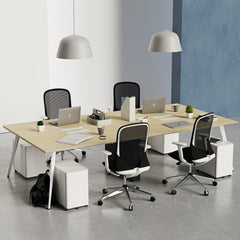
A two-person sit-stand workstation adds another layer of complexity because access is no longer personal. Multiple screens, multiple chargers, and shared power create more chances for confusion if cables are not separated logically.
In shared environments, simplicity matters more than hiding everything. Labels become more useful, left and right cable paths should stay distinct, and each user’s frequently handled connections should remain reachable from their side. The more people use a station, the more valuable readable cable logic becomes.
Choose Hardware That Controls Clutter Without Blocking Your Hands
What an under-desk tray should handle
An under-desk cable organizer is best used as a control zone for the messy parts of cable management: extra cable length, adapter bricks, and the power strip or surge protector that would otherwise sit on the floor or crowd the back edge of the desktop. Urbanica’s product page positions it as a smart under-desk management solution for a range of workspaces, which aligns well with this role.
A tray works especially well for components that stay connected most of the time. It creates one clean place for surplus length and keeps bulkier items from dangling or collecting dust near the floor.
What should not be buried in a tray
Not every connection belongs in a concealed zone. Cables you unplug often should remain accessible. That includes a laptop charger, a phone cable used throughout the day, temporary camera cables, or any connection that may need a quick reset during work hours.
Burying those cables usually creates the exact problem people are trying to avoid. The setup looks cleaner, but daily use becomes slower and more annoying. A better approach is to hide what stays put and expose what changes often.
Why open-access containment beats sealed concealment
There is a practical difference between controlled concealment and over-concealment. The first keeps wires organized and contained. The second makes troubleshooting harder by turning every change into a search problem.
Open-access containment is often the better choice for home offices and active workstations because you can still inspect the system visually. You can see if a power brick slipped, whether slack is drooping into the knee zone, or whether a branch cable needs to be rerouted after a new device is added.
Use a Trunk-and-Branch Layout Instead of Random Routing
Create one main path under the desk
The cleanest under-desk setups usually follow a trunk-and-branch pattern. The trunk is the main route that carries power and primary cables across the underside of the desk. The branches are short runs that split off to serve devices in each zone.
This works because it gives the system structure. Instead of several independent cables taking the shortest possible route to their destination, one organized path handles the bulk of the traffic. That makes future changes easier because you know where the main route is and where each branch begins.
Keep branches short and easy to trace
A monitor branch should serve the monitor area. A dock branch should serve the laptop or accessory zone. A charging branch should serve the edge where you naturally reach for devices. Each branch should have one clear purpose.
That clarity matters when something changes. If a monitor is replaced, you should be able to identify that branch immediately. If a charger is no longer needed, you should be able to remove it without touching the power cable for the desk or display.
Place the power strip for access, not symmetry
Many setups fail because the power strip is mounted in the far back center under the desktop. It seems tidy, but it is awkward to reach and frustrating to adjust. A better position is often slightly offset, near the side where plugs may need to be changed but still within the protected under-desk zone.
The goal is not visual perfection from below. The goal is practical access from your normal working position. If you need to unplug a laptop charger, add a dock, or isolate a device during troubleshooting, you should be able to do that without dismantling the whole system.
Easy Access Depends on Leaving Slack in the Right Places
Where service loops actually help
Slack is useful when it supports motion. The best examples are behind a monitor, near a laptop docking point, and anywhere a sit-stand desk changes height. In those places, a small service loop protects the connection from strain and gives you room to reposition a device.
Slack is also helpful at the desk edge if you regularly connect temporary devices. A little extra length can make the difference between a cable that works naturally and one that feels like it is always under tension.
Where extra slack becomes clutter
Slack becomes a problem when it hangs into leg space, catches on desk hardware, collects near the floor, or bunches around chair movement. Too much spare cable under the desk defeats the point of organizing it.
The smarter approach is selective slack. Give movement only where movement is expected. Keep the rest controlled. That balance makes the system feel intentional rather than improvised.
Vertical Routing Solves the Mess That Horizontal Cable Management Cannot
The desk-to-floor drop is often the weakest point
Many people clean up the underside of the desk and still feel dissatisfied with the result. The reason is simple: horizontal routing is only half the job. If the cable run from the desk to the floor is loose or visible, the setup still looks unfinished.
That transition area is where dangling wires, vacuum interference, and visual clutter usually return. It is also the place where sit-stand desks reveal weak planning fastest, because vertical motion amplifies disorder.
A guided floor transition keeps the setup looking finished
A flexible desk-to-floor cable spine is designed to organize the cable drop from the desk to the floor, which makes it especially relevant for adjustable desks and open work areas where the floor path remains visible. (URBANICA)
This kind of vertical guidance does two important jobs. It keeps the moving portion of the cable path controlled, and it visually connects the under-desk system to the floor outlet or power source in a cleaner way. For desks positioned away from the wall, this is often the difference between a setup that feels complete and one that still looks improvised.
A Step-by-Step Setup Process That Preserves Access From Day One
Installation sequence that keeps the hierarchy clean
1. Clear the underside of the desk completely.
2. List every device that needs power or data.
3. Separate cables into permanent, occasional, and frequent-access groups.
4. Decide where the main trunk route will run.
5. Mount the tray or organizer in a position that remains reachable.
6. Place the power strip where plugs can be changed without a full teardown.
7. Route the trunk first.
8. Add short branches to each device zone.
9. Add service loops only at movement points.
10. Test desk movement, unplugging access, and visual neatness before final tightening.
The three-access test
Before calling the setup finished, check three things:
-
Can you reach the power strip without awkward overreaching?
-
Can you remove one device without cutting apart multiple cable bundles?
-
Can you identify each major cable path in seconds?
If the answer is no to any of these, the setup is not done yet. It may be tidy, but it is not yet access-friendly.
Match the Cable Plan to the Workspace Around the Desk
Furniture choice affects cable control underneath
Cable management is easier when the desk itself supports the use case. Different frames, widths, and work surfaces create different opportunities for trays, clips, and branch routing. A broader office desk collection makes that clear by showing how desk formats vary across workspace needs, and those differences directly affect what can be mounted below and how cleanly cables can be routed.
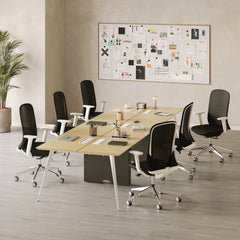
A narrow desk may need stricter cable prioritization. A wider desk may support more clearly separated zones. A collaborative desk may need mirrored routing. The right plan starts with the actual furniture, not an abstract idea of what cable management is supposed to look like.
Workspace planning can reduce cable problems before installation starts
Cable management also improves when the wider room layout is considered early. Outlet position, wall distance, shared workstation arrangement, and traffic flow all influence how cables should enter and exit the desk. A page focused on modern workspace planning ideas reinforces that the furniture layout and the workstation environment are part of the same decision, especially in offices that care about both function and a refined visual standard.
When the desk location, outlet path, and user habits are aligned from the start, cable management becomes far easier to maintain.
Practical Cable Decisions That Improve Access Over Time
Comparison table for long-term usability
| Cable management decision | Why it helps access | What happens if ignored | Best fit |
|---|---|---|---|
| Mount the tray within reasonable reach of one side | Makes inspection and small changes easier | You avoid adjustments because access feels annoying | Single-user desks |
| Separate permanent and frequent-access cables | Prevents small changes from becoming major teardowns | Every swap disrupts the whole setup | All desk types |
| Leave slack only at movement points | Supports motion without visible sag | Tension or drooping appears quickly | Sit-stand desks |
| Use guided vertical routing | Keeps the floor transition controlled | Visible clutter returns even after under-desk cleanup | Adjustable desks |
| Keep power strip access practical | Simplifies adding and removing plugs | Power changes become awkward and inconsistent | Home offices and shared desks |
| Test the full working position | Confirms comfort and function together | A neat setup may still be inconvenient to use | All workstations |
The Best Under Desk Cable Management Setup Is the One You Can Still Live With Later
Flexibility beats over-control
The strongest under-desk cable management setup is rarely the one with the most clips or the tightest bundling. It is the one that still works after a monitor is replaced, a charger changes, a desk is moved, or a new accessory becomes part of the workflow.
That kind of setup respects how workstations actually evolve. It keeps the permanent parts controlled, preserves access to the changing parts, and treats cable management as an extension of the desk’s function rather than a final decorative step. When component placement supports comfort, reach, and neutral working positions, the workstation is usually easier to use and easier to maintain.
A well-routed desk supports cleaner work with less friction
Under desk cable management without easy access is only half finished. Real success is a system that looks calm, feels intentional, and remains practical on an ordinary workday. When every cable has a reason for being where it is, the desk becomes simpler to clean, simpler to troubleshoot, and far less likely to slide back into clutter.
Related Articles
-
 Desktop Power Outlet Planning Without Visible Cable Mess
-
 How In-Desk Power Helps Desks With Charging Stations Work
-
 How In-Desk Power Makes Charging Easier During Workdays
-
 In-Desk Power Ideas That Make Shared Tables Feel Cleaner
-
 Best In Desk Power Outlet Placement Tips for a More Efficient Workspace
-
 Clamp On vs Built In Desk Power Outlet: Which One Works Best for Your Desk?


