

















Desktop Power Outlet Planning Without Visible Cable Mess

Desktop power outlet planning is one of the quiet details that determines whether a workspace feels polished or improvised. A desk can have a beautiful surface, a refined chair, a well-positioned monitor, and carefully chosen accessories, yet one dangling power strip or a laptop charger stretched across the desktop can make the entire setup feel unfinished.
The goal is not to pretend cords do not exist. Every practical workstation needs power. Laptops need charging, monitors need electricity, phones need a place to recharge, lamps need outlets, and meeting rooms often need temporary device access. The real goal is to plan desktop power so cords move through predictable, low-visibility paths instead of spreading across the surface, floor, or seating area.
A clean power plan begins with the furniture layout, not with the cable clips added afterward. The shape of the desk, the position of the wall outlet, the location of the monitor, the way a person reaches for a charger, and the way chairs move around the room all influence whether cables stay controlled. When power access is treated as part of the workspace design, the desktop can remain open, functional, and visually calm.
Clean Desktop Power Starts With the Work Surface
A desktop outlet only works well when it supports the way the surface is actually used. Before choosing an outlet module, it helps to define the work surface as a set of zones. The keyboard zone, writing zone, monitor zone, charging zone, and cable routing zone should not compete for the same space.
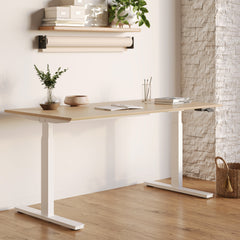
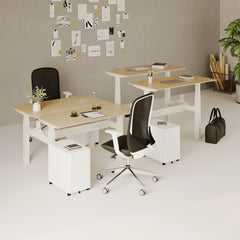
For individual workstations, the desk itself sets the boundaries. A larger surface can separate permanent equipment from temporary charging more easily, while a compact desk needs more disciplined placement. When selecting from adjustable office desks, it is worth thinking beyond size and finish. The desk should support where devices sit, where cords drop, and how much movement the user needs throughout the day.
The Difference Between a Cable-Free Look and Cable-Controlled Planning
A cable-free-looking desk is usually not free of cables. Instead, the cords are routed in ways that reduce visual interruption. Monitor cords drop behind screens. Laptop chargers connect from the rear or side instead of across the keyboard. Phone cables stay in a secondary zone rather than looping over notebooks, coffee cups, or paperwork.
Cable-controlled planning accepts that power is necessary and gives every cord a role. Permanent cords stay in fixed hidden routes. Temporary cables remain accessible but do not dominate the main work area. Extra cable length is managed underneath or behind furniture rather than left on the surface.
The Three Cable Paths Every Desktop Setup Must Solve
Every clean desktop power plan needs to control three routes:
-
Device-to-outlet path, where laptops, phones, lamps, and accessories connect to power
-
Outlet-to-furniture path, where desktop power moves below, behind, or through the surface
-
Furniture-to-source path, where the desk or table connects to a wall outlet, floor box, or nearby power source
If any one of these paths is ignored, visible cable mess usually appears somewhere else. A desktop outlet may remove a charger from the floor, but if the source cable hangs visibly from the side of the desk, the setup still looks unfinished.
Outlet Placement Should Follow Daily Device Behavior
Power planning should start with habits, not hardware. A person who uses a laptop as the main screen needs a different outlet position than someone who works with two monitors and a docking station. A shared desk needs a different power strategy than a private office. A meeting table needs access from several seats, not just one side.
The cleanest setup is usually the one that feels natural. Users should not need to stretch cords, rotate power bricks, crawl under desks, or move accessories just to charge a device.
Laptop-First Workstations Need Reachable Side or Rear Access
Laptop users often create cable mess when power access is too far from the dominant work side. If the outlet sits on the wrong side of the desk, the charger may cross behind the keyboard, run over documents, or hang from the front edge. A better plan places laptop power close enough to reach while keeping the active work zone clear.
For a right-handed user with a mouse on the right side, the charger may work better from the rear-left or rear-center zone. For a user who often writes on paper beside the laptop, the outlet should avoid that writing area. The goal is not one universal placement. The goal is a clear route that supports the person’s real workflow.
Monitor-Based Setups Need Rear Routing
A monitor-based workstation creates a different challenge because more cords are permanent. Monitor power, display connections, docking stations, desk lamps, and charging cables can quickly overlap. Rear routing keeps the most stable cords behind the screen area, where they are less likely to interrupt the working surface.
A rear-edge outlet position often works well when the desk sits against a wall or panel. Cords can drop behind the monitor, collect underneath the desk, and continue toward the power source through a cleaner vertical path. This keeps the desktop open while allowing the equipment to remain fully usable.
Phone and Accessory Charging Belongs Outside the Primary Work Zone
Phones, earbuds, tablets, and small accessories need convenient access, but they do not need to sit in the center of the desk. A secondary charging zone near a rear corner or side edge usually works better. It keeps small devices reachable without making cables the visual focus.
This is especially useful in workstations where people frequently switch between typing, note-taking, and video calls. A phone cable running across the mousepad or notebook may seem minor, but repeated interruptions make the desktop feel cluttered even when the actual number of cords is low.
Clamp-On and In-Desk Power Solve Different Cable Problems
The best desktop outlet option depends on how permanent the setup should be. Some spaces need flexible power that can move with the furniture. Other spaces need built-in access that feels integrated into the surface. Both can support cleaner cable planning when placed thoughtfully.
Clamp-On Desk Power Supports Flexible Workstation Layouts
A clamp-on unit is useful when a desk needs accessible power without a built-in cutout. It can be positioned along a practical edge and adjusted if the desk layout changes. For workstations that may be reconfigured, shared, or moved, a clamp-on desk power module can bring charging access closer to the user while avoiding the scattered look of loose power strips on the floor.
Placement matters. A clamp-on outlet at the front edge may be convenient, but it can also put cords in the most visible area. Rear corners, side edges, and monitor-adjacent zones often create a cleaner result. The cord from the module should also have a planned route underneath or behind the desk, otherwise the desktop may look better while the side view still feels messy.
In-Desk Power Creates a More Integrated Charging Point
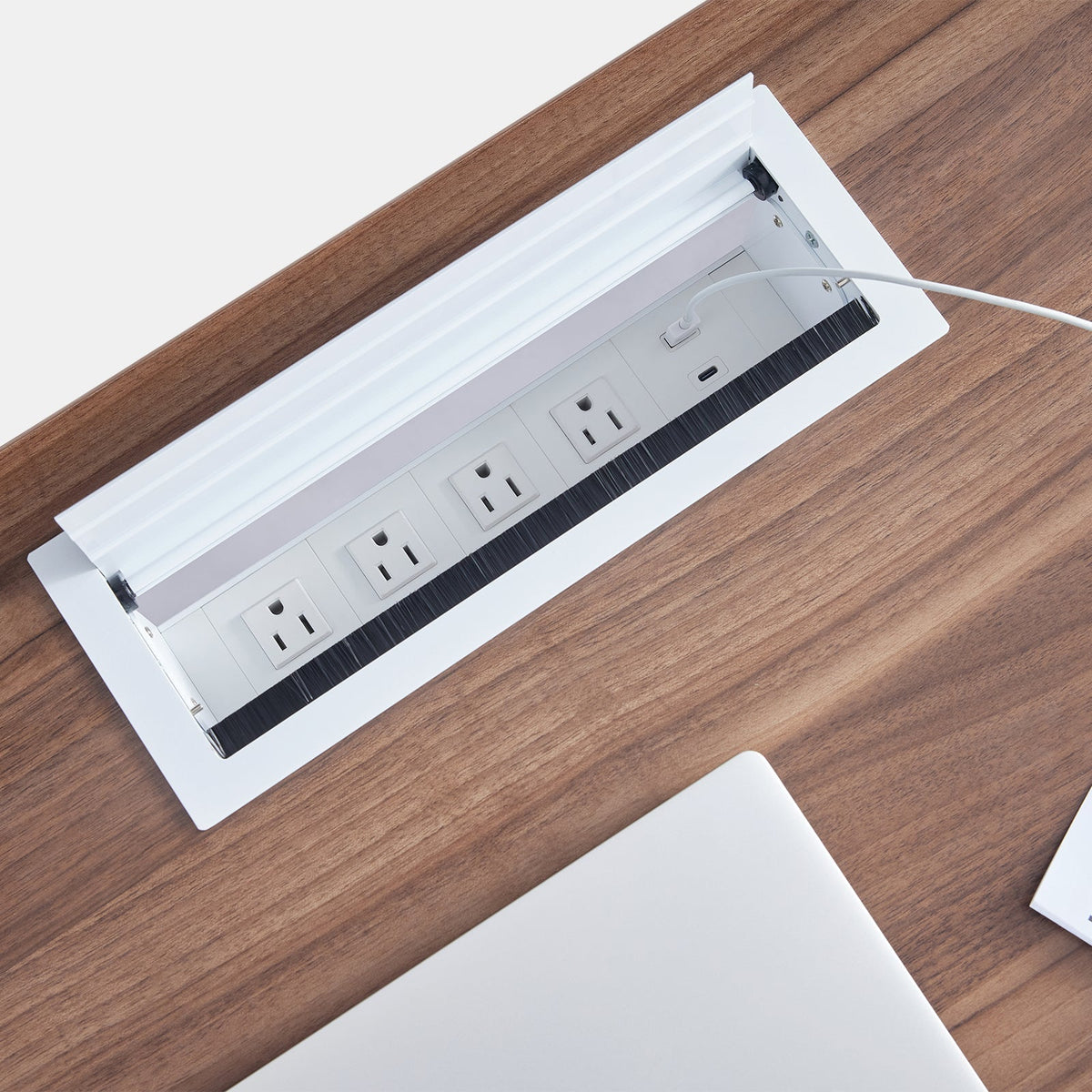
Built-in access works best when the outlet location is planned before the desk or table is finalized. An in-desk power module can give a workstation or meeting surface a more integrated charging point, especially when the cable route below the surface is also considered.
In-desk power is not simply about hiding an outlet. It is about placing access where people naturally need it. If the module is too far from the user, chargers stretch across the desk. If it sits too close to the keyboard zone, cables interfere with daily work. If the underside routing is ignored, cords can still hang below the furniture. A clean result depends on both the surface location and the path beneath it.
Desktop Power Option Comparison
| Planning Factor | Clamp-On Desk Power | In-Desk Power Module |
|---|---|---|
| Best fit | Flexible desks and adaptable workstations | Planned desks and meeting surfaces |
| Surface impact | Attaches to a desk edge | Built into the desktop surface |
| Visual presence | Visible but orderly when placed well | More integrated when installed cleanly |
| Layout flexibility | Easier to reposition with changing needs | Better for stable furniture layouts |
| Cable priority | Hide the module cord below or behind the desk | Plan the cutout and underside route together |
| Common mistake | Mounting it where cords cross the front edge | Installing it where users still need long chargers |
A No-Mess Power Plan Separates Work, Charging, and Routing Zones
Cable clutter often appears when every function competes for the same small area. A desktop feels cleaner when work, charging, and routing each have a defined location.
The Primary Work Zone Should Stay Open
The primary work zone includes the keyboard, mouse, notebook, documents, and the area directly in front of the user. This zone should have the fewest cables possible. Even one cord crossing this area can make a desk feel busier than it is.
For a laptop workstation, the charger should enter from the nearest practical side or rear point. For a monitor workstation, permanent cords should live behind the screen. For a desk used for writing and digital work, power should avoid the area where papers, sketchbooks, or folders naturally land.
The Charging Zone Should Be Accessible but Not Central
The charging zone should be close enough for daily use but not so prominent that every cable becomes part of the desktop view. Rear corners, side edges, and dedicated outlet modules help support this balance.
A well-placed charging zone also reduces the habit of leaving chargers loose across the desk. When users know exactly where devices plug in, they are more likely to return cables to the same place. Consistency is part of the visual order.
The Routing Zone Belongs Under or Behind the Furniture
The routing zone is where cords become less visible. This can include the underside of the desk, the back edge, a panel, a vertical leg path, or a route toward a nearby outlet. The routing zone should be planned with the same care as the outlet itself.
A practical routing setup may use cable trays, clips, bundled paths, or modesty panels. These details do not need to be complicated. They simply need to prevent loose cords from hanging, swinging, or spreading into walkways.
Desktop Power Planning Checklist
-
Identify which devices stay plugged in every day
-
Separate permanent cords from temporary charging cables
-
Keep the keyboard, mouse, and writing area free of power routes
-
Place laptop charging access near the user’s natural side or rear reach
-
Route monitor and lamp cords behind the main screen position
-
Keep phone and accessory charging in a secondary reach zone
-
Give power bricks a stable place under or behind the desk
-
Avoid cable paths near chair wheels, footrests, and walking lanes
-
Leave enough movement slack for adjustable-height desks without visible loops
-
Recheck the setup from the front, side, and seated position
Meeting Table Power Needs Shared Access Without Surface Clutter
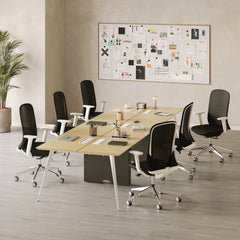
Meeting rooms make cable planning more visible because several people may need power at the same time. A single cord stretched from a wall outlet to a laptop can disrupt the entire room. When multiple people plug in, poor planning creates a web of cables across the tabletop and around the chairs.
Round Tables Require Center-Aware Power Planning
A round table changes how people access power. Since users sit around the perimeter, cords can easily radiate across the surface if outlets are placed only at one edge. A round meeting table works best with a power strategy that considers shared reach, sight lines, and the direction cables will travel.
For smaller meetings, a controlled central or near-center access point may reduce crossing cords. For wall-adjacent setups, an edge-based power point may work if users sit primarily on one side. The right answer depends on how the room is used, where screens are located, and whether the table needs to support laptops, note-taking, or quick collaborative sessions.
Shared Charging Should Not Compete With Presentation Space
Meeting tables often need to support laptops, phones, tablets, display adapters, notebooks, and drinks. If power access is not planned, the center of the table can quickly become crowded. Cables may block sight lines, interfere with note-taking, or pull devices out of position.
A cleaner plan separates shared power from shared work. Charging access should be close enough to serve multiple users, but cords should not run through the area where people exchange documents, place devices, or use the table for discussion.
Four-Person Meeting Scenario With Cleaner Cable Movement
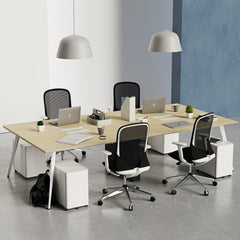
A four-person meeting setup might include two laptops charging, one phone plugged in, and one shared display adapter. Without planning, one participant may pull power from the wall, another may run a cord across the table, and someone else may move a chair over a cable.
A cleaner setup uses a defined power point and a controlled drop route. Cables should move toward the least visible table base, rear edge, or source path. This does not eliminate every cord, but it keeps the cords from becoming the center of the room.
Chair Movement Determines Whether Cable Routes Stay Practical
Seating is a major part of power planning. Meeting chairs move often. People roll back, stand up, shift positions, and pull closer to the table during discussion. If cable routes sit where chairs move, the setup becomes both messy and inconvenient.
When pairing tables with conference chair seating, power routes should respect leg clearance, chair movement, and the way people enter and leave the table. Clean cable planning is not only about the tabletop. It is also about keeping the floor area calm and usable.
Compact Collaboration Tables Need Subtle Power Access
Smaller tables have less visual tolerance for cable clutter. A large power hub on a compact surface can feel oversized. A single phone cable may look more noticeable on a small table than several cords on a large desk. For café-style work areas, touchdown zones, and casual meeting corners, power planning should be subtle and proportionate.
Small Round Tables Reveal Cable Mistakes Quickly
Compact round tables often serve quick conversations, laptop check-ins, or informal work sessions. Because the surface is limited, cords can easily interfere with coffee cups, notebooks, or shared materials. A compact bistro table calls for a restrained power plan that supports short work sessions without overwhelming the surface.
The best placement often depends on whether the table sits near a wall, beside lounge seating, or in an open area. Wall-adjacent placement can keep cords closer to the perimeter. Open placement may require more attention to vertical cable drops and floor paths.
Touchdown Work Needs Practical Access, Not Overbuilt Hardware
Touchdown areas are not full workstations. They usually support brief laptop use, quick calls, waiting periods, or informal collaboration. The power plan should match that behavior. One well-placed access point may be more appropriate than multiple visible chargers.
This approach keeps the table flexible. People can plug in when needed, but the furniture still looks clean when not in use. The less permanent the work behavior, the more important it becomes to keep cable hardware visually quiet.
Hidden Routing Makes Desktop Outlets Look Intentional
A desktop outlet solves only part of the problem. The rest depends on where the outlet cable goes after it leaves the surface. Without routing, even a well-placed power module can look unfinished.
Rear-Edge Routing Works for Wall-Facing Desks
For desks against walls, rear-edge routing is often the simplest clean path. Cords can drop behind the monitor or lamp and travel downward out of view. This helps prevent cables from crossing side edges, hanging in front of the desk, or competing with the user’s leg space.
The rear route should still be organized. Power bricks should not float behind the desk or rest in unstable positions. Cords should have enough slack to avoid tension, but not so much that they collect in visible loops.
Center-Drop Routing Works for Freestanding Tables
Freestanding tables need a different strategy because the back edge may be visible from several angles. A center-drop path can guide cords toward a table base or floor source with less visual interruption. This is especially important in meeting rooms, huddle spaces, and open-plan work areas.
The goal is not to make the route invisible from every angle. The goal is to make it intentional, stable, and out of the active seating path. A single controlled drop usually looks cleaner than several loose cords falling from different edges.
Side-Edge Routing Supports Quick Charging
Side-edge routing can work well when users frequently plug and unplug devices. It keeps access close without requiring users to reach behind equipment. This is useful for laptops, phones, and visitor devices.
The side edge should be chosen carefully. A power point on the side facing a walkway may make cords more visible. A side edge near a wall, panel, or less visible desk return may create a cleaner result.
Adjustable Desks Need Slack Without Visible Loops
Adjustable-height desks add another layer to power planning. Cords need enough length to move with the surface, but extra length can create hanging loops if it is not controlled.
Height Movement Changes the Cable Requirement
A fixed desk only needs enough cord length to reach from the device to the outlet and from the outlet to the source. An adjustable desk needs additional movement allowance. If the cords are too tight, they can pull against outlets or devices. If they are too loose, they may hang visibly below the surface.
A clean adjustable-desk plan gives cables a defined movement path. The cords should move with the desk in a controlled way rather than stretching, swinging, or catching on nearby furniture.
Power Bricks Need a Stable Hidden Location
Laptop adapters and power bricks are often the heaviest visual clutter in a workstation. If they sit on the floor, they collect around chair legs and footrests. If they hang from the desk, they pull on cords and look unstable. If they sit on the desktop, they consume valuable space.
A better approach gives power bricks a stable underside or rear location. Once the heavy parts are supported, the visible cord paths become easier to control.
Flexible Office Layouts Need Power Planning Before Furniture Placement
Flexible offices, hybrid workstations, and multipurpose rooms expose cable problems quickly. A space that looks clean for one user can become messy when different people bring different laptops, chargers, tablets, and accessories. Power planning should happen before the final furniture layout is locked in.
Hybrid Workstations Need Reset-Friendly Power Access
Shared desks need to look ready for the next user. That means charging cables should not depend on one person’s habits. The power access should be intuitive, visible enough to find, and routed well enough to keep the surface clean after use.
This is where furniture planning matters. Desks, storage, panels, and nearby outlets should work together. When the power route feels obvious, users are less likely to drag cords across the surface or leave adapters in the wrong place.
Furniture, Power, and Movement Paths Should Work Together
Office planning should consider where people sit, where they walk, where chairs move, and where devices need power. A workspace furnished with modern ergonomic office furniture can feel more composed when cable paths are planned as part of the room instead of treated as an afterthought.
This is especially important in open offices and collaborative settings. Desks may need to serve different people. Meeting rooms may support presentations, video calls, and quick team discussions. Lounge-style work areas may need discreet charging without looking like technical zones. The furniture layout should make power access feel natural while keeping cords out of view as much as reasonably possible.
A Future-Ready Desktop Power Plan Stays Clean as Devices Change
Device habits keep evolving, but the principles of clean desktop power remain steady. Place outlets where users naturally need them. Keep active work zones clear. Separate permanent cords from temporary charging. Route cables through predictable, low-visibility paths. Match power access to the furniture, not the other way around.
A desktop outlet plan should not depend on perfect behavior from every user. It should make the neat choice the easiest choice. When power is reachable, routing is controlled, and furniture supports the cable path, the workspace can stay useful without letting cords define the visual experience.
Clean desktop power is not about hiding every sign of technology. It is about making power feel integrated, calm, and intentional. A desk or table should support the devices people use every day while preserving the open surface, clear movement, and composed look that make a workspace feel ready for real work.
Related Articles
-
 How In-Desk Power Helps Desks With Charging Stations Work
-
 How In-Desk Power Makes Charging Easier During Workdays
-
 In-Desk Power Ideas That Make Shared Tables Feel Cleaner
-
 Best In Desk Power Outlet Placement Tips for a More Efficient Workspace
-
 Clamp On vs Built In Desk Power Outlet: Which One Works Best for Your Desk?
-
 How to Set Up Under Desk Cable Management Without Losing Easy Access


