























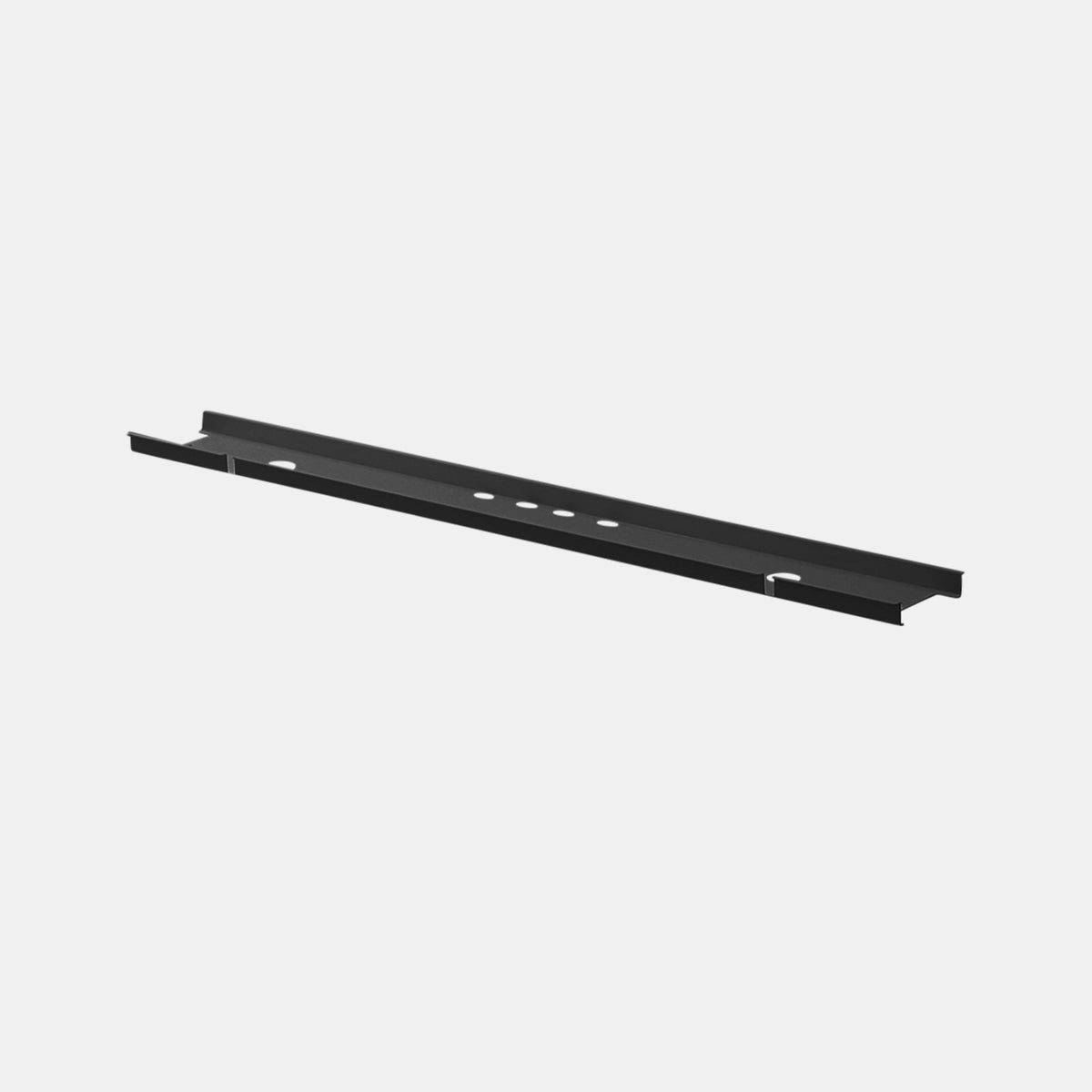
Desk cable organizer and desk cable management plan for small workstations

Why small workstations turn cables into visible clutter so quickly
Small workstations do not leave room for “good enough” routing. A cable that might disappear behind a larger desk is instantly visible on a compact surface, and one extra power brick can consume the only open leg space. The result is not just visual noise. It becomes daily friction: snagged cords, ports under strain, chargers that fall behind the desk, and a workspace that feels harder to use than it should.
High device density inside a low-footprint zone
Most compact setups carry the same functional load as a larger desk. A laptop still needs charging, a monitor still needs power and a video connection, and peripherals still need USB. Add a phone charger, a lamp, speakers, or a webcam and the “cable count” rises fast.
The difference is that small workstations compress every run. Cables cross because ports face different directions, adapters compete for outlet access, and slack has nowhere to coil without spilling into view.
“No buffer space” means every decision shows
On a deep desk, you can hide a lot in the back third. On a shallow desktop, the rear edge is only a few inches from your monitor stand, which makes even a small coil of slack look like a tangle. When cables drape across the surface, they visually cut the workspace into cluttered zones, even if everything technically works.
Daily cable churn is the real source of repeated mess
Compact workstations often serve multiple roles. The desk gets cleared for writing, the laptop moves to a meeting, or a phone gets plugged in and out several times per day. If the setup treats frequently used cables as “fixed infrastructure,” the system breaks. If the setup treats everything as temporary, the desktop never looks calm. Stable cable management depends on separating what moves from what stays.
The three friction points to design around
-
Snagging: cables catching on chair arms, knees, bag straps, or drawers
-
Heat buildup: power bricks stacked in tight clusters without airflow
-
Reach distance: outlets and ports placed where you have to hunt for them
The 10-minute cable audit that keeps your plan stable
At Urbanica, we approach cable management as a workspace system, not a one-time cleanup. The fastest way to build a system is an audit that stays simple enough to repeat whenever gear changes.
Build a simple inventory by role
List what is on your desk today, then group it by function:
-
Power: laptop charger, monitor power, lamp, speakers
-
Data: HDMI or DisplayPort, USB-C, Ethernet
-
Peripherals: keyboard, mouse, webcam, microphone, printer
-
Occasional-use: phone charging, external drive, camera, tablet
This quickly reveals which cables should be treated as permanent and which should remain easy to access.
Identify what must move vs. what must stay fixed
For a small workstation, this single decision prevents constant rework.
Must move usually includes the laptop charging lead, a phone charging cable, and any cable you unplug weekly.
Must stay fixed should include the bulk of power distribution, most adapters, and the primary video cable to your monitor.
When fixed cables are allowed to float, they become visible clutter. When moving cables are locked into bundles, you end up ripping routes apart every time you unplug something.
Measure only the distances that matter
You do not need to measure every cable. Measure the paths that determine routing quality and slack control.
Wall outlet to desk entry point
Pick one location where the desk “receives” power. That is the spot you design around, because it defines where the one visible drop will live.
Desk edge to device ports
If your monitor cable is far longer than needed, the coil will show. If it is too short, it will tug and strain the port. Measuring this distance helps you avoid both problems.
Movement range
Even on a fixed desk, movement happens. Chairs roll, monitor arms swing, laptops shift. For sit-stand desks, the height change adds a new variable. A stable cable plan accounts for movement on purpose, not by accident.
Cable flow mapping for small desks using the three-lane routing model
A compact workstation stays tidy when the cables follow a predictable map. Instead of one thick bundle, we use three lanes, each with its own behavior rules. This improves clarity, makes maintenance easier, and keeps the desktop visually clean.
Lane 1: Power lane that stays stable and hidden
The power lane is the backbone. It should be positioned where you rarely touch it, because frequent interaction causes drift and clutter. On most small workstations, this lane belongs under the desk near the rear edge, where it can be concealed and kept away from knees.
Lane 2: Data lane that stays short and avoids crossing
Data cables work best when they take the most direct route with minimal loops. The goal is not perfection. The goal is fewer crossing points and fewer snag opportunities. In small setups, shorter, cleaner data runs usually create the biggest visual improvement because they remove coils from the desktop.
Lane 3: Access lane designed for real-world plugging and unplugging
The access lane exists for the cables you actually touch. It can be visible, but it must look intentional. That usually means one dedicated “access bay” on a front corner or side edge, where charging happens without cords draping across the work surface.
Where each lane should live on a compact desk
A layout that stays stable across most small workstations looks like this:
Rear underside as the bulk zone
Power distribution, adapters, and slack storage belong here.
Rear edge as the entry ramp
This is where your data lane rises cleanly into the monitor, dock, or laptop.
Side edge or front corner as the access bay
This is where phone charging or quick connections happen, so you never have to reach behind a monitor for daily tasks.
Desktop decisions that reduce visible clutter before you mount anything
Before any accessories go under the desk, a few placement decisions can reduce cable exposure immediately. These choices also make your routing easier and more forgiving.
Device placement rules that shorten cables naturally
Monitor position and the rear-corner hub concept
Place the monitor so the cable exits toward the back, not across the desktop. Then choose a rear corner as the “hub,” where power and data enter and distribute. This keeps cable travel behind the device line and reduces the chance of cords crossing the working area.
Dock and charger placement that prevents cross-desk runs
If you use a dock, place it near the lane it feeds. For many small desks, that means near the rear corner hub. If the dock sits on the opposite side of the laptop, cables naturally cross the workspace. You can bundle that later, but the layout will always fight you.
Cable-length strategy for small workstations
When shorter cables solve more than organizers
If you have one cable coil that always shows, it is often a length problem, not an organizer problem. In compact setups, right-sizing a couple of key cables can reduce the need for bundling and cut down visual noise. The goal is not minimal length. The goal is comfortable length with controlled slack.
When you need slack and when slack becomes clutter
Slack is useful when something moves. For example, a laptop that shifts slightly during the day needs a bit of play. Slack becomes clutter when it sits on the desktop with no job. The easiest way to control it is to store excess under the desk in the bulk zone, not on the surface.
Quick-swap readiness without messy cords
The “one spare port plus one spare cable” approach
A small workstation stays calmer when it has one planned expansion point. That might be one accessible outlet and one readily available charging cable in the access bay. It prevents the common habit of temporary cables sneaking into permanent lanes and turning the setup into a new tangle.
Power access design that keeps outlets where your hands are
When a small workstation feels messy, power is often the cause. Outlets on the floor force cables to travel upward and remain visible. A better approach is bringing power to the desk, then controlling how it drops to the wall.
Clamp-mounted desk power for edge-access plugging
A clamp-mounted power solution places outlets at the desk edge, which supports quick plug and unplug behavior without dragging cords across the surface. For many compact setups, a clamp-mounted unit becomes the clean, intentional “access bay” for daily charging while keeping the primary power distribution stable below. The clamp-on desk power outlet is designed for this type of edge placement. https://urbanicafurniture.com/collections/accessories/products/clamp-on-desk-power
Best-fit use cases for compact workstations
-
Workstations where phone charging happens multiple times per day
-
Desks where reaching behind the monitor is inconvenient
-
Spaces where keeping cords off the floor reduces snag risk
Placement logic that keeps the desktop clean
Placing edge-access power on your dominant-hand side typically makes daily use easier. Placing it closer to the rear corner can reduce visibility, but it can also encourage you to reach behind devices. The right placement balances convenience and visual calm.
Built-in desktop power for plug-from-the-surface behavior
Some workstation layouts benefit from power that lives in the desktop itself, especially when you want a clean top surface without a power block sitting on it. A built-in solution supports neat charging and can reduce cable drape across the work area because cables can drop immediately below the surface rather than traveling across it. The in-desk power grommet supports that “plug from the surface” behavior. https://urbanicafurniture.com/collections/accessories/products/in-desk-power
Best-fit use cases for clean-top workflows
-
Writing and sketching workstations where the surface needs to stay open
-
Laptops and phones that plug in frequently without extra desktop clutter
-
Setups where cable entry should be centered and controlled
Routing tip that keeps the surface calm
When power originates on the desktop, the first few inches below the surface matter. If the cables immediately route into the bulk zone under the desk, the desktop stays clear. If they loop outward first, the visual benefit disappears.
The single-drop rule that prevents floor spaghetti
A clean power plan usually shows only one cord traveling from desk to wall. Everything else stays within the workstation system. The single-drop rule is not just aesthetic. It reduces snagging, makes cleaning easier, and makes the entire setup simpler to troubleshoot.
Choosing the best drop location in small rooms
The best drop is typically a rear corner closest to the wall outlet. It minimizes visible run length and keeps cords out of walkways. If the desk sits in a tight room, keeping that drop close to the wall can improve safety and reduce accidental unplugging.
Under-desk containment that preserves knee space and airflow
Under-desk organization is where compact cable management becomes durable. The goal is not to hide everything at any cost. The goal is to contain bulk without making the workstation uncomfortable or hard to service.
What under-desk containment must accomplish in small workstations
Hide power bricks and store slack without compressing everything
Power bricks are the bulkiest pieces in most setups. If they float freely, they become knee hazards and dust magnets. If they are stacked tightly, heat builds and the cables bend sharply. Good containment gives them a home with enough space to breathe.
Protect cables from chair movement and daily contact
Even if you never kick cables intentionally, chairs roll, feet shift, and bags brush against the underside of desks. Containment prevents those incidental contacts from turning into snags and disconnects.
Choosing the right under-desk organizer style without overbuilding
Under-desk solutions generally do two jobs: bulk containment and routing guidance. A compact workstation usually needs both, but not equally.
The under-desk cable management kit is designed to help conceal and organize cables beneath the desktop, which supports the bulk containment function that small workstations typically need most. https://urbanicafurniture.com/collections/accessories/products/under-desk-cable-management
Bulk containment versus routing guidance
Bulk containment stores bricks and excess slack. Routing guidance keeps the lanes aligned and prevents drift. If you prioritize only routing guidance, you still end up with bricks on the floor. If you prioritize only bulk containment, you may still see cords wandering along the underside. A balanced approach uses containment for the heavy pieces and a few small guides for the lanes.
Micro-placement for comfort and visibility
The knee-zone boundary and rear-edge advantage
A common mistake is placing bulk storage too close to the front underside. That is where knees live. For comfort, keep bulk storage closer to the rear underside and offset from where your legs naturally sit.
Heat and adapter handling that stays safe and stable
Avoid stacking adapters tightly. Keep a little space between bricks and avoid wrapping cables around them under tension. This reduces strain on connectors and supports airflow, which helps long-term reliability.
Vertical cable control for sit-stand desks and why height change breaks tidy routing
Sit-stand workstations are powerful for small spaces because they allow one desk to serve more needs. They also introduce movement, which means cable management must be designed for travel, not just a fixed position.
Why height change breaks otherwise tidy routing
When the desktop rises, the distance to the wall outlet increases. If cables do not have a controlled vertical path, they either pull tight and strain ports or droop and look messy. The problem is rarely the cables themselves. It is the lack of a guided route between desk and floor.
A flexible vertical spine to guide cables desk-to-floor
A vertical spine keeps cables bundled while allowing them to move with the desk. It provides a predictable path and reduces snagging. The desk cable management spine is built for that guided vertical control, especially in sit-stand setups. https://urbanicafurniture.com/collections/accessories/products/spine-cable-management
Slack math that prevents tugging and droop
A practical way to set slack is to route cables with the desk at standing height, then lower to sitting height and observe. If any cable becomes taut at standing height, it needs more length or a cleaner path. If slack pools on the floor when sitting, the path needs better guidance. The spine helps manage that extra length by containing it in a controlled vertical fold.
The move-cluster method that keeps motion smooth
Instead of having multiple independent cables moving, group all desk-to-floor cables into one cluster. Power drop, data drop if needed, and one planned spare. This reduces tangles and makes troubleshooting easier because you can trace one moving bundle instead of several.
Desk cable organizer methods that hold up under real use
Cable management that looks good for a photo can still fail in daily life. The difference between a tidy workstation and a constantly drifting one comes down to how you mount, bundle, and label.
Mounting logic for small workstations
Mounting should reflect behavior.
-
Use stable mounting for items that should never move, like bulk power distribution and adapters.
-
Use accessible placement for items you handle often, like charging leads in the access bay.
-
Avoid relying on a single adhesive point to carry the weight of multiple bricks.
Bundling logic that avoids stiff, unserviceable snakes
Bundling works best when it reduces chaos without preventing change. In small workstations, overly tight bundles become rigid and make upgrades difficult. Bundle within each lane, not across lanes, so you can adjust one part without disturbing everything.
Practical reasons to separate power and data
Separation is less about perfection and more about maintenance and stability. When power and data are mixed into one bundle, changing one cable often forces you to disturb the whole system. Keeping them in separate lanes makes it easier to swap a monitor cable or replace a charger without unraveling the desk.
Labeling that speeds changes without making the setup feel technical
Labeling does not need to be elaborate. The goal is fast identification when you unplug something. Labeling the ends of similar cables and the outputs of power bricks can save time later and prevent accidental unplugging of the wrong device.
A minimum viable labeling scheme
-
Label the monitor power brick output
-
Label the laptop charging lead at the under-desk origin
-
Label any identical-looking USB-C cables that serve different roles
Maintenance rhythm that keeps the system stable
A small workstation benefits from light, consistent upkeep. A quick weekly reset keeps the access lane tidy. A periodic check under the desk ensures bricks have not shifted and cables remain in their intended lanes.
Small workstation execution plan built for real rooms and real habits
A clean cable plan should feel doable and repeatable, not like a renovation. The most reliable approach is to execute in phases so every step reinforces the routing model.
Phase 1: Reset the desk and assign lanes
Unplug what you can, clear the surface, and group cables into power, data, and access. Decide where the rear corner hub will be and where the access bay will live.
Phase 2: Design the power entry and single-drop path
Choose where the desk receives power and where the drop to the wall will run. Keep the drop near the wall whenever possible to reduce exposure and snag risk.
Phase 3: Contain bulk under the desk and route lanes cleanly
Place bricks and slack in the bulk zone under the desk. Route power first, then route data with short, direct runs. Finally, place the access lane where it is reachable without crossing the desktop.
Phase 4: Stress-test the workstation and refine what fails
Move the chair, slide the laptop, and plug and unplug the cables you use daily. If something snags, identify which lane is drifting and adjust that lane only.
What to fix first when the test fails
-
If cables snag, move the drop location or tighten lane guidance under the desk.
-
If cables are visible on the desktop, shorten the visible run by shifting device placement toward the rear edge.
-
If cables feel taut, add slack in the bulk zone and ensure the path is not pulling at an angle.
Small workstation setups you can replicate with predictable routing
Different setups need different lane emphases. The examples below describe routing patterns that stay tidy because they respect movement and access.
Laptop-only plus one monitor using a minimalist routing pattern
Use the rear corner hub to feed the monitor and keep the laptop charging lead within the access bay. The monitor cable stays in the data lane and enters from the rear edge. The laptop charging lead remains reachable without being bundled into the fixed infrastructure.
Dual-monitor plus dock that keeps data runs short and stable
Place the dock near the rear corner hub and route both monitor cables together in the data lane. Keep the dock power and monitor power within the under-desk bulk zone so the desktop remains focused on the work surface, not the infrastructure.
A charging zone that stays accessible without draping across the desktop
Choose one side edge as the access bay. Keep one primary charging cable there, and route the slack down into the bulk zone so only the usable length is visible. This prevents phone charging from turning into a cross-desk cable run.
Two-person compact workstation that avoids crossover cables
Shared desks get messy when each person’s cables migrate into the other person’s space. The solution is left and right lanes with a shared bulk zone.
A two-person standing office desk supports a layout where each user has a dedicated access bay and data lane, while power distribution and slack storage can be handled centrally under the desk. https://urbanicafurniture.com/products/two-person-standing-office-desk
Left and right lane separation with shared containment
Define a left-side access bay and a right-side access bay. Keep each person’s daily-use cables within their bay. Route each person’s monitor and dock data cables along their respective rear edge, then keep the bulk power storage in a shared under-desk area.
Preventing crossover cables between users
Avoid running a cable from one side into the other unless it is truly shared. Shared devices like a single printer or shared speaker system should have a clearly defined cable path that does not cut across either person’s working zone.
When the desk itself reduces cable clutter and when it cannot
Sometimes a workstation feels like it is fighting cable management. In many cases, the desk layout is the reason. The desk does not need to be complex, but it should support predictable routing and comfortable leg clearance.
What to look for in a desk when cable management is the priority
Rear-edge routing friendliness and predictable cable paths
A desk that allows clean cable entry at the rear edge makes it easier to keep cords off the surface. Leg clearance matters too. If the underside is cramped, bulk containment becomes uncomfortable and cables are more likely to be bumped.
Sit-stand planning that accounts for movement from day one
If you know you will use sit-stand, plan for vertical cable guidance early. It is much easier to build a tidy system when the movement is accounted for from the start.
A sit-stand desk like the Urbanica standing desk can serve as a strong foundation for a cable plan that includes a defined bulk zone, a single drop, and a controlled vertical path for movement. https://urbanicafurniture.com/products/standing-desk
Tight-room realities: safety, cleaning, and layout constraints in small home offices
Small workstations often live in bedrooms, living rooms, and studio corners. That makes cable management more than aesthetics. It becomes part of safety and usability.
Floor safety and walkways in compact rooms
In tight layouts, exposed floor cables become trip hazards and snag risks. A single-drop approach helps keep cords close to the wall and away from walking lines. It also helps prevent accidental unplugging when someone passes behind the chair.
Cleaning access and designing for inspection
A system that is too tightly packed becomes hard to clean. Dust accumulates around power bricks and under-desk zones. Leaving a little space around adapters and keeping a clear path to check connections makes the setup easier to maintain over time.
Support for selecting space-saving office pieces and configurations
When a workspace is limited, choosing the right combination of desk, accessories, and layout matters more than chasing maximum features. Our team uses practical space planning to help customers build a workstation that looks clean and works smoothly in real rooms. The Urbanica local office furniture guidance page is one place to explore those options and see what support is available for office setups and selections. https://urbanicafurniture.com/pages/office-furniture-los-angeles
Cable management that stays tidy as your gear changes
The best cable management plan is one that survives change. Devices get added, roles shift, and new tools appear. A stable system has room for expansion without turning into clutter again.
The modularity rule: always leave a service loop and an expansion point
A service loop is a small amount of controlled slack stored under the desk. It prevents tension when you move a device slightly or swap a cable. An expansion point is one planned outlet or connection reserved for future needs. These two elements keep the system flexible without encouraging random cables to appear on the desktop.
Upgrade triggers that suggest a layout change instead of more accessories
Accessories can only do so much if the layout is working against you. Signs that you may need a layout adjustment include constant cable tugging, visible coils you cannot hide without blocking leg space, or a desktop that cannot maintain a clear work zone because devices are forced into awkward positions.
Long-term stability: what “organized” looks like with new devices added
An organized small workstation still has cables. The difference is that cables have a home and a purpose:
-
Power stays in the power lane with one controlled drop
-
Data stays in the data lane with short, predictable runs
-
Daily-use charging stays in the access bay without crossing the workspace
When those conditions are maintained, adding a device is a matter of plugging into a planned expansion point and guiding one new cable into the correct lane, not redoing the entire setup.
Related Articles
-
 Desktop Power Outlet Planning Without Visible Cable Mess
-
 How In-Desk Power Helps Desks With Charging Stations Work
-
 How In-Desk Power Makes Charging Easier During Workdays
-
 In-Desk Power Ideas That Make Shared Tables Feel Cleaner
-
 Best In Desk Power Outlet Placement Tips for a More Efficient Workspace
-
 Clamp On vs Built In Desk Power Outlet: Which One Works Best for Your Desk?


