



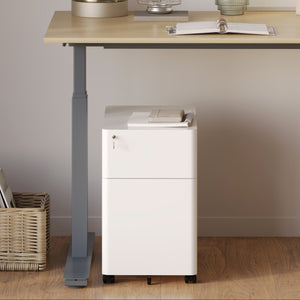







Filing Cabinet Choices for Cleaner Workstation Planning
Cleaner workstation planning starts with filing storage that matches the desk, document volume, security needs, and daily workflow. Explore how cab...
Learn more
Visit quiz page to see how we makes it easy to create an inspiring workplace


A monitor can be the centerpiece of a productive workspace or the quiet source of daily discomfort. Many neck and upper back complaints do not begin with long hours alone. They often begin with a screen that sits too high, too low, too far away, or slightly off-center. Those small placement errors can encourage a forward head position, rounded shoulders, chin lifting, or constant leaning that feels minor at first and tiring by the end of the day.
Good monitor stand placement is less about chasing a perfect number and more about creating a viewing angle your body can maintain naturally. The goal is simple: keep the screen easy to read while allowing the head, neck, and shoulders to stay as neutral as possible. When that happens, the workstation supports the person instead of forcing the person to adapt to the workstation.
People often notice neck strain only after it has already become a pattern. The body is very good at tolerating small amounts of strain for short periods. Problems build when those same positions repeat hour after hour.
A monitor that sits just a little too low can lead to a constant downward head angle. A monitor that sits too high can cause the chin to lift and the muscles at the base of the skull to tighten. A screen placed too far away often encourages the body to drift forward, especially when text is small or contrast is poor.
This is why discomfort can feel confusing. The screen may look fine on the desk, but if the viewing angle pushes the head away from a neutral position, the body starts compensating. Over time, those compensations can affect not only the neck, but also the shoulders, upper back, and even how the arms rest while typing.
The head does not work in isolation. When the screen position is off, people often pull their shoulders forward, perch at the edge of the chair, or lean toward the display. That changes the load on the upper spine and makes it harder to stay supported by the chair back.
A useful way to judge a setup is not whether it looks tidy, but whether it allows relaxed posture during actual work. A visually clean desk can still create poor screen geometry. The body will always reveal whether the setup is truly working.
The most common advice about monitor placement is to put the screen at eye level. That advice is helpful, but incomplete. What matters more is where the visible content lands in relation to your natural gaze when you are seated properly.
For many people, the most comfortable setup places the top portion of the visible screen at or slightly below eye level. That creates a gentle downward gaze while keeping the neck relatively neutral. A slight downward viewing angle is usually easier to sustain than looking straight ahead for hours.
This approach works because people do not typically scan the whole screen with the head. They scan with the eyes first. If the monitor is positioned too high, the eyes run out of comfortable range and the head starts tipping back.
There is no single height that fits every person or every screen. Large monitors, ultrawide displays, and reading-heavy work often benefit from a somewhat lower placement. Users who wear bifocals or progressive lenses may also prefer a lower screen so they do not lift the chin to find the correct viewing zone through their lenses.
That is why fixed monitor risers do not solve every problem. They create one height and expect the body to adapt. When daily tasks vary, adjustability becomes much more useful than a one-position solution.
A setup that supports natural posture often benefits from flexible positioning, especially in workstations shared by more than one person or used for different tasks throughout the day. An adjustable monitor arm can make those small height and angle refinements easier without forcing compromises elsewhere on the desk.
Screen height gets most of the attention, but distance is just as important. Even a well-positioned monitor can create strain if it sits far enough away to make the user reach with the eyes, neck, and torso.
A common guideline is to place the monitor about an arm’s length away. That works well as a baseline, but not as a fixed formula. Screen size, display resolution, text scaling, and the type of work being done all influence what feels comfortable.
A larger display may need to sit a bit farther back so the eyes can scan it more easily. A smaller screen may need to sit somewhat closer, but not so close that it causes constant focusing effort or encourages hunching.
One of the clearest signs of poor monitor distance is the habit of slowly moving toward the screen as the day progresses. In many cases, the problem is not distance alone. It may be text size, brightness, glare, or contrast. Users often move closer when the better fix would be increasing display scaling or improving the visual environment.
When the display is readable at a comfortable distance, it becomes much easier to stay back in the chair with the head stacked more naturally over the shoulders.
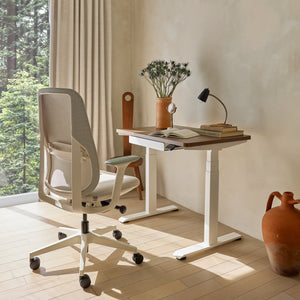
Some desks are too shallow to support a proper screen-to-keyboard relationship. Others are deep enough, but the monitor ends up pushed too far back because accessories, decor, or paper storage claim the better space. Choosing from well-planned ergonomic office desks can help create the depth needed for a monitor to sit where it supports both viewing comfort and arm position.
A monitor can be the correct height and distance and still create discomfort if it is not centered properly. Horizontal placement matters because the neck does not tolerate long periods of mild rotation especially well.
The center of the monitor should generally line up with the center of the user’s body, not simply the midpoint of the desktop. If the keyboard sits in one place and the monitor sits off to one side, the neck is likely to rotate while the hands remain forward. That mismatch is a common source of low-grade strain.
A practical check is to sit in a normal working position and see whether the nose points to the center of the primary screen. If not, the setup may be asking the neck to do extra work all day.
If two monitors are used equally, the best placement often involves centering the gap between them with each display angled slightly inward. If one screen is used most of the time and the second is occasional, the primary monitor should sit directly in front while the secondary screen stays beside it at an inward angle.
Laptop-plus-monitor arrangements often create the most overlooked problems. A laptop parked off to one side may seem harmless, but repeated glances toward it can produce uneven muscle tension. The more often the body turns in one direction, the more important it becomes to design the setup around that pattern.
A good monitor setup is never just about height and distance. Tilt and lighting conditions can completely change how the screen behaves during work.
Many monitors work well with a subtle backward tilt. That can reduce awkward reflections and align the screen more naturally with the seated gaze angle. Too much tilt, however, may introduce glare, visual distortion, or a habit of lifting or dropping the chin to compensate.
The right tilt is the one that keeps the display easy to view without making the user adjust head position to follow the screen.
Reflections from overhead lighting, windows, glossy surfaces, or nearby lamps can create discomfort that feels like poor screen height. People respond by moving the monitor, leaning sideways, or changing their head angle to escape the glare. The problem looks ergonomic, but the real source is visual.
This is where layered lighting helps. The goal is not to flood the desk with brightness. It is to create balanced local light for the work surface without overpowering the display.
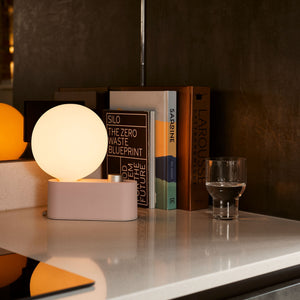
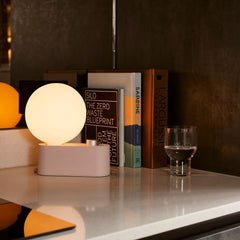
Well-placed local lighting can make reading notes, using a keyboard, and navigating the desktop easier without forcing awkward posture. The Alumina Lamp fits naturally into a workspace that needs focused illumination around the desk while keeping the monitor area more visually balanced.
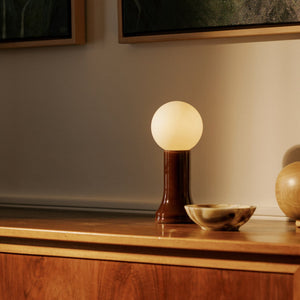
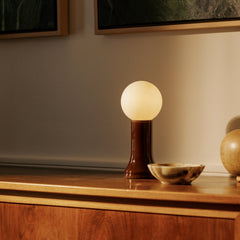
For setups that benefit from a compact lighting element near the screen zone, the Shore Table Lamp can serve as a useful part of the visual environment when positioned so it supports the task surface rather than shining into the display.
A monitor cannot fix a workstation that is unstable from the ground up. Screen position is part of a chain that starts with how the body is seated.
If the seat is too high, the shoulders may elevate and the feet may lose stable support. If the seat is too low, the knees and hips may create a slumped pelvis and collapsed trunk position. In both cases, users often reposition the monitor to match the posture they already have instead of correcting the posture first.
That leads to a common problem: the monitor becomes a patch for a chair issue, and then the desk and keyboard must be adjusted around that patch.
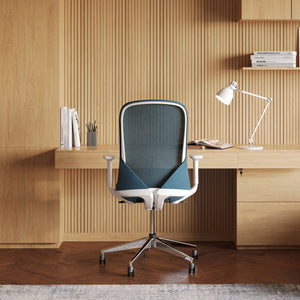
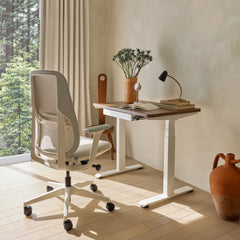
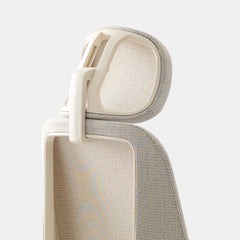
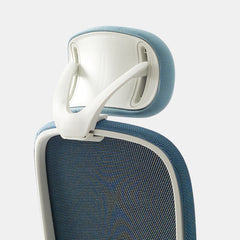
When the chair supports a more stable seated posture, monitor placement becomes easier to get right and easier to maintain. Good ergonomic office chairs help create a position where the back can stay supported, the arms can rest more naturally, and the head does not need to drift forward to work.
The cleanest approach is to set the chair first, then the desk relationship, and then the monitor.
1. Place the feet flat and establish a comfortable seat height.
2. Sit back and use the chair’s back support.
3. Check that the keyboard and mouse are reachable without lifting the shoulders.
4. Center the monitor with the body.
5. Adjust height for a comfortable downward gaze.
6. Refine distance and tilt based on real reading comfort.
That order keeps the monitor from being used as a workaround for problems that begin elsewhere.
Some monitor placement issues do not come from lack of effort. They come from choices that seem logical on the surface.
A fixed stand may visually elevate the monitor, but if that height is wrong for the user, the body pays for the clean lines. This becomes even more problematic in shared spaces where more than one person uses the same desk.
Decorative objects, storage pieces, stacked notebooks, and desktop organizers often push the monitor backward or off-center. The result is a screen that no longer sits in the ideal zone for posture and viewing comfort.
Selecting office furniture accessories that complement the workstation without stealing the monitor’s natural placement area can help preserve better screen geometry and a cleaner working surface at the same time.
Not every workspace needs a full redesign. In many cases, a short reset is enough to identify what is causing the body to compensate.
1. Sit fully back in the chair instead of leaning toward the desk.
2. Let the shoulders relax and place both feet flat.
3. Center the keyboard with the body.
4. Align the monitor so the middle of the screen is in front of the face.
5. Raise or lower the screen so the gaze falls slightly downward to the upper area of the display.
6. Move the monitor to a distance that allows easy reading without leaning in.
7. Adjust the tilt to reduce reflections and visual strain.
8. Test the setup while doing actual work for several minutes.
A better monitor position usually shows up as reduced fidgeting. People tend to sit back more, shrug less, and stop reaching their head toward the screen. They may also notice fewer one-sided aches, less temptation to rub the neck, and less need to keep resetting posture throughout the day.
The best screen position is not just a measurement. It is part of a larger environment that either supports healthy habits or makes them difficult to maintain.
Even a properly positioned monitor can become less effective if the desk is too crowded, the chair is not supportive, or the lighting keeps changing throughout the day. The strongest setups make it easy to return to the same healthy position each time work begins.
Exploring ergonomic and modern office furniture can help connect monitor placement with the broader elements that influence posture, visual comfort, and day-to-day usability.
A monitor that protects the neck is one that allows the user to work with less compensation for longer periods. That does not mean the setup never changes. It means the essentials remain consistent: centered screen, sensible height, readable distance, supportive seating, and lighting that does not fight the display.
When those pieces come together, monitor stand placement becomes more than a technical adjustment. It becomes part of a workspace that respects how the body actually works.


You have unlocked free shipping!
You're saving $29 and unlocked free shipping!
Leave a comment