








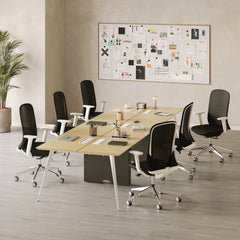


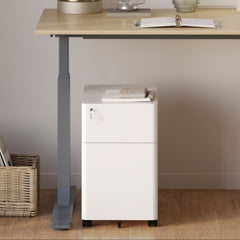






Filing Cabinet Choices for Cleaner Workstation Planning
Cleaner workstation planning starts with filing storage that matches the desk, document volume, security needs, and daily workflow. Explore how cab...
Learn more

Visit quiz page to see how we makes it easy to create an inspiring workplace


A desk with built-in power can solve a problem that most workspaces try to fix too late. Once chargers, monitors, laptops, and mobile devices pile onto the surface, cable clutter usually becomes a daily irritation rather than a minor inconvenience. Cords slip behind the desk, adapters compete for space, and the clean layout you wanted turns into a visible tangle that interrupts focus.
The right desk setup handles power as part of the workspace itself. That means choosing a surface, layout, and power access point that support the devices you actually use, where you use them, and how often you need to plug them in. Better cable control does not come from hiding a mess after it happens. It comes from choosing a desk that reduces the chance of clutter from the start.
That is why the search for cleaner cable management should begin with the desk, not with organizers alone. Browsing an office desk collection is often the first step, but the better decision comes from understanding how power access, surface size, and workflow interact in a real workstation.
A cable problem is rarely just a cable problem. In most cases, it is a power placement problem. If the nearest outlets are under the desk, behind furniture, or off to one side, every connected device has to compensate. That usually leads to longer cable runs, more visible draping, and extra accessories added just to make the setup usable.
A desk with outlet and USB access changes that equation by moving power closer to the point of use. When charging and plugging in happen at desktop level, cables travel shorter distances and have fewer chances to cross your workspace. Phones can charge without wires cutting across the keyboard area. Task lights do not need cords hanging from the back edge. Laptop chargers can stay within reach instead of disappearing to the floor.
This matters because cable control is not only visual. It also affects comfort and workflow. A cleaner setup is easier to maintain, easier to wipe down, and less distracting during the workday. It can also reduce the habit of reaching under the desk to unplug something, swap a charger, or find a free outlet.
Many workspaces become messy because convenience gets added in pieces. A power strip goes under the desk. Then a USB hub lands on the surface. Then a phone charger runs across the front edge. Every small fix works for a moment, but the overall layout becomes harder to control.
When power access is already part of the desk plan, the setup tends to stay more orderly over time. The workspace feels intentional instead of improvised.
Not every buyer needs the same kind of power access. One of the most important choices is deciding whether you want a power solution integrated into the desk or attached to it as an add-on. Both approaches can improve cable control, but they fit different work habits.
A built-in desk power module usually makes the most sense when the desk layout is fairly stable. If your monitor, laptop, lamp, and charging routine stay in roughly the same positions every day, integrated power can feel more natural and visually contained.
This style works well for buyers who want a more polished desktop with fewer signs of afterthought. Because the power source is part of the desk surface, it can reduce the feeling that accessories have been added simply to compensate for missing function.
Built-in power tends to work best in setups with repeatable habits. That includes a home office where the laptop docks in the same place each morning, a desk with one or two monitors that stay fixed, or a workspace where the same phone and accessory chargers are used every day.
It also supports a cleaner look because the charging point can feel like part of the workstation rather than a device clipped onto it.
A clamp-on desk power module can be the better option when flexibility matters more than permanence. This is often useful for renters, evolving home offices, shared desks, or anyone still testing the most comfortable layout.
Clamp-on power can be easier to reposition if you discover that the left edge works better than the right, or that your charging devices are more convenient near the back corner than the front. It also helps when you want improved access to outlets and USB ports without committing to a more fixed installation approach.
Cable management is easier when the power source can adapt to the way the desk is actually used. A clamp-on module supports that kind of adjustment. It can also be a practical path for upgrading an existing desk setup without replacing the entire workstation.
The right choice depends less on which option sounds more advanced and more on how settled your layout is likely to be.
One of the most common buying mistakes is choosing a desk with power access before identifying everything that will connect to it. A laptop and a phone may seem like the full setup at first, but most workstations include more than that once daily use begins.
A typical desk may need to support some combination of the following:
Laptop charger
Monitor or dual monitors
Phone charger
Tablet charger
Desk lamp
Docking station
Speakers
Webcam
Wireless accessory charger
Headphones or earbuds
Small USB-powered accessories
The more complete this list is, the easier it becomes to choose the right power layout. Otherwise, the desk may technically have outlets and USB access but still feel crowded because too many cords are competing for the same small area.
Even when there are enough connections, bulky adapters can create practical issues. A large charger may block nearby ports or push other plugs into awkward angles. That can lead to visible overlap, wasted space, and frustration during normal use.
The goal is not simply to have enough power points. The goal is to have a desk layout that allows those connections to function without creating visual or physical clutter.
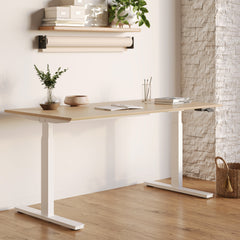
Power access helps, but desktop size determines whether cables have room to stay organized. A desk can have useful outlets and USB ports and still feel messy if the surface is too small for the equipment placed on it.
Narrow desks often force accessories into the same zone. When a phone charger, laptop cable, and monitor cord all need to occupy limited space, wires start crossing over one another and drifting into active work areas.
A wider surface creates more separation. Charging can stay to one side, monitors can sit farther back, and the typing zone can remain clear. This makes the cable layout easier to maintain throughout the day.
Depth is just as important. A shallow desk can make rear-edge cable routing harder because the monitor, keyboard, and charging points all end up compressed into one plane. More depth gives cables room to stay behind the main work area instead of passing through it.
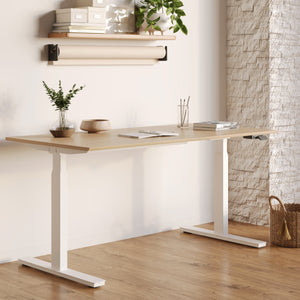
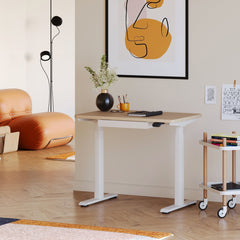
This becomes especially important in adjustable desks. An adjustable standing desk can support a more dynamic workflow, but movement adds another layer to cable planning. When the desk raises and lowers, cords need enough length to move smoothly without drooping so much that they create a visual mess.
A smaller workspace does not reduce the need for power access. In fact, small rooms often benefit even more from intentional cable control because every exposed cord becomes more noticeable. A space-saving standing desk can work very well in a tight office corner, apartment, or multipurpose room, but the layout needs to be more deliberate.
In compact setups, one charging zone should be clearly defined. Device sprawl becomes obvious faster, so the desk works best when every cable has a short, logical route and the surface is not expected to hold more equipment than it comfortably can.
It is easy to focus on the presence of outlets and USB ports, but cable control depends just as much on the path each cord takes from wall to desk to device. The most effective workstation is not the one with the most visible features. It is the one where cables have fewer opportunities to become messy.
A clean setup usually follows a simple logic. Power comes from the wall to the desk, then from the desk to the device, with as little crossing and excess slack as possible. If any part of that path is awkward, clutter tends to follow.
For example, desktop charging that sits too close to the center of the writing area may be convenient but disruptive. On the other hand, power access placed near the rear or side can often support cleaner routing for monitors, lamps, and occasional device charging.
One of the easiest ways to improve cable control is to stop treating the entire desk surface as one open zone. A well-planned desk usually works better when charging activity stays in one defined area and active work stays in another.
That separation helps reduce several common problems:
Cables crossing the keyboard or mouse area
Chargers resting where notebooks or documents should go
Small devices drifting into the main work zone
Tangled cords forming around frequently handled items
A desk with power should make it easier to maintain that separation, not harder.
A fixed desk has one major advantage for cable control. Once everything is placed, the cords do not need to move much. A sit-stand desk introduces motion, which makes planning more important.
When the surface rises and lowers, cable length has to balance two competing needs. There must be enough slack to support movement, but not so much that cables sag or collect in loose loops. That means power access on or near the desktop can be especially helpful because it shortens the distance between the moving surface and the devices on it.
That does not mean a standing desk automatically solves cable issues. It simply means the desk should be chosen with movement in mind. The more often the height changes, the more important it becomes to keep cords organized and predictable.
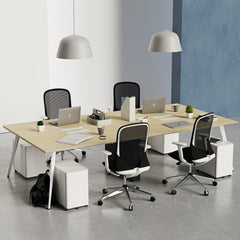
Cable control becomes more complex when a desk supports more than one person. Shared workstations increase the number of chargers, power needs, and cable paths, which can quickly create overlap unless the desk is designed for separation.
Two users rarely have identical routines. One may need constant laptop charging while the other uses a monitor, headphones, and task lighting. If both are reaching toward the same outlet area, cords can pile up in the center and spread into both work zones.
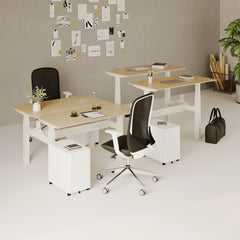
A two-person standing desk can make more sense than trying to force two setups onto one standard surface because it supports a more structured division of space. When each person has a clearer zone for devices and power access, cable routing becomes more manageable and the desk stays easier to maintain.
For paired workstations, cable control improves when each side has its own device territory, charging logic, and drop path for cords. That reduces crossing lines and helps both users keep their space functional without competing for the same edge or outlet position.
A desk does not exist in isolation. The right powered desk should match the room, not just the device list. A workstation that works well in a dedicated office may feel oversized or visually heavy in a small apartment corner. At the same time, a compact desk that looks ideal in a photo may struggle in daily use if it cannot support the actual workflow.
In tighter rooms, cable visibility matters more because there is less visual distance between the desk and the rest of the home. A cleaner setup helps the workspace feel integrated rather than intrusive. That makes power placement, surface zoning, and controlled cable paths even more important.
For buyers comparing layouts, desk formats, and accessory combinations, thoughtful selection support can be more helpful than choosing based on appearance alone. Exploring workspace planning support can help connect room size, workflow, and desk type more realistically before a purchase is made.
A good buying decision usually comes from a practical checklist rather than a single feature comparison.
1. Count every powered device that will live on or near the desk.
2. Decide whether built-in or clamp-on power better suits your layout.
3. Check whether the desk is large enough for both work and charging zones.
4. Consider whether the desk will stay fixed or move through sit-stand use.
5. Think about where cables will travel, not just where they will plug in.
6. Leave room for future additions such as a second monitor, lamp, or dock.
7. Make sure the desk supports a cleaner routine, not just a cleaner look.
The most effective desk with power outlet and USB access is not the one with the longest feature list. It is the one that fits the way the workspace is actually used. Better cable control comes from aligning the desk size, power style, charging habits, and room context into one coherent setup.
A cleaner workstation is usually the result of small decisions made well. The power source is easy to reach. The cables have a short path. The charging zone stays separate from the working zone. The surface has enough room to stay usable. When those pieces fit together, the desk feels calmer, more organized, and easier to live with every day.
That is the real standard to use when choosing a desk with outlet and USB access. Not whether it sounds impressive, but whether it helps the workspace stay clear, functional, and controlled under normal daily use.


You have unlocked free shipping!
You're saving $29 and unlocked free shipping!
Leave a comment