























How to Arrange Two Monitors and a Laptop Without Clutter

A two-monitor and laptop setup can support focused work, research, communication, and multitasking, but only when each screen has a defined role. Without a clear arrangement, three displays quickly compete for desk space, pull cables in different directions, and leave little room for comfortable typing.
The cleanest setup usually places the primary monitor directly in front of the keyboard, angles the second monitor inward, and elevates the laptop beside the screen used less frequently. This creates one visual center rather than a wide wall of equally prominent displays.
A clutter-free workstation also protects three functional zones: a central area for the keyboard and mouse, a rear zone for screens and cables, and an open area for writing or handling documents. When those zones remain distinct, the desk feels organized without sacrificing useful equipment.
Establish a Clear Role for Every Screen
Arranging two monitors and a laptop begins with deciding what belongs on each display. Screen priority should guide the physical layout, not symmetry alone.
Make the Most-Used Monitor the Primary Display
The primary monitor should hold the work that requires the longest periods of uninterrupted attention. For a writer, that may be a document editor. A designer may prioritize a visual workspace, while a developer may center a code editor and place documentation on a supporting screen.
Position this monitor directly in front of the chair and keyboard. The goal is to keep the head and torso facing forward during the work that occupies most of the day.
Avoid choosing the central monitor simply because it is larger. A smaller display can still be the correct primary screen when it contains the task that demands the most concentration.
Assign Supporting Tasks to the Second Monitor
The second external monitor is useful for information that must remain visible but does not require constant attention. Common examples include:
-
Reference documents
-
Research tabs
-
Messaging platforms
-
File browsers
-
Preview windows
-
Analytics dashboards
-
Video or audio controls
Angle the second monitor toward the seated position instead of placing it flat against the wall. A slightly inward orientation reduces the amount of head movement needed to read content near the outer edge.
Treat the Laptop as a Reference Screen
An open laptop is often most useful for communication tools, calendars, meeting notes, music, or other secondary applications. Giving it a supporting role prevents the smaller screen from competing with the external monitors for central space.
The laptop can become the primary screen when its built-in camera or device-specific software is essential. In that case, place it closer to the center and move one external monitor to the side. Screen roles should reflect actual work habits rather than a fixed formula.
Measure the Desk Before Choosing a Three-Screen Layout
A desktop may look wide enough for three screens while still being too shallow for comfortable placement. Monitor bases, laptop stands, docking equipment, speakers, and cable connections all reduce the usable surface.
Measure Usable Width Instead of Total Width
Start by measuring the uninterrupted portion of the desktop. Exclude areas blocked by shelving, drawers, lamps, wall corners, or equipment that cannot be moved.
Next, measure the footprint of both monitor bases and the laptop support. Screen size alone does not reveal how much surface area a setup will occupy. Two monitors with similar display dimensions may have very different stand designs.
For a new workspace, review desk formats for compact and full-size workstations in relation to the equipment that will sit on the surface. The right desk is not simply the widest option. It should provide enough depth for viewing distance, enough rear access for cables, and enough open space for daily tasks.
Mark Equipment Footprints Before Moving Everything
Use removable tape or sheets of paper to outline the proposed location of each base. This simple test shows whether the keyboard will remain centered, whether the mouse has enough movement space, and whether the laptop can open without blocking another display.
Include the docking station, speakers, notebook, and any accessory used every day. A layout that works only when those items are removed is not a practical long-term arrangement.
Protect the Front Edge of the Desktop
The front portion of the desk should remain available for the keyboard, mouse, and forearms. Pushing those items toward the edge to make room for monitor bases can create an awkward working position.
Keep screens and permanent hardware toward the rear. Frequently handled objects should occupy the middle zone, while the front edge remains open enough to support natural movement.
Choose the Best Layout for Two Monitors and a Laptop
There is no single arrangement that works for every desk. The best layout depends on screen priority, available width, desk depth, and how frequently the laptop display is used.
Center One Monitor and Place the Other Screens on Each Side
This is the strongest general-purpose arrangement for people who perform most focused work on one external monitor.
Place the primary monitor directly in front of the keyboard. Angle the second monitor inward on one side, then position the laptop on the other. The three screens form a shallow arc around the user rather than a straight horizontal line.
This layout creates a clear center while keeping supporting information accessible. It also prevents the entire setup from drifting toward one side of the desk.
Center Two Monitors When They Receive Equal Use
Some workflows depend on two external monitors equally. A financial analyst may compare data across both screens, while a designer may work on one display and preview changes on the other.
In this arrangement, align the seam between the monitors with the center of the chair. Angle both displays slightly inward, then place the laptop at the outer edge as a secondary reference screen.
This layout feels balanced, but it is less suitable when one monitor holds nearly all primary work. Looking slightly left or right for several hours may become tiring even when the setup appears symmetrical.
Place the Laptop Below Two Elevated Monitors
A stacked arrangement can work well when horizontal space is limited. Raise the external monitors and place the laptop beneath them, either centrally or slightly to one side.
A height-adjustable laptop support allows the laptop position to be refined according to the available space and the importance of its display. Keep it low enough that it does not cover the monitors, but high enough that brief glances do not require excessive downward movement.
This arrangement is best when the laptop holds secondary information. If the laptop screen receives constant attention, placing it below eye level may not be the most comfortable configuration.
Close the Laptop When Three Active Screens Add More Clutter Than Value
Not every device needs to remain open. When two external displays already provide enough workspace, closing the laptop can reduce visual noise and free valuable surface area.
Before using a closed configuration, follow the laptop manufacturer’s guidance for docking, ventilation, power, and external-display operation. The device should remain accessible without being buried beneath papers or pressed against equipment that could restrict airflow.
| Screen arrangement | Best suited to | Surface demand | Main strength | Main compromise |
|---|---|---|---|---|
| Primary monitor centered | One dominant task or application | Moderate | Clear visual focus | Supporting screens feel less symmetrical |
| Two monitors centered | Equal use of both external displays | High | Balanced viewing field | Primary work may sit off-center |
| Laptop below monitors | Narrower desktops | Moderate depth | Saves horizontal space | Requires more downward viewing |
| Closed laptop with two monitors | Docked or minimalist workflows | Low | Reduces visible equipment | Removes the third active screen |
Align the Monitors Around a Natural Viewing Position
Once the basic layout is selected, adjust the screens around the seated position. The arrangement should support real work, not merely look balanced from across the room.
Align the Primary Monitor With the Keyboard
Center the primary monitor with the main typing area of the keyboard. Do not center the keyboard beneath the combined width of all three displays unless attention is divided evenly across them.
Place the monitor at a distance that allows text to be read without leaning forward. Display scaling and text size can often improve readability without moving the screen closer.
The upper portion of the display should be comfortably visible without forcing the chin upward. Exact placement varies according to monitor size, seating position, eyewear, and personal comfort, so small adjustments are more useful than rigid measurements.
Create a Shallow Arc Around the Chair
Turn the secondary monitor and laptop toward the user. Each display should face the seated position rather than pointing straight across the room.
A shallow arc helps keep the outer edges of the screens within a more natural viewing range. Avoid extreme angles that cause the monitors to project deeply into the work surface.
When the monitors differ in size, align the visible content areas rather than the tops of their stands. Functional alignment matters more than perfect physical symmetry.
Remove Large Monitor Bases From the Work Surface
Original monitor stands can occupy a significant portion of the rear desktop. They may also limit how closely two screens can be positioned.
An ergonomic monitor arm accessory can support a cleaner arrangement by allowing the monitor position to be adjusted without a large factory base on the desk. Before choosing any arm, confirm that the monitor, desktop, mounting method, and available clearance are compatible.
Do not clamp hardware over fragile edges, drawers, support beams, or areas that cannot safely carry the load. The screen should remain stable throughout the intended range of movement.
Position the Laptop Without Blocking the Monitors
The laptop is often the most difficult device to place because it combines a screen, keyboard, ports, camera, and charging connection in one compact object.
Choose the Left or Right Side Strategically
Laptop placement should follow cable access and workflow rather than habit. Consider:
-
Which side contains the charging and display ports
-
Where the dock or power connection is located
-
Which hand controls the mouse
-
Whether the laptop camera is used for meetings
-
How often the laptop must be removed
-
Whether its open lid blocks an external monitor
Place the laptop where its cables can reach the rear of the desk without crossing the keyboard or mouse area. It should also be possible to remove the computer without moving a monitor.
Select a Stand Based on Surface Area and Screen Use
An adjustable stand is useful when the laptop height must change to fit beneath or beside the monitors. A fixed stand can be appropriate when the preferred height is already known and minimal visual bulk is the priority.
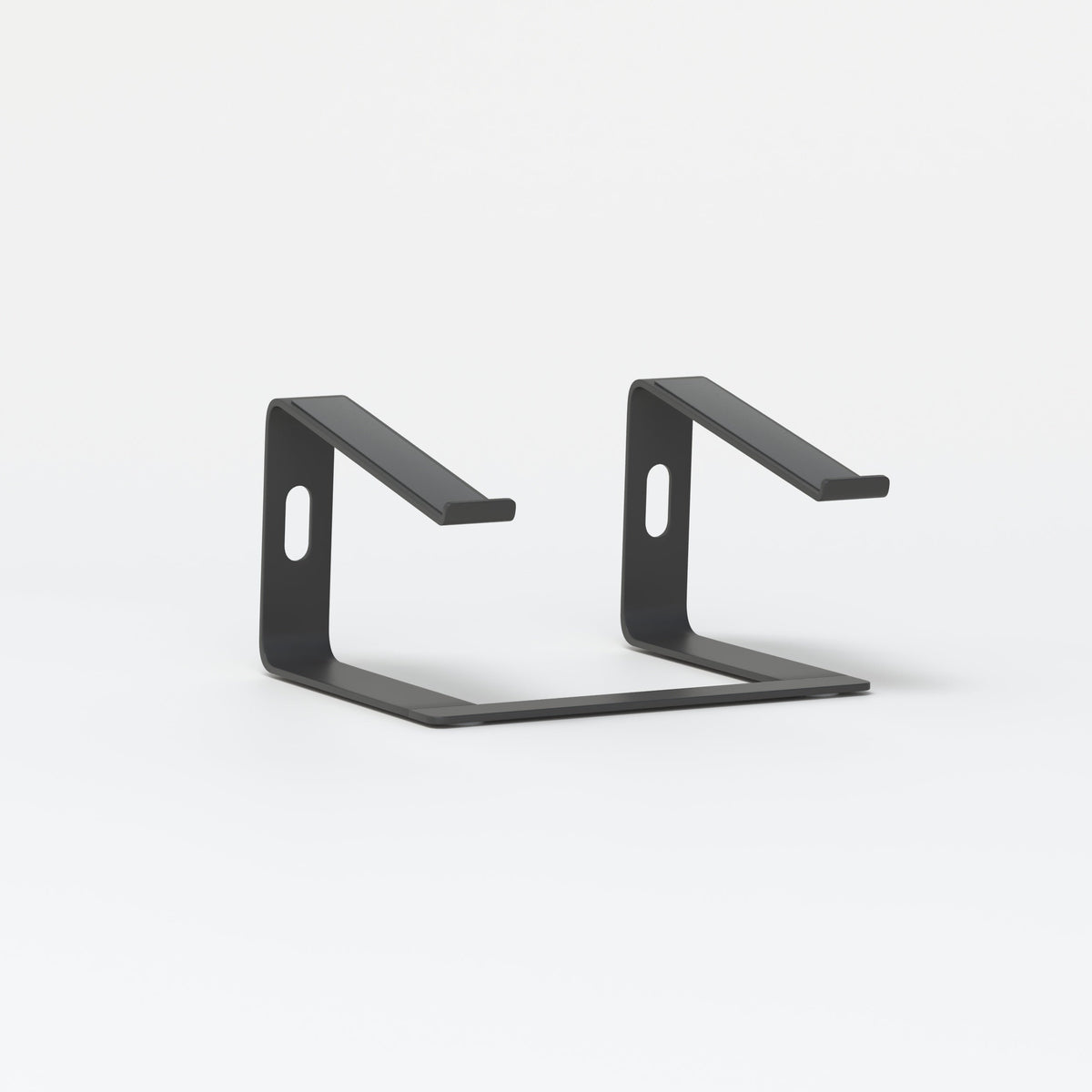
For a tighter desktop, a slim aluminum laptop stand provides a dedicated raised position without requiring the laptop to rest directly on the work surface. Its placement should still preserve access to ports and allow the device to sit securely.
Avoid balancing a laptop on books, boxes, or unstable objects. Temporary stacks can shift, block ventilation openings, and introduce more visual clutter than a dedicated support.
Use an External Keyboard With an Elevated Laptop
Once the laptop is raised to screen height, its built-in keyboard is usually no longer positioned for comfortable sustained typing. Use an external keyboard and mouse so the laptop can function primarily as a display.
Keep the external keyboard aligned with the main monitor. The laptop’s physical position should not pull the typing area away from the visual center.
Route Every Cable Toward One Controlled Exit Point
Cable management becomes much easier after the devices have permanent positions. Organizing wires before deciding where the screens belong usually leads to cables being stretched, rerouted, or bundled multiple times.
Separate Permanent and Removable Connections
Monitor power cables and display connections generally remain attached. Laptop charging, external storage, headphones, and other portable accessories may be disconnected more often.
Secure permanent cables along the rear or underside of the desktop. Keep removable connections accessible near the laptop or dock. Do not bury frequently used ports inside a tightly bound cable bundle.
Choose One Rear Cable Path
Route most cables toward one rear corner or a single central opening. Several separate cable paths make the desktop look busy even when each individual wire is secured.
Position the power strip away from the main work surface when it can be mounted or stored safely. Adapters should not crowd the keyboard zone or hang where chair movement can pull them.
Preserve Controlled Slack Near Adjustable Equipment
Monitor arms and movable laptop supports need enough cable slack to travel through their intended positions. Test the movement before fastening the final ties.
Leave a small, controlled loop near each adjustable device. Too little slack can place tension on ports, while excessive slack creates visible loops beneath the desk.
Follow a Repeatable Cable-Control Sequence
1. Disconnect all equipment and remove cables that are no longer used.
2. Place the monitors, laptop, dock, keyboard, and mouse in their permanent positions.
3. Connect the shortest practical cables that safely reach each device.
4. Direct display and power cables toward the same rear zone.
5. Separate frequently removed connections from permanent wiring.
6. Test monitor and desk movement before securing bundles.
7. Fasten cables with reusable ties, clips, or an appropriate tray.
8. Label similar connections so future changes do not require dismantling the entire setup.
Preserve a Defined Keyboard, Mouse, and Writing Zone
A clean three-screen desk still needs room for work that does not happen on a display. Protecting the central and front portions of the desktop prevents technology from consuming every available surface.
Keep Input Devices Inside the Primary Reach Area
Center the keyboard with the primary monitor and place the mouse close enough that the arm does not need to reach around a stand or cable.
Drawing tablets, number pads, controllers, and other specialized tools should remain in the primary area only when they are used regularly. Occasional accessories can be stored nearby and brought forward when needed.
A docking station belongs close to the devices it connects, but not in the mouse path. Place it near the rear edge or beside the laptop while keeping commonly used ports accessible.
Maintain One Intentionally Empty Surface
Reserve a section of the desktop for writing, reviewing papers, signing documents, or temporarily placing a notebook. This empty zone gives the workstation visual breathing room and prevents every small task from happening on top of the keyboard.
Loose adapters, flash drives, pens, and charging accessories should have a defined container or drawer. When the same objects repeatedly migrate across the desk, the problem is usually missing storage rather than poor cleaning habits.
Prevent Meetings and Shared-Space Furniture From Crowding the Setup
A two-monitor and laptop workstation can become cluttered when it also serves as a meeting table, storage surface, and visitor area. Separating focused work from collaboration keeps the screen arrangement intact.
Create a Dedicated Conversation Area When Space Allows
In a larger office, use a separate surface for discussions, document reviews, and short team sessions. A round table for focused team conversations can define that collaborative zone without requiring visitors to gather around the monitor desk.
This separation protects the keyboard area and reduces the temptation to place meeting materials between the screens. It also keeps guests away from exposed cables and rear-mounted equipment.
Keep Guest Chairs Outside the Cable Path
Visitor chairs should not block access to the workstation or sit where someone could bump a monitor support, charger, or power connection. Position conference seating for collaborative rooms around the meeting area rather than surrounding the primary computer desk.
Maintain a clear route for the workstation user to sit, stand, and reach the laptop without moving furniture. Even a well-organized desk feels crowded when nearby seating restricts movement.
Design Compact Rooms From Every Viewing Angle
In apartments, studios, and multipurpose offices, the backs of monitors may be visible from the room entrance or living area. Cable bundles, mismatched stands, and crowded accessories become more noticeable when the workstation is not placed against a wall.
A cohesive selection of modern office furniture for creative workspaces can help connect the workstation with the rest of the room while maintaining clear functional zones. The objective is not decorative uniformity alone. Furniture placement should support screen use, movement, storage, and cable routing.
Test the Three-Screen Arrangement Through Real Work
A layout can appear organized and still perform poorly. Test it while completing the tasks that normally fill the workday.
Watch for Repeated Unnecessary Movement
Pay attention to which display receives the most attention. Frequent leaning, twisting, or downward viewing may indicate that the wrong screen occupies the central position.
Before moving hardware, try moving the application window. Sometimes the physical arrangement is correct, but the screen assignments do not match the workflow.
Also test video calls, file transfers, device charging, and access to side ports. A clean setup should remain practical when equipment is connected or removed.
Recognize When the Desk Is Still Overloaded
The arrangement may need further editing when:
-
The mouse regularly hits a stand or cable
-
The laptop blocks part of an external display
-
A monitor is rarely used but occupies substantial space
-
The dock must be moved to reach its ports
-
Screen adjustments pull on connected cables
-
Papers have no clear area away from the keyboard
-
Accessories repeatedly collect beneath the monitors
Removing one object can sometimes improve the setup more than adding another organizer. A third active screen is useful only when it supports the work being done.
Build a Three-Screen Workspace That Remains Clear
A well-arranged two-monitor and laptop setup is organized around one primary visual center, two supporting displays, one controlled cable route, and one protected work surface.
Start with screen roles, then select the layout. Position the primary monitor in front of the keyboard, angle supporting screens toward the chair, and elevate the laptop only as much as its function requires. Route permanent wiring toward one rear exit and keep removable connections accessible.
Most importantly, leave part of the desk intentionally unused. Open space is not wasted space. It allows the workstation to support writing, device changes, and daily movement without becoming crowded.
When every screen, cable, and accessory has a justified position, the setup can adapt to new equipment without requiring a complete redesign.
Related Articles
-
 Chair and Desk Height Guide for Students Who Sit All Day
-
 How to measure a chair and choose the right office chair height
-
 The Desk Height Factor Most Workspaces Get Wrong
-
 Desk for two monitors: what matters most for daily comfort
-
 Ergonomic Furniture That Pays Off Every Day
-
 How Ergonomic Furniture Shapes Health and Focus


