























Desk Setup With Laptop and 2 Monitors Needs Better Height

A desk setup with a laptop and two monitors can provide generous screen space, but three displays do not automatically create a comfortable workstation. The laptop often remains flat on the desktop while the external monitors sit several inches higher. That mismatch creates three viewing levels and encourages repeated chin movement, leaning, or turning.
Better screen height begins with the body, keyboard, and desk surface. The primary monitor should then establish the main viewing position, the second monitor should support that position, and the laptop should be raised, relocated, or closed according to how often its display is used.
The goal is not perfect visual symmetry. It is a coordinated three-screen layout that lets the eyes move between displays without requiring the head and torso to constantly follow.
Why a Laptop and Two Monitors Create Competing Screen Heights
A Laptop Cannot Separate Its Screen From Its Keyboard
A laptop combines the display and keyboard into one hinged device. When the keyboard is positioned low enough for comfortable typing, the screen usually sits below a natural forward viewing position. Raising the entire laptop improves the screen height, but it also raises the built-in keyboard.
That tradeoff is one reason a laptop often becomes the weak point in an otherwise well-arranged dual-monitor setup. It may serve as a valuable third display, yet using it repeatedly can require a larger downward glance than either external monitor.
An external keyboard and mouse allow the laptop screen and input devices to be positioned independently. The NIOSH home-workstation recommendations specifically note that separate keyboards and pointing devices can be positioned independently from the display.
Three Screens Can Produce Three Different Postures
A poorly aligned three-screen desk often creates a predictable pattern:
-
The chin drops toward the laptop.
-
The head turns toward the secondary monitor.
-
The torso leans toward screens with smaller text.
-
The chair is raised or lowered to compensate for equipment placement.
-
One display is avoided because it feels less comfortable to view.
These behaviors are not necessarily signs of poor discipline. They often indicate that the equipment is asking the body to occupy several positions at once.
Visual Priority Matters More Than Matching Bezels
Aligning the upper edges of all three screens can make a desk look orderly, but matching bezels does not guarantee comfortable viewing. Different screen sizes, display orientations, resolutions, and application layouts can place important content at very different heights.
The most frequently used information should occupy the easiest viewing zone. A less frequently used laptop can sit slightly lower than the primary monitor, provided checking it does not require a pronounced head movement.
Establish the Chair, Keyboard, and Desk Baseline First
Set the Body Before Adjusting the Displays
Sit fully back in the chair with the lower back supported. Place both feet securely on the floor or on a stable foot support. Relax the shoulders and keep the upper arms close to the torso.
Next, position the keyboard and mouse. They should be close enough that reaching does not pull the elbows away from the body. The wrists should remain relatively straight rather than bending sharply upward at the desk edge.
This position becomes the workstation baseline. Once it feels stable, the screens can be moved toward the user. Raising the chair solely to reach a low monitor may create new problems with foot support, thigh clearance, or keyboard height.
Determine Whether the Desk Surface Is the Real Limitation
Some screen-height problems begin with the work surface. A fixed desk may sit too high for comfortable keyboard use, while a shallow desktop may prevent the monitors from moving far enough away.
A sit-stand surface can provide more flexibility, but the keyboard, laptop, and monitors must still be coordinated in both positions. A collection of desks for seated and standing work can help identify which work-surface formats provide suitable width, depth, and adjustment for a three-screen arrangement. The linked collection includes standard, compact, standing, and multi-person desk configurations.
Record the Measurements That Affect Screen Height
Before adding risers or replacing equipment, measure:
1. The floor-to-elbow height while seated.
2. The height of the desktop.
3. The seated eye height.
4. The distance from the eyes to the primary monitor.
5. The height of each screen’s active display area.
6. The usable desktop depth after positioning the keyboard.
These measurements reveal whether the problem is a low screen, a high desk, insufficient depth, or a combination of all three.
Choose the Primary Display That Controls the Layout
Center the Screen Used for Focused Work
The primary monitor is not automatically the largest screen. It is the display used for the longest periods of concentrated work.
A writer may prioritize the screen holding the main document. A designer may center the display used for visual production. An analyst may focus on the monitor containing the primary spreadsheet or dashboard. The laptop may remain dedicated to communication, calendar tools, or video calls.
When one display clearly dominates the workflow, center it with the torso. Position the other external monitor and laptop around that forward-facing reference point.
Match the Dual-Monitor Geometry to Actual Use
Dominant-monitor arrangement
Place the primary display directly ahead and angle the secondary monitor inward from one side. This layout suits work in which one screen handles most sustained tasks.
Equal-use arrangement
Place the two external monitors together and center the body near their adjoining inner edges. This works when attention is divided relatively evenly between both displays.
Communication-screen arrangement
Keep the focused-work monitor centered. Place messaging, email, calendars, or meeting controls on the secondary display or laptop. This prevents short, frequent interactions from displacing the main task screen.
Decide Whether the Laptop Is Truly a Third Display
A laptop can perform four distinct roles:
-
An active screen used throughout the day.
-
An occasional reference display.
-
A video-call screen with a built-in camera.
-
A closed computer connected to two external monitors.
An active laptop deserves a place in the main viewing arc. An occasional screen can sit slightly farther to the side. A laptop that adds clutter without useful display space may work better in closed-lid mode, provided the device and operating setup support that use.
Raise the Laptop Without Raising the Typing Position
Use Adjustable Elevation for Changing Work Modes
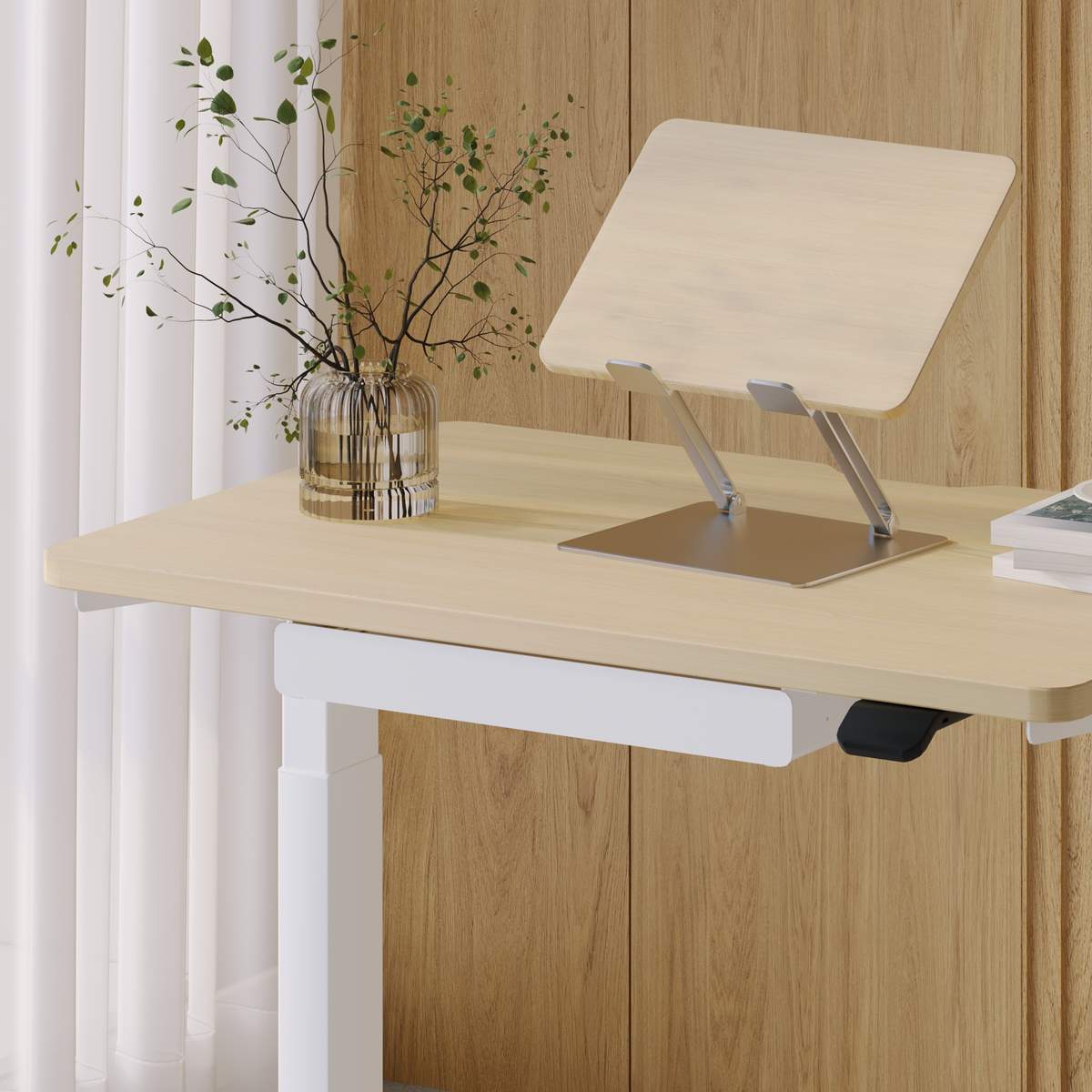
A laptop that moves between seated work, standing work, and video calls may require more than one screen height. An adjustable laptop riser allows the display elevation to be changed without altering the external keyboard position. The linked product is designed as an adjustable stand for laptop support and is offered with multiple finish options.
Place the raised laptop beside the external monitors rather than directly below the primary screen. The upper portion of its active display should sit close enough to the monitors’ viewing zone that checking it requires mostly eye movement and only limited head movement.
A variable-height stand is particularly useful when:
-
The workstation alternates between sitting and standing.
-
More than one person uses the desk.
-
The laptop changes position for meetings.
-
The external monitors have unequal stand heights.
Use Fixed Elevation for a Stable Personal Workstation
A permanent arrangement may not need frequent adjustment. A fixed aluminum laptop stand can provide a consistent raised position once the required height has been established. The linked stand is made from anodized aluminum and uses a fixed form rather than an adjustable lifting mechanism.
Fixed elevation works best when the same laptop, monitors, chair, and user remain at the desk. Measure first, because a fixed stand cannot compensate for major changes in monitor height.
| Laptop configuration | Appropriate use | Height advantage | Limitation to consider |
|---|---|---|---|
| Adjustable riser | Changing tasks or sit-stand work | Supports fine height changes | Requires deliberate calibration |
| Fixed stand | Stable personal setup | Maintains a consistent position | Offers limited adaptation |
| Closed-lid docking | Two-monitor workflow | Removes the lowest sightline | Eliminates use of the laptop display |
| Temporary test riser | Evaluating required lift | Helps estimate a suitable height | May lack long-term stability |
Align Both Monitors With the Natural Viewing Zone
Treat Eye Level as a Starting Reference
Monitor placement should support an upright head and torso while keeping text comfortably readable. OSHA advises positioning the top of a monitor at or slightly below eye level, with the center of the display normally below the horizontal line of sight. Its guidance also describes a generally preferred viewing distance of 20 to 40 inches, while recognizing that text size and equipment dimensions affect the final position.
The OSHA monitor placement guidance is best treated as a practical reference rather than a rigid formula. Large displays, prescription lenses, reclining postures, and individual vision needs can justify a lower or closer position.
Align Working Areas When Screen Sizes Differ
Two similar landscape monitors
Begin with their upper edges at approximately the same height. Then adjust according to where the most frequently viewed windows appear.
One large and one small monitor
Do not force the bezels into perfect alignment if doing so places the smaller screen’s content too high or low. Align the regions where active work occurs.
One landscape and one vertical monitor
A vertical display may need to sit lower than the landscape monitor. Aligning their top edges can push too much of the vertical screen above the comfortable viewing zone.
Create Independent Control When Factory Stands Fall Short
Standard monitor bases often provide limited height adjustment. A monitor positioning arm can provide more control over display height and angle while reducing the footprint of a conventional stand. The linked product is presented as an adjustable arm, and feedback on the page discusses changing monitor height and angle.
Before selecting any arm, verify monitor mounting compatibility, screen weight, desktop thickness, clamp clearance, cable length, and the space behind the desk. These practical checks matter more than the appearance of the arm alone.
Angle the external monitors toward the normal seated position. The screens should form a shallow visual arc rather than a flat wall that forces the outer display too far from the body’s centerline.
Fit Three Displays Within the Available Desk Depth
Prioritize Usable Depth Over Decorative Width
A wide desk can still feel cramped when it is too shallow. Monitor bases, laptop stands, keyboards, cables, and accessories all compete for front-to-back space.
Keep enough room for the keyboard to sit close to the body without pressing the wrists against a hard front edge. The monitors should remain far enough away for comfortable reading without requiring the user to lean forward.
When the laptop blocks the lower portion of a monitor, move it toward the secondary side instead of stacking it beneath the primary display. If that creates excessive width, closed-lid use may be more practical than maintaining three active screens.
Use Scaling Before Pulling Displays Too Close
Small text can create forward leaning even when screen height is correct. Check operating-system scaling, application zoom, resolution, and font size before changing the physical layout.
NIOSH advises considering larger fonts to reduce squinting, leaning, or moving a laptop closer. It also recommends positioning displays to reduce window glare.
Brightness and scaling do not need to be identical across every screen, but large differences can make visual transitions more demanding. Keep frequently read content on the clearest and easiest display.
Plan Compact Work Areas Around Vertical Adjustability
Small rooms and mixed-use interiors benefit from equipment that uses height efficiently. Monitor arms, raised laptops, cable routing, and appropriately proportioned desks can preserve useful work surface without crowding the keyboard zone.
The supplied regional page is represented by the location-neutral anchor office furniture for flexible workspaces, which accurately reflects its coverage of desks, chairs, accessories, bundles, home work areas, and commercial office needs without placing the location name in the anchor.
Diagnose Screen-Height Problems by Observing Movement
A workstation can look balanced in a photograph and still feel uncomfortable during real tasks. Watch what the body does after twenty or thirty minutes of normal work.
| Observed behavior | Likely cause | First adjustment to test |
|---|---|---|
| Chin drops when checking messages | Laptop is below the active viewing zone | Raise or relocate the laptop |
| User leans toward all three screens | Displays are too distant or text is too small | Adjust scaling and viewing distance |
| Neck turns mainly to one side | The supposed secondary monitor is receiving primary use | Recenter the true main display |
| One monitor feels too high | Bezels were aligned instead of working areas | Lower that monitor slightly |
| Vertical display requires upward viewing | Its top edge was matched to a shorter screen | Lower the vertical panel |
| Chair height changes repeatedly | Keyboard and desk baseline were not established | Reset the input position first |
| Standing position feels different | Displays and keyboard do not move as one system | Calibrate standing separately |
Change one variable at a time. Adjusting chair height, monitor distance, laptop elevation, and screen scaling simultaneously makes it difficult to determine which change solved the problem.
Protect a Calibrated Desk From Meeting Disruption
A three-screen desk is easier to maintain when it remains dedicated to focused individual work. Pulling extra chairs around it, rotating monitors for group viewing, or repeatedly moving the laptop can undo careful height adjustments.
A separate round table for small-group meetings creates a defined surface for discussion without turning the workstation into a temporary meeting room. The linked product is specifically presented as a round meeting table with multiple configuration options.
Pairing that space with a meeting-room conference chair keeps collaborative seating aligned with its intended purpose. The linked chair is described for meeting rooms, presentations, discussions, and shared environments.
Separating focused work from collaboration protects both functions. The monitor arrangement stays stable, while conversations take place without crowding the keyboard and display area.
Reset the Laptop-and-Two-Monitor Setup in Ten Steps
1. Sit fully back with the feet supported.
2. Position the keyboard and mouse around relaxed shoulders and elbows.
3. Confirm that the desk edge does not force wrist pressure or extended reaching.
4. Identify the display used for the longest periods of concentrated work.
5. Center that primary monitor with the torso.
6. Set its height and distance while keeping the head upright.
7. Place the second monitor according to how often it is used.
8. Raise, relocate, or close the laptop according to its actual role.
9. Angle all active displays toward the normal working position.
10. Test the arrangement during real work before making small corrections.
A useful test should include typing, reading, switching applications, joining a call, and using all three displays. Notice which action causes the chin to drop, the torso to lean, or the head to rotate.
For a sit-stand desk, perform the test twice. The standing position may change viewing distance, keyboard height, and the user’s relationship to the outer monitor. A setup that works while seated should not be assumed to work unchanged while standing.
Make Better Screen Height the Workstation’s Lasting Default
A laptop and two monitors work best when they support one stable body position rather than creating three separate postures. The chair and input devices establish the foundation. The primary monitor defines the viewing direction. The secondary display follows the workflow, and the laptop fills only the role it genuinely needs to perform.
Recheck the arrangement whenever the laptop, monitor size, desk, chair, or daily tasks change. A well-designed three-screen workstation is not frozen in place. It remains orderly, measurable, and easy to recalibrate without forcing the body to adapt to poorly positioned equipment.
Related Articles
-
 Desk Width Requirements for Dual Monitor Setups That Still Fit Small Rooms
-
 How Deep Should a Desk Be for 2 Monitors to Prevent Neck and Eye Strain
-
 Flexible Living: Why Modular Furniture Is Changing Modern Homes
-
 Where the Right Desk Design Makes Work Flow
-
 Computer desk for dual monitors that supports monitor arms without wobble
-
 Best desk for dual monitors when you need a clean cable free workspace


