























Desk for two monitors: what matters most for daily comfort

Two-monitor comfort is mostly posture geometry, not productivity hype
Two monitors can feel like a relief or like a slow strain that builds across the week. The difference is usually not the screens themselves. It is the geometry you create between your eyes, your hands, and the desk surface that carries everything.
Daily comfort has a few non-negotiables:
-
Your neck stays neutral most of the day.
-
Your shoulders stay down and relaxed while you type.
-
Your wrists stay straight without you thinking about them.
-
Your eyes do not feel forced to focus too close for hours.
When any of those go off, people compensate. They lean forward. They creep their shoulders up. They rotate their head more than they realize. That is why we look at two-monitor setups as a system, not a single purchase decision.
Eye-level alignment that keeps the neck quiet
Most people chase “top of screen at eye level” as a rule. It is not wrong, but it can be incomplete for two monitors because you rarely look at the exact center of a single display all day. What matters is where your eyes land most often.
A practical approach:
-
Place the primary monitor so the top third is near eye level.
-
Position the center of your primary monitor so your gaze naturally drops slightly, rather than lifting your chin.
-
If the secondary monitor is used frequently, keep it close enough that you shift your eyes, not your whole head.
When two monitors should be treated as one visual field
If you split your day between two screens every few minutes, treat them like one continuous workspace. That means both screens should be similar height, similar distance from your eyes, and angled inward slightly. You want the centerline of your viewing area to stay close to the centerline of your body.
If the secondary monitor is mostly reference material, it can be positioned a little farther off-center. The key is avoiding a posture where your torso faces forward, but your head stays turned for long stretches.
Two-monitor layouts that reduce head turning
Not every layout works for every task. Comfort comes from matching layout to what you actually do.
Side-by-side with a clear primary
This is the most common for good reason. Put the primary screen directly in front of you. Place the secondary screen slightly to the side, with a gentle inward angle. This reduces repeated neck rotation.
Symmetrical side-by-side for frequent comparison
If your workflow is “compare two things constantly,” symmetry can help. Place the seam between monitors in front of you, then set both screens at equal angles inward. It can feel natural for design reviews, editing, and analysis work. The caution is that your neck can end up drifting left and right more than you notice, so small angles matter.
Stacked monitors for narrow spaces
Vertical stacks can reduce side-to-side turning in tight rooms, but they can create chin lift if the top monitor sits too high. If you stack, keep your most-used window on the lower screen.
Desk depth determines whether you work relaxed or reach forward all day
When someone says “my shoulders are always tense,” we often find a desk that is too shallow for the way their screens and input devices are arranged. Depth is the silent factor that decides how far your keyboard sits from your body, and how close your monitors are forced to be.
Depth is really about viewing distance and elbow position
A two-monitor setup tends to push screens closer, especially when monitors sit on their factory stands. If the desk is shallow, the only way to fit a keyboard and mouse is to pull them toward the edge. That often leads to one of two patterns:
-
You perch at the edge of your chair with no back support.
-
You float your shoulders forward to reach, then keep them there.
A depth-friendly setup gives you room to keep your forearms supported, keep the keyboard at a comfortable distance, and keep the monitors far enough back that your eyes feel calm.
A simple reach test that reveals strain fast
Sit the way you usually work. Place your hands on the keyboard.
-
If your elbows are behind your torso, you are reaching.
-
If your shoulders lift slightly when you type, your desk is forcing tension.
-
If your wrists bend upward to reach the keys, the keyboard position is too high or too far.
Small changes can help, but the desk still needs to provide enough surface area to place screens and input devices without compromise.
Where a clean, fixed-height surface fits best
Not every two-monitor setup needs height adjustment. Many people want a stable, minimalist surface that supports monitors, a keyboard, and daily accessories without fighting their room layout.
A fixed-height desk becomes more comfortable when it is designed with practical surface space and everyday usability in mind, like our Office Desk, which is built as a straightforward workstation surface for daily work.
Desk width planning that supports real work, not just two rectangles of glass
Two monitors alone do not define your width needs. Your comfort depends on where your arms land, where your mouse lives, and whether you have a place to put the small things that otherwise migrate into your mousing space.
The three zones that keep clutter from becoming strain
A comfortable desk surface tends to organize itself into zones:
-
Input zone: keyboard and mouse, where your forearms spend hours.
-
Screen zone: monitor stands or arms, plus any speakers or lighting.
-
Landing zone: notebook, phone, mug, reference materials, or a small device dock.
If a desk cannot support those zones without overlap, your mouse ends up cramped, your keyboard shifts off-center, and you start working twisted.
Dual monitors plus laptop is a width multiplier
Hybrid work makes one pattern extremely common: two monitors plus a laptop used for meetings, chat, or travel continuity. If the laptop sits on the desk without a plan, it tends to push the keyboard left or right, creating an unbalanced posture.
A more comfortable approach:
-
Keep the keyboard centered with your body.
-
Place the laptop in the landing zone or on a stand so it does not steal input space.
-
Reserve the secondary monitor for reference windows so you do not constantly rotate.
Shared workstations need two complete “work triangles”
When two people use one long desk, comfort can fall apart if it is treated as “one big surface.” Each person needs their own centered input zone and screen zone, otherwise someone ends up typing sideways.
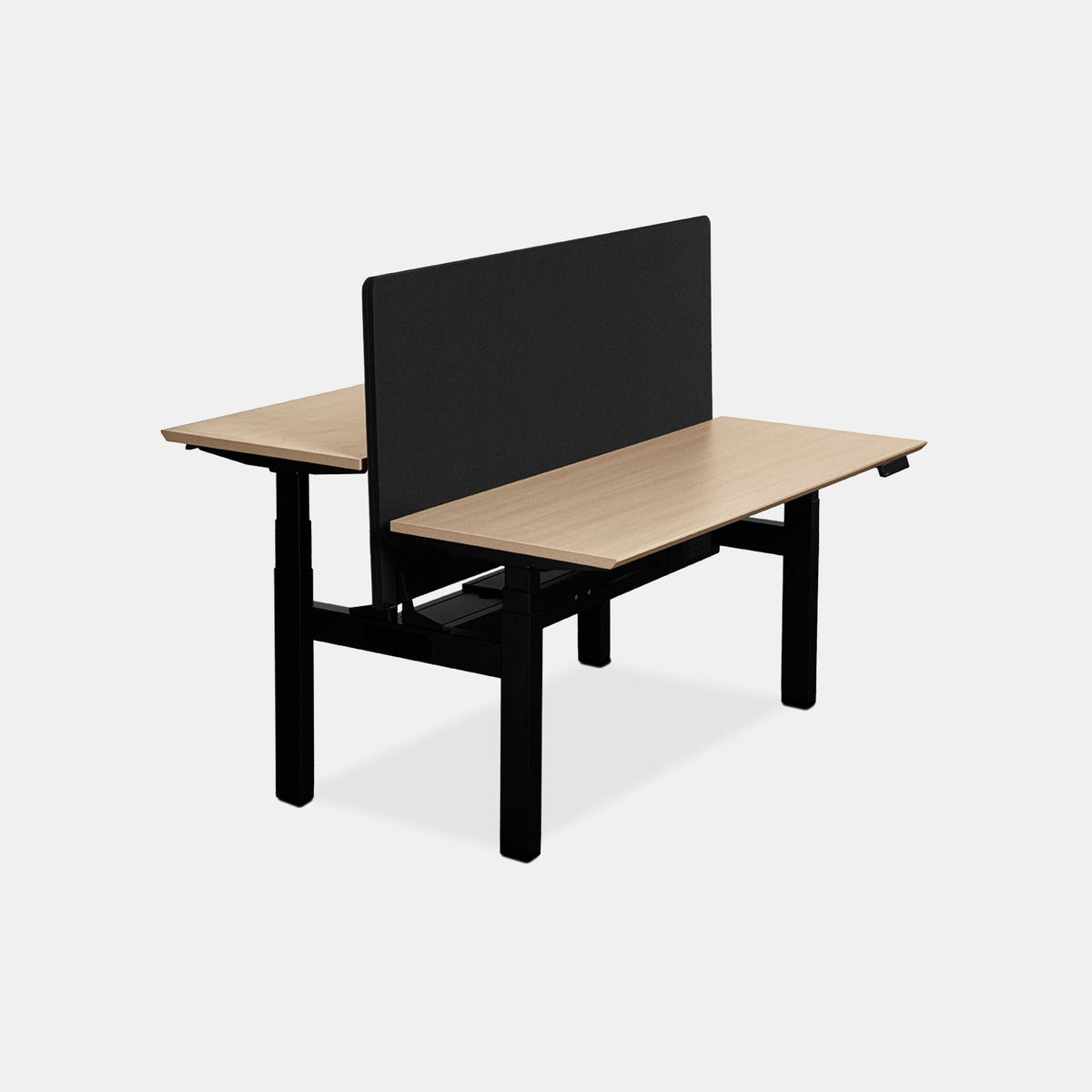
For collaborative setups, a purpose-built option like our Two-Person Standing Office Desk is designed around the reality that two users need two functional work areas, not a single extended tabletop.
Stability is a comfort feature, especially with two monitors
People often notice instability only when it becomes annoying. Over time, that annoyance can turn into tension because your body subtly braces against movement. With two monitors, even small vibration can be visually distracting.
Why wobble feels worse with dual screens
Two screens create:
-
More total screen area that can shake.
-
More leverage if you use monitor arms.
-
More visual sensitivity, since your eyes track movement quickly.
If your desk shifts when you type, your shoulders can tense to “control” the environment, even if you do not consciously think that is what is happening.
What stability looks like in real use
Stability is not a single spec. It is a combination of:
-
Frame rigidity
-
Leg design and foot placement
-
How the desktop is secured to the frame
-
The overall balance of the system once monitors and arms are installed
The practical shake test
A useful test is simple and honest. Place your hands where you type. Apply a normal typing rhythm. If the desk surface trembles enough to make your monitor image wobble, your setup may need adjustment or a sturdier base.
If you use monitor arms, make sure the arm clamp is properly secured and positioned on a stable portion of the desk surface.
Sit-stand changes the day, but only if switching feels effortless
Height adjustment can be a powerful comfort tool, but it is not magic. It only helps when you can move between sitting and standing without reconfiguring your entire workspace each time.
Height adjustment that supports neutral arms and wrists
Whether sitting or standing, comfort depends on keeping your elbows near your sides, with forearms roughly parallel to the floor, and wrists straight.
If you find yourself standing with shoulders lifted to reach the keyboard, the surface is too high. If you find yourself leaning onto the desk while standing, the surface is too low or the monitor heights are off.
Cable management is what makes sit-stand feel smooth
Two monitors create more cables, which increases the chance that something tugs during movement. When cables pull, people stop adjusting their desk. They settle into one position, and the whole point is lost.
A dependable approach is to:
-
Bundle cables so they move as one group.
-
Leave enough slack for the full range of motion.
-
Anchor power and adapters in a stable location.
When an adjustable desk makes sense for two-monitor comfort
If your workday includes long blocks of keyboard time, and you want the option to shift posture without moving monitors around, a dedicated sit-stand design is worth considering. Our Standing Desk by Urbanica is built for height-adjustable use, making it easier to alternate positions while keeping your two-monitor layout intact.
Two-monitor placement rules that prevent slow-build neck strain
Two monitors can be comfortable for years, or they can quietly train you into a pattern where your head stays rotated. The fix is almost always placement.
The centerline rule for deciding a primary monitor
A simple principle guides most comfortable setups:
-
Your most-used screen sits directly in front of you.
-
Your keyboard is centered with your body, not centered with your desk.
-
Your chair aligns with the keyboard, not with the space between monitors, unless you truly use both equally.
If you frequently write, design, or code on one display, make it primary and center it. If you compare two sources constantly, consider centering the seam between monitors.
The gentle inward angle that reduces head turning
Many people set dual monitors flat in a straight line. That often increases head rotation, because the outer edges of the screens sit farther away. A slight inward angle creates a more natural “wrap” and keeps your eyes at a more consistent distance from the content.
A quick angle check
Sit normally, then look at the far corner of your secondary monitor. If you feel your head turning more than your eyes, bring the monitor closer and angle it inward.
Alignment that respects different focal habits
Not everyone uses the top edge of a monitor as a reference point. Some people work mostly in the center of the screen, others keep toolbars and tabs at the top and glance upward repeatedly.
A safer, comfort-first approach is to set heights based on where your eyes land most often, then fine-tune from there. If you feel tension in your neck after a few hours, adjust height and angle before assuming you need new equipment.
Chair-to-desk pairing is where daily comfort becomes consistent
A desk and monitor setup can be nearly perfect, but if the chair height and support do not match the desk surface, your body will compensate.
The seated alignment that keeps shoulders relaxed
The goal is simple:
-
Feet supported
-
Hips stable
-
Back supported
-
Forearms comfortably positioned at the keyboard
When chair height is too low, shoulders lift to reach the desk. When chair height is too high, wrists bend and pressure increases on the underside of the forearm. This is why we think of chair and desk as one system.
Back support that works during real work, not just at first sit
A chair should support you when you lean in slightly for focus and when you recline slightly for relief. If you have to “hold yourself up” all day, fatigue shows up as neck and shoulder tension.
For customers who want an ergonomic chair that is designed specifically for all-day office use, our Novo Chair is a core part of how we build comfort into a two-monitor workstation.
For a different feel and profile within our ergonomic seating lineup, the Onyx Chair is another option that fits the same comfort-first approach, pairing well with a two-monitor desk setup when adjusted thoughtfully.
Micro-adjustments that keep comfort from drifting
Even a great chair fit can drift over weeks as habits change. A quick monthly reset helps:
-
Re-center the chair with the keyboard.
-
Re-check elbow height relative to the desk.
-
Confirm feet are still well supported.
-
Verify you are using back support, not hovering forward.
A decision framework for two-monitor desks that is built around daily comfort
Choosing a desk for two monitors becomes easier when you link features to the discomfort they prevent. Comfort is less about having every feature, and more about avoiding the few setup failures that create strain.
Comfort-focused comparison table for common two-monitor scenarios
| Two-monitor scenario | Desk depth priority | Desk width priority | Stability priority | Sit-stand priority |
|---|---|---|---|---|
| Two equal monitors, constant switching | High, keeps screens at a calm distance | Medium to high, supports angles and input zone | High, reduces visual shake | Optional |
| Primary plus secondary reference screen | Medium to high, supports centered keyboard | Medium, keeps landing zone separate | Medium to high | Optional |
| Two monitors plus laptop on desk | High, protects input zone | High, prevents keyboard shift | Medium to high | Optional |
| Dual monitors on arms | Medium, arms help depth | Medium, layout depends on peripherals | Very high, arms amplify vibration | Optional |
| Shared workstation, two users | Medium, depends on each bay | Very high, two complete zones | High, two screens per person | Often useful |
A setup sequence that fixes most discomfort without replacing your desk
1. Center your keyboard with your body. This decides where your chair belongs.
2.Choose the primary monitor. Put it directly in front of you.
3. Set monitor distance before monitor height. Distance affects how much you lean.
4. Angle the secondary monitor inward. Reduce head turning.
5. Adjust chair height to match elbow position. Keep shoulders down.
6. Fine-tune monitor height last. Aim for a neutral neck.
7. Lock in cable slack if you sit-stand. Remove friction from switching.
This order is intentional. It prioritizes alignment and reach first, then visual comfort, then refinements.
A practical way to validate comfort before committing
Comfort is easiest to judge when you can feel the setup. If you have the ability to experience different desk styles and seating options in person, it helps to test the specific moments that trigger strain, like switching between screens, typing for five minutes straight, and mousing across the full width of your workspace.
For those who want to explore options hands-on, you can explore our modern office furniture collection and evaluate what desk depth, stability, and seating support feel like in real use.
A two-monitor workstation that stays comfortable as your work evolves
The most comfortable desks for two monitors are the ones that still work when your workflow changes. Comfort lasts longer when the setup has enough flexibility to adapt without forcing awkward compromises.
Future-proofing habits that cost nothing
-
Keep at least one clear landing zone so small items do not invade your input area.
-
Re-check your centerline when you change tasks or add a device.
-
If you add a new accessory, confirm it does not steal mouse space or force keyboard shift.
Using a second standing-desk reference without changing the system
When people dial in a two-monitor sit-stand setup, the challenge is maintaining the same alignment at different heights. The desk surface moves, but your screen relationships should stay consistent.
If you are comparing configurations or reviewing the range of options and accessories that support your height-adjustable workflow, the Standing Desk variants and add-ons page is the most direct reference point within our catalog.
Related Articles
-
 How to Arrange Two Monitors and a Laptop Without Clutter
-
 Chair and Desk Height Guide for Students Who Sit All Day
-
 How to measure a chair and choose the right office chair height
-
 The Desk Height Factor Most Workspaces Get Wrong
-
 Ergonomic Furniture That Pays Off Every Day
-
 How Ergonomic Furniture Shapes Health and Focus


