























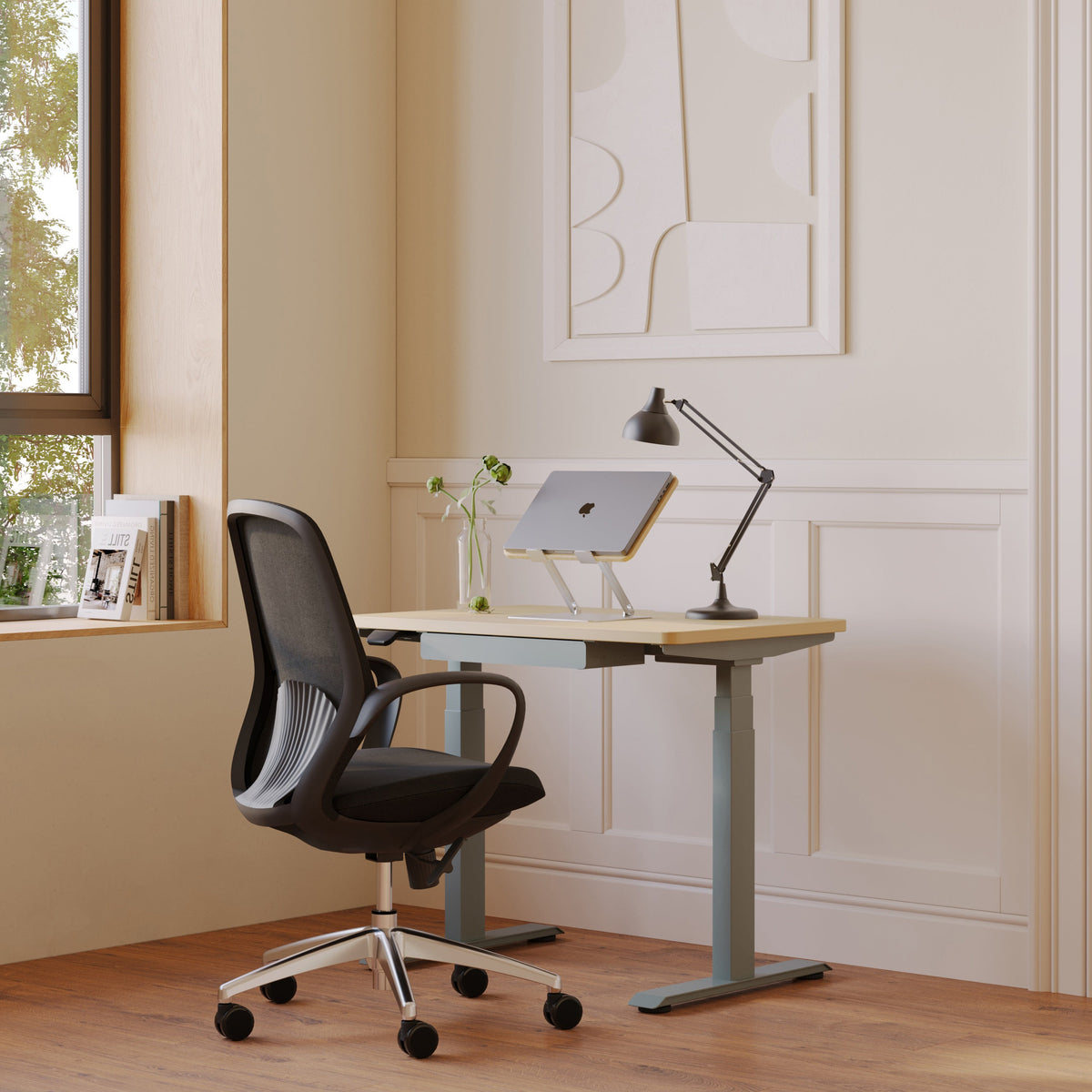
Chair too low for desk fixes that improve wrist and elbow alignment

Why a chair that’s too low shows up as wrist extension, elbow flare, and shoulder shrug
When a chair sits too low relative to the desk, most people notice it first in the hands. The wrists bend upward to reach the keys, the elbows drift outward to make room, and the shoulders slowly rise to “help” the arms meet the work surface. That chain reaction is not a posture flaw. It is a geometry problem.
At Urbanica, we look at wrist and elbow discomfort through a simple lens: your desk sets a fixed height target, and your chair determines whether your elbows can comfortably meet that target. If your elbows sit lower than the desk surface, your forearms angle upward. Your hands “climb” to the keyboard and mouse, and your wrists often extend to finish the reach. Over time, that wrist extension can increase strain through the forearm and encourage gripping harder than necessary.
The desk-height trap: how a high work surface forces your hands to climb
A fixed-height desk can feel “fine” for a few minutes and still be too high for your seated elbow height. The giveaway is what your body does unconsciously:
-
Wrists lift to clear the edge of the desk and reach the keys.
-
Elbows flare away from your ribs, which increases upper-arm effort.
-
Shoulders shrug upward, especially while mousing or using shortcuts.
These are not random habits. They are compensations for the same mismatch: the work surface sits above your relaxed elbow level.
Neutral wrist vs. extended wrist: the small angle that changes tendon load
Neutral wrists look almost straight when viewed from the side, with the hand aligned with the forearm. Extended wrists bend upward. A little extension might not feel dramatic, but the difference is meaningful because it changes how tendons glide and how much you load the muscles that stabilize the wrist during typing and mousing.
A practical target is this: when your fingers rest on your home row, your wrists should not need to bend back to “find” the keys. If you feel the heel of your hand pushing into a wrist rest or desk edge just to reach the keyboard, the input zone is too high for your current seated position.
Elbow position as the control knob for keyboard and mouse comfort
Elbows are the most reliable reference point because they sit at the intersection of posture and reach. If your elbows can stay near your sides while your hands are on the keyboard and mouse, the wrists usually settle closer to neutral. If elbows drift out and forward, wrists tend to bend and shoulders tend to tense.
Hidden compensations to watch for
-
Reaching forward so your forearms rest on the desk edge
-
Leaning body weight onto the desk to stabilize the arms
-
Tucking the pelvis under and slumping, which lowers elbows even more
If any of these feel familiar, the fix starts by measuring and sequencing adjustments in the right order.
The 2-minute workstation diagnosis that pinpoints the real mismatch
Instead of guessing, use three quick checks. You do not need special tools. A tape measure helps, but your body’s “feel” confirms the result.
Measure 1: seated elbow height vs. desk surface height
Sit back in the chair with your shoulders relaxed. Bend your elbows and let your forearms float forward as if you are about to type. Now compare elbow height to desk height.
-
If the desk surface is clearly above your elbows, your wrists will likely extend upward to compensate.
-
If elbows are at or slightly above desk height, you are much more likely to type with neutral wrists.
A simple cue: your forearms should feel close to level as your fingers rest on the keys, not angled upward like you are reaching onto a high shelf.
Measure 2: seat height vs. foot support
Many people lower the chair so their feet touch the floor, then unknowingly accept wrist extension as the cost. If raising the chair improves wrist and elbow alignment but makes your feet dangle, that is not a reason to abandon the fix. It is a signal that you need foot support.
Foot support stabilizes the pelvis, and pelvic stability supports arm alignment. Without it, the body often slides forward to find balance, which drops elbow height again.
Measure 3: seat depth and back contact
Even with an adjustable chair, you can still work too low if you perch at the front edge. Perching reduces back support and lowers your torso. The desk effectively becomes higher.
Check whether you can sit back with your spine supported while keeping a small gap between the seat edge and the back of your knees. If you cannot, you may scoot forward during the day, and your elbows will slowly drift lower.
Quick symptom mapping
-
Wrist discomfort while typing: keyboard too high relative to elbows, or keyboard too far away
-
Outer elbow irritation while mousing: reaching outward, elbow flare, or low arm support
-
Neck and shoulder tension: shoulder shrugging to lift arms to desk height
Each symptom points back to the same system: seat height, foot support, and input height.
Fix priority order that prevents one adjustment from breaking another
Ergonomic tweaks fail when they are done out of sequence. Set your foundation first, then fine-tune.
Step 1: set seat height first
Raise the seat until your elbows can approach desk height with shoulders relaxed. Do this before you move the keyboard or monitor. If your chair has height adjustment, use small changes and retest. If it does not, treat seat height as a constraint and focus more heavily on lowering the input zone.
Step 2: stabilize feet next
If your feet no longer rest comfortably, add a footrest or stable platform. The goal is not perfect symmetry. The goal is stable contact so you can sit back without sliding forward.
Step 3: pull keyboard and mouse into the elbows-near-your-sides zone
A chair that is too low often pushes the keyboard farther away because you do not want to hit the desk edge with your forearms. Counter that by bringing the keyboard closer, keeping elbows more underneath you. Mouse placement matters just as much. If it sits too far out, your elbow flares and shoulder loads increase.
Step 4: adjust monitor height and distance last
Monitor setup matters, but it should not force you to sacrifice arm alignment. If you raise the chair and the monitor now feels low, raise the monitor instead of lowering the chair again.
A repeatable reset ritual for busy days
1. Stand up and step back from the desk.
2. Sit all the way back into the chair.
3. Set feet firmly on the floor or foot support.
4. Relax shoulders, then bring elbows close to your sides.
5. Place hands on keyboard and mouse and confirm wrists are not bent upward.
Raise the chair correctly without creating thigh pressure, numbness, or unstable posture
Raising the chair can be the fastest path to better elbow and wrist alignment, but it must be paired with support and positioning.
Micro-raising strategy that protects shoulders
Raise the chair in small increments and test the same task each time, such as typing a paragraph and doing a few mouse movements. The correct height often feels “quiet” in the shoulders. You can move your hands without your traps engaging.
A helpful cue is to check whether your shoulders feel heavy. If they feel lifted, do not assume the chair is too high. Sometimes the keyboard is simply too far away, forcing shoulder reach. Fix distance before you undo height gains.
When a footrest becomes non-negotiable
If raising the chair improves your wrist alignment but makes your legs feel unsupported, you need a footrest or stable platform. Without it, people often grip the chair edge with their legs or slide forward. Either pattern reduces back support and drops elbow height again.
A safe foot support option is any stable surface wide enough for both feet to change position. The goal is comfort and stability, not a perfect angle.
Pelvis and ribcage stacking cues that keep elbows floating
-
Sit back so your hips are supported.
-
Imagine your ribcage stacked over your pelvis.
-
Let your elbows hang close to your sides before you reach for the keyboard.
When your torso is stacked, your elbows naturally rise relative to the desk and your wrists do less compensating.
Common raising mistakes
-
Raising the chair but leaving the keyboard far away
-
Raising the chair but perching at the seat edge
-
Raising the chair and then lowering it again because the monitor feels low
Fix the downstream issues instead of reversing the one change that improved elbow height.
If the chair can’t go higher, lower the input zone instead of fighting the desk
Sometimes the chair is at its maximum height, or it is not adjustable. In those cases, the best fix is to bring the keyboard and mouse down to your elbow level.
Keyboard tray logic for wrist-neutral typing
A keyboard tray can lower the input surface without changing the desk. It also helps you keep elbows close to your sides because the tray can sit nearer to your torso than the desktop surface does.
If you do not have a tray, you can still reduce wrist extension by making the keyboard thinner, moving it closer, and avoiding thick desk pads that elevate the hands.
Desktop adjustments that reduce wrist extension safely
-
Keep the keyboard close enough that your elbows do not drift forward.
-
Avoid resting your wrists on a hard edge while typing. Light contact is fine, body weight is not.
-
Angle the keyboard so your wrists stay neutral, not bent upward.
The standing fallback that resets arm geometry
A height-adjustable desk gives you another reliable way to match the work surface to elbow height. Instead of forcing your wrists to adapt to a fixed seated mismatch, you can set the desktop to the level your arms need. Our Standing Desk is built for that kind of adjustment, letting you move between sitting and standing setups that both respect elbow height.
How to set standing height using elbows
Stand tall with shoulders relaxed. Bend elbows near your sides and set desk height so your forearms can approach level as your fingers reach the keys. If your shoulders lift, lower the desk. If your wrists bend upward to reach the keys, the desk is still too high.
Armrest tuning that stops elbow strain and improves mouse control
Armrests are often misunderstood. Too low, and they recreate the same “chair too low” problem. Too high, and they force shoulder shrugging.
Why armrests that are too low mimic a low chair
Low armrests let forearms drop while the desk and mouse stay high. That encourages wrist extension and often pushes you to brace on the desk edge. If you notice your forearms constantly searching for support, armrest height is worth revisiting.
Support, not shrug
Set armrests so they barely meet your forearms while your shoulders remain relaxed. You want light support, not a lift.
A simple check: if you remove your forearms from the armrests, your shoulders should not drop dramatically. That would mean the armrests were holding your shoulders up.
Mouse-side strategy that prevents elbow flare
Place the mouse close enough that your upper arm stays near your ribs. If the mouse sits wide, your elbow flares and the outer elbow tends to take the load. If the desk is high, that flare gets worse because you are already reaching upward.
When removing armrests helps
If armrests block you from pulling close to the desk, they can force you into a forward reach posture that lowers elbows and increases wrist extension. In those cases, lowering them enough to slide under the desk, or temporarily not using them, can improve alignment immediately.
Desk-edge pressure and contact points that quietly bend wrists and irritate elbows
Even when seat height is correct, desk contact can reintroduce strain if you lean into the edge.
Hard edges and soft tissue compression
Pressing forearms into a hard desk edge can change wrist angle and add pressure through the forearm. Many people think they are “relaxing” by leaning, but the wrist often ends up extended and the hand grip tightens to compensate.
The contact rule: light support vs leaning weight
Light forearm contact can be fine. Leaning body weight into the desk is where problems start. If your hands feel lighter and your wrists straighten when you sit back, you have found a key lever.
Where to place the keyboard so wrists stay neutral
Place the keyboard so your elbows are slightly behind your hands, not far forward. That lets your wrists stay closer to neutral and reduces the urge to rest your forearms on the edge for support.
Chair specs that actually solve too low for desk, and how we think about fit at Urbanica
We design and select chairs with one core outcome in mind: a stable sitting posture that keeps elbows near desk height without forcing shoulders to compensate.
Seat-height range as the non-negotiable for desk compatibility
If a chair cannot reach the height your desk demands, it becomes difficult to maintain wrist-neutral typing without additional tools. Seat height range is the first compatibility filter because it determines elbow height potential.
Back support that prevents slow forward drift
A common reason people feel “too low” is not the chair’s maximum height. It is that they slide forward over time. When you lose back contact, your torso drops and the desk becomes higher relative to your elbows.
Adjustment count vs meaningful adjustability
More controls are not always better. The best chair is the one you will actually set correctly and keep set correctly. For many workdays, the priority stack looks like this: seat height, seat depth fit, back support you can comfortably sit into, and arm support that does not lift shoulders.
When you want a chair engineered around sustained ergonomic support, our Ergonomic Novo Chair is designed to help you stay seated back and aligned through long sessions. If you prefer a more substantial profile with premium comfort cues, the Ergonomic Onyx Chair is another option that can support a stable posture so your elbows stay in a better relationship with the desk.
When a design-forward chair helps or hurts wrist and elbow alignment
Not every workspace is a dedicated office, and not every chair needs to look like one. The key is matching the chair’s use case to the kind of work you do.
Occasional laptop use vs daily keyboard-heavy work
Laptop work tends to pull hands closer and lower, which can reduce some reach issues but increases neck and shoulder load if the screen is low. Keyboard-heavy work, especially with a separate monitor, demands consistent elbow support and stable seating height. If you are typing and mousing for hours, adjustability and sit-back stability matter more.
What to look for when aesthetics lead the decision
-
Can the seat height put elbows near desk height?
-
Can you sit back comfortably without sliding forward?
-
Do the arms interact with the desk in a way that keeps shoulders relaxed?
For style-conscious workspaces that still need day-to-day comfort, the Muse Chair can fit well when you want a balance of design and functional seating. If you want an everyday performance feel with a clean, dependable profile, the Seashell Chair can complement a workstation when you still prioritize support and daily usability.
Shared desks and mixed-height households: one station, two bodies, fewer compromises
Shared desks are where “chair too low for desk” becomes a recurring conflict. One person sets the chair for feet, the other sets it for elbows, and someone ends up compensating with wrists or shoulders.
Why one person always ends up too low
Seated elbow height varies more than people realize. A fixed desk height can be workable for one user and too high for another. If the shorter user lowers the chair to plant feet, wrist extension usually appears. If they raise the chair to reach elbow height, feet support becomes the missing piece.
Split-zone setups: input height vs monitor height
Treat the keyboard and mouse as one adjustable zone and the monitor as another. Raise the chair and add foot support to fix elbows first, then raise the monitor so the neck stays neutral. This avoids the common mistake of lowering the chair just because the screen looks low.
Fast switching setups for alternating users
-
Use a simple mark for chair height on the cylinder or a note of the click count if the chair allows it
-
Keep a footrest ready so either user can stabilize feet immediately
-
Place keyboard and mouse in consistent positions so reach does not change with each swap
When a dual-user adjustable workstation is the simplest long-term solution
If two people truly share a station daily, a desk designed for dual work zones can reduce friction and reduce compensation patterns. The Two-Person Standing Desk supports two users with a setup built for adjustable working heights, which can make it easier to keep both sets of elbows and wrists in a healthier position across the day.
Practical comparison table: choose the right fix based on what you can change today
| Fix option | Best when | What it improves for wrists and elbows | Watch-outs to avoid new strain |
|---|---|---|---|
| Raise chair height | Chair has adjustment range and desk is fixed | Brings elbows closer to desk height and reduces wrist extension | Add foot support if feet dangle, sit back to avoid perching |
| Add foot support | Chair height fix makes feet unsupported | Stabilizes pelvis and helps elbows stay consistently higher | Support must be stable and wide enough for both feet |
| Move keyboard and mouse closer | You feel reach and shoulder tension | Reduces elbow flare and forward reach | Avoid crowding wrists against desk edge |
| Lower input zone with a tray | Desk is high and chair cannot go high enough | Allows neutral wrists without shrugging shoulders | Make sure tray height allows relaxed shoulders |
| Adjust armrests | Forearms feel unsupported or shoulders tense | Supports forearms and reduces gripping effort | Armrests should not lift shoulders or force elbows out |
| Add standing blocks | Seated setup has hard limitations | Lets you set desk height to elbow height for part of the day | Standing height must be set by elbows, not by guessing |
Ten-minute alignment checklist that confirms you fixed wrist and elbow positioning
Use this checklist right after adjustments, then again after a typical work block. The second check is where you catch drift.
The elbow test
-
Elbows stay close to your sides during typing
-
Forearms feel close to level, not angled upward
-
You can move between keyboard and mouse without reaching outward
The wrist test
-
Wrists do not bend upward to reach keys
-
Hands feel light rather than braced against a desk edge
-
You can type without pressing the heel of your hand into a rest for leverage
The shoulder test
Place your fingertips on the top of your shoulders. If you feel constant muscle engagement while typing, something is still forcing a shrug. Revisit keyboard distance first, then desk height relative to elbows.
Red flags that mean you are still too low
-
Wrists extend upward within minutes of starting work
-
You keep leaning onto the desk edge for support
-
Mouse arm drifts outward and elbow starts to ache
-
Shoulders creep up during focus tasks
Keeping alignment stable over long weeks so your setup does not drift back into strain
Great alignment is not a pose you hold. It is a workstation that supports your default behaviors.
Build a repeatable posture pattern instead of chasing perfect posture
We aim for repeatability: you sit down, you settle back, your feet stabilize, your elbows land near desk height, and your wrists stay neutral without thought. That repeatability comes from matching furniture geometry to real bodies, not from forcing rigid posture rules.
Micro-break moves that specifically unload wrists and elbows
-
Open and close your hands slowly 10 times, then relax the fingers
-
Rotate wrists gently through a comfortable range without forcing end positions
-
Drop shoulders, then let elbows hang for a breath before returning to the keyboard
A weekly check-in that keeps the system honest
Once a week, repeat the three-measure diagnosis: elbows vs desk, feet support, sit-back contact. Small changes in chair height, monitor position, or even footwear can shift alignment. Catching those shifts early prevents the gradual return of wrist extension and elbow flare.
Getting setup confidence and product guidance without relying on a showroom visit
Some people want to test chairs in person. Others want a clear path to choosing and setting up correctly without a trip. We support both, but we design our online experience to be practical for real ergonomics decisions, not just visuals.
What to verify before committing to a chair or desk
-
Seat height range that can meet your desk height needs
-
Whether the chair encourages sit-back posture or leads to perching
-
Arm support behavior at your desk, especially how easily you can keep elbows near your sides
Where to get help when you want a second set of eyes on your measurements
If you want to sanity-check your desk height, elbow height, or which setup path fits your constraints, our team can help you interpret what you measured and which adjustments to try first. The most direct place to start is our office furniture FAQs and support team, where you can find guidance and reach out with details about your space and workflow.
Related Articles
-
 Our Conference Chairs and Meeting Tables Compared, so You Can Furnish a Huddle Room, a Meeting Room, or a Boardroom for Eight in One Order
-
 This Is How To Build A Small Home Office You Actually Want To Work From, And How To Pick Desks For Small Spaces - Urbanica Furniture's Full Guide
-
 Best Setup for Laptop and 2 Monitors With Less Neck Strain
-
 Gaming chair armrest not high enough: FAQs with simple answers
-
 Office chair armrest too low: what to check before you buy online
-
 The Desk Height That Saves Your Wrists


