























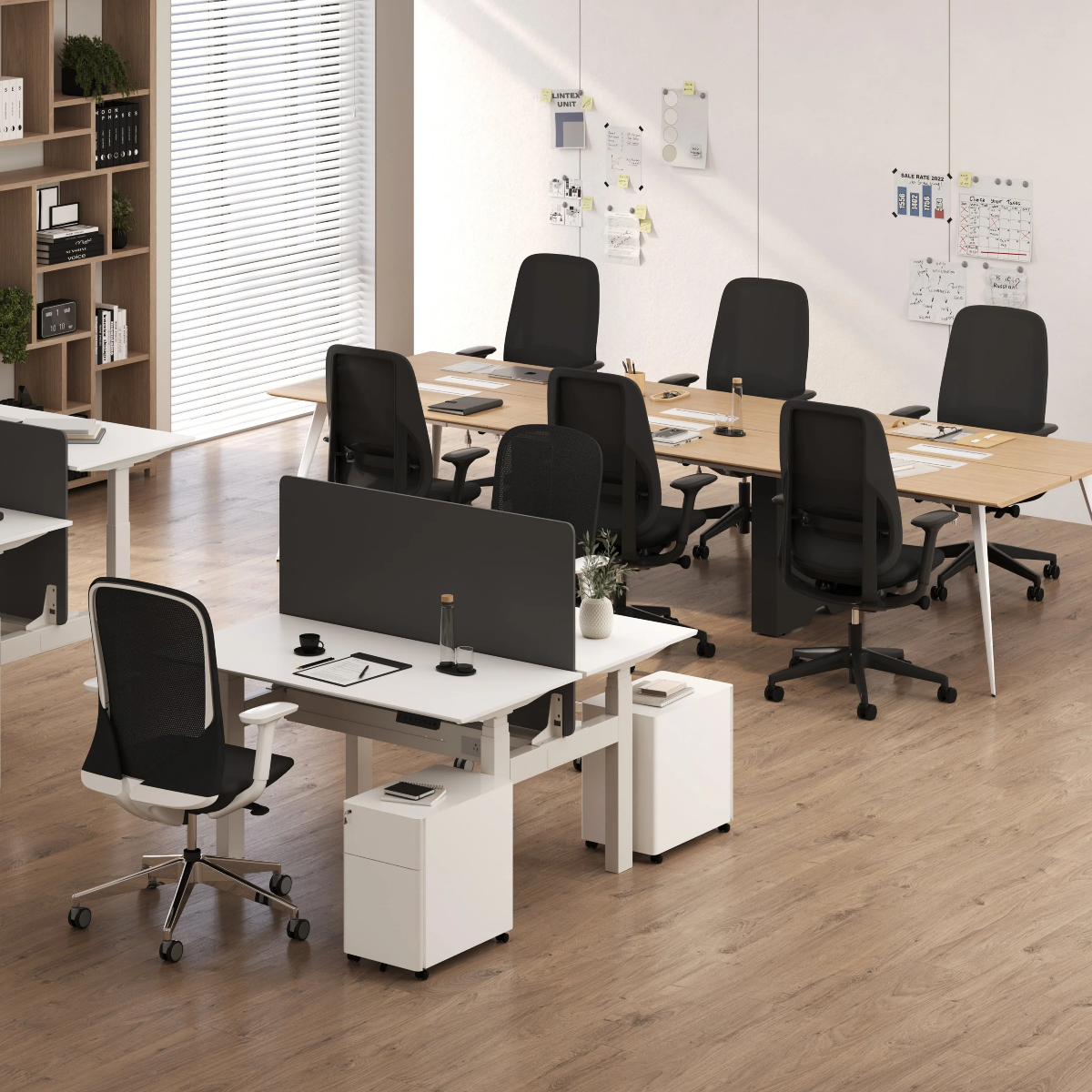
Build a Dual Monitor Setup Without a Large Desk Using Smart Placement

A dual monitor setup does not begin with buying the largest desk that fits the room. It begins with understanding how space is actually used during the workday. In smaller bedrooms, apartments, study corners, and multi-purpose home offices, the real challenge is not the number of screens. The challenge is how screens, power access, keyboard space, and movement all compete for the same limited footprint.
That is why smart placement matters more than oversized furniture. Two monitors can work beautifully on a compact desk when the layout supports sightlines, posture, reach, and cable control. A setup that feels open is usually the result of disciplined decisions, not extra square footage. Monitors are lifted instead of planted on bulky bases. Power is placed where devices are used instead of where outlets happen to be. The center of the desk is reserved for hands-on work rather than clutter. Every element is chosen to protect usable space.
A well-composed workstation should feel calm and functional, even when the room itself is tight. That goal is much easier to reach when the desk is treated as part of a system rather than a standalone surface. Looking at thoughtfully designed desk collections for modern workspaces often reveals that proportion, depth, and accessory compatibility matter more than simply adding width.
Why smart placement matters more than desk size
A compact desk can still support serious screen-based work
Many people assume dual monitors automatically require a broad, executive-style desk. In practice, large desks often hide inefficient setups rather than fix them. A wide surface can still feel cramped when monitors sit on heavy stands, charging cables cross the work zone, and the keyboard gets pushed to the front edge.
A smaller desk can perform better when it is planned around how work actually happens. Writing, browsing, designing, spreadsheet review, video calls, and note-taking each depend on clear visual access and comfortable hand placement. None of those tasks improve just because the desk is larger. They improve when the workstation is organized so that the user does not constantly reach around equipment.
Functional workspace is different from visible surface area
A desk may appear spacious at first glance, but the true test is how much of it remains usable after the setup is complete. Once two monitor stands, a laptop, cables, chargers, and everyday tools are added, the available work zone often shrinks fast. This is especially noticeable in small rooms where the desk also needs to feel visually light and proportionate to the space.
Smart placement protects what matters most: the area directly in front of the user. That is where the keyboard, mouse, notebook, and occasional device should live. When that zone stays clear, the workstation feels more open, even with two screens.
The hidden space limits that make dual monitor setups fail
Desk depth affects comfort more than most people expect
Width gets most of the attention when people shop for a workstation, but depth often determines whether the setup is comfortable. If the desk is too shallow, the monitors sit too close to the face, the keyboard edges toward the front lip, and the whole posture of the setup becomes compressed. Users lean forward more often, shoulders tense up, and the desk starts to feel crowded even if it is technically wide enough.
Depth also shapes flexibility. A desk with usable depth allows the screens to sit at a more natural viewing distance while preserving room for input devices and note-taking. That extra breathing room can make a compact setup feel balanced instead of packed.
Stock monitor stands consume premium desk space
Factory monitor stands are one of the most common causes of wasted surface area. They occupy the center-rear part of the desk, which is exactly where users often need room to angle screens, route cables, or place supporting devices. Their footprints can also limit how closely two monitors can be positioned together.
This becomes a major problem on smaller desks because every inch matters. When the stands dominate the rear edge, the user loses flexibility before the day even starts.
Room layout matters as much as desktop measurements
Even if the desk dimensions look reasonable on paper, the room itself can still create problems. A workstation needs enough clearance for the chair to move, enough wall distance for cable connections, and enough surrounding space so the setup does not block storage, doors, or walking paths.
Small-space offices usually succeed when the desk footprint supports the room rather than fights it. A desk that technically fits but overwhelms the floor plan will still feel wrong. A dual monitor setup works best when the furniture, screens, and room geometry support each other as one system.
The anatomy of a compact dual monitor setup that still feels open
One monitor should lead and the second should support
The most comfortable dual monitor setups are rarely perfectly symmetrical in use, even if they look symmetrical at a glance. Most people have one display that handles primary work and another that supports it. The primary monitor should sit directly in front of the user. The secondary monitor should be angled according to the task flow.
This distinction matters. If writing happens on the main screen and research stays on the second, the layout should reflect that. The same applies to meetings and notes, coding and preview windows, or spreadsheets and communication tools. When the setup matches actual behavior, the user moves less and focuses better.
Lifting screens creates more usable room than widening the desk
One of the most effective ways to make a small desk feel larger is to remove monitors from the surface entirely. Elevating screens frees the area below and around them, making room for writing, peripherals, and cleaner cable management. It also improves positioning control, especially when users need to adjust the angle of each display.
A well-designed monitor arm for ergonomic screen positioning can make a dramatic difference in compact workstations because it replaces fixed monitor bases with flexible placement. Instead of arranging the whole desk around the stands, the screens can be positioned around the user.
The active work zone should stay clear
The center of the desk should support the tasks done by hand. That means the keyboard and mouse should have comfortable clearance, a notebook should fit without crowding the wrist area, and a laptop or tablet should be able to join the setup when needed.
Once that principle is clear, small-space decisions become easier. Power access should move toward the edge. Monitor support should move off the desk surface. Decorative extras should stay restrained. The result is not an empty desk, but a functional one.
Choosing a desk footprint that supports two monitors without dominating the room
Better proportions matter more than a bigger presence
The right desk for a dual monitor setup is not the one that fills the room. It is the one that supports posture, screen placement, and movement while still leaving the room usable. In smaller interiors, a desk should feel intentional rather than oversized. It should provide enough depth for viewing comfort, enough width for work essentials, and enough visual balance to avoid making the room feel heavy.
Height adjustability can improve a tight setup
In compact workspaces, flexibility often matters as much as footprint. A height-adjustable desk for daily computer work can help users refine screen height, elbow angle, and working posture throughout the day. That adaptability is especially valuable when one desk has to support different tasks, devices, or user preferences in a limited area.
The benefit is not novelty. It is control. When the desk can adapt to the person and the setup, the overall workstation becomes easier to live with day after day.
Shared spaces need better planning, not more furniture
Some rooms do not serve only one person or one purpose. A home office may also function as a study area, a collaborative zone, or a mixed-use room that needs to stay orderly. In those cases, good planning matters more than scattering extra desks around the space.
A shared standing workstation design can sometimes organize a room more effectively than forcing separate, mismatched pieces into the same footprint. The key is not the number of users. The key is whether the layout creates clarity, preserves movement, and prevents the room from feeling fragmented.
Power access and cable control shape the entire experience
Power should be part of the layout from the beginning
Small desks become frustrating when power is treated as an afterthought. Cables end up crossing the work surface, chargers compete with notebooks, and devices plug in wherever there is room rather than where they are actually used. Even a visually attractive setup can feel chaotic when reaching for power becomes inconvenient.
Power planning should begin with the monitors, laptop, and frequently charged devices. Once those needs are understood, it becomes easier to place access points where they support the work rather than interrupt it.
Built-in access can reduce visual clutter
Keeping outlets close to the device zone helps simplify a compact setup. An integrated desk power solution can reduce the need for cords to travel across the desktop, especially in two-monitor arrangements where several connections already converge near the rear edge.
That kind of placement helps the workstation feel cleaner because the infrastructure becomes part of the desk instead of sitting on top of it.
Edge-mounted power works well for flexible layouts
Not every setup calls for a built-in configuration. Some users prefer a solution that can move with the desk layout, adapt to a renter-friendly environment, or shift as device needs change. In those cases, a clamp-mounted power outlet for desks can keep charging access close at hand without consuming the central work area.
The common thread is simple: in compact workspaces, power should live at the perimeter and support the workflow quietly.
Layout patterns that work especially well in small rooms
The wall-aligned layout
This is one of the most reliable options for bedrooms, narrow offices, and study corners. The desk sits along a wall, the monitors float near the rear edge, and the center of the desk stays open. This arrangement works well when the room needs visual order and the desk should not project too far into the floor plan.
The corner-adjacent layout
A desk does not always need to sit directly in the corner to benefit from one. In awkward rooms, placing the workstation near a corner instead of into it can preserve better viewing angles and allow more natural chair movement. Slightly angled screens often help make this arrangement feel intentional rather than improvised.
The multi-purpose room layout
When a workstation shares space with a bed, sofa, storage unit, or guest function, the setup needs restraint. Fewer visible cables, a cleaner silhouette, and carefully chosen accessories keep the workspace from taking over the room. The goal is not to hide the workstation completely. The goal is to make it feel integrated.
The design-led compact office approach
Some users want a setup that performs well and contributes to the room aesthetically. In those situations, layout decisions should reflect both workflow and finish quality. A curated workspace furniture showroom resource can be helpful for exploring how desks, accessories, and supporting pieces come together in a more cohesive small-space office environment.
Practical planning decisions that improve a small dual monitor setup
Use this order of decisions
1. Measure the room before choosing the desk.
2. Confirm the desk depth needed for comfortable monitor distance.
3. Decide which screen will be primary.
4. Plan how the monitors will be mounted or supported.
5. Place power access near the actual device zone.
6. Reserve the center of the desk for hands-on work.
7. Add only the accessories that serve a clear daily purpose.
This order helps prevent one of the most common mistakes in compact setups: solving the room backward.
Compare placement priorities before buying or rearranging
| Setup Factor | What to Prioritize in a Small Space | What to Avoid |
|---|---|---|
| Monitor position | Primary screen centered, second screen supporting workflow | Treating both screens as equal if usage is not equal |
| Desk surface | Clear center zone for keyboard, mouse, and notes | Filling the middle with stands, chargers, or decor |
| Power access | Outlets near device use and rear-edge cable paths | Long cables crossing the active work zone |
| Desk choice | Balanced width, usable depth, and room clearance | Oversized furniture that fits the room poorly |
| Accessories | Functional add-ons that reduce clutter | Extra organizers that create more surface competition |
Common mistakes that make a compact setup feel cramped
Prioritizing symmetry over real use
Perfect visual symmetry is appealing, but it is not always ergonomic. If one monitor handles most of the work, forcing equal alignment can create unnecessary turning and awkward posture. Function should lead appearance.
Adding accessories before protecting workspace
Speakers, trays, desk lamps, organizers, and decorative objects can quickly steal the very surface area needed for productive work. On a small desk, every added object should justify its place.
Assuming clean looks automatically mean comfort
A setup can look tidy and still be uncomfortable. If the screens are too close, the keyboard is pushed forward, or the user must constantly reach around hardware, the arrangement is still working against the body. Good small-space design should support both appearance and everyday use.
A dual monitor setup succeeds when every element has a job
A small desk can absolutely support two monitors without feeling overcrowded. The difference lies in placement discipline. The desk should support posture. The screens should support visibility. The power setup should support access. The layout should support movement. When each part has a defined role, the entire workstation feels calmer, more capable, and easier to use.
That is the real goal of smart placement. Not simply fitting two screens onto a desk, but creating a setup that remains comfortable, clear, and well-proportioned inside the room it belongs to.
Related Articles
-
 This Is How To Build A Small Home Office You Actually Want To Work From, And How To Pick Desks For Small Spaces - Urbanica Furniture's Full Guide
-
 Filing Cabinets for Small Spaces That Still Look Clean Now
-
 Minimalist Office Table Ideas That Work Like a Bistro Table
-
 Make Small Shared Spaces Work Better With a Bistro Table
-
 Best Filing Cabinet Layout Ideas for Small Home Offices and Shared Rooms
-
 What Size Filing Cabinet Makes Sense for Small Workspaces?


