



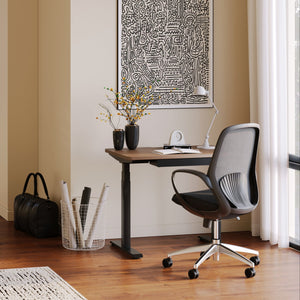
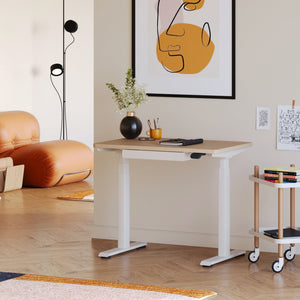
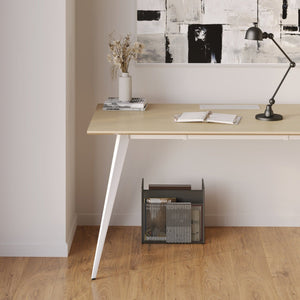
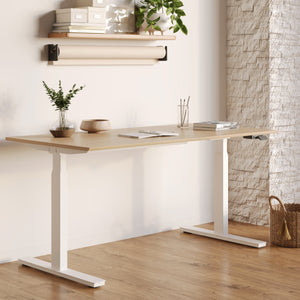



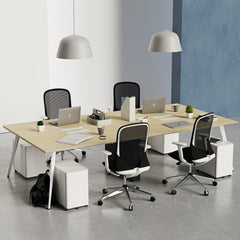
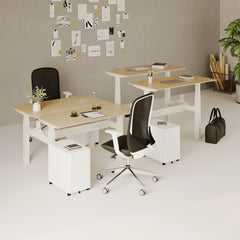
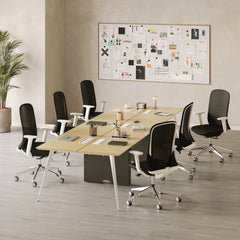


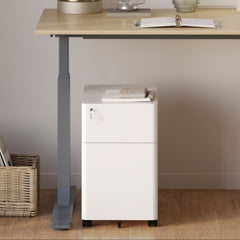


Filing Cabinet Choices for Cleaner Workstation Planning
Cleaner workstation planning starts with filing storage that matches the desk, document volume, security needs, and daily workflow. Explore how cab...
Learn more
Visit quiz page to see how we makes it easy to create an inspiring workplace


A laptop stand can improve a desk in seconds, but the layout around it determines whether that improvement actually lasts through a full workday. The strongest setups do more than lift the screen. They create a working position that supports focus, cleaner movement, better call framing, and fewer small irritations that build up over time.
That is why the best laptop stand layouts are not all built the same way. A person spending hours writing or reviewing documents needs a different arrangement than someone joining back-to-back meetings. A casual everyday setup for email, planning, and browsing also needs its own balance. The most effective layout is the one that matches the real rhythm of the day, the size of the desk, and the amount of gear the space can handle comfortably.
A productive laptop stand layout is a full working arrangement. It includes screen position, viewing distance, keyboard placement, mouse reach, note-taking space, lighting direction, and visual order. The stand is important, but it is only one part of the system.
Many people raise the laptop and assume the setup is finished. That helps with screen height, but it does not automatically solve shoulder tension, awkward wrist angles, or the habit of leaning forward. A productive arrangement has to support the whole body, not just the eyes.
When the laptop is lifted but the keyboard remains too high for comfortable typing, strain often shifts from the neck to the shoulders and wrists. When the stand is centered well, paired with enough desk depth, and supported by a logical hand position, the setup begins to feel natural instead of managed.
A useful layout should consistently do three things:
1. Keep the screen easy to view without constant neck adjustment
2. Keep the hands and arms in a position that feels sustainable
3. Reduce visual and physical friction so tasks flow without interruption
These basics apply whether the desk is used for concentrated work, video calls, or a mixture of lighter daily tasks.
A good layout is usually built from a few simple principles rather than a large collection of accessories. The aim is not technical perfection. The aim is repeatable comfort and clarity.
The laptop should sit directly in front of the user, with the screen high enough to reduce the urge to fold the neck downward. At the same time, the screen should not be so high or so close that it dominates the visual field. A balanced layout allows the eyes to settle comfortably on the display while keeping enough desk space open below it for practical work.
This is where an adjustable laptop stand fits naturally into a flexible workstation. The linked product is specifically Urbanica’s Adjustable Laptop Stand, designed around ergonomic positioning and mobility, which makes it suitable for people who change their setup throughout the day.
Once the laptop screen is raised, typing directly on the built-in keyboard can become less comfortable during longer work blocks. That is why many productive layouts use an external keyboard and mouse, especially for deep work. The stand handles screen elevation, while the lower input position helps the hands stay relaxed.
For lighter daily use, a simpler arrangement can still work. The key is honesty about the workload. A short email session needs less structural support than hours of writing, planning, or spreadsheet work.
The front and center of the desk should hold the items used most often. Keyboard, mouse, notebook, and water belong in the primary zone. Secondary tools such as chargers, reference papers, or lighting controls can sit slightly farther away. Less-used objects should stay outside the main work area.
Every time the hand has to cross over clutter, move around decorative objects, or push something aside before writing, the desk creates friction. A clean layout reduces these interruptions. The result is not only better posture, but a steadier pace of work.
Deep work requires a layout that disappears into the background. The best version feels visually quiet, physically stable, and easy to repeat day after day.
For concentration-heavy tasks, the laptop stand should sit squarely in the middle of the desk. The body stays aligned with the screen, and the eyes do not have to angle left or right for long periods. Keyboard and mouse should stay close enough to avoid reaching, with note-taking tools placed beside the dominant or non-dominant hand depending on workflow.
Desk size matters here. A shallow desk can make even a good stand feel cramped. More depth usually creates a better screen distance, more room for input devices, and clearer separation between the work zone and everything else.
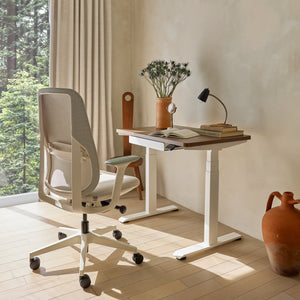
That is why layouts like this benefit from office desks designed for ergonomic work. The linked Urbanica collection is specifically presented as adjustable ergonomic office desks for different spaces, which aligns well with setups that need enough surface area for a stand, keyboard, and writing space without crowding the front edge.
A productive desk often improves more from subtraction than from addition. Extra trays, stacked décor, bulky charging hubs, and loose papers can all make the setup feel busier than it needs to be. Focus-first layouts work best when the visual field around the laptop remains calm.
Laptop stand
External keyboard and mouse if used
Notebook or planner
One writing tool
Water or coffee placed safely outside the main hand path
Anything else should earn its place. If it does not support the task directly, it can usually move to the side or leave the desk entirely.
A call-ready layout is not only about comfort. It also shapes how clearly the user appears on camera. Screen height, face lighting, and the visible background all matter.
The most common issue in laptop-based calls is a low camera angle. When the device sits flat on the desk, the camera often points upward, creating a less natural view. Raising the screen helps bring the camera closer to eye level, which usually creates stronger eye contact and a more balanced appearance.
For desks where space is limited, a lightweight laptop stand suits a smaller-footprint layout. The linked page is Urbanica’s Slim Laptop Stand, described in its title as a lightweight design with heavy-duty strength, making it a logical choice for compact work surfaces that still need a cleaner video-call angle.
A bright room is not always a well-lit call setup. Overhead lighting can cast shadows, while a strong window behind the chair can darken the face. The most practical approach is usually soft light from the front or front-side position, placed to avoid glare on the screen.
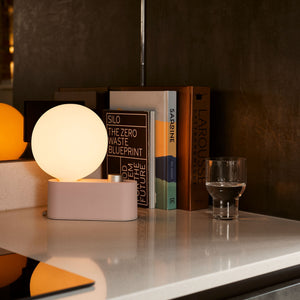
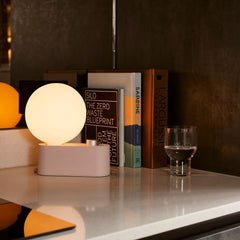
This is where a multi-use LED table and wall light becomes relevant within a call-focused layout. The linked page is Urbanica’s Alumina Lamp, presented as a multi-use LED table and wall light, which makes it appropriate for setups that need flexible task and ambient support without introducing visual clutter.
1. Raise the laptop enough to improve the eye line
2. Keep light slightly in front of the face, not directly overhead
3. Check what appears behind the chair
4. Remove loose cables and distracting objects from view
5. Keep the desk clear enough for note-taking during the meeting
A polished background does not have to be dramatic. It simply needs to feel intentional. Clean surfaces, limited visual noise, and some depth behind the chair often work better than an overloaded shelf or a blank wall with harsh light. A useful rule is that the person should remain the focus, not the room.
Not every desk needs to operate like a dedicated workstation. Many people move between email, planning, browsing, reading, and occasional work blocks. In these cases, the best layout is often one that feels easy to return to.
An everyday setup should open quickly and reset easily. The stand can still be centered, but the layout does not always need a full suite of peripherals. A notebook, one pen, and supportive lighting may be enough for a desk used across personal and professional tasks.
This type of desk benefits from restraint. Overbuilding a casual setup can make it feel more demanding than useful.
Softer task lighting can make a desk more inviting during early mornings, late afternoons, and evening sessions. It also helps separate the work area from the rest of the room without forcing a dramatic visual statement.
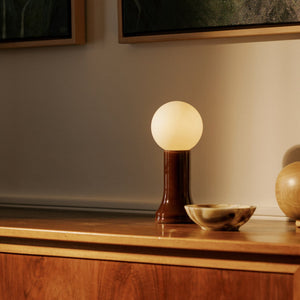
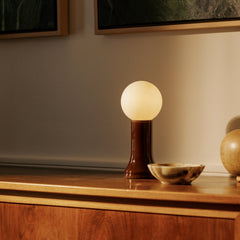
That makes a recycled glass table lamp a relevant fit in an everyday productivity section. The linked page is Urbanica’s Shore Recycled Glass Table Lamp, described as a modern sustainable lighting product made from recycled glass, which aligns with a desk setup that values both visual softness and practical illumination.
A lamp can look beautiful and still fail the desk if it creates glare, does not reach the work surface, or takes up too much valuable space. The strongest everyday layouts choose pieces that add atmosphere while still helping with reading, writing, and screen comfort.
Limited space changes layout priorities, but it does not remove them. In smaller rooms, every object has to justify its footprint.
On a narrow desk, the laptop stand should usually remain centered or only slightly offset. Pushing it too far back can make the screen hard to view, while pulling it too close can crowd the keyboard zone. Compact layouts depend on careful spacing rather than more equipment.
In multipurpose rooms, the best setup is often the one that can return to order quickly. Portable accessories, fewer visible tools, and a lamp with a manageable footprint all help the space transition between uses.
A small room does not need a smaller standard of comfort. It needs a more deliberate relationship between the objects on the surface and the tasks the desk supports.
The stand is never working alone. Surface size, lighting quality, and accessory discipline all influence whether the layout feels calm or chaotic.
Extra objects are useful only when they simplify the work. If every new accessory adds another cable, another footprint, or another visual layer, the desk begins to lose clarity. A well-edited accessory setup should make the work easier to start and easier to sustain.
That is the right context for workspace accessories for desk organization. The linked Urbanica collection is specifically an office furniture accessories page, which makes it suitable for discussing coordinated add-ons that support desk function without drifting into random or mismatched pieces.
Some people work best with almost nothing on the desk. Others need a visible notebook, task light, and reference material to stay effective. The right layout is not the emptiest one. It is the one that supports the actual work pattern while keeping the space coherent.
Layout problems are often subtle. A desk can look polished and still create unnecessary fatigue.
Raising the screen but keeping the hands too high for comfortable typing
Letting the mouse sit too far from the keyboard
Using strong backlight during calls
Filling the front edge of the desk with objects
Choosing attractive items that do not help the workflow
Each issue adds a small layer of friction. A poor camera angle makes meetings feel less polished. A crowded typing zone makes long work sessions less comfortable. Bad lighting increases eye strain. None of these problems need dramatic solutions, but they do need attention.
The right setup becomes easier to choose when the use case is clear.
| Use Case | Stand Position | Input Setup | Lighting Priority | Main Goal | Common Mistake |
|---|---|---|---|---|---|
| Deep work | Centered and slightly back | External keyboard and mouse | Glare control with focused light | Sustained concentration | Crowding the front edge |
| Video calls | Centered and elevated for eye line | Flexible input arrangement | Front or front-side facial lighting | Better framing and presence | Leaving the camera too low |
| Everyday productivity | Centered or slightly offset | Light, simple setup | Soft task lighting | Easy daily usability | Overcomplicating the desk |
| Small-space setup | Compact centered position | Minimal footprint | Controlled single-light solution | Efficient use of limited surface | Using too many accessories |
| Hybrid workday | Adjustable throughout the day | External devices ready when needed | Mixed task and call support | Smooth task switching | Never reconfiguring between activities |
The best layout starts with honesty about how the desk is actually used. A writing-heavy day needs one kind of arrangement. A meeting-heavy day needs another. A shared apartment corner needs different decisions than a dedicated office.
If most hours are spent writing, reading, reviewing, or planning, build around stable screen placement and comfortable input zones. If meetings dominate, prioritize camera line and lighting. If the desk serves many roles, aim for a setup that resets quickly.
Many desks improve through better positioning rather than more products. Moving the stand, clearing the front edge, changing the lighting angle, or freeing up desk depth can create immediate gains without making the workspace feel crowded.
When the desk is part of a broader workspace upgrade, it helps to think in terms of the environment as a whole rather than a single accessory. That is where modern ergonomic workspace solutions fit naturally in the conversation. The linked Urbanica page focuses on ergonomic and modern office furniture solutions, which connects well to readers shaping a more complete and supportive work area around the laptop setup.
A laptop stand does its best work when the rest of the desk works with it. The strongest layouts make the screen easier to view, the hands easier to place, the lighting easier to live with, and the day easier to move through.
That is what separates a surface that merely holds a laptop from a space that supports work, video calls, and everyday productivity in a way that feels steady, credible, and comfortable over time.


You have unlocked free shipping!
You're saving $29 and unlocked free shipping!
Leave a comment