























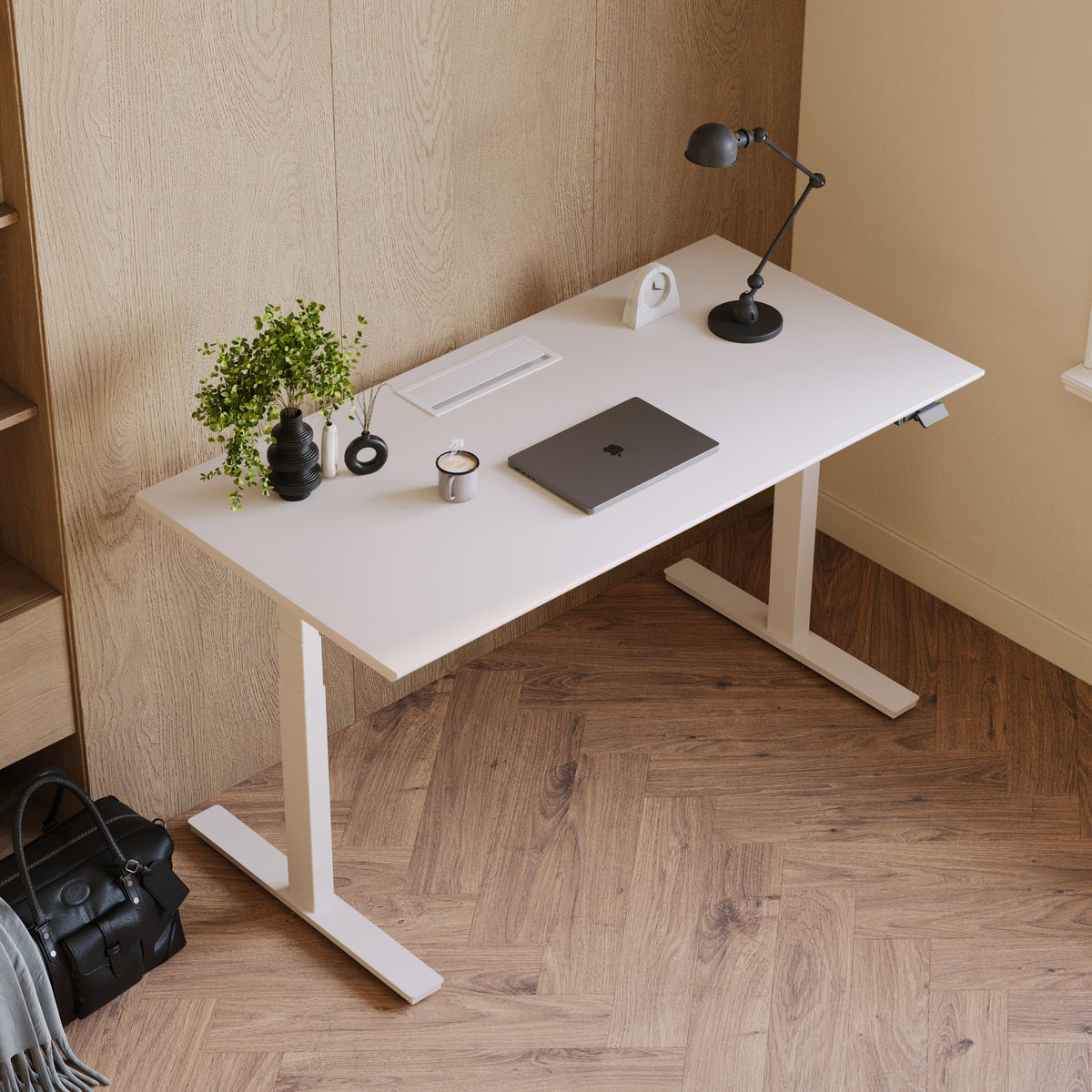
Best desk for dual monitors when you need a clean cable free workspace

Dual-monitor desk dimensions that keep screens centered, arms stable, and edges uncluttered
A clean, cable-free workspace begins before accessories, before monitor arms, and before a single cord gets plugged in. It begins with the desk. Dual monitors create a specific kind of load and footprint that exposes the weaknesses of desks that are undersized, too shallow, or not designed with real-world hardware in mind. When the desk is the right size, the setup looks calmer because everything has a defined place, and the cable paths can stay out of sight by design.
Width planning that leaves real margin on both sides of the screens
Dual-monitor layouts usually fail on width in one of two ways. The first is edge crowding, where monitors and arm clamps occupy most of the back edge, leaving no space for a notebook, a cup, or even your forearms without feeling cramped. The second is visual spill, where devices and charging cables have nowhere to live except on top of the desk surface, which breaks the cable-free look.
A practical width strategy is to plan for three zones rather than two monitors and done.
-
A stable display zone for the monitors and their mounts
-
A working zone for keyboard and mouse that stays centered with your chair
-
A buffer zone on at least one side for writing, charging a phone, or a small desk accessory
The buffer zone matters because it prevents improvisation. Improvisation is where cables tend to reappear. When there is no designated place for small daily items, they drift toward the closest outlet, and cords start to cross the desktop.
Depth planning that protects posture and hides the back-edge cable line
Depth is what allows a setup to look cable-free without hiding everything inside a mess. When a desk is too shallow, monitors get pushed forward and everything else has to live in front of them. Cables end up visible because there is no quiet strip behind the displays where cords can descend naturally.
A deeper desk creates a back-edge band that can do three jobs at once.
-
It keeps monitors at a comfortable viewing distance
-
It provides space for a monitor arm clamp or grommet hardware
-
It creates a natural channel where cables can drop straight down behind the screens
That last point is a big deal. When cables can drop behind the monitors, the desktop looks cleaner without needing extreme cable solutions.
Desktop thickness, edges, and what monitor arms need to clamp safely
Monitor arms are often the key to a clean dual-monitor setup because they lift the screens and clear desk space. But arms introduce a new constraint: they need a secure clamping surface and enough clearance at the back edge to seat properly.
A desk that works well with monitor arms usually offers:
-
A back edge that is not overly bulky or obstructed by decorative trim
-
A stable top that does not flex when pressure is applied at the clamp point
-
Enough rear clearance so the clamp can sit flat and the arm can rotate without hitting a wall
If you want to compare shapes and footprints that suit dual displays, explore the office desk collection for size and finish options designed for office use.
Stability realities that reduce screen shake and keep the setup visually calm
A wobbly desk is not just annoying. It is visually disruptive. If your monitors shift when you type, you will keep adjusting them. Adjustments create slack and slack turns into visible loops. Stability keeps the entire system quieter.
Stability comes from a few practical factors:
-
A frame that resists racking, which is side-to-side sway
-
A top that does not flex at the clamp points
-
Leveling feet that help compensate for imperfect floors
-
Enough mass and structural rigidity to handle the leverage of two screens
When you plan for stability, you are also planning for cable control, because cables stay where you routed them.
Cable-free starts with desk architecture: leg clearance, underside real estate, and hidden routes
A cable-free desk is rarely achieved by bundling cords. It is achieved by treating cable management like infrastructure. That means planning where cables live, where they travel, and where they are allowed to be seen. The right desk makes those decisions easier because it provides clean surfaces, accessible underside space, and predictable routes.
Leg design and crossbars that determine where cables can hide naturally
Look under a desk and you will quickly see whether it is friendly to a clean setup. Some designs have crossbars that steal the exact space you want to use for cable containment. Others create awkward zones where cables must run across open areas.
A desk that supports a cable-free look typically allows you to:
-
Mount cable containment near the back edge, where cords naturally descend
-
Keep the center underside clear for knees and movement
-
Route cables along the frame, not across open air
When cables run along structure, they disappear. When they run across open air, they become visual clutter.
Underside mounting friendliness: planning for trays and routes without damage
Most clean setups require at least one under-desk containment area. The key is having the right underside surfaces to attach to.
Before you commit to a layout, it helps to think in layers:
-
A power layer where bulky items live
-
A data layer where thinner cables can be routed cleanly
-
An access layer where you allow one or two cables to be reachable for daily use
Designing those layers is easier when the desk has a straightforward underside and predictable frame lines to follow.
Surface materials and residue avoidance for long-term cleanliness
A cable-free workspace should stay clean over time, not just for a photo. That means avoiding short-term fixes that leave residue or pull finish when removed. A more durable approach is to rely on mounting methods that are reversible, stable, and aligned with the desk materials.
Choosing a desk that is designed for office setups, not occasional laptop use
Dual monitors change the desk’s job. It becomes a platform for a concentrated hardware system. A desk that is intended for office use tends to anticipate this with proportions, stability, and workspace-friendly layout.
For a clear reference point on a desk built for office usage, the Office Desk product page is a helpful baseline for what a dedicated workspace desk is meant to support.
Dual-monitor ergonomics that also reduce visible cables
Ergonomics and cable control reinforce each other. When monitors are positioned correctly, cables often become less visible because they fall behind the screens and travel in predictable paths. When monitors are positioned poorly, cables often end up draped across the desktop because the hardware is fighting the layout.
Screen height and tilt that avoid dangling cable sightlines
A cable-free look is largely a sightline problem. From your seated position, anything that crosses the desk surface or hangs in front of the back edge will catch your eye.
To keep sightlines clean:
-
Align monitor heights so cables can travel behind both screens in parallel
-
Avoid extreme tilts that expose the backside of the monitors and their cable ports
-
Keep the back of each display oriented so cables exit toward the rear channel, not the side
Monitor arm versus riser: which supports a cleaner cable path
Monitor arms are often the cleanest option because they raise the screens and consolidate cable paths into the arm structure. Risers can work too, but they can introduce clutter under the riser if the space becomes a catch-all for adapters and loose cords.
Clamp mounting versus grommet mounting and how each changes routing
Clamp mounting is common because it does not require drilling. It can also be very clean if cables immediately drop behind the monitors and then into an under-desk containment zone.
Grommet mounting can be cleaner in some setups because cables can pass through the desk and disappear sooner. Whether that is ideal depends on the desk design and whether you want a hole in the surface.
Dock placement, laptop positioning, and device geography that prevents cable sprawl
The biggest threat to a cable-free desk is not the monitors. It is the small daily devices that require charging or swapping. Laptop chargers, phone cables, and external drives tend to spread because they follow convenience.
A clean workspace keeps daily touch items in a specific zone:
-
Place the dock where cables can run backward immediately, not sideways across the surface
-
Keep the laptop either centered under the monitors or in a consistent side position, so its cable path remains stable
-
Avoid placing chargers in the middle of the desk, where they force cables to cross open space
Build an under-desk power core to hide bricks, coils, and adapters without killing legroom
Dual monitors usually come with power supplies, plus you may have a dock, speakers, a task light, and a charger. If those power bricks live on the floor, the setup never looks clean. If they float under the desk without containment, the setup looks messy and becomes hard to service.
The solution is a power core. It is a single under-desk zone that contains the bulk.
The power core concept: one containment zone for bulk, not scattered hiding spots
A scattered approach leads to scattered cables. A centralized approach keeps everything tidy because cables all start and end within a predictable area.
The power core should house:
-
A power strip or surge protector
-
Power bricks that do not need daily access
-
Cable slack that you want out of sight but still serviceable
Placement rules that avoid knee bumps and chair snags
Under-desk organization can fail if it steals legroom. The best placement usually sits toward the rear underside, away from where your knees move and where your chair arms sweep.
Mapping the no-knee zone and chair sweep zone
Two invisible zones help guide placement:
-
The no-knee zone: the area directly under the front half of the desk where your knees rise and shift
-
The chair sweep zone: the area where chair arms and your body rotate as you move
Cable containment belongs behind those zones.
Airflow and heat spacing for reliability
Power bricks and adapters can generate heat. A cable-free workspace should not come at the expense of safe operation. Keep bricks spaced so they are not stacked tightly, and avoid wrapping excess cable into dense coils pressed against adapters.
Serviceability: clean now, maintainable later
A clean setup that cannot be serviced becomes messy the first time you add a device. Serviceability means leaving a little slack where it matters and ensuring you can reach key plugs without unmounting everything.
An accessory designed for concealed under-desk organization is Under-Desk Cable Management, which can help create a dedicated containment zone under the surface.
The single vertical drop that makes a dual-monitor desk look genuinely cordless
Even the best under-desk system can look messy if cables drop to the floor in multiple places. The visual goal is one controlled drop. That drop becomes the only place where cables are allowed to be visible, and even then, it should be subtle.
Why multiple floor drops create visual noise
Multiple drops usually happen when devices are plugged into different outlets or when cables are allowed to fall wherever they land. The result is a cluster of cords that makes the entire setup look busy, even if the desktop is clean.
Where to place the drop so it stays out of the chair path and cleaning path
A good drop location is usually near the outlet side of the desk, behind the desk leg line so it is not in the chair movement zone.
Routing power and data into one controlled spine line
If you combine all cables into one drop, you want them to travel in an organized way.
Spine Cable Management is designed to guide cables from desk to floor in a controlled vertical path.
Sit-stand dual monitor setups: movement-proof cable planning and slack that never snags
Sit-stand desks are excellent for a clean workspace because they encourage a structured setup. But the movement introduces a cable challenge. If cables are not planned for the full range of motion, they snag, pull, or become visible as loose loops.
Height travel planning: measuring the range and building safe slack
The most reliable approach is to plan slack for the desk full height range. That slack should not be a messy coil. It should be a controlled loop that expands and contracts without catching.
What mounts to the desk versus what stays wall-side
For sit-stand setups, most devices that feed the desk should be mounted to the desk, including the power strip and cable containment systems. The single connection to the wall outlet stays wall-side.
Cable loop strategy that stays hidden while still flexible
Loose slack will show itself. A better strategy is to form slack into an intentional loop within the under-desk system.
For a sit-stand solution intended for workspace use, the Standing Desk product page provides a practical reference.
A routing blueprint for dual monitors: separate lanes, label logic, and upgrade-friendly structure
A desk can look cable-free today and slowly degrade over time if the system is not structured. The fix is a routing blueprint, a set of rules that prevents just this one cable decisions from creeping onto the surface.
The three-lane model: power, data, and daily access
A clean system typically uses three lanes:
-
Power lane: cables that feed monitors and devices, mostly fixed
-
Data lane: cables that connect devices, usually thinner
-
Daily access lane: one or two cables you interact with, such as a phone charger
Cable length discipline that keeps surfaces clear
Excess length creates loops and coils. Insufficient length creates tension. Use lengths that reach comfortably without being dramatically long, and keep any necessary slack inside the power core or containment zone.
Labeling and change management that prevents messy upgrades
Label monitor power and signal cables at both ends, reserve a small space for future additions, and avoid binding everything into a single permanent bundle.
Table: Cable system choices and what they optimize for
| Design choice | Desktop visibility | Ease of swapping gear | Snag risk | Typical best use |
|---|---|---|---|---|
| Monitor arms with routed cables | Low | Medium | Low | Minimalist dual-monitor setups |
| Under-desk power core containment | Low | High | Low | Multiple power bricks and docks |
| Single controlled vertical drop | Low | High | Low | Any setup near a wall outlet |
| Mixed drops with floor power | Medium | Medium | Medium | Temporary layouts |
| Daily access lane for charging | Low | High | Low | Keeping one cable available |
Multi-user and shared workstations: keeping four setups clean without cable overlap
Shared spaces add complexity. Four users often means four laptops, four sets of chargers, and devices that change daily. Without structure, cords cross between stations and the entire desk becomes visually noisy.
Defining each station ownership zone so cables never cross lanes
Each user needs a dedicated display zone, an under-desk containment zone, and a defined cable route. When stations share cable routes, the setup becomes hard to maintain.
Shared power strategy: what to centralize and what to keep per user
Centralize core power distribution and containment infrastructure. Keep daily access cables per-user.
A repeatable station template that scales
A consistent template keeps the workspace clean after the first week.
For teams planning a four-person layout, the Quad Workstation Desk is a relevant reference for how a shared desk format is structured.
Using delivery and service-area information to plan a clean setup without last-minute compromises
Cable-free workspaces fail when the layout decisions are made in the wrong order. Plan the space first, then assemble, then route cables.
Aligning outlet access, room layout, and desk placement
A clean cable plan depends on outlet locations, desk orientation, and whether the desk sits against a wall or floats in the room.
Coordinating assembly with your cable system build
Build the cable system after the desk is placed and leveled so you do not redo work and resort to shortcuts.
For service-area details that can help with planning, use fast & free shipping details for the metro area.
A clean-cable workspace that stays clean: standards, habits, and a simple reset rhythm
A cable-free desk is a standard you maintain. The system stays clean when it is structured.
A practical weekly reset that prevents cable creep
Check that monitor cables stay routed behind screens, the under-desk power core stays orderly, and the vertical drop stays aligned.
A charging policy that avoids new cables appearing on the desktop
Keep one designated daily access cable in a consistent spot. Everything else charges off the desktop.
Standardizing connectors and cable types to reduce clutter
Standardizing what you can reduces spares and adapters that often end up on the surface.
The one-spare rule for a calmer workspace
Keep one spare for critical connection types, stored off the desktop, so preparedness does not become clutter.
Related Articles
-
 Desk Setup With Laptop and 2 Monitors Needs Better Height
-
 Desk Width Requirements for Dual Monitor Setups That Still Fit Small Rooms
-
 How Deep Should a Desk Be for 2 Monitors to Prevent Neck and Eye Strain
-
 Flexible Living: Why Modular Furniture Is Changing Modern Homes
-
 Where the Right Desk Design Makes Work Flow
-
 Computer desk for dual monitors that supports monitor arms without wobble


