





The Work from Home Essentials to Buy Once, the Upgrades That Earn Their Place, and What Can Wait - Urbanica Furniture's Full Guide
Setting up a desk at home is full of small decisions. Most of the money goes to a few of them. The work-from-home essentials I would buy first, the upgrades that pay you back, and the things that can wait all follow one order, which starts with whatever your body touches all day.
In this article, I walk through:
- Why the chair and the desk come first, and what to check on each
- Which pieces are worth buying once
- How a small room changes the shopping list
- How to fix the light so your eyes last the afternoon
- How to bring power and cables up where you can reach them
- Which add-ons earn a place after a few weeks of use
- The order I would spend in, and what can wait
TLDR
This guide is for anyone deciding where the money goes when a home office gets built. It starts with the two pieces your body touches all day, then moves to the ones worth buying once, the light and power around them, and the add-ons that suit you after a few weeks.
By the end, you will have a buying order for your work-from-home essentials, a short list of Urbanica pieces that fit it, and a clear idea of what can wait until the room is settled.
Who This Article Is For
- You are furnishing a first home office and want to know where to spend it before you spend.
- You work at a kitchen table or a borrowed desk and are ready for a setup that is yours.
- You bought a chair or desk years ago and wonder which upgrade would change your day the most.
- You have a budget for the whole room and want the order that gets the most from it.
- You are helping a partner, a parent, or a new remote hire set up a workspace.

Aiden G.
Head of Marketing, Urbanica Furniture
Author's Note
In about six years of working from home, I have bought, moved, and returned a lot of gear. Some of it I still use every day. Some of it is in a closet. The difference was rarely the price. I wrote this guide to show where the money turned into comfort. Getting a new desk was a game changer for me.
When a friend asks me what to buy for a new home office, I start with the same short list every time. This guide is that list with the reasons attached, in the order I would spend.
And if you find any value in it, please share it with your friends, colleagues, and anyone who is setting up a home office and wants the money to go to the right pieces first.
Disclaimer: I did use AI to help me write and do the research, but I'm editing myself, verifying the facts, and writing my own conclusions and takes.
This article is part of our build-your-home-office category, and we have a lot of related articles that will help you plan the room. Check the full guide here: The Home Office You Actually Want To Work In.
Ok, let's start.
Work from Home Essentials Start with the Chair and Desk That Carry Your Whole Day
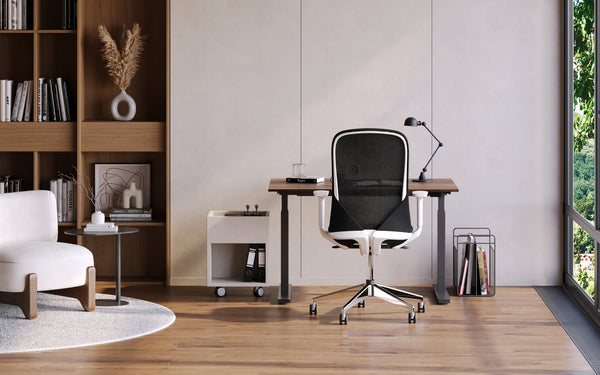
Every list of home office essentials starts the same way, because the first two purchases decide how the other ones feel. A chair and a desk touch your body for hours. A lamp, a cable clip, or a stand only helps once those two are right.
Pick the Chair by How Far It Adjusts
The Occupational Safety and Health Administration (OSHA), the US federal agency that sets and enforces workplace safety rules, publishes a computer workstation purchasing guide. It says a chair should be easily adjustable, and gives a seat height range of 15 to 22 inches and armrest height adjustable between 7 and 10.5 inches from the seat pan.
Those ranges matter because the people who share a desk are different sizes. A chair that moves through a wide range fits you on a good day and on a tired one. It also fits the next person who sits in it. I would rather own a chair that adjusts in many places than one that looks good in a photo, because a photo shows the shape of a chair but only the adjustments tell you whether it will fit your arms, your back, and your legs at hour six.
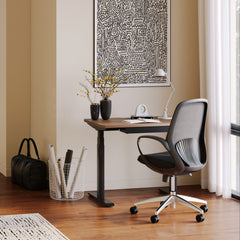
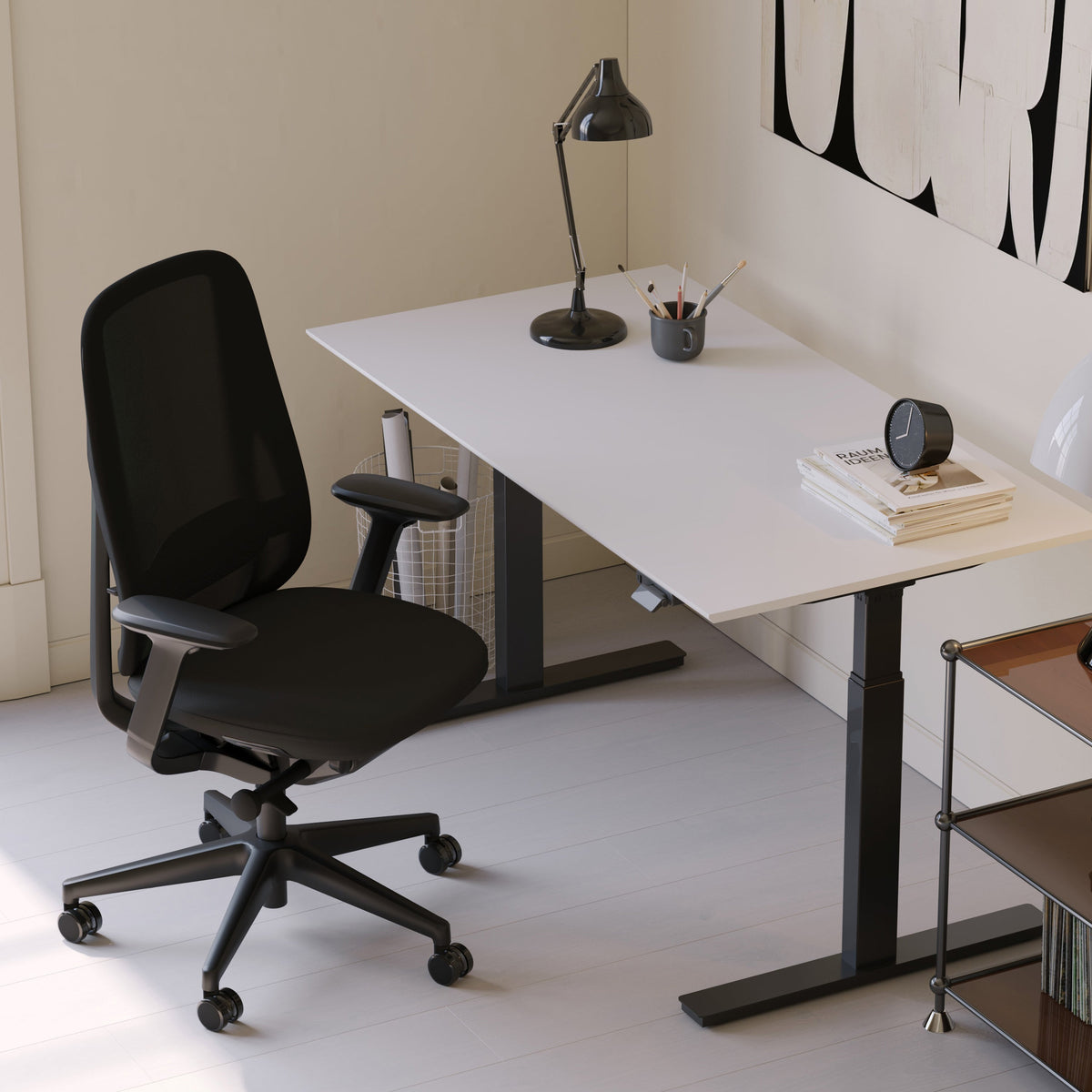
That is why the first thing I do with any chair is count what moves. Our Novo Chair gives you 9 points of adjustment, including adjustable lumbar support, adjustable seat depth, 4D arms, and a synchronized tilt with six lockable positions. It is $445.
The Muse Chair has 6 points of adjustment and a dynamic seat swing of 10 degrees. It suits people from 5'0" to 6'0". It is $320.
The Onyx Chair has 4D adjustable armrests and fits 5'2" to 6'2". It is $249.
OSHA's chair guidance names the adjustments worth counting. It says the seat pan should be depth adjustable so taller users are supported while shorter users can sit with their back fully supported, and that a lumbar support should be height adjustable so it fits the lower back. It also asks for a backrest that reclines at least 15 degrees from the vertical.
The Novo gives you adjustable lumbar support, adjustable seat depth, and a synchronized tilt with six lockable positions, which is why I send most people to it first. Check any chair against that list before you check its price.
Seat height is not a number we list for our chairs, so I judge fit by what moves and by the height range each one suits. The Novo gives the most places to adjust, the Muse suits smaller frames, and the Onyx is the value pick. If $249 is more than the budget allows, the Seashell Chair is $229 and has breathable mesh and lumbar support. If your budget is tight, an article on our blog compares budget-friendly office chairs side by side.
Pick the Desk by Its Height Range
The same OSHA guide says the work surface should let keyboard height adjust between 22 and 30 inches for seated work, and between 36 and 46.5 inches for standing work. Most fixed desks sit inside the seated range and cannot reach the standing one.
That is the case for a desk that moves. A height-adjustable desk lets you set the right keyboard height for the chair you own now and the chair you buy later. It also gives you the option to stand when your back asks for it. I use that option more than I expected when I started.
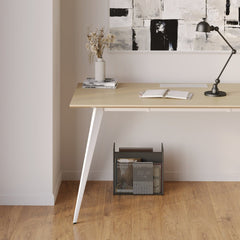
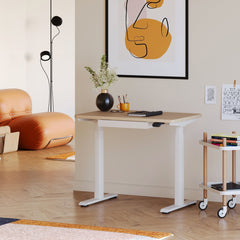
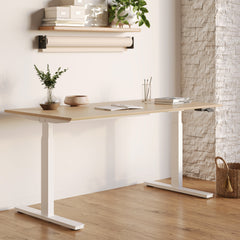
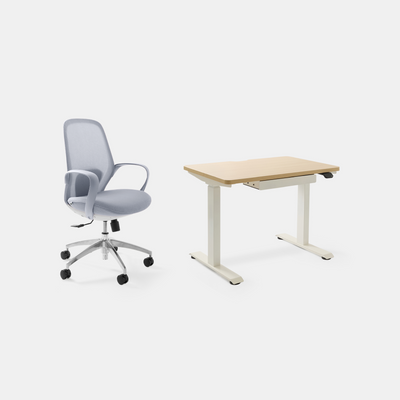
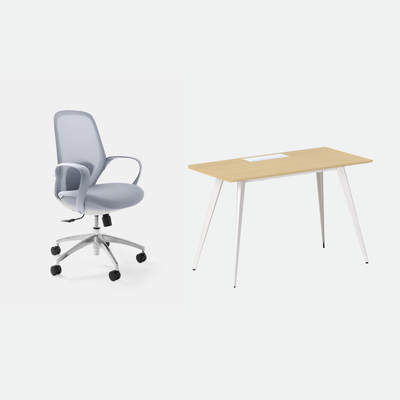
Our Standing Desk has electric height adjustment from 22 to 44 inches, which starts at the bottom of the seated range OSHA gives. It is $574 for the 48-inch top and $690 for the 60-inch top. If your room is small, the Mini Standing Desk is height-adjustable and includes a drawer. It is $429. If you prefer one fixed height and a calm top, the Office Desk has a scratch-resistant laminated MDF top on a powder-coated metal frame. It is $349 for the 48-inch top and $479 for the 60-inch top.
Buy the two pieces your body touches first, and the rest of the room only has to be good enough.
Buy Once: The Pieces Built to Outlast the Rest of the Room
Some purchases get replaced in a year, and some stay for a decade. Money spent on the second kind comes back every working day, so this is where I would put most of it. Two things make a piece worth buying once: it was tested before it shipped, and it adjusts as your body and room change.
A Tested Chair Is the Safest Place for a Larger Share of the Budget
The General Services Administration (GSA), the US federal agency that buys office furniture for government offices, publishes purchase descriptions that tell suppliers how a chair must be built. In its purchase description for executive office chairs, it says chairs must be tested in accordance with ANSI/BIFMA X5.1, a standard titled General Purpose Office Chairs Tests.
That tells you what a BIFMA mark on a chair means. It is a durability and safety standard, so it speaks to how long the chair holds together under daily use. It says nothing about comfort, which is why I pair it with the adjustment ranges above. Our Onyx Chair is BIFMA certified.
I treat a tested chair as the safest place to put a larger share of the budget. A chair you sit in for eight hours a day is used more than almost anything else you own, so the cost per hour is small. A chair that is replaced after a year costs more than it seems to save.
A Desk That Adjusts Grows with You
You change over a decade. Your chair changes, your screens change, and the room may change too. A height-adjustable desk absorbs those changes without a new purchase, because you reset the height.
The Standing Desk covers 22 to 44 inches electrically. The Mini Standing Desk adjusts too. If you share the room with someone of a different height, or you expect to try sitting and standing through the day, that range is what I would pay for. If you know you will sit all day and want the simplest top, the Office Desk is also built to last. It carries our BIFMA certified badge, which is Urbanica's own claim for the desk.
The Office Desk and the Mini Standing Desk each carry a 10-year warranty. The Novo and the Muse each carry a 10-year warranty on frame and mechanism. The Onyx carries a 5-year warranty.
A Small Room Changes What You Should Buy First
Most home offices live in a corner of a bedroom, a living room, or a spare room that was built for something else. The corner sets the limit, so the size of the space belongs in the shopping list before the first product does.
Place the Desk Around the Door, the Window, and the Outlet
Before you pick a desk, stand in the corner and note where the door swings, where the window sits, and where the nearest wall socket is. OSHA's monitor guidance has two placement rules that decide most of this: put the monitor directly in front of you and at least 20 inches away, and place it perpendicular to a window.
In a small room, that usually means the desk sits sideways to the window, with one short side toward the wall socket. That layout keeps reflections off the screen and keeps the power cord short. I would rather give up a spot with a good view than face a bright window all afternoon.
Choose Pieces That Do More Than One Job
In a tight corner, each piece has to earn its footprint. The Mini Standing Desk is height-adjustable and includes a drawer, which makes it the one desk we make that holds a few daily items without a second piece of furniture. It is the desk I would pick for a narrow wall.
A chair with adjustment saves space too, because one chair fits every height you need. A fixed chair for you and a second one for a guest take twice the floor. When the room is tight, I put the money into the one chair that fits you and let the second one wait.
Let the Room Switch Off When the Day Ends
A small office shares its space with the rest of your life. A desk that looks like a pile of work keeps the room in work mode in the evening. A tidy desktop, with the cables routed along one path and the papers in a cabinet, lets the corner look like furniture again.
That is why I count power and cable management as essentials in a small room. They make the room feel finished at eight in the evening, which is a real part of a workday you can live with.
Keep the Air and the Temperature Steady in a Small Room
OSHA's workstation environment guidance gives comfort numbers: ambient indoor temperatures of 68 to 74 degrees Fahrenheit in the heating season and 73 to 78 degrees in the cooling season, with relative humidity between 30% and 60%. It also warns that air conditioners or heaters that directly dump air on users cause discomfort, and that dry air can dry the eyes.
A small room often puts a vent or a radiator within a few feet of the desk. Before you decide where the chair goes, check where the air lands. If it blows on your hands or face, move the desk before you blame the chair.
Good Light Keeps Your Eyes Working Through the Afternoon
Light is the part of a home office that most people leave to chance, though it is quick to get right. You can have the best chair in the world and still end the day with tired eyes if the screen is fighting a window.
Glare Is the First Thing to Fix
OSHA's workstation environment guidance says bright lights shining on a display screen wash out the image and make it hard to see your work. It adds that straining to view objects on the screen can lead to eye fatigue, and that direct light sources such as windows and overhead lights can reflect on the monitor.
That means the position of your desk matters more than the brightness of your bulb. If a window sits behind you, it throws reflections on the screen. If a window sits in front of you, it competes with the screen. I place my desk so the window is to one side. It took me three moves to find that spot.
The Canadian Centre for Occupational Health and Safety (CCOHS), the Canadian government agency that publishes workplace health guidance, keeps a lighting ergonomics checklist. It lists no glare near your normal line of sight, monitors and workstations positioned to reduce glare from windows and overhead lighting, blinds or curtains on windows, and well-placed local lighting. Two independent agencies land on the same advice, so I take it as settled.
OSHA adds a small chore to the fix. Its workstation environment guidance notes that a layer of dust can contribute to glare, and its monitor guidance says computer monitors should be periodically cleaned and dusted. A wiped screen shows fewer reflections, so dusting it belongs in the same job as moving the desk.
Add Light Where the Work Happens
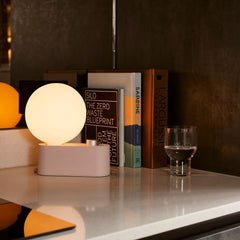
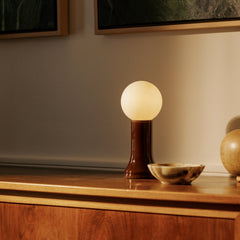
A desk lamp covers the part of the checklist that sits on the desk, which is local lighting. It lights your notes and keyboard without turning up the whole room. I like one lamp placed to the side, so it does not throw a reflection on the screen.
OSHA's workstation environment guidance adds that a large number of low-powered lamps rather than a small number of high-powered lamps will result in less glare. That favors a modest lamp at the desk over one bright bulb overhead. Whatever lamp you use, point it at the desk surface and keep the bulb out of your line of sight to the screen.
Set Screen Brightness Last
After the glare is handled, set your screen to match the room. A screen much brighter than its surroundings tires your eyes as much as one that is too dim to read. Adjust it a little each season, because the light in your room changes as the days get shorter.
The CCOHS checklist also lists brightness and contrast controls adjusted on the monitor, so the screen settings are part of the fix. Both settings take a minute to change, and I check mine whenever the room looks different.
Rest Your Eyes at Regular Intervals
OSHA's monitor guidance says to rest your eyes periodically by focusing on objects that are farther away, for example, a clock on a wall 20 feet away, and to stop, look away, and blink at regular intervals to moisten the eyes. It explains that people often blink less while viewing the monitor.
Good light and a placed screen set the scene, and this habit finishes the job. I glance across the room whenever I finish a task, and it takes a second.
A clear desk comes from giving every cable and every paper a place before you add anything decorative.
Power and Cables Belong Up on the Desk Where You Can Reach Them
A tidy desk is easier to think at. Cables that trail across the floor also catch your feet and pull on your plugs, so a little planning here keeps the room calm.
Bring Power Up to the Desktop
Most desk mess begins at the wall socket. A charger on the floor sends a cord up to the desktop, then another follows until the pile is a tangle. Our In-Desk Power and Clamp-On Desk Power bring power up to the work surface.
The In-Desk Power is $85. It has multiple AC outlets, USB ports, and fast charging, and it sits flush in the desktop: you drill a hole in your desk, insert the unit, and secure it. The Clamp-On Desk Power is $75. Its tool-free clamp attaches to the desk edge, adjusts to different desk thicknesses, and carries AC outlets and fast-charging USB ports.
If your desk stays put, I would pick the built-in option for the cleanest result. If you move your desk or share it, a clamp-on unit is easier to adjust. Both list surge protection, which matters when a laptop, a monitor, and a phone all pull from one spot.
Run Every Cable Along One Path
Cable management does its work by giving every wire a fixed route. Our Under-Desk Cable Management is $59. It attaches with the included mounting hardware and holds power strips, chargers, and cables out of sight. The Spine Cable Management is $26. Its segmented spine flexes, which suits a height-adjustable desk that moves, and it sets up without tools.
I run everything along the back edge and down one side, so the front of the desk stays clear. The route takes about ten minutes to set up and saves the daily tug of untangling cords.
Give Your Laptop and Your Papers a Home
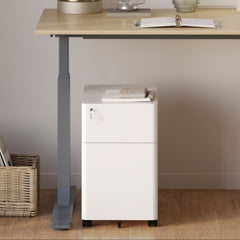
If you work on a laptop, a stand lifts the screen toward eye level. Our Adjustable Laptop Stand is $55. It is made of coated steel in Walnut or Light Oak and lifts your laptop to a better viewing angle. The Laptop Stand is $45, comes in black or aluminum, and raises the laptop slightly while improving airflow. For paper, the Filing Cabinet is $199 and has lockable drawers, which keep documents off the work surface.
I would add these after the power and the cables, because a stand and a cabinet both need a clear desk to make a difference.
Where the screen sits matters more than the stand that holds it. OSHA's monitor guidance says the top line of the screen should be at or below eye level, and that the preferred viewing distance runs between 20 and 40 inches from the eye to the screen. A laptop lying flat on the desk usually sits below that line, which is the gap a stand closes.
Pair either stand with a separate keyboard and mouse. That keeps your hands at the desk while your eyes stay level, and it is the setup I use when I work from a laptop.
Add-Ons Earn Their Place After a Few Weeks of Real Use
Add-ons are the part of a home office where it is easy to over-buy early. The way I choose is to use the setup for a few weeks, notice what bothers me, and add only the piece that fixes it.
A Headrest Helps When You Lean Back
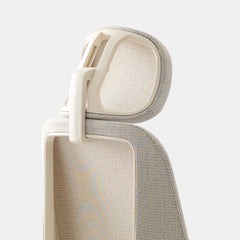
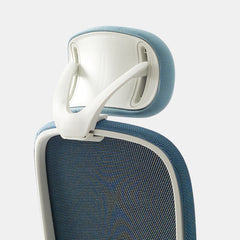
If you lean back on calls or reading breaks, a headrest gives your neck a place to rest. The Novo Headrest is $45, and the Muse Headrest is $27. Each chair has its own. The Novo Headrest fits the Novo. The Muse Headrest fits the Muse.
I notice the headrest most in the afternoon, when I lean back to think. You may not need one. After a few weeks in the chair, you will know, and if you do lean back, the headrest for your chair is the first add-on I would buy.
Choose a Layout That Matches How You Work
Once you know how you work, the layout of the desk follows. If you take many calls, keep the phone side clear. If you write by hand, keep a clear patch in front of you. If you share the room, leave the second side open.
The OSHA document holder guidance gives a useful rule for any papers you read while you type: documents should be at the same height and distance as the monitor. Documents too far from the monitor may require awkward head postures or frequent head and neck movements. I keep the papers I am reading directly in front of me, level with the screen, and move everything else to the side.
Buy in This Order and Let the Rest Wait
A buying order helps because it lets you spread the cost without losing comfort. It also keeps you from buying the fifth piece before the first is right.
The Order I Would Spend In
Start with the chair, because it touches you the most. Add the desk next, with a height range that fits the chair. Then fix the light, then power and cables, then the add-ons you actually miss. Each step builds on the one before, so an early step done well makes the later ones cheaper.
If you need the chair and desk in one order, a bundle is the shortest path. If you are starting with the chair alone, the chairs collection shows every option together.
A Chair and Desk Bundle Gets You Both at One Price
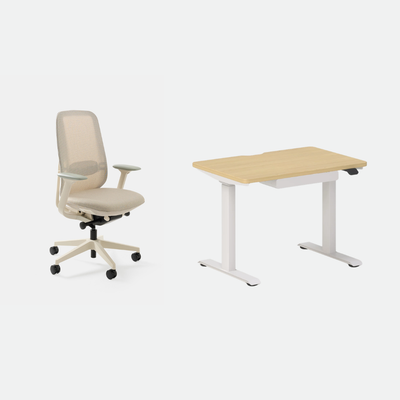
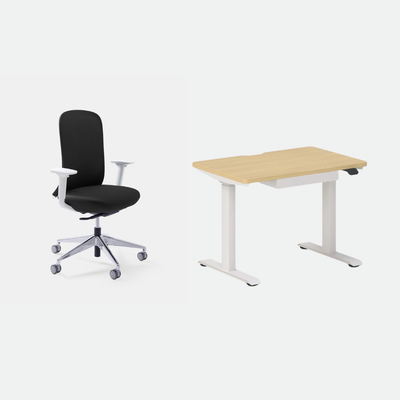
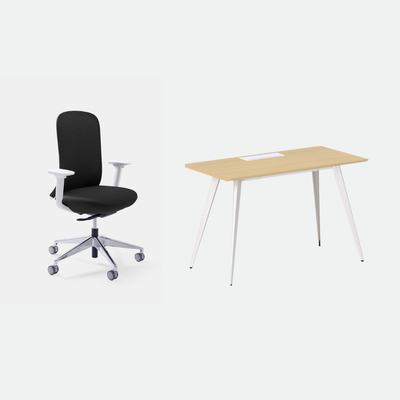
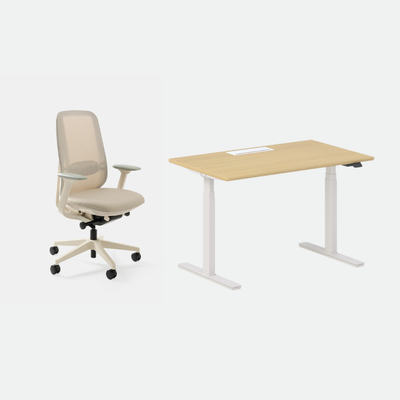
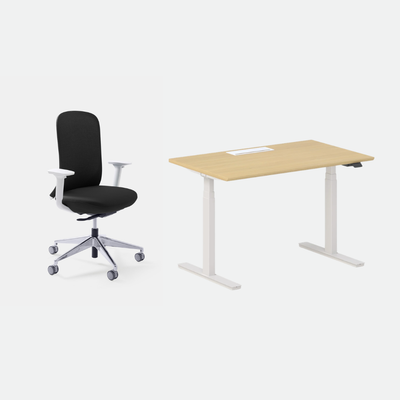
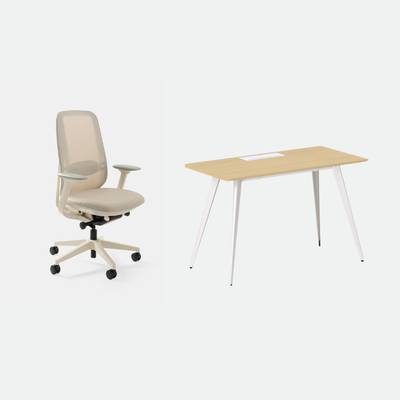
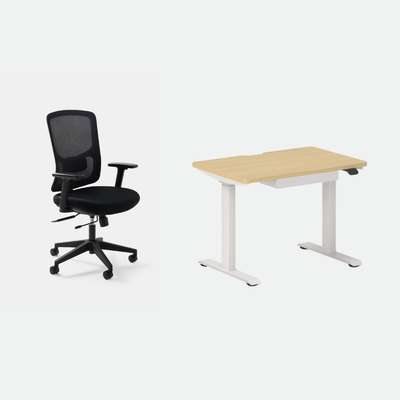
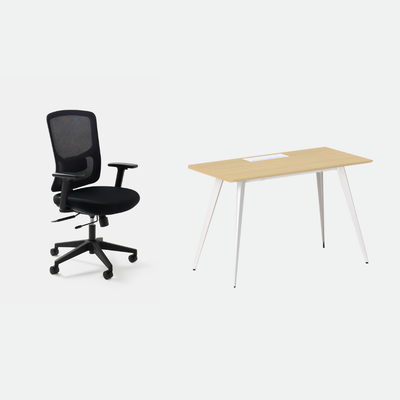
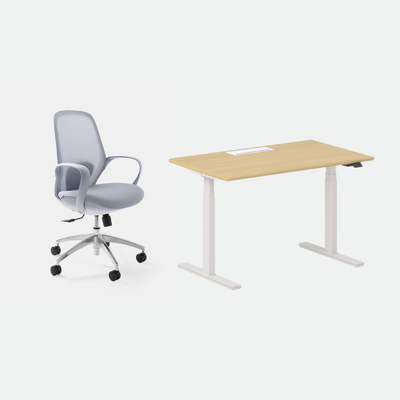
If you are buying the chair and the desk together, our bundles put them in one order at one price. The Minimalist Bundle pairs the Office Desk with the Novo Chair and is $754 with the 48-inch top or $878 with the 60-inch top. The Active Bundle pairs the Standing Desk with the Novo and is $968 or $1,078. The Coastal Bundle pairs the Mini Standing Desk with the Seashell Chair and is $625.
I would choose a bundle when I am furnishing the whole corner from scratch. It saves the matching work. Every piece in it is one I would buy on its own.
Three Chair Budgets with the Headrest Priced In
Because the chair comes first, the chair is where a budget does the most. Here are three ways to spend on it, priced from the live product pages. The first is the Onyx Chair alone at $249. The second is the Muse Chair at $320 plus the Muse Headrest at $27, which comes to $347. The third is the Novo Chair at $445 plus the Novo Headrest at $45, which comes to $490.
Each of the three is a complete seat. The Onyx gives you adjustable arms and a tested frame at the lowest price. The Muse suits people from 5'0" to 6'0" and adds a dynamic seat swing. The Novo gives you the most adjustment we make, with lumbar support and seat depth you can set. Pick the one that fits your body and your budget today, and know that moving up later is possible.
I would rather see you in the middle option with a good desk than in the top option at a kitchen table. A chair works inside a setup, so give the setup the money it needs too.
What Can Wait Until the Room Settles
A few things can wait. Wall art, a rug, and a plant all make the room more yours. None of them change how your body feels at the desk. A second chair for guests, a second lamp, and extra storage can wait too. Buy them when the room tells you it needs them. The list is longer than you might think, because most extras look useful in a store and then sit unused on a shelf. A week of real use is a better guide than a catalog.
Waiting also gives you information about your own habits. After a month, you know where you reach, where the light falls, and what you wish was closer. Your next purchase can then answer a real need.
FAQ
What Do I Really Need to Set Up a Home Office?
A chair that adjusts, a desk at the right height for it, good light with no glare on the screen, and power within reach. Those four make a working home office. Everything else is an upgrade you can add as you learn what you need. I would buy them in that order, with the chair first. If the budget is tight, start with the chair and a desk, and add light and power as you can.
Is a Standing Desk Worth the Money?
It is worth it if you want the option to change position. A height-adjustable desk lets you set the right keyboard height for sitting and for standing. OSHA gives a range for each. Our Standing Desk adjusts electrically from 22 to 44 inches. If you know you will sit all day, a fixed-height desk is a good choice too. I would decide by how much you want the choice.
Should I Buy a Chair and Desk Together?
Buying them together makes sense when you are furnishing the corner from scratch. A bundle gives you both in one order at one price. Every piece in it is one you can also buy on its own.
If you already have a good chair or desk, keep it and replace only the other one.
How Much Should I Spend on a Home Office Chair?
Spend the largest share of your budget on the chair, because you sit in it the most. Our chairs run from $229 to $445. The more places a chair adjusts, the more people it fits.
Choose by how many places the chair adjusts and how it fits your height, and then by price.
How Do I Keep Cables Under Control on My Desk?
Give every cable one route. Bring power up to the desktop so no cord trails from a wall socket across the front, run the wires along the back edge or underside, and gather them in one place. Our cable management accessories are made for that job.
I set this up right after the desk goes together, because it is easiest while the surface is empty.
Start with the Chair, Then Build the Room Around It
Here is how I would put it together. Pick a chair that adjusts in many places. Add a desk with a height range that fits it. Fix the glare, bring power up to the desktop, and run your cables along one path. After a few weeks, add the pieces you miss.
If you want a place to start, the Novo Chair gives the most adjustment we make, the Muse suits smaller frames, and the Onyx is the value pick. Orders ship free within the 48 contiguous states. We process orders in 24 to 48 hours, and standard delivery takes 3 to 5 business days via FedEx and UPS. Expedited shipping, at an extra charge, arrives in 2 to 3 business days. Returns are open for 30 days, and a 10% restocking fee may apply to some returned items.
If you are setting up a room right now, tell me which piece you are buying first in the comments below, and I will tell you what I would check before you order.
You can find all of these at Urbanica Furniture, 1705 NW 38th Ave, Lauderhill, FL 33311, or call us at +1-(888)-350-9545.
References
- Occupational Safety and Health Administration, eTools: Computer Workstations, Checklists, Purchasing Guide. Supports: chair easily adjustable; seat height 15 to 22 inches; armrest height 7 to 10.5 inches from the seat pan; keyboard height 22 to 30 inches seated and 36 to 46.5 inches standing. https://www.osha.gov/etools/computer-workstations/checklists/purchasing-guide
- Occupational Safety and Health Administration, eTools: Computer Workstations, Chairs. Supports: seat pan depth adjustable; lumbar support height adjustable; backrest reclines at least 15 degrees from the vertical. https://www.osha.gov/etools/computer-workstations/components/chairs
- Occupational Safety and Health Administration, eTools: Computer Workstations, Workstation Environment. Supports: bright lights on the screen wash out the image; straining to view the screen can lead to eye fatigue; windows and overhead lights reflect on the monitor; dust can contribute to glare; many low-powered lamps give less glare than a few high-powered ones; ambient temperature 68 to 74 F in the heating season and 73 to 78 F in the cooling season; relative humidity 30% to 60%; air dumped directly on users and dry air cause discomfort. https://www.osha.gov/etools/computer-workstations/workstation-environment
- Occupational Safety and Health Administration, eTools: Computer Workstations, Monitors. Supports: monitor directly in front and at least 20 inches away; top line of the screen at or below eye level; monitor perpendicular to a window; preferred viewing distance 20 to 40 inches; rest the eyes by looking at distant objects and blink at regular intervals; monitors periodically cleaned and dusted. https://www.osha.gov/etools/computer-workstations/components/monitors
- Occupational Safety and Health Administration, eTools: Computer Workstations, Document Holders. Supports: documents at the same height and distance as the monitor; awkward head postures when documents are too far away. https://www.osha.gov/etools/computer-workstations/components/document-holders
- Canadian Centre for Occupational Health and Safety, Lighting Ergonomics - Checklist. Supports: no glare near the line of sight; monitors positioned to reduce glare from windows and overhead lighting; blinds or curtains; well-placed local lighting; monitor brightness and contrast adjusted. https://www.ccohs.ca/oshanswers/ergonomics/lighting_checklist.html
- General Services Administration, Purchase Description, Chairs, Wood, Executive Office, Traditional (3FNE-CO 00-593A, 22 December 2005). Supports: chairs tested in accordance with ANSI/BIFMA X5.1, General Purpose Office Chairs Tests. https://www.gsa.gov/system/files?file=Chairs_Wood_Executive_Office_Traditional_508.pdf