









How Team Desks and Panels Create Better Daily Work Zones
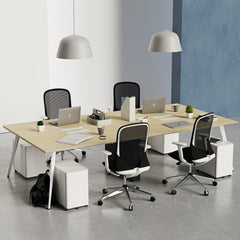
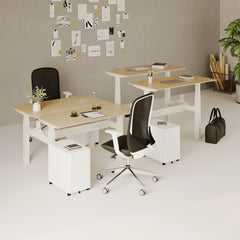
Team desks and workstation panels do more than organize seating. Together, they define personal work areas, manage sightlines, support smoother cir...
Learn more

Visit quiz page to see how we makes it easy to create an inspiring workplace


Better computer desk lighting is rarely solved by simply adding a brighter lamp. A screen already produces its own light, but that light does not support the full desk surface. It does not evenly illuminate a keyboard, notebook, paperwork, mouse area, side shelf, or the space around the monitor. That gap is where thoughtful lamp placement matters.
The Alumina Lamp works best when it is treated as part of a complete workstation system, not as a standalone object placed wherever space happens to be available. Its position should respond to the screen angle, desk depth, writing hand, seating height, surrounding surfaces, and the type of work happening at the desk. A well-positioned Alumina desk and wall lamp can help create a more comfortable computer desk setup by giving the work surface useful light without sending distracting reflections into the monitor.
The goal is balance. The lamp should make the desk easier to use while keeping the screen easy to read. It should support focus without creating glare, visual clutter, or harsh contrast between a bright work zone and a dark room. When placement is handled carefully, computer desk lighting feels calmer, more intentional, and more connected to the way people actually work.
Screen glare usually comes from a light source hitting the display at the wrong angle. Even a beautiful lamp can feel uncomfortable if its glow reflects directly into a laptop screen or monitor. The best Alumina Lamp placement begins by keeping the light source outside the screen’s reflection path.
For most computer desks, the safest starting point is placing the lamp beside the monitor, slightly behind the keyboard line, and angled across the desk surface. This keeps the light focused on the work area rather than the display. The lamp should help the eyes move from screen to keyboard to notes without forcing constant brightness adjustment.
A lamp placed directly behind a monitor can create a halo effect that competes with the screen. A lamp placed directly in front of the monitor can reflect back at the user. Side placement is more controlled because the beam or glow can travel across the desktop instead of bouncing straight into the eyes.
The user’s writing hand should influence lamp placement. A right-handed person often gets cleaner paper lighting when the lamp sits on the left side of the desk. A left-handed person often benefits from the opposite arrangement. This keeps the hand from casting a shadow over notes, sketches, printed documents, or a planner.
This same principle applies even when most of the work is digital. Many computer desks still support quick handwritten notes, document review, phone calls, and small planning tasks. Better computer desk lighting means the full work zone stays visible, not just the screen.
A quick placement check can prevent daily irritation:
Sit in the normal working posture.
Turn on the Alumina Lamp and keep the screen at a normal brightness.
Look for bright patches, reflected bulb shapes, or light streaks on the display.
Move the lamp sideways before changing anything else.
Adjust the lamp angle so the desk surface receives light first.
This test works because glare is positional. A small shift to the side or rear corner can make the lamp feel much better without making the desk darker.
A computer desk is not one flat surface with one lighting need. It has zones. The monitor area, keyboard area, paperwork area, and peripheral area all behave differently under light. The best Alumina Lamp placement respects those zones.
On a shallow desk, the monitor, keyboard, and user sit close together. That makes glare easier to create because the lamp has limited space to sit outside the reflection path. A rear-left or rear-right corner placement usually works best because it preserves the main surface for typing, mouse movement, and paper review.
A compact desk can still feel practical when the lamp is placed with discipline. The lamp should not compete with the keyboard, mouse, or laptop stand. It should sit far enough back to brighten the workspace while leaving the main surface open. When choosing a work surface, Urbanica’s office desk collection offers a useful context for thinking about how desk size, depth, and layout shape lighting decisions.
A deeper desk gives the Alumina Lamp more room to work. Instead of placing it close to the keyboard, it can sit between the task zone and the peripheral zone.
| Computer Desk Zone | What It Includes | Lighting Priority | Alumina Placement Cue |
|---|---|---|---|
| Screen zone | Monitor, laptop, webcam, display area | Low reflection and stable contrast | Keep direct lamp glow away from the screen |
| Task zone | Keyboard, mouse, notebook, paperwork | Clear visibility for hands and materials | Angle light across the active work surface |
| Peripheral zone | Phone, cup, tray, small accessories | Soft visibility without distraction | Use the lamp edge to prevent harsh shadows |
This layout keeps the screen from becoming the center of every lighting decision. The lamp supports the desk as a working surface, while the monitor stays visually clean.
A sit-stand workstation changes height throughout the day, which can change the relationship between the lamp, screen, and eyes. The Alumina Lamp should be placed where it remains stable through those changes. A rear-side corner is often safer than a front edge because it reduces the chance of bumping the lamp when the desk moves.
The lamp should also avoid control panels, cable paths, and moving desk accessories. Good lighting placement should make the workstation easier to use, not introduce another object that needs constant adjustment.
Different screen arrangements create different lighting problems. A laptop-only setup has a small display and built-in keyboard. A monitor setup spreads work across a larger visual field. A dual-screen desk adds more reflective surfaces. Alumina Lamp placement should shift with each configuration.
For a laptop-only desk, placing the lamp directly behind the screen can cause uneven brightness around the face during video calls. It can also make the keyboard area feel shadowed because the laptop itself blocks part of the light.
A better placement is to offset the lamp to one side and slightly behind the laptop. The light can then reach the keyboard, trackpad, and notebook area without creating a direct glow behind the webcam. If the laptop sits near a wall, angling the lamp toward the wall can soften the light before it returns to the desk.
With an external monitor, the lamp should support the side of the desk where real work happens. For some users, that means the notebook side. For others, it means the mouse side or document review area. The lamp should sit just outside the monitor’s reflected angle and point toward the desktop, not the display.
This placement is especially useful for long work sessions because the eyes can move between screen and task surface without encountering sharp contrast. The desk feels more evenly usable, and the monitor remains visually calm.
Dual monitors make center placement tempting, but the center is often the worst place for a lamp. A lamp between two screens can create reflections on both displays and become a bright distraction in the middle of the visual field.
Outer-edge placement works better. Put the Alumina Lamp on the outside of the main task side, then angle it inward across the desk. This keeps the brightest part of the lamp away from the center of the screen arrangement while still lighting the keyboard, notes, and nearby accessories.
Computer desk lighting should match the task. A setup that feels fine for email may feel poor for reading printed pages. A lamp position that works for spreadsheets may feel harsh during video calls. The Alumina Lamp should be placed around the work routine, not just around the monitor.
Typing, coding, writing, bookkeeping, and spreadsheet work all benefit from side lighting that keeps the keyboard and desk surface visible. The lamp should be close enough to define the task zone but not so close that it creates a strong shadow from the hands.
For keyboard-heavy work, the best placement is usually on the side opposite the strongest hand movement. The keyboard should be visible, the mouse area should remain clear, and the monitor should not show a bright reflection from the lamp.
Printed documents require a different kind of attention than a screen. Paper reflects light more diffusely than a monitor, but it still needs a clear light pool. Place the Alumina Lamp so the brightest part of the desk falls beside the keyboard, where papers, notebooks, and planners naturally sit.
If the user frequently reads printed material while referencing a screen, the lamp should sit on the document side rather than the center of the desk. This keeps the paper easy to read without shining directly into the monitor.
A lamp that is too low or too close can create uneven face shadows during video calls. For calls, the Alumina Lamp often works better when angled toward a nearby wall, shelf, or matte surface. The bounced light feels softer than a direct side beam.
The lamp should not sit directly below the face, because upward light can look unnatural on camera. It should also avoid sitting directly behind the head, since strong backlighting can make the face appear darker. A side placement with gentle bounce is usually more flattering and more comfortable.
Design review, sketching, image editing, and layout work require careful light control. The lamp should support the physical workspace without overpowering the screen. Bright reflections can make color, contrast, and detail harder to judge, even when the screen remains readable.
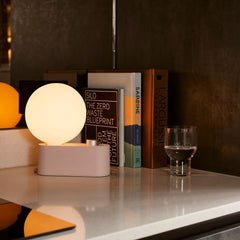
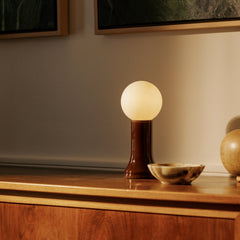
For users who want a layered lighting setup beyond the computer desk, the Shore recycled glass table lamp belongs in a different role. It is better positioned as an ambient or decorative lighting companion rather than the main task light for keyboard and screen work. That distinction keeps the Alumina Lamp focused on task placement while allowing nearby lighting to soften the broader room.
The Alumina Lamp can support different workstation styles depending on whether it sits on the desk or works from the wall. Each option has a clear use case. The right choice depends on available surface area, how often the desk layout changes, and how close the monitor sits to the wall.
Desktop placement is the most adaptable choice for users who shift between laptop work, reading, notes, calls, and small desk tasks. The lamp can move as the workday changes. It can sit farther back during screen-heavy work and shift closer to the task zone when reviewing paper.
The key is to avoid placing the lamp in the center of the desk. Center placement often interrupts the natural line between the user and screen. A side or rear-corner position keeps the surface open and gives the lamp a clearer purpose.
Wall placement is useful when the desk is small, minimalist, or placed against a wall. A wall-mounted lighting position can free up surface area and reduce desk clutter. For computer desk lighting, the lamp should sit slightly off center rather than directly behind the monitor.
The most comfortable wall placement is usually above or beside the monitor line, angled so the light falls across the desk rather than straight forward. If the light sits directly behind the screen, it may create an uneven glow. If it sits too far to the side, it may create strong shadows. The sweet spot is controlled, offset, and task-focused.
Desktop placement is usually better when the workstation changes often. A laptop user who moves the screen throughout the day needs flexibility. A shared desk also benefits from a lamp that can be adjusted for different users and postures.
Wall placement is usually better when the desk is fixed, the monitor rarely moves, and surface space is limited. It can also support a cleaner visual style because fewer objects sit on the desktop.
The Alumina Lamp can only perform well when the surrounding setup supports it. Many lighting problems come from placement habits rather than the lamp itself.
A lamp should not shine toward the display. Even if the bulb is not directly visible, the screen can still catch reflected light. This is especially noticeable on glossy displays, darker screen modes, and angled laptop screens.
The correction is simple: rotate the lamp so the brightest area lands on the desk surface. The screen should receive indirect support from the room, not a direct beam from the lamp.
The area between the keyboard and monitor is already visually busy. It may include a laptop stand, monitor base, charging cable, notebook, phone, or docking accessory. Adding a lamp to this zone can make the desk feel cramped and interrupt hand movement.
A better approach is to preserve this central channel. Keep the Alumina Lamp to the side or rear corner, where it can light the task area without becoming an obstacle.
A bright desk lamp in a dark room can create uncomfortable contrast. The screen glows, the lamp glows, and everything else falls into shadow. This can make the eyes work harder as they move between the monitor and the surrounding space.
A more balanced setup uses the Alumina Lamp as task light while allowing some soft ambient light in the room. The room does not need to be bright. It simply needs enough surrounding light to reduce harsh contrast.
Lamp placement is connected to posture. A chair that positions the user higher or lower changes where reflections appear on the screen. A reclined posture can reveal glare that was not visible when sitting upright. A forward-leaning posture can bring the eyes closer to the lamp’s brightness.
This is why seating and lighting should be considered together. In collaborative rooms or desk-adjacent spaces, a conference chair for collaborative rooms can influence posture, sightlines, and how people experience nearby task lighting around laptops or shared screens.
A placement matrix helps translate lighting principles into real desk arrangements. The best row is the one that matches the user’s actual screen setup, not an idealized showroom layout.
| Workstation Type | Best Alumina Lamp Position | Main Lighting Goal | Placement Mistake to Avoid |
|---|---|---|---|
| Laptop-only desk | Rear corner, offset from webcam | Light keyboard and notes without harsh face glare | Placing the lamp directly behind the laptop |
| Monitor and keyboard | Side of monitor, angled across desk | Reduce screen reflection and brighten the task zone | Aiming light toward the display |
| Dual monitors | Outer edge of the primary task side | Keep glare away from both screens | Placing the lamp between monitors |
| Sit-stand desk | Stable rear-side corner | Maintain useful light as desk height changes | Setting the lamp near a moving edge |
| Desk against wall | Side wall position or rear corner | Bounce light softly into the workspace | Centering the lamp behind the screen |
| Shared workstation | Personal task-side corner | Limit spillover into neighboring screens | Letting light wash across another user’s display |
Start with the screen arrangement, then refine around the task. A laptop-only desk needs offset lighting. A monitor-based desk needs side lighting. A dual-screen setup needs outer-edge lighting. Once the screen reflection is controlled, adjust for writing hand, paperwork location, and available surface space.
This method keeps the lighting decision practical. The lamp is not placed for symmetry alone. It is placed to make the computer desk easier to use.
The same lighting principles apply outside a single home office workstation. Shared offices, meeting areas, and compact work corners all need light that supports screens without creating reflections.
In a shared office, lamp placement affects more than one person. A light angled too broadly can spill into another screen or create a bright distraction across a nearby desk. The Alumina Lamp should be directed toward the user’s own task zone and kept away from neighboring displays.
For broader workplace planning, workspace furniture for creative offices provides a relevant connection between desks, chairs, accessories, and the overall environment where computer desk lighting needs to feel intentional rather than improvised.
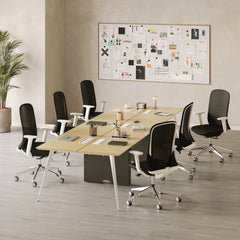
Laptop work at a meeting table creates a different lighting challenge. Multiple screens may face different directions, and people may take notes around the table edge. A lamp should not dominate the center or shine across everyone’s screens.
For collaborative work surfaces, a round table for meeting rooms supports the idea of shared sightlines. Lighting around a round surface should stay controlled near the perimeter, where laptop keyboards, notebooks, and personal work zones naturally sit.
Small café-style work areas often have limited surface depth. A lamp placed too close to the laptop can feel intrusive, while a lamp placed too far away may not support the task. The best position is usually offset, compact, and aimed toward the immediate work surface.
A modern bistro table for office or home fits this kind of smaller work setting. In a compact table setup, the Alumina Lamp should be placed with extra care so the surface remains open enough for a laptop, drink, notebook, and comfortable hand movement.
A strong lighting setup does not ask one lamp to solve every visual problem. It gives each light source a clear role. The Alumina Lamp can serve as focused task light, soft side light, or wall-supported desk light depending on placement.
A comfortable computer desk usually relies on three layers:
Ambient light that keeps the room from feeling dark around the screen.
Task light that makes the keyboard, notes, and desk surface easier to use.
Screen light that stays readable without becoming the brightest object in the room.
The Alumina Lamp belongs primarily in the task layer. It can also support ambience when angled toward a wall or placed farther from the main work zone. The screen should remain the visual center for digital work, while the lamp supports everything the screen cannot illuminate well.
Reflective accessories can create small but irritating glare points. Glossy trays, metal cups, glass frames, polished desk objects, and shiny phone screens can all catch light. The lamp should be placed so these objects do not sit directly in its brightest path.
A calmer desk is not necessarily empty. It is arranged so light moves cleanly across the surface. The Alumina Lamp should clarify the workspace, not create a scattered pattern of reflections.
The best Alumina Lamp placement may change as the workstation changes. Adding a second monitor, shifting to a laptop stand, moving paperwork to the opposite side, or changing seating height can all affect glare and shadow. A good setup should remain flexible enough to respond.
Better computer desk lighting comes from alignment. The lamp, screen, desk surface, chair, and surrounding room all shape the experience. When the Alumina Lamp is placed with purpose, the desk becomes easier to read, easier to use, and easier to settle into for focused work.


You have unlocked free shipping!
You're saving $29 and unlocked free shipping!
Leave a comment