
























Standing workstation for desk: quick guide with clear next steps

A standing workstation can feel like an instant upgrade, until day two. Neck craning shows up. Wrists feel odd. Feet get tired faster than expected. The setup gets blamed, but the real issue is usually simpler: the surface height, screen height, and input placement were never tuned as one system.
We build workspace furniture for people who need their desk to work hard and feel natural. The most reliable standing setups are not complicated. They are consistent, repeatable, and easy to switch into without rearranging your whole surface every time. The goal is not to stand all day. The goal is to stand well, often enough to feel better, and to keep the workstation comfortable for the work you actually do.
Standing workstation choices that match how you work
Before measuring anything, get clear on the outcome. Most standing workstation decisions fall into one of three categories, and each category naturally pushes you toward different layouts and furniture.
Posture relief as the priority
If the main problem is neck and shoulder tension, the winning setup is screen-first and input-first, not “standing desk first.” A workstation can be tall and still cause discomfort if the monitor is low and the keyboard is too high. Posture relief comes from aligning eye line, keeping shoulders relaxed, and bringing input devices close enough that you are not reaching all day.
Standing helps here because it often encourages subtle movement, but only if the setup allows it. A stable surface and clean reach zone matter more than fancy add-ons.
Energy and focus as the priority
If the goal is to feel more alert and break up long seated stretches, the core feature is a frictionless transition. People stick with standing when changing positions takes seconds, not a mini reconfiguration. That typically means predictable cable routing, a consistent spot for mouse and keyboard, and a surface that stays clear enough to work immediately.
This category also benefits from creating a task pattern. Standing tends to feel easiest for calls, reviews, quick planning, and certain writing blocks. Seated work often stays better for long precision tasks, depending on the person.
Collaboration and team flow as the priority
If standing is part of how a team communicates, the workstation behaves differently. Shared surfaces need power planning, sightline management, and clear territory boundaries so people do not collide or avoid the space. Collaboration-focused standing workstations often look less like personal desks and more like intentional team stations and stand-up zones.
A quick self-audit that prevents wrong purchases
Use this short audit to anchor decisions in reality:
-
Device setup: laptop-only, laptop plus monitor, or desktop
-
Screen count: one screen or two screens
-
Primary standing tasks: calls, email, reviews, writing, planning, design
-
Space constraints: wall length, depth, and walking path behind you
-
Switching style: occasional standing or frequent sit–stand transitions
-
Noise and motion tolerance: wobble sensitivity, chair movement, foot traffic
-
Foot comfort plan: mat or supportive shoes, plus room for small steps
If you can answer those in minutes, the next sections become straightforward.
Ergonomic fit made simple: elbow height, eye line, reach zone, and foot comfort
Standing workstation ergonomics can be taught with a few cues and quick tests. The trick is choosing one “first domino” and letting everything else follow. For standing, that first domino is almost always elbow height.
Set the surface height using an elbow-first rule
Your keyboard and mouse are the steering wheel. Set the surface height to support relaxed shoulders and neutral wrists, then place your screen to match.
A practical approach:
-
Stand tall with shoulders relaxed, not pulled back, not shrugged.
-
Bring elbows near your sides.
-
Aim for forearms roughly parallel to the floor when hands are on input devices.
-
If you feel shoulder lift or wrist bend upward, the surface is likely too high.
-
If you hunch forward to reach the keyboard, the surface is likely too low or too deep for your reach.
Two fast tests that catch most problems
Shoulder test: Type or move the mouse for 20 seconds. If you notice your shoulders rising, reset the surface height downward or bring input devices closer.
Wrist test: Rest hands on keyboard, then relax. If wrists are bent upward, adjust the keyboard height down or change the angle of your input surface. Neutral wrists usually feel boring in the best way.
Place the monitor for a comfortable eye line
Once the input is right, set the screen so your neck stays neutral. A simple target works for most people: the top portion of the screen should be around eye level, so your gaze naturally falls slightly downward to the center of the display.
Standing makes monitor placement more noticeable because small neck angles get amplified when you are upright. People often accept a monitor that is too low when seated, then feel neck strain when standing.
Laptop-only vs external screen decisions
If you work on a laptop-only setup, the screen is usually too low. Raising the laptop helps, but it forces the keyboard too high unless you use an external keyboard and mouse. If you use an external monitor, keep the laptop to the side as a secondary display or closed with a dock, depending on your workflow.
Avoid the common trap of stacking the laptop on books and then typing on it. That tends to create shoulder lift and wrist bend.
Build a reach zone that prevents “mouse shoulder”
Reach zone is the invisible boundary where your arms move comfortably without pulling your shoulders forward. When a mouse is too far away, the shoulder on that side often creeps up and forward. Over time, this can become the dominant discomfort in a standing setup.
Practical reach cues:
-
Keep keyboard and mouse close enough that elbows stay near your torso.
-
Place the mouse on the same level as the keyboard, not higher.
-
If you use a trackpad or compact mouse, prioritize closeness over extra desk space.
“Close, not high” for the mouse
Many people fix wrist discomfort by raising the mouse, which can shift strain to the shoulder. The better fix is usually reducing reach and keeping wrists neutral.
Foot comfort and micro-movement that makes standing sustainable
A standing workstation is not a statue station. Static standing is what causes fatigue for many people. Comfortable standing is active, even when it looks calm.
Three low-effort movement patterns:
-
Weight shifting: move weight from one foot to the other while reading or thinking.
-
Small steps: take tiny steps in place, especially during calls.
-
Ankle mobility: gentle calf raises or ankle circles during low-focus moments.
Foot comfort tools like mats and supportive shoes can help, but the habit of micro-movement matters more. Also make sure you have room for your feet and a place to step back slightly. Tight spaces invite rigid posture.
Fast-fit standing workstation checkpoints
| Body cue | What to adjust | Quick test | Common mistake |
|---|---|---|---|
| Shoulders feel lifted | Lower input height or bring keyboard closer | Type for 20 seconds with shoulders relaxed | Raising the desk to match a too-low monitor |
| Wrists bend upward | Lower keyboard or change angle | Rest hands and check for straight wrist line | Typing on a lifted laptop without external input |
| Neck feels strained | Raise monitor, move it closer, or adjust angle | Look at center of screen without tilting head | Monitor too low or too far away |
| Low back gets tired fast | Unlock knees, add micro-movement, adjust stance | Stand for 2 minutes and gently shift weight | Locking knees and standing rigidly |
| Mouse-side shoulder aches | Move mouse closer and keep it level with keyboard | Mouse use for 30 seconds without reaching | Mouse too far away or on a higher surface |
| Eyes feel strained | Adjust screen distance, text size, and glare | Blink normally and avoid leaning forward | Screen too close or reflective glare |
Choosing the right surface for a standing workstation desk
There are three reliable paths to a standing workstation: a stable desk that supports add-ons, a dedicated sit–stand desk, or a compact adjustable surface for small spaces. The best choice depends on how often you plan to stand and how much equipment needs stability.
Desk-first stability when you want a strong base
A fixed desk can be an excellent standing workstation foundation when stability is the top priority and your seated setup is already working. The key is building a standing-capable environment around it, especially for screen height and input placement.
A stable surface is also forgiving. It supports monitor arms, risers, and heavier equipment without the subtle wobble that can make standing feel irritating. If you are building a clean, dependable workspace and adding standing capability intentionally, start with a desk that feels solid and supports your daily layout, such as the Urbanica Office Desk.
What a desk-first standing setup still needs to succeed
-
A plan for screen height that keeps your neck neutral
-
A clear reach zone for keyboard and mouse
-
A cable path that allows you to move and reposition without snagging
-
A short list of standing-friendly tasks so you have a reason to switch
Desk-first is often the “quietly best” choice for people who stand in short blocks and want the workstation to feel rock solid.
Sit–stand flexibility when frequent switching is the point
If you know you will switch positions often, a dedicated adjustable surface can remove friction. The surface height becomes the primary control, which makes it easier to keep input devices consistent while you adjust.
A sit–stand surface is most successful when it is stable at standing height and the transition does not create cable chaos. It should also fit your reach pattern so you are not standing farther away from your screen than you do when seated. When that type of switching is central to your workday, a purpose-built option like the Urbanica Standing Desk supports the routine.
What to verify before committing to a sit–stand surface
-
Does the surface feel stable at the height you will actually use for standing
-
Can your keyboard and mouse stay in the same spot during transitions
-
Do you have a cable plan that keeps slack controlled
-
Can the desk placement support both standing posture and seated posture without forcing you too close or too far from the screen
A sit–stand setup should feel like a single workstation with two modes, not two different workstations you tolerate.
Compact adjustable surfaces for small rooms and tight corners
Small-space standing workstations succeed when the footprint is deliberate. Too small creates cramped posture and constant rearranging. Too large takes over the room and becomes an obstacle.
The compact path works well for people who want an adjustable surface but need to keep the room flexible, such as a multipurpose bedroom office or a corner workspace. The Mini Standing Desk is an example of a smaller format that can support a stand-capable routine without requiring a full wall.
Compact setup rules that prevent the cramped feeling
-
Prioritize enough depth for hands and input devices, not just the screen
-
Keep the monitor distance comfortable so you are not leaning forward
-
Assign “homes” for accessories so the main surface stays usable
-
Use vertical space for organization rather than stacking work items in front of the keyboard
Compact standing can be surprisingly comfortable when the reach zone is clean and the screen placement is intentional.
Standing workstation layouts based on the work you do
Standing is not one posture. A good setup changes subtly depending on whether you are on calls, writing, reviewing, or doing visual work. The surface can stay the same while the layout shifts in small, repeatable ways.
Call station layout that protects camera angle and shoulders
Calls can be an ideal standing task because movement is natural and attention is shared. But call ergonomics fail when the camera angle forces you to look down or when the microphone placement makes you lean forward.
Key layout choices:
-
Screen at a height where your gaze is neutral
-
Camera at or near eye level to avoid the “looking down” angle
-
Keyboard and mouse close enough that you can take notes without reaching
Camera placement that avoids the downward gaze
If the camera is below eye line, you will either look down or tilt your head in a way that can strain the neck. Raise the camera with the screen, or use an external camera aligned with your eye line. The goal is a natural gaze that matches comfortable posture.
Deep work standing layout that reduces reach and distraction
Standing for focused work can be excellent when the workstation reduces movement demands. The best deep work standing layouts are minimal and stable.
Layout priorities:
-
Keyboard and mouse centered to avoid twisting
-
Screen distance consistent so you do not lean in
-
A clear desk surface that does not force you to shuffle items
How to keep shoulders quiet during long standing blocks
Most long-standing discomfort comes from subtle, repeated reaching. Keep input devices close, reduce side-to-side mouse travel if possible, and avoid placing frequently used items outside your reach zone.
If you write or edit for extended periods, a small change like moving the mouse closer can make a bigger difference than switching desks.
Review and mark-up layout for paper, tablets, and second screens
Reviews, approvals, and mark-up work are often ideal for standing because they mix reading, scanning, and short notes. But they can also create excessive neck swivels if references are placed poorly.
Layout priorities:
-
Primary screen in front
-
Reference material placed near the primary screen, not off to the far side
-
Writing zone that does not require you to raise your shoulder
Place reference material so your neck stays neutral
Put documents or tablets close to the screen, not down on the desk edge where you constantly look down. If you need to write, keep the writing surface within easy reach and consider angling it slightly so you are not folding forward.
Cable, power, and accessories that make standing the default
Standing fails when the workstation feels fiddly. Cables snag. The laptop charger is too short. The dock is hard to reach. The mat is in the wrong place. People stop switching because the transition is annoying, not because standing itself is bad.
Cable routing that supports movement
A clean standing workstation uses three simple cable zones:
-
Device zone: cables connect to laptop, monitor, keyboard, and mouse
-
Power zone: power strip or outlet access, ideally not underfoot
-
Slack zone: controlled slack so you can move height or reposition devices without tugging
The slack zone is the difference between “smooth switch” and “something always catches.” Use ties or guides, but keep enough slack for movement. Too tight creates tension. Too loose creates tangles.
What snagging usually means
If cables snag when you adjust your posture or chair, the cable path is crossing a walking path or dangling into your leg space. Reroute it to the back edge of the surface and create a predictable drop point to power.
Power placement that keeps the surface usable
Power access should not require you to reach behind the workstation daily. Place charging where it is easy to manage without cluttering the main work zone.
Practical approach:
-
Keep charging cables close to the device zone
-
Use a single “charging corner” rather than scattering adapters
-
Avoid running cables across the standing foot zone
The accessory rule: add only what reduces friction
Accessories can improve a standing workstation, but only if they simplify your routine. Add-ons that create complexity often get ignored.
Examples of friction reducers:
-
A docking approach that reduces plugging and unplugging
-
Monitor positioning that eliminates neck adjustments
-
A simple storage solution that keeps the reach zone clear
If an accessory forces you to rearrange the surface every time you stand, it is not helping.
A 30-minute standing workstation setup sequence
A systematic setup prevents endless tweaking. Start with the parts that influence everything else, then refine.
Step-by-step setup sequence
1. Set surface height for elbows
Stand relaxed, set your keyboard height so shoulders stay down and wrists feel neutral.
2. Place keyboard and mouse for reach
Bring both close enough that elbows stay near your torso.
3. Set screen height and distance
Raise screen so you are not tilting your head. Keep distance comfortable so you do not lean in.
4. Fix camera and lighting if you take calls
Align camera near eye line. Reduce glare so you do not crane toward the screen.
5. Add foot comfort and movement cues
Place a mat if you use one, and leave space for small steps.
6. Create a switch ritual
Decide what triggers standing: certain tasks, call blocks, or a recurring reminder.
Troubleshooting map: what discomfort is telling you
Neck tension signals screen mismatch
Neck strain is often a screen height or distance problem. Raise the screen, bring it closer, or adjust angle. Avoid compensating by raising the desk if it ruins keyboard height.
Wrist pressure signals input height or angle problems
Wrists that bend upward or feel compressed usually mean the keyboard is too high or angled poorly. Adjust input height first. Keep wrists neutral.
Low back fatigue signals locked posture
If your low back feels tired quickly, check for locked knees and static stance. Add micro-movement and consider shifting stance width slightly. Make sure you are not leaning forward to reach.
Foot numbness signals too much stillness
Feet that go numb or ache often mean you are standing rigidly. Weight shift, take small steps, and ensure the surface layout does not trap you into one stance.
Avoidance signals friction
If you stop standing, look for friction points like cable snags, crowded surfaces, or a mat that is never where you need it. Solve the friction, then the habit often returns.
Team standing workstations for 4 to 6 people: shared power, sightlines, and territory
Standing workstations in teams succeed when boundaries are clear and shared resources are planned. Without that, the space becomes noisy, messy, and underused.
How shared standing stations change the rules
Personal desks can be optimized to one person’s body and habits. Shared stations need a different approach:
-
Clear territory so people do not bump elbows or drift into each other’s space
-
Shared power and charging that does not create cable clusters
-
Sightlines that support quick collaboration without constant visual distraction
-
Walk paths that prevent people from brushing past someone who is standing
Four-person layout planning with clear lanes
A four-person station benefits from a lane structure. Each person gets a consistent personal lane, and the shared space stays clean for collaboration.
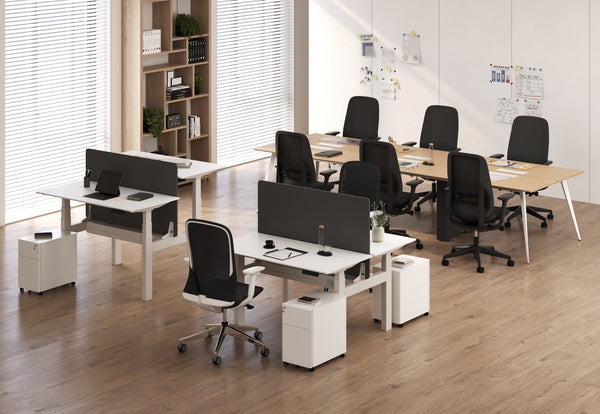
A dedicated four-seat surface like the Quad Workstation Desk can support this style when paired with simple rules about personal zones and shared zones.
Zoning method for four seats
-
Personal lanes: keyboard and mouse area stays consistent
-
Shared middle: space for quick review, shared notes, or temporary items
-
Walk paths: maintain clear paths behind seats and between stations
-
Cable discipline: consistent drop points and a shared power strategy
When the surface supports consistent lanes, the team spends less time resetting the workstation.
Six-person workstation planning that supports real workflows
Six-person setups often succeed when the plan reflects how the team actually works, not how a showroom looks. Consider whether people are assigned seats or using a shared rotation, and decide how personal items will be stored so the surface does not become cluttered.
A larger shared solution like the Six Person Workstation Desk can fit teams that want a consistent station format, especially when paired with clear power planning and cable management.
When linked stations beat a single giant surface
Even in a six-person footprint, it can help to treat the setup as connected zones rather than one continuous table. That makes it easier to keep cables organized, maintain personal lanes, and adjust for team shifts over time.
Stand-up meeting zones that feel natural: the standing workstation that is not personal
Not every standing workstation needs to be a personal desk. Some of the highest-value standing spaces are meeting and touchdown zones designed for short, focused conversations.
Why stand-up zones reduce meeting drag when designed well
A stand-up zone can encourage a tighter agenda and quicker decisions, but only when the space is comfortable enough to support thinking and note-taking. The goal is not discomfort. The goal is a posture that encourages focus and reduces long settling-in.
Round surfaces for quick syncs, reviews, and touchdown work
A round surface helps collaboration because no one is placed at the “head” of the table and sightlines stay open. It also supports quick huddles without forcing people into a row.
A piece like the Urbanica Bistro Table can fit this role when the surrounding space supports standing room around the perimeter.
Placement rules that keep stand-up zones useful
-
Place it close to the team, but not in the middle of deep-focus work
-
Leave room to stand comfortably without bumping chairs or walls
-
Keep tools nearby, such as a small whiteboard area or a consistent place for agenda notes
-
Avoid cluttering the surface so it is always ready for a quick conversation
Stand-up zones work best when they stay “always available,” not reserved for special meetings.
Practical setup planning that protects your floors and your daily routine
Standing workstation success is not only about ergonomics. It also depends on placement, movement paths, and an installation plan that avoids annoying constraints.
A measurement pack that makes layout decisions easier
Take these measurements and notes before committing to a layout:
-
Wall length and usable depth
-
Outlet locations and how cables will reach them
-
Doorway and hallway clearances for bringing furniture in
-
The walking path behind the workstation
-
Window glare patterns in the morning and afternoon
These measurements help you avoid awkward placements that force you to twist, lean, or block movement.
Setup considerations that affect daily use
-
Protect floors during placement and adjustments
-
Route cables before final placement so you are not lifting and shifting repeatedly
-
Leave space for the chair to move without colliding with cables or mats
-
Ensure the standing position does not block drawers, cabinets, or door swings
A workstation can be perfectly ergonomic and still fail if it makes the room feel cramped or hard to navigate.
Planning support for offices and home workspaces
When you want to plan a cohesive workstation layout, including desks, shared stations, and meeting zones, it helps to reference a workspace-focused planning page like office furniture for creative workspaces to think through arrangements, surface types, and how different zones can work together.
Next steps that make standing consistent: a 14-day ramp that feels natural
Standing works best as a habit, not a burst of motivation. A simple ramp builds comfort and teaches your body what “good standing posture” feels like at your workstation.
A standing task list that makes switching automatic
Standing is easier when it is attached to task types rather than willpower. Common standing-friendly tasks include:
-
Calls and video meetings
-
Inbox processing and quick replies
-
Planning, outlining, and light writing
-
Reviews, approvals, and mark-ups
-
Short brainstorming sessions
Seated time can remain the default for long precision work if that feels better for you. The goal is a sustainable mix.
A progression that avoids doing too much too soon
Days 1 to 3: short, frequent stands
Use standing in small blocks tied to easy tasks, such as calls or inbox processing. Focus on comfort cues: relaxed shoulders, neutral wrists, and a screen height that does not pull your neck forward.
Days 4 to 10: task-based standing blocks
Expand standing to specific task windows like planning sessions, reviews, or writing outlines. Notice friction points like cable clutter or reach issues and fix them. Small fixes compound quickly.
Days 11 to 14: dial in your comfort details
Refine screen distance, lighting glare, and foot comfort. If discomfort appears, treat it as a signal to adjust the setup rather than a reason to abandon standing. Most issues are positioning problems that can be corrected with the elbow-first rule and cleaner reach zones.
When the workstation supports switching without hassle, standing becomes a normal part of the day instead of a special effort.
Related Articles
-
 Our Conference Chairs and Meeting Tables Compared, so You Can Furnish a Huddle Room, a Meeting Room, or a Boardroom for Eight in One Order
-
 This Is How To Build A Small Home Office You Actually Want To Work From, And How To Pick Desks For Small Spaces - Urbanica Furniture's Full Guide
-
 Best Setup for Laptop and 2 Monitors With Less Neck Strain
-
 Standing Desks That Work with Dual Monitor Arms: What to Measure First
-
 Sit or Stand Desk Decision Guide for Remote Work Comfort
-
 Standing desk dual monitors setup that keeps screens stable and centered


