









How Team Desks and Panels Create Better Daily Work Zones
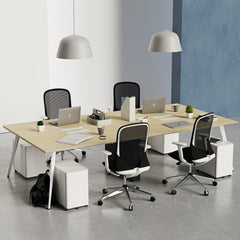
Team desks and workstation panels do more than organize seating. Together, they define personal work areas, manage sightlines, support smoother cir...
Learn more

Visit quiz page to see how we makes it easy to create an inspiring workplace


A wall outlet can be only a few feet away and still feel impossibly inconvenient. The problem becomes obvious when a laptop cable disappears behind the desk, a phone charger falls to the floor, or connecting a temporary device requires crawling beneath the work surface.
These frustrations are rarely caused by a complete lack of electrical access. More often, power is available in the wrong place. Wall outlets, floor strips, and under-desk connections may support the necessary equipment, but they do not always place frequently used ports within comfortable reach.
Clamp-on desk power addresses that mismatch by moving the connection point closer to where devices are actually used. Instead of repositioning the entire desk around a wall outlet, the power module attaches to an accessible desktop edge. The result is a more practical charging zone that can reduce reaching, cable retrieval, and repeated interruptions without requiring a permanent modification to the furniture.
Desks are positioned according to much more than electrical access. Natural light, available floor area, video-call backgrounds, door clearance, storage placement, and room circulation may all influence where a workstation belongs.
The most functional location for the desk may leave the closest outlet behind a cabinet, near the floor, or on the opposite side of the work surface. That distance often produces a chain of compromises. The desk gets pushed closer to a wall, cables stretch across exposed areas, or several devices compete for one difficult-to-reach connection.
An outlet can therefore be electrically adequate but functionally inconvenient. The user still has power, yet every plug-in action interrupts the workflow.
A conventional power strip is useful when several devices need electricity from one wall connection. It does not necessarily solve the accessibility problem.
When the strip rests on the floor, daily charging may still involve bending below the desk, moving a chair, or searching for an open socket by touch. Loose charging cables can slip behind furniture, while longer cords may cross walking or chair paths.
Floor strips are often better suited to equipment that remains plugged in, such as a monitor, desktop computer, printer, or docking station. They become less convenient when used as the primary connection point for devices that move throughout the day.
Mounting a strip beneath the desktop may improve organization by lifting cords away from the floor. It can also keep permanent equipment connections out of sight.
However, an under-desk strip still places the plug-in area outside the user’s natural line of sight. This matters when connecting phones, laptops, headsets, tablets, cameras, or guest devices. Repeatedly reaching below the work surface can create the same friction as a floor-level setup, only in a slightly different location.
The practical distinction is simple: permanent devices need stable power, while frequently handled devices need reachable power.
A clamp-on desktop power module secures to the edge of a work surface and brings electrical connections closer to the user. The linked module provides four AC outlets and two USB-B ports through a clamp-mounted design.
Instead of sending every charger toward the wall or floor, the module creates a predictable connection point at desk level. A laptop adapter can remain within reach. A phone cable can stay on the surface rather than falling behind it. A guest can connect a device without disturbing the permanent equipment under the desk.
This change may appear small, but it addresses the actual source of many awkward setups. The workspace does not necessarily need more power. It needs better access to the power already available.
A clamp-mounted connection can be useful when drilling or cutting the desktop is undesirable. It may suit rental homes, shared offices, temporary project rooms, and workstations that are likely to be rearranged.
The attachment can also be reconsidered as equipment changes. A module initially placed near a laptop may later move toward a monitor arm, a secondary work zone, or the opposite side of the desk.
That flexibility does not mean every edge will be compatible. The clamp still needs an appropriate gripping surface, sufficient clearance, and a cable path that does not interfere with the desk frame.
The word “fast” describes how quickly an awkward charging arrangement can become easier to use. It should not be confused with a promise about charging wattage or device charging time.
Actual charging performance depends on the device, adapter, cable, port type, and supported electrical output. A more accessible port can reduce the time spent finding cables and connecting equipment, but it does not automatically change the charging capability of the connected hardware.
That distinction protects both usability and expectations. Clamp-on power improves access first.
A wide desk is not automatically suitable for clamp-on power. What matters is the construction of the specific edge where the module will attach.
Common obstructions include:
Support aprons beneath the desktop
Metal frame rails
Drawer boxes
Cable-management trays
Decorative trim
Rounded or beveled edge profiles
Crossbars positioned close to the perimeter
A clamp needs stable contact above and below the work surface. An obstruction can prevent the lower portion from sitting flat, while a curved edge may reduce the available gripping area.
Before choosing a position, inspect the underside with the same care as the visible desktop.
Visual estimates can be misleading. Some desktops appear thin from above but include a thicker supporting structure beneath the surface. Others have a slim top with a rail positioned immediately behind the edge.
Measure the complete thickness at the intended mounting point and compare it with the product’s installation guidance. Also check how far the desktop extends beyond the frame. Sufficient overhang may be necessary for the clamp to attach without colliding with a leg, rail, or control box.
A secure installation depends on confirmed dimensions, not assumptions about standard desk construction.
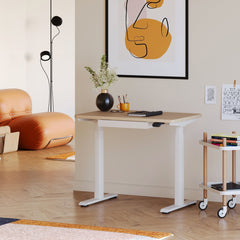
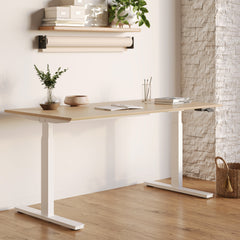
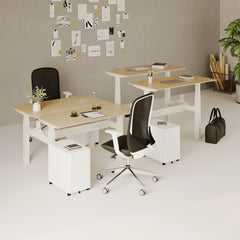
A collection of fixed and height-adjustable desk options illustrates how different furniture formats create different routing requirements, from conventional office desks to standing desks and multi-user workstations.
On a fixed desk, the relationship between the module and wall outlet remains stable. On a height-adjustable desk, the module travels with the desktop. The incoming cord must therefore accommodate the entire movement range without becoming tight, catching on the frame, or dropping into the path of moving components.
The safest approach is to test the desk at its lowest and highest working positions after installation. The supply cord should remain relaxed throughout the movement, with controlled slack rather than a loose loop that can snag.
The mounting area should be clean and free of debris before the module is attached. Dust or small particles trapped between the clamp pad and desktop can reduce grip or mark the finish.
Tighten the clamp according to the product instructions until the unit remains stable during ordinary use. Excessive force is unnecessary and may place avoidable pressure on the desktop edge.
After several plug-in cycles, check the module again. Repeated insertion, desk movement, or furniture relocation may affect its position.
No single power format is ideal for every workspace. The right choice depends on furniture construction, installation preferences, device behavior, and how permanent the setup should be.
| Power format | Installation approach | Everyday accessibility | Desktop modification | Most suitable use |
|---|---|---|---|---|
| Clamp-on power | Attaches to an exposed edge | High | Usually none | Retrofitting an existing desk |
| In-desk power | Fits within a compatible desktop opening | High | Required or preconfigured | Permanent integrated workspaces |
| Under-desk strip | Mounts below the surface | Moderate | Depends on mounting hardware | Equipment that stays connected |
| Floor power strip | Rests near a wall or desk leg | Low | None | Temporary or low-frequency access |
Clamp-on power makes sense when the desk is already assembled, the charging point may move later, or permanent desktop modification is not appropriate.
It is particularly useful for devices that are connected and removed frequently. The module remains visible and reachable, which makes it easier to identify available ports and manage temporary cables.
The tradeoff is that the module occupies part of the desk edge. Placement must account for arm movement, writing space, monitor stands, drawers, and nearby walkways.
An integrated desk power unit offers another approach when the furniture includes or can accommodate a suitable opening. The linked unit provides four AC outlets alongside USB-B and USB-C connections.
This format can create a centralized connection point with a more built-in appearance. It may be appropriate for permanent meeting rooms, executive work areas, or purpose-planned workstations.
The decision is not about declaring one format universally better. Clamp-on power emphasizes reversibility. In-desk power emphasizes integration. The furniture and expected use should determine which quality matters more.
Some workstations function best with both accessible and concealed power.
A hidden strip can support equipment that rarely changes, while the clamp-on module handles daily charging. This prevents permanent adapters from occupying every reachable outlet and keeps high-frequency connections available.
The division can be organized as follows:
Permanent equipment: monitors, docks, lamps, desktop computers
Daily devices: laptops, phones, tablets, headsets
Occasional devices: guest laptops, presentation equipment, camera chargers
This simple hierarchy often improves the setup more than adding ports without a clear purpose.
The closest edge is not always the most useful location. A module may be easy to reach but poorly positioned for cable direction, keyboard space, or chair movement.
Place the unit loosely in several possible locations and simulate normal tasks. Open the laptop. Move the mouse. Write on the desk. Reach for a phone. Check whether a charging cord would cross the primary work area.
A rear corner can work well for a monitor, lamp, docking station, or laptop charger that remains connected for long periods.
This position keeps the central edge open and reduces the visual presence of plugs. It may be less convenient for devices handled repeatedly, especially if the monitor blocks access.
A side position can place phone, laptop, and headset connections within easy reach. It also allows cables to approach devices from one direction instead of crossing the center of the work surface.
The most comfortable side depends on dominant-hand use, laptop port location, drawers, and the direction of the nearest wall outlet.
At a two-person desk, a centrally placed module may appear convenient but can cause cables to cross both work zones.
Where possible, assign a clear charging area to each user or position the module so that cords move away from keyboards and chair paths. Accessibility should not create competition for the same small section of the desk.
A systematic setup helps prevent the most common placement and routing mistakes:
Disconnect nearby devices before working around the desk edge.
Inspect the upper and lower mounting surfaces.
Confirm that the clamp can sit flat.
Check plug clearance before securing the unit.
Tighten the clamp according to the installation instructions.
Route the incoming power cord before adding device cables.
Reconnect permanent equipment first.
Test the desk, chair, drawers, and moving components.
Recheck stability after normal use begins.
A desktop power module still relies on a cord running to an existing outlet. Ignoring that cord can replace one awkward setup with another.
Route it along a stable desk leg or structural component when appropriate. Keep it away from sharp edges, chair casters, drawers, and moving frame parts. Avoid pulling it tightly between the desk and wall.
Controlled slack is especially important for sit-stand furniture. Too little slack can strain the cord or outlet. Too much unmanaged slack can catch on the frame or hang into the user’s leg area.
A small home workstation often supports several roles at once. The same surface may be used for laptop work, video calls, note-taking, and personal tasks.
In this setting, edge-mounted power can preserve the center of the desk for active work. Permanent equipment can remain toward the rear, while the most accessible connections support the phone, laptop, and headset.
The supply cord should leave the desk from the nearest safe side rather than cutting diagonally across the floor. A deliberate route keeps the setup visually calmer and easier to maintain.
A round table designed for small meetings introduces different access considerations because participants sit around the surface rather than facing one direction. The linked table is available in multiple size options and can be configured with optional in-desk power.
Clamp-on power may work well when the table sits near a wall and one edge offers a logical cord exit. It may be less suitable when the table is centered in a room and the supply cord would cross an open walkway.
For several participants, centralized power can distribute access more evenly. For a smaller huddle space with occasional charging, a removable edge-mounted module may provide enough flexibility without permanently defining the table’s use.
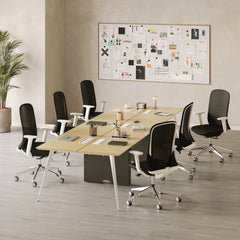
Power planning should account for seating, not just the tabletop. Supportive conference seating is intended for meeting rooms and collaborative settings, where chairs may shift frequently during discussions and presentations.
Cords should not pass through caster paths or reduce legroom. The chosen module position should also avoid interference with chair arms when participants move closer to the table.
A compact bistro table for collaborative use can support touchdown work, informal conversations, break areas, and short laptop sessions. The linked table includes multiple size configurations and optional in-desk power.
A clamp-on unit may suit a flexible area where charging is needed only at certain times. Integrated power may be more appropriate when the table will serve as a consistent technology hub.
Table height also affects cable visibility. On an elevated surface, a hanging supply cord may be more noticeable and easier to contact accidentally. The route to the wall should be considered before the power format is selected.
Workspaces that change between individual focus, client meetings, and team collaboration need accessories that can adjust with the furniture plan.
Collections centered on modern workspace furniture and accessories show how desks, seating, and organizational elements can be considered as one connected environment rather than isolated purchases.
Power access belongs in the same planning conversation. A desk may be visually well placed and ergonomically arranged, yet still feel unfinished if charging requires awkward movement. Coordinating furniture position, device use, and cable direction produces a workspace that functions as intentionally as it looks.
A reachable outlet is not useful if every charging cord runs across the keyboard, mouse area, or writing surface.
Position the module according to the devices it will serve. Laptop port location, phone placement, and monitor arrangement should guide the choice more than simple proximity.
When all accessible connections are occupied by monitors, lamps, and docks, temporary charging becomes difficult again.
Reserve at least one convenient connection when practical. The purpose of desktop-level power is not only to increase capacity, but also to preserve easy access.
Large charging bricks and wide plugs can block neighboring outlets. Port count alone does not guarantee that every connection can be used simultaneously with bulky adapters.
Consider plug shape, cable direction, and adapter weight. Heavy components should not hang in a way that places unnecessary leverage on the socket or module.
Product descriptions may present clamp mounting as broadly adaptable, but real desks vary significantly. Edge thickness, underside structure, surface shape, and frame placement must still be checked.
A careful compatibility review is more reliable than forcing the unit onto an unsuitable edge.
Do not assume that every USB port supports the same charging speed or that a desktop power unit provides features not stated in its specifications.
Use compatible chargers and cables, follow the product rating, and consult the supplied instructions. Accessibility and electrical performance are related parts of the setup, but they are not interchangeable claims.
Workspaces rarely remain static. A laptop may replace a desktop computer. A second monitor may be added. The desk may move to another wall, or a home office may become a shared room.
A reversible charging point can move with those changes. Rather than preserving a placement that no longer works, the module can be reassessed according to the current device mix, work habits, and furniture arrangement.
The strongest setup is not the one with the most visible outlets. It is the one that places the right connections near the devices handled most often, while keeping permanent equipment, supply cords, and moving furniture organized.
Clamp-on desk power fixes awkward charging quickly because it corrects the location of access. With a compatible desk edge, deliberate placement, and responsible cable routing, a difficult plug-in routine can become a stable part of the workspace instead of a recurring interruption.


You have unlocked free shipping!
You're saving $29 and unlocked free shipping!
Leave a comment