























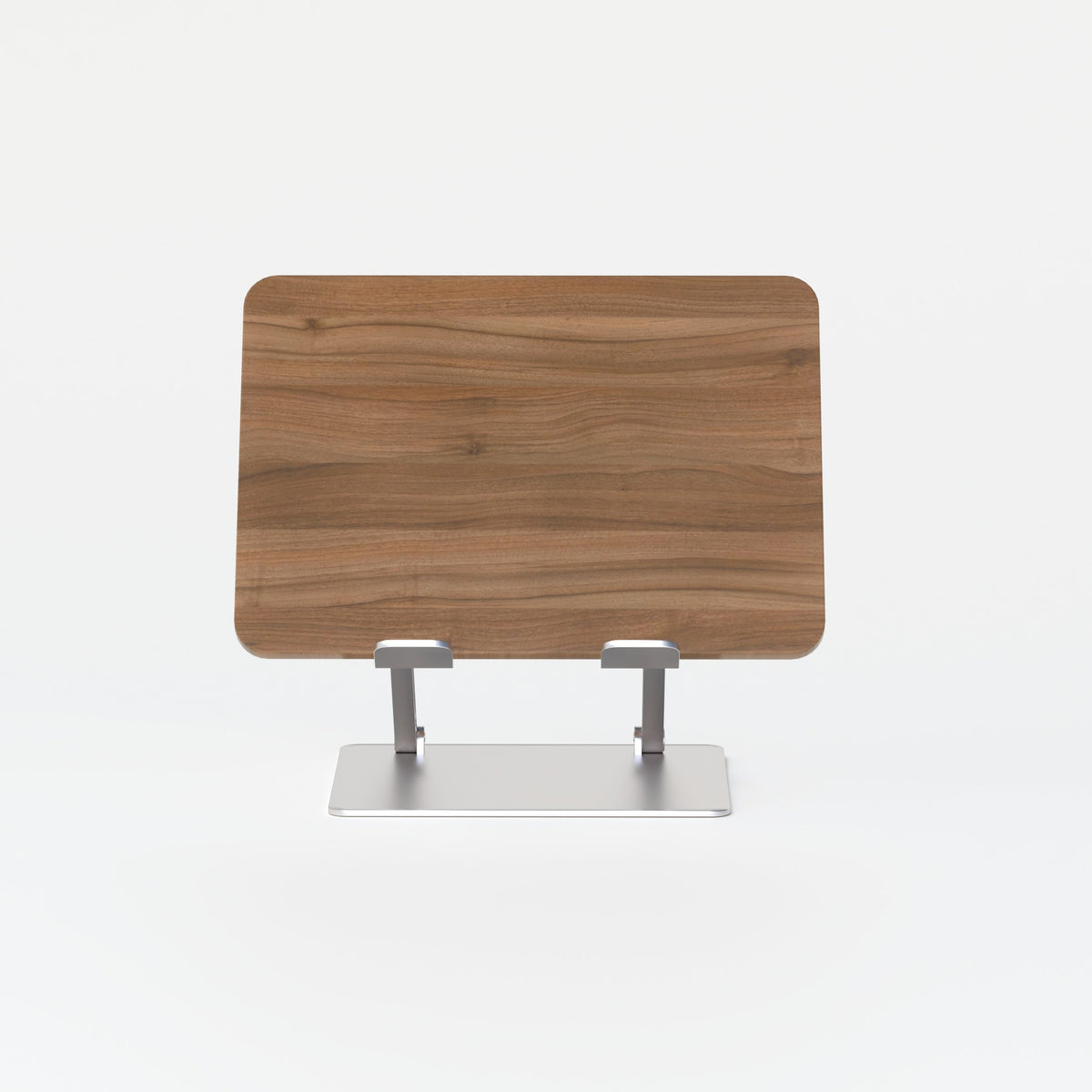
How a Monitor and Laptop Stand Fixes Screen Height Issues

A screen that sits too low changes more than the viewing angle. It can influence how a person positions the head, shoulders, arms, and torso throughout the workday. Many people respond by leaning forward, lowering the chair, or moving closer to the desk. These adjustments may make the screen easier to see temporarily, but they can also disrupt the rest of the workstation.
A monitor or laptop stand addresses the problem by raising the display independently from the desktop. Instead of forcing the body to move toward the screen, the stand brings the screen into a more comfortable visual range. The result depends on more than elevation alone. Chair height, keyboard placement, viewing distance, screen tilt, desk dimensions, and individual vision needs all contribute to an effective setup.
The goal is not to position every display at one universal height. It is to create a workstation where the screen supports the user’s natural working posture without causing new reach, wrist, or visibility problems.
Why Laptop Screens Commonly Sit Below a Comfortable Viewing Height
Laptop computers combine the display and keyboard into one connected device. This design is practical for portability, but it creates a basic workstation conflict.
The keyboard needs to remain low enough for the elbows, wrists, and shoulders to stay comfortable. The screen, however, often needs to sit higher so the user can view it without repeatedly bending the neck or upper body.
When a laptop rests flat on a standard desk, the keyboard may be within easy reach while the display remains well below the user’s normal forward gaze. Raising the laptop can improve the screen position, but it also raises the built-in keyboard. That is why a laptop stand is usually most effective when paired with a separate keyboard and mouse during extended work.
Screen Tilt Does Not Replace Screen Elevation
Adjusting the laptop hinge changes the angle of the display, but it does not substantially change its physical height.
Tilting can improve visibility, reduce reflections, and make the screen easier to read from a particular position. It cannot fully solve a screen-height issue when the entire display remains close to the desktop.
A person may still angle the head downward even when the screen is tilted correctly. Elevation and tilt should therefore be treated as separate adjustments. Elevation raises the visual field, while tilt refines the angle between the user and the screen surface.
User Height, Desk Height, and Chair Position Change the Required Lift
There is no single stand height that works for every workstation.
A taller user may need more screen elevation than a shorter user at the same desk. A thick or unusually high desktop may already place the laptop higher than expected. A low chair may make the screen appear higher while creating poor arm or leg positioning.
The correct screen height depends on several connected factors:
-
Seated or standing eye height
-
Chair adjustment range
-
Desktop height and thickness
-
Laptop or monitor size
-
Viewing distance
-
Screen orientation
-
Use of bifocals or progressive lenses
-
The location of frequently viewed content
These variables explain why screen-height correction should begin with the user’s working position rather than a fixed measurement copied from another setup.
Physical Signs That a Screen Is Positioned Too Low
Screen-height problems are often visible before they are measured. The body tends to compensate when the display is difficult to view from a stable position.
Posture Changes That Point to the Display
Common signs include:
1. The head remains angled downward during reading, typing, or video calls.
2. The torso moves forward instead of staying supported by the chair.
3. The user lowers the chair to improve the viewing angle.
4. Books, folders, or boxes are placed beneath the laptop as an improvised riser.
5. The screen is pulled very close to the face.
6. The user repeatedly shifts between upright and forward-leaning positions.
7. The shoulders round toward the display during concentrated tasks.
8. Webcam framing points upward from a noticeably low angle.
Any one of these signs can have more than one cause. Repeated combinations are a stronger indication that the screen position deserves attention.
Screen Distance Can Resemble a Height Problem
A display may feel too low when it is actually too far away, too small for the task, or configured with text that is difficult to read.
Before raising the screen, check whether the content is clear at a comfortable distance. Increasing text size, adjusting application scaling, reducing glare, or moving the display slightly closer may solve part of the problem.
Once visibility and distance are comfortable, screen elevation can be adjusted more accurately. A stand should not be used to compensate for poor readability or excessive glare.
How a Monitor and Laptop Stand Changes Viewing Geometry
A stand changes the relationship between the eyes, screen, keyboard, and desktop. Even a moderate increase in height can reduce how far the head must angle downward to view the primary content area.
The objective is not to eliminate all eye movement. Looking slightly downward can be comfortable. The problem arises when the user must sustain a pronounced head or torso angle to see the screen.
Elevation Moves the Main Content Area Into a Better Visual Range
The most useful reference point is not always the top edge of the display. It is the area where the user spends the most visual attention.
For a writer, that area may be the center of a document. For a designer, it may be the canvas and tool panels. For a video call, it may be the camera area and the faces of other participants.
A large monitor may need a different position from a compact laptop. A vertically oriented display may also require a lower placement than a wide horizontal screen. The correct setup reflects the screen’s usable content area rather than the outer bezel alone.
Independent Screen and Keyboard Placement Solves the Laptop Conflict
A height-adjustable laptop platform allows the display to be raised without forcing the external keyboard and mouse to move with it. This separation is the main ergonomic advantage of using a stand.
The laptop can function primarily as a screen while the hands remain near a comfortable desktop level. Adjustable elevation is especially useful when more than one person uses the workstation or when the same device moves between different desks.
The stand does not determine the correct height automatically. The user still needs to test the position, confirm device stability, and make sure cables, ports, and ventilation remain unobstructed.
External Input Devices Support Longer Work Sessions
Typing directly on a substantially raised laptop may place the wrists and shoulders in an awkward position. Brief interaction with the built-in keyboard may be reasonable, but sustained writing, analysis, or design work usually requires separate input devices.
The keyboard should remain close enough that the elbows do not reach forward. The mouse should sit at a similar level and within a comfortable working zone.
Raising the screen without repositioning the input devices can replace one problem with another.
Correct Screen Height Begins With the Chair and Keyboard
The screen should not be the first part of the workstation to adjust. A stable body position and comfortable input-device placement create the foundation for accurate screen elevation.
Establish the Working Position Before Raising the Display
For seated work, the feet should be supported and the shoulders should remain relaxed. The elbows should rest naturally near the body rather than lifting outward or reaching forward.
For standing work, the desktop should allow the keyboard to remain accessible without raising the shoulders. The user should not need to lean over the desk to type or move the mouse.
Lowering the chair to meet a low screen is rarely an effective long-term solution. It may improve the viewing angle while creating poor leg support or placing the keyboard too high.
Use a Repeatable Screen-Height Adjustment Process
A systematic setup sequence reduces guesswork:
1. Sit or stand in the position used for most focused work.
2. Adjust the chair or desktop so the keyboard is comfortable to use.
3. Place the mouse close enough to avoid repeated reaching.
4. Set the screen at a clear and comfortable viewing distance.
5. Raise the laptop or monitor until the main content area is visible without leaning.
6. Adjust screen tilt to improve visibility and manage reflections.
7. Test the position while reading, typing, scrolling, and joining a video call.
8. Reassess the setup after working normally for a meaningful period.
The final check matters because people often sit unusually upright while adjusting furniture. A position that looks correct during setup may still feel too low once concentration increases and the body settles into its usual habits.
Vision Needs May Require a Different Screen Position
Users who wear bifocals or progressive lenses may prefer a slightly lower display. Raising the screen too far can cause the chin to lift as the user searches for the correct viewing area in the lens.
Comfortable visibility should take priority over rigid diagrams or universal rules. The best position allows the user to view frequent tasks without repeatedly lifting or lowering the head.
Fixed and Adjustable Laptop Stands Solve Different Problems
A fixed stand and an adjustable stand can both improve screen height, but they are suited to different work patterns.
Fixed Elevation Works Well in a Consistent Workstation
A compact aluminum laptop stand can suit a desk used by one person with a stable chair and predictable working position.
Fixed stands require less day-to-day adjustment. They are practical when the required lift is already known and the workstation does not frequently change between users or work modes.
The main risk is choosing the wrong height. Measuring the needed elevation before selecting a fixed stand is more reliable than choosing by appearance alone.
Adjustable Elevation Supports Changing Work Conditions
An adjustable stand is more appropriate when:
-
Several people share the same desk
-
The laptop moves between home and office
-
The chair height changes regularly
-
The user alternates between sitting and standing
-
The laptop needs to align with another display
-
Video-call positioning changes throughout the day
Adjustability creates more options, but it also requires careful setup. The device should remain stable at the selected height, and the stand should not interfere with charging cables, ports, or airflow.
Fixed Stand and Adjustable Stand Comparison
| Decision factor | Fixed laptop stand | Adjustable laptop stand |
|---|---|---|
| Screen elevation | One predetermined level | Multiple available positions |
| Best environment | Consistent personal workstation | Shared or changing workstation |
| Setup process | Minimal after placement | Requires testing and refinement |
| Sit-stand use | Limited unless the desk moves | More adaptable to position changes |
| Portability | Often simple and compact | Depends on the design |
| Main consideration | Confirm the fixed height fits | Confirm stability at each position |
Neither type is automatically better. The stronger choice is the one that matches the actual screen-height gap and the way the workstation is used.
Desk Dimensions Shape the Entire Screen Setup
A stand cannot correct every limitation created by the desk.
A shallow surface may force the laptop too close once an external keyboard is added. A narrow desk may not leave enough room for a mouse and other frequently used items. A high desktop may place the keyboard near shoulder level before the screen is raised.
Workstation Type Changes Display Placement
Different individual and collaborative desk configurations support different screen strategies.
A personal desk can be calibrated around one user. A sit-stand desk allows the entire work surface to move, but the laptop screen and built-in keyboard still remain connected unless a stand separates them. A multi-person workstation must provide enough depth and clearance for each user to position a screen, keyboard, and mouse without crowding the shared surface.
Desk depth is particularly important. Raising a laptop often creates space beneath the device, but it does not automatically create enough distance between the user and the display.
A Moving Desk Still Requires Screen Calibration
When a sit-stand desktop rises, the keyboard and screen rise together. This preserves their relationship, including the laptop’s original height conflict.
A stand remains useful because it separates the display from the input level. The correct stand setting may differ between seated and standing positions, especially when the user’s viewing angle changes more than the keyboard position.
External Monitors Need Independent Positioning
A laptop stand cannot correct the height of a separate monitor. In a dual-screen workstation, both displays need to be evaluated as part of one visual arrangement.
Monitor Support Should Address Height, Angle, and Distance
An adjustable monitor support arm can help position an external display independently from the laptop and desktop.
Independent positioning matters because the monitor may need a different height, angle, or distance from the raised laptop. It also allows the primary display to occupy the strongest viewing position without being limited by the desktop surface.
The setup should be tested for stability and compatibility. Features such as rotation range, screen capacity, and mounting requirements should be confirmed from the product information rather than assumed.
The Primary Display Should Occupy the Easiest Viewing Position
When one screen is used more frequently, it should usually sit closest to the user’s central viewing line.
A common arrangement places the external monitor in front and the raised laptop slightly to one side. When both screens are used equally, they can be positioned closer together and angled inward.
The screens should not be spread so widely that the user repeatedly turns the head and upper body. Excessive separation can undermine the benefit of correcting their height.
Align the Main Content Areas, Not Just the Screen Edges
A laptop and large monitor do not always need identical top-edge alignment.
For example, the laptop may display email or messaging while the monitor holds a document, spreadsheet, or design workspace. In that case, the main reading areas should feel visually connected even if the physical display sizes differ.
Screen Height Also Matters in Meeting Rooms
Screen-positioning problems are not limited to individual desks. Laptops used for presentations and video calls may sit too low on shared tables, creating poor camera angles and difficult sightlines.
Shared Tables Need Clear Participant and Camera Views
A round table for collaborative sessions creates a setting where participants can face one another, but laptop and screen placement still needs careful planning.
A raised laptop can improve webcam height and make shared content easier to view. It can also free some surface space beneath the device. The stand should not block participants’ view across the table or interfere with documents, cables, or shared materials.
Portable stands can be useful in rooms that support presentations, training sessions, and hybrid meetings. They provide a more stable alternative to balancing devices on folders or improvised objects.
Seating Height Influences Shared-Screen Sightlines
Ergonomic seating for collaborative rooms affects how participants view a laptop, monitor, or wall-mounted display.
A screen that appears comfortable from the presenter’s chair may sit too low or too high from another seat. Testing the view from several positions can reveal problems that are not obvious from the front of the room.
Participant height, chair position, table dimensions, and screen distance all influence the final sightline. Shared displays should be placed for the room as a whole, not only for the person controlling the presentation.
Home Offices and Shared Workspaces Need Different Stand Strategies
A compact home office may prioritize easy storage and a small footprint. A shared office may prioritize adjustment range and repeatable setup. A creative studio may need to support monitors, laptops, collaborative work, and frequent layout changes.
Compact Work Areas Require Careful Use of Surface Depth
A laptop stand can create vertical space, but the workstation still needs enough room for the keyboard, mouse, and viewing distance.
Before choosing a stand, measure the usable depth of the desk. Consider where cables exit the laptop, whether the keyboard can be stored beneath the stand, and whether the setup must be cleared after work.
A compact fixed stand may suit a stable home workstation. An adjustable design may be more useful when the same table serves several purposes.
Shared Workstations Benefit From a Standard Adjustment Sequence
Shared desks are easier to use when each person follows the same order:
-
Adjust the chair
-
Position the keyboard and mouse
-
Set the viewing distance
-
Raise and tilt the screen
-
Test the arrangement during normal work
This sequence makes the workstation easier to personalize without relying on improvised objects or random adjustments.
Coordinated Furniture Creates a More Reliable Setup
Selecting modern office furniture for creative workspaces as a coordinated system helps prevent conflicts between the desk, chair, screen, and accessories.
A well-planned workstation considers surface depth, seating height, device placement, cable access, and the type of work performed. A stand is more effective when the surrounding furniture supports the same positioning goals.
This coordinated approach is particularly useful in studios, shared offices, hybrid work areas, and rooms that shift between individual and collaborative use.
Choosing a Stand That Corrects the Real Screen-Height Gap
A stand should solve a measured problem, not create a visually appealing but impractical arrangement.
Estimate the Needed Lift Before Comparing Designs
Begin with the chair, keyboard, mouse, and viewing distance in their preferred positions. Then raise the screen temporarily using a stable testing method.
Once the screen feels easier to view without leaning, measure the difference between the desktop and the tested position. This gives a more useful reference for choosing between fixed and adjustable support.
Temporary stacks can help estimate height, but they should not be treated as a permanent workstation solution if they are unstable.
Match the Stand to the Device and Work Pattern
Check the following factors before making a selection:
-
Required elevation range
-
Laptop dimensions
-
Device weight compatibility
-
Stability at the selected position
-
Ventilation around the laptop
-
Access to charging and data ports
-
Available desk depth
-
External keyboard placement
-
Portability between work locations
-
Storage needs
-
Alignment with an external monitor
-
Frequency of seated and standing changes
Product information should be reviewed carefully. Capabilities that are not clearly stated should not be assumed.
Avoid Fixes That Create New Problems
Common mistakes include raising the screen while continuing to type on the built-in keyboard for long periods, placing the display too close, blocking ventilation, or choosing a fixed height without measuring.
Another mistake is treating a laptop stand and monitor arm as interchangeable. A laptop stand supports the portable device, while a monitor support system positions a separate display. Each solves a different part of the workstation.
The strongest setup corrects the screen height without compromising hand position, visibility, device stability, or usable desk space.
Screen Elevation Becomes Stronger as a Workstation Standard
A monitor or laptop stand fixes screen-height issues by giving the display a position that is not limited by the keyboard or desktop. The most reliable setup begins with a stable seated or standing position, followed by comfortable keyboard placement, appropriate viewing distance, and carefully tested screen elevation.
Fixed stands work well when the environment remains consistent. Adjustable stands are more useful when users, desks, or working positions change. External monitors require their own positioning strategy, and shared rooms need sightlines that work for more than one seat.
When the chair, desk, stand, input devices, and display support one another, screen height becomes a repeatable part of workstation planning rather than a temporary correction.
Related Articles
-
 How Filing Cabinet Storage Supports Office Desk Must Haves
-
 Filing Cabinet Ideas for Better Office Furniture Accessories
-
 Best File Cabinet for Home Office Storage That Feels Easy
-
 Better Multiple Monitor Desk Setup Starts With One Stand
-
 Make Laptop and 2 Monitor Setup Work With Better Stands
-
 Why Dual Monitor Comfort Needs a Monitor and Laptop Stand


