























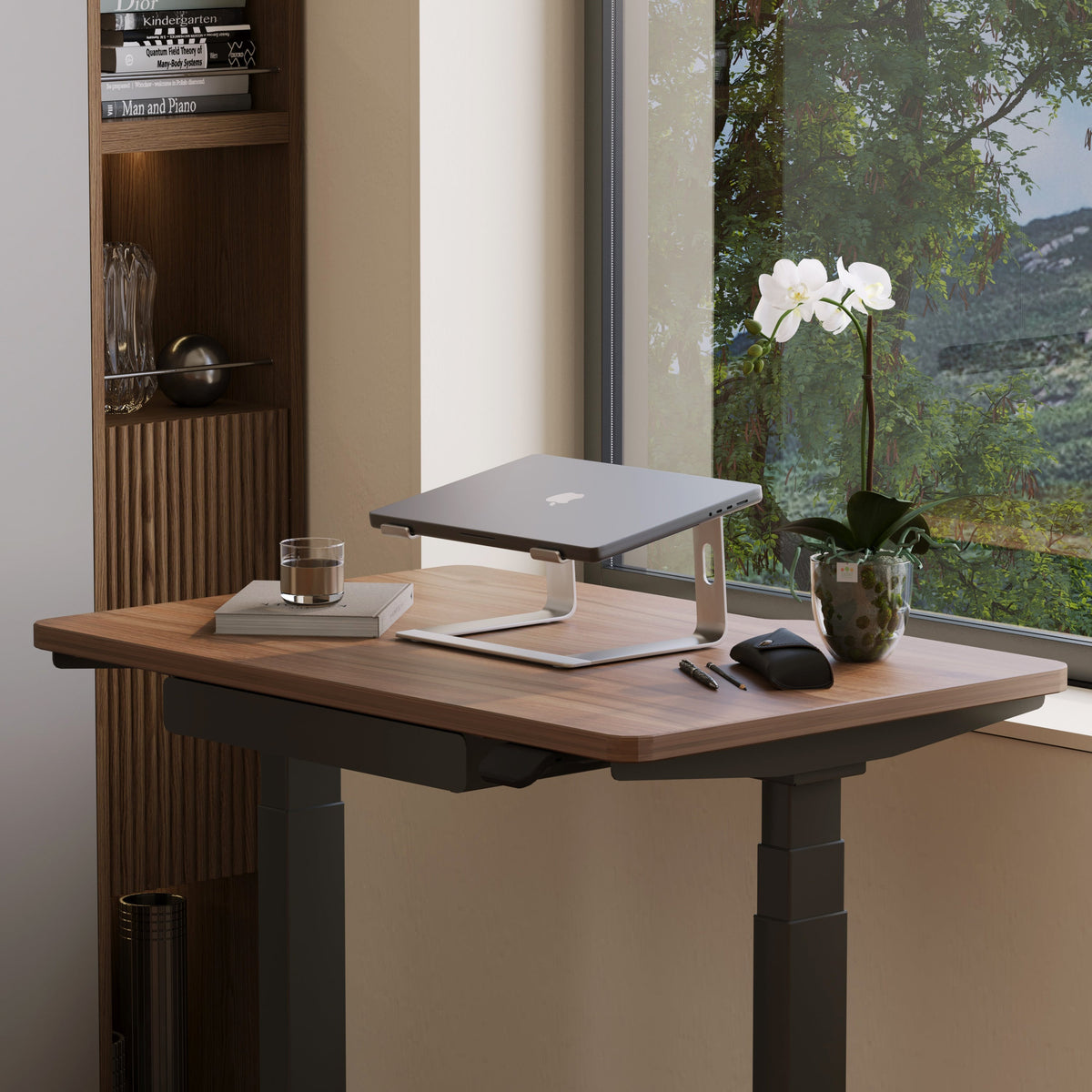
Cleaner Desk Setups Start With a Monitor and Laptop Stand

A clean desk is not defined by how little it contains. It is defined by whether every essential item has a deliberate place. The monitor and laptop are usually the largest visual elements in a workstation, so their position influences the organization of everything around them.
When a laptop sits flat beside a monitor with a wide base, both devices consume valuable surface area. The keyboard shifts forward, cables cross the work zone, and notebooks compete for whatever space remains. Raising the laptop and supporting the monitor more efficiently introduces vertical structure. The screens become a stable visual center, while the desktop remains available for typing, writing, and focused work.
Cleaner desk setups therefore begin with screen placement, not decorative storage. Once the monitor and laptop are positioned correctly, every other part of the workspace becomes easier to organize.
Screen Elevation Creates the Foundation for a Cleaner Desk Setup
A flat desktop has limited room, even when it looks spacious at first. A laptop, keyboard, mouse, phone, charger, notebook, and monitor base can quickly occupy the same horizontal plane. The result is not always excessive ownership. Often, it is inefficient use of available space.
Elevating a screen changes that relationship. A laptop stand raises the computer above the primary work surface, while a monitor arm can remove a traditional monitor base from the desk entirely. The goal is not simply to make the equipment appear taller. It is to create functional layers.
Vertical Organization Reduces Competition Across the Desktop
A flat laptop occupies the space beneath its screen and in front of its keyboard. When used beside an external display, it can force the monitor off-center or push the user’s keyboard closer to the desk edge.
A laptop stand separates the viewing area from the typing area. The laptop screen remains visible above the desktop, while an external keyboard and mouse can occupy a more practical position below it. The open space around the input devices makes the entire setup appear calmer because objects are no longer overlapping visually.
The Primary Screen Establishes the Workstation’s Centerline
The screen used most often should guide the placement of the chair, keyboard, and mouse. If an external monitor is the primary display, it should usually sit in front of the user rather than being displaced by the laptop. The laptop can then serve as a secondary screen at one side.
For laptop-first work, the stand should align the device with the user’s normal seated position. The screen does not need to dominate the desk, but it should appear intentionally placed. A screen that is too low, too far to one side, or surrounded by unrelated accessories can make an otherwise minimal desk feel unsettled.
Desk Dimensions Shape the Right Monitor and Laptop Stand Layout
A clean setup depends on proportion. The stand, screen, keyboard, and open task area must fit the desktop as a complete system. Selecting accessories without considering desk depth and width can create new limitations instead of solving clutter.
Desk Depth Protects Viewing and Typing Space
Desk depth determines how much room exists between the screen and the user. On a shallow surface, a large monitor base can consume the rear section while the keyboard approaches the front edge. Adding a stand without measuring the remaining clearance may make the workspace feel even tighter.
A laptop riser with a contained footprint can work well on a compact surface, provided there is still room for separate input devices. A monitor arm can be especially useful when the goal is to preserve the area directly beneath the screen.
The right depth is not one universal measurement. It is the depth that accommodates the display, keyboard, mouse, and comfortable working distance without forcing any component into another zone.
Desk Width Determines Whether Multiple Screens Feel Balanced
A laptop-only arrangement requires less width than a laptop paired with an external monitor. A dual-screen workstation needs enough horizontal space for both displays without pushing frequently viewed content far from the user’s natural line of sight.
Before adding screen hardware, it helps to compare desks for individual and shared workstations according to surface size, working style, and the number of people or devices the desk must support. The collection includes individual desks, standing options, meeting tables, and multi-person workstation formats, so the link accurately represents a broad range of desk configurations rather than one model.
Adjustable and Fixed Laptop Stands Support Different Work Patterns
Laptop stands share one basic purpose: they lift the device from the desktop. How they accomplish that purpose can affect visual simplicity, flexibility, and daily use.
An adjustable stand may suit a workstation that changes throughout the day. A fixed stand can make sense when the same user works from the same chair and desk position consistently. Neither format is automatically superior. The better choice is the one that matches the actual routine.
Adjustable Height Supports Changing Screen Positions
A height-adjustable laptop stand gives the user more control over laptop elevation. Urbanica’s model uses coated steel with an MDF surface and offers a height range that allows the screen position to be adapted within the stand’s stated dimensions.
That flexibility can be useful when:
-
A laptop needs to align more closely with an external monitor
-
More than one person uses the workstation
-
The desk alternates between seated and standing use
-
The camera position needs adjustment for video meetings
-
The user changes chairs or working locations
Adjustment works best when it leads to a repeatable position. Constantly changing the stand can also change cable tension, screen spacing, and keyboard alignment. Once a comfortable height is found, treating it as the default helps preserve order.
Fixed Laptop Support Keeps the Structure Visually Simple
An anodized aluminum laptop support offers a fixed structure for users who do not need frequent height changes. The linked product is described as an anodized aluminum laptop stand with a defined footprint and height.
A fixed stand may be appropriate when the desk, chair, and user remain consistent. Fewer adjustment points can also produce a quieter visual profile, which is valuable on smaller desktops where every piece of hardware is noticeable.
The trade-off is that the stand’s set height must already suit the screen arrangement. If the laptop needs to match an external display precisely, an adjustable option may provide more flexibility.
Laptop Stand Selection Should Follow the Workflow
| Workspace Requirement | Adjustable Laptop Stand | Fixed Laptop Stand | Monitor Arm |
|---|---|---|---|
| Changing screen height | Strong fit | Limited | Strong fit for a monitor |
| Consistent single-desk use | Strong fit | Strong fit | Strong fit |
| Simple visual profile | Moderate | Strong | Strong |
| Laptop and monitor alignment | Flexible | Depends on fixed height | Supports monitor positioning |
| Surface clearance | Partial | Partial | Greater space beneath monitor |
| Setup complexity | Low | Low | Moderate |
The most important distinction is not appearance. It is frequency of change. An adjustable stand supports variable work positions, while a fixed stand supports consistency. Both can contribute to a cleaner desk when their dimensions and purpose suit the surrounding furniture.
Ergonomic Screen Placement Depends on the Entire Workstation
Raising a laptop or monitor does not automatically create a comfortable setup. Screen elevation, chair position, keyboard height, viewing distance, and desk dimensions must work together.
A stand should support better placement without forcing the user to lift the shoulders, reach for the keyboard, or repeatedly turn the head.
A Raised Laptop Usually Needs Separate Input Devices
Typing directly on a raised laptop can be acceptable for brief interactions, but sustained work often becomes less practical as the device moves higher. The screen may be easier to view, while the built-in keyboard becomes harder to reach comfortably.
An external keyboard and mouse allow the screen and hands to be positioned independently. This separation is one of the most useful advantages of a laptop stand. The device can remain at an appropriate viewing level while the keyboard stays closer to the user.
Dual Screens Need a Clear Primary Display
When a laptop and monitor are used together, one should be designated as the main screen. Frequently viewed work belongs on the display positioned most directly in front of the user. Secondary information, such as messaging, reference material, or meeting controls, can occupy the side screen.
Perfectly aligning the physical frames is not always necessary. Screen sizes, bezels, and stands differ. What matters more is whether active content can be viewed without excessive head movement.
Align the Viewing Area Rather Than Chasing Perfect Symmetry
A balanced setup does not require both screens to have identical dimensions. Aligning the useful viewing areas can be more practical than forcing the top or bottom edges of unlike displays into a rigid line.
The screens should feel visually connected, but function takes priority. A slightly asymmetrical arrangement that supports the user’s workflow is cleaner than decorative symmetry that causes constant turning or reaching.
A Monitor Arm Reclaims the Desk’s Busiest Area
Traditional monitor stands often occupy the exact area users want to keep open. The base sits beneath the screen, where a notebook, keyboard, or docking device might otherwise go.
An adjustable ergonomic arm supports customizable screen positioning and is presented as an accessory intended to improve comfort during desk use. The product page does not need to be stretched into unsupported claims about universal compatibility or specific monitor capacities for the organizational value to be clear.
Surface Clearance Is the Main Organizational Advantage
Removing the monitor base creates a more continuous work surface. The resulting space can be left open or used temporarily for one active item.
Useful options include:
-
Sliding the keyboard beneath the monitor when writing
-
Opening a notebook directly in front of the screen
-
Positioning a compact docking device near the rear
-
Preserving negative space to reduce visual density
The newly opened area should not become permanent storage. Filling it with chargers, stationery, and unused devices recreates the same clutter in a different form.
Adjustable Screens Still Need a Default Position
Movement is helpful only when the monitor can return to a stable working position. Establish a normal screen height, centered location, and viewing distance. Allow enough cable slack for necessary adjustment, but avoid oversized loops that hang beneath the arm.
A reliable default position gives the desk a visual anchor. It also makes a daily reset faster because the screen, keyboard, and chair can be realigned around one known point.
Cable Routing Completes the Monitor and Laptop Stand Setup
Raised screens expose cables that may have been hidden behind a laptop or monitor base. Without a routing plan, an elevated setup can look less finished than the flat arrangement it replaced.
Cable management should happen after the devices reach their final positions. Organizing wires too early can create tension when the laptop stand or monitor is adjusted.
Build One Intentional Cable Path
Connect the devices first, test their normal movement, and then group the cables. A practical sequence is:
1. Position the monitor and laptop stand.
2. Place the keyboard, mouse, and docking equipment.
3. Connect power and display cables.
4. Test the normal range of screen movement.
5. Retain only the slack needed for that movement.
6. Guide the cables toward one rear or side route.
7. Keep charging leads from returning to the central work area.
One controlled cable direction usually appears cleaner than several individually concealed routes. The aim is not to make every wire invisible. It is to make the cable path understandable and deliberate.
Divide the Desktop Into Three Functional Zones
A clean desk needs somewhere for active work to happen. Dividing the surface into zones prevents every task from competing for the same space.
Rear screen zone: The monitor, laptop stand, docking equipment, and permanent connections belong here. This area should remain relatively stable.
Central input zone: The keyboard and mouse need enough room for comfortable movement. Phones, documents, and charging cables should not be stored on top of the keyboard.
Open task zone: Reserve part of the surface for a notebook, document, sketch, or temporary project. This zone can change throughout the day without disrupting the technology layout.
A desk becomes cluttered quickly when temporary work has no assigned landing place. An open task zone gives active materials somewhere to go without spreading across the entire workstation.
Compact Workstations Depend on Proportion and Visual Restraint
Small desks magnify every stand, base, cable, and accessory. A component can fit physically while still feeling too heavy for the surface.
The relationship among screen size, stand footprint, keyboard width, and remaining open space matters more than the number of accessories. A compact setup usually benefits from fewer competing shapes and a consistent material palette.
Repeating Finishes Creates Visual Cohesion
A desk does not need every component to match exactly. Repeating one or two finishes is often enough to connect the setup visually. A dark monitor arm can relate to a dark desk frame, while a wood-toned laptop surface can coordinate with the desktop.
Too many unrelated finishes divide the workstation into separate visual fragments. Limiting the palette allows the monitor and laptop stand to feel like part of the furniture rather than equipment placed on top of it.
City Workspaces Need Furniture That Fits Multiple Uses
Apartments, studios, and multipurpose rooms often require a workstation to share space with daily living. A desk may need to support focused work during the day without overwhelming the room afterward.
A collection of modern ergonomic workspace furniture can help readers consider desks, chairs, accessories, and bundles as a coordinated system. The linked page focuses on clean office furniture for creative urban environments and presents an online shopping experience, so the anchor reflects its real purpose without using the location name.
In a compact room, the monitor and laptop stand become especially important. Elevating the screens reduces horizontal crowding while helping the workstation maintain a defined footprint.
Screen-First Organization Extends Into Collaborative Workspaces
The same principles that improve an individual desk also apply to meeting areas. Shared technology needs a clear position, cables need a predictable route, and furniture should preserve sightlines rather than compete with the screen.
Round Tables Give Shared Technology a Natural Center
A minimalist round meeting table creates a central surface for a shared laptop, conferencing device, or presentation material. Urbanica’s linked table is described with a minimalist desktop, flared legs, two size options, and optional in-desk power.
The round format can support a visually balanced arrangement because participants gather around one central area. Technology should still occupy only the space it needs. Unused cables, adapters, and devices should be removed after meetings instead of becoming permanent table fixtures.
Seating Placement Should Preserve Screen Sightlines
Ergonomic conference-room seating supports meeting rooms and collaborative spaces where participants may need to view a shared display. The linked chair is presented as an ergonomic seating solution intended for discussions and presentations.
Consistent chair spacing helps maintain clear circulation and reduces the likelihood that people, chair backs, or loose cables will obstruct the shared screen. The goal is not rigid uniformity. It is an arrangement that makes the technology easy to see and the room easy to reset.
Common Stand Setup Mistakes Can Reintroduce Clutter
A laptop stand or monitor arm can improve a desk, but it cannot compensate for an arrangement that ignores workflow.
Adding a Stand Without Rebuilding the Layout
Placing a stand into the existing setup often leaves every other object where it was. The laptop moves upward, but the keyboard, cables, notebooks, and accessories remain crowded.
After raising the screen, clear the desktop and rebuild outward from the display. Position the keyboard next, then the mouse, current work materials, and charging tools. This prevents old clutter patterns from determining the new layout.
Filling Every Newly Opened Space
The area beneath a raised laptop or monitor can quickly become a shelf for phones, notebooks, adapters, and spare cables. That may increase storage, but it does not necessarily create a cleaner setup.
Use the space for one defined purpose. It might hold the keyboard when the desk is used for writing, or it might remain empty to provide visual breathing room. Consistency is more valuable than maximum capacity.
Prioritizing Appearance Over Daily Movement
A perfectly centered arrangement may look polished in a photograph but feel awkward during work. The correct setup is the one that supports the user’s most frequent tasks.
Place the primary screen according to attention, not decoration. Keep input devices within easy reach. Allow temporary work to enter and leave the task zone without forcing the entire desk to be rearranged.
One Elevated Screen Can Organize the Entire Workstation
A monitor or laptop stand gives the desk a stable point of reference. The screen gains a deliberate position, the keyboard receives its own working area, cables follow a defined path, and temporary materials remain contained within an open task zone.
The cleanest workstations are not the ones that look untouched. They are the ones that remain understandable while work is happening. When the screen acts as the organizing center, maintaining that order becomes a repeatable habit rather than a constant cleanup project.
Related Articles
-
 How Filing Cabinet Storage Supports Office Desk Must Haves
-
 Filing Cabinet Ideas for Better Office Furniture Accessories
-
 Best File Cabinet for Home Office Storage That Feels Easy
-
 Better Multiple Monitor Desk Setup Starts With One Stand
-
 Make Laptop and 2 Monitor Setup Work With Better Stands
-
 Why Dual Monitor Comfort Needs a Monitor and Laptop Stand


