























Best Setup for Laptop and 2 Monitors With Less Neck Strain

The best setup for a laptop and two monitors begins with one decision: which screen receives the most attention? That display should sit directly in front of the body, with the second monitor beside it and angled inward. The laptop should be raised into a more comfortable viewing band or closed when its screen is unnecessary.
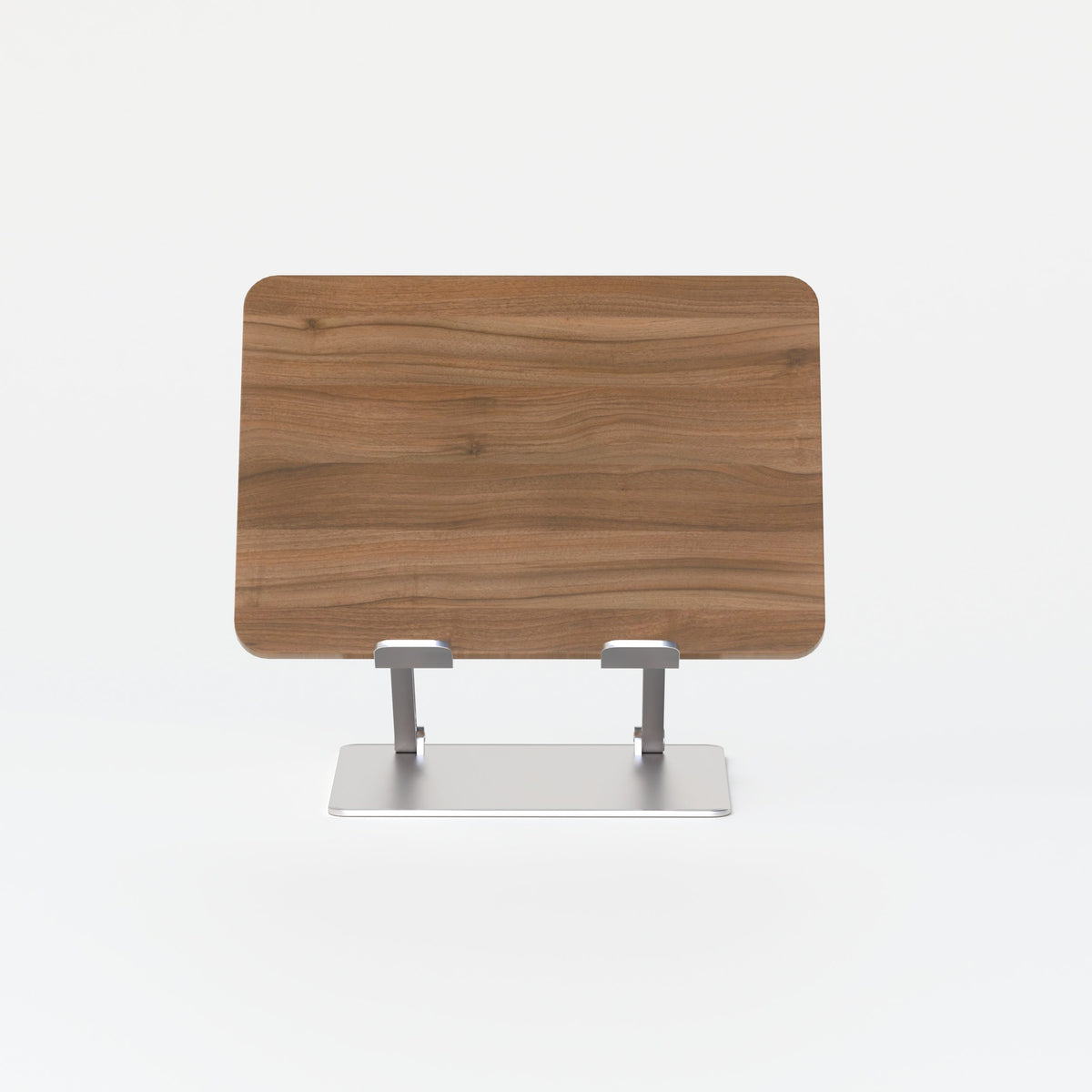
An external keyboard and mouse are essential when the laptop is elevated. They allow the screen to move upward without forcing the hands, wrists, and shoulders into an awkward typing position. An adjustable laptop screen support can help bring the laptop closer to the height of the external displays while preserving usable space beneath it.
The goal is not to make all three screens look perfectly symmetrical. A lower-strain workstation keeps the most important content near the body’s centerline, limits repeated downward viewing, and prevents the user from spending long periods with the head turned toward one side.
Why Three-Screen Workstations Often Create Neck Strain
A laptop and two monitors can improve visibility and reduce constant window switching, but additional screen space also creates a wider viewing area. When that space is poorly arranged, the neck must repeatedly flex, rotate, or move forward to follow the work.
A Low Laptop Screen Encourages Downward Viewing
A laptop placed flat on a desk usually sits far below a pair of external monitors. Occasional downward glances may not be disruptive, but sustained work on the laptop display can keep the chin lowered for long periods.
This problem becomes more noticeable when the laptop holds an important application such as email, a video meeting, a document, or a dashboard. The user may begin with an upright posture, then gradually bend the neck or round the shoulders to see the smaller, lower screen more clearly.
The solution is not simply to raise every screen as high as possible. It is to place each frequently viewed display within a comfortable visual range while keeping the head balanced over the torso.
An Off-Center Primary Screen Causes Sustained Rotation
The largest monitor is not always the primary monitor. The primary screen is the display containing the task that receives the most continuous attention.
When that screen sits significantly to the left or right, the user may keep the head turned toward it while the keyboard and chair remain centered elsewhere. This mismatch can also rotate the upper body, create uneven arm reach, and make one side of the backrest less useful.
The chair, keyboard, and primary display should therefore share one central axis. Secondary screens can sit outside that line, but they should support shorter glances rather than constant off-center viewing.
Forward Head Posture Can Be a Visibility Problem
Leaning toward a monitor is not always caused by poor sitting habits. Text may be too small, the screen may be too far away, or glare may make details difficult to see.
Before treating posture as a discipline problem, correct the visual conditions. Increase text scaling, improve contrast, control reflections, and bring the display closer when necessary. The workstation should make upright viewing practical rather than requiring the user to hold a rigid pose through effort alone.
The Best Laptop and Dual-Monitor Layout Depends on Screen Priority
There is no single arrangement that works for every profession or application. The most effective layout reflects how frequently each screen is used.
Center One External Monitor for a Dominant-Task Workflow
For most three-screen setups, one external monitor should sit directly in front of the user. This is the strongest choice when one application controls most of the work.
A writer may center a document. A designer may center the active canvas. A financial analyst may place the working spreadsheet in front. A developer may center the code editor while using the second monitor for previews or documentation.
The second monitor should sit immediately beside the primary display with its inner edge kept close. Angle it inward so its center faces the seated user. Frequently referenced material should remain near the inner portion of that screen, where it requires less head movement.
The elevated laptop can then serve as a tertiary display for lower-frequency tools, meeting controls, music, calendars, or temporary reference material.
Split the Centerline Between Two Equally Important Monitors
Some workflows divide attention almost evenly between two external displays. In this case, position them symmetrically, with the point where their inner edges meet near the body’s centerline.
Both monitors should be at a similar distance from the eyes and angled slightly inward. This arrangement reduces the difference between left-side and right-side viewing, but it still creates more rotation than a single centered screen.
When one display becomes dominant for a long work session, move the main application to the screen that can be viewed most directly. Window placement should adapt to the task instead of forcing the neck to adapt to a fixed software layout.
Close the Laptop When the Third Screen Adds Little Value
An open laptop is not automatically useful. When two external monitors provide enough working space, closing the laptop can create a narrower viewing arc and a cleaner centerline.
Before using closed-display mode, confirm the laptop manufacturer’s operating and ventilation guidance. Keep docking connections accessible, prevent cables from pulling against ports, and avoid enclosing the computer in a way that interferes with cooling.
| Screen arrangement | Best use case | Recommended center point | Main concern |
|---|---|---|---|
| One centered monitor, one side monitor, open laptop | One dominant application with secondary reference tools | Center of the primary monitor | Looking down or too far sideways at the laptop |
| Two equal monitors, open laptop | Work divided evenly across the external displays | Gap between the two monitors | Wide total viewing arc |
| Two monitors, closed laptop | Focused desktop work | Primary monitor or central gap | Laptop access and ventilation |
| Raised laptop centered, two side monitors | Laptop-led workflows | Center of the laptop screen | Small central display may encourage leaning |
Monitor Height, Distance, and Angle Should Work Together
A screen can be at an acceptable height and still cause discomfort if it is too far away, poorly angled, or difficult to read. Height, distance, text size, and screen orientation must be adjusted as one system.
Keep the Top of the Main Screen Near Eye Level
The top visible area of the primary monitor should generally sit at or slightly below seated eye level. The center of the screen will then fall below the horizontal line of sight, allowing the eyes to look slightly downward without requiring the neck to bend sharply.
The Occupational Safety and Health Administration recommends placing the monitor directly in front of the user, with the top line at or below eye level. It also identifies at least 20 inches as a general minimum viewing distance, while recognizing that screen size and individual vision affect placement. These computer monitor positioning recommendations provide a practical starting point rather than a rigid measurement for every person.
Both external monitors should be close to the same height when their sizes allow. The laptop does not need to match their edges perfectly, but its active content should be high enough that reading it does not require a pronounced chin drop.
Progressive-Lens Users May Need Lower Screens
People who wear bifocals or progressive lenses may raise the chin to view the monitor through a specific part of the lens. In that situation, lowering the display can be more comfortable than following a standard eye-level rule.
Screen placement should support a neutral head position for the actual user, not satisfy a generic diagram.
Set Viewing Distance by Readability, Not Habit
A common starting range is approximately 20 to 40 inches, but the correct distance depends on monitor size, resolution, eyesight, and text scaling.
The screen should be far enough away for comfortable viewing without feeling visually overwhelming, yet close enough that the user can read normal work content while remaining against the backrest. If leaning begins, enlarge text before assuming the desk needs a different sitting posture.
Keep frequently viewed displays at comparable distances. A laptop positioned far behind the keyboard or a side monitor pushed against the back corner of the desk can cause repeated leaning and visual refocusing.
Angle Side Screens Toward the Seated Position
A secondary monitor should not remain flat across the back of the desk when the user sits near one end of the display arrangement. Rotate it inward so the screen faces the user.
Avoid excessive upward tilt. It can increase reflections and encourage the chin to rise. Recheck monitor angle whenever the chair position changes because a display aligned for one seating position may be poorly aligned for another.
Laptop Elevation Must Be Paired With Separate Input Devices
Raising the laptop screen improves its viewing position, but it also raises the built-in keyboard. That tradeoff makes an external keyboard and mouse necessary for sustained work.
Separate Screen Height From Typing Height
The keyboard should sit at a height that allows the shoulders to remain relaxed and the elbows to stay close to the torso. The wrists should remain generally aligned with the forearms instead of bending sharply upward or sideways.
OSHA’s keyboard and pointing-device guidance emphasizes keeping the elbows near the body, the shoulders relaxed, and the mouse close to the keyboard.
Place the external keyboard directly in front of the primary screen. The mouse should sit beside it, not beyond the laptop, a notebook, or a wide numeric pad that forces an extended reach.
Choose Laptop Support According to the Workstation
An adjustable stand is useful when multiple people share the desk, the laptop changes frequently, or the screen must align with monitors of different heights. A fixed stand can suit a stable workstation where the required elevation is already known.
For a consistent desk arrangement, a slim anodized-aluminum laptop riser offers a compact support option without requiring invented claims about automatic posture correction or universal device compatibility.
Before selecting any stand, check the laptop’s dimensions, weight, port locations, cooling areas, and cable direction. A support that raises the screen but blocks airflow or makes connections difficult may create a different set of problems.
Desk Dimensions Control Screen Alignment and Viewing Distance
A dual-monitor laptop setup needs more than enough surface area to hold the equipment. It needs enough usable depth and width to place that equipment correctly.
Desk Depth Protects Keyboard Reach and Screen Distance
A shallow desk may force the monitors too close to the eyes or leave the keyboard at the front edge with no comfortable wrist and forearm position. It can also push the laptop to one side because there is not enough room for the stand, monitor bases, dock, and cables.
Measure the full workstation footprint before choosing the surface:
1. Monitor base depth or monitor-arm clamp space
2. Laptop stand footprint
3. External keyboard and mouse area
4. Docking station and cable bends
5. Desired eye-to-screen distance
6. Space needed to move the chair close to the desk
A depth near 24 inches may work for compact equipment, especially with monitor arms. A deeper surface can provide more flexibility for larger displays and stand-mounted monitors. These measurements should be treated as planning references, not universal ergonomic guarantees.
Desk Width Keeps Side Screens Within a Manageable Arc
Two 24-inch or 27-inch monitors plus an open laptop can occupy substantial horizontal space. When the desk is too narrow, one display may be pushed outward, angled poorly, or placed behind another.
A broader surface does not automatically create a better setup, but it offers more freedom to keep the screens close together while preserving space for speakers, documents, or a dock. A collection of fixed-height and adjustable desks can be assessed by usable width, depth, under-desk clearance, and compatibility with the intended monitor supports.
Monitor arms can recover desktop space, but they do not correct alignment by themselves. Confirm weight capacity, mounting clearance, arm reach, and monitor compatibility. After installation, place the screens according to the user’s seated eye position rather than the most visually symmetrical arm arrangement.
Chair and Keyboard Alignment Complete the Low-Strain Setup
Screen placement is only effective when the chair and input devices support the same centerline.
Set Chair Height From the Keyboard Position
Sit fully against the backrest, then adjust the seat so the keyboard can be used with relaxed shoulders. The elbows should remain near the torso, and the forearms should reach the keys without lifting the shoulders.
Support the feet on the floor or with a stable footrest. Raising the chair to accommodate a high desk can leave the feet unsupported, which may encourage sliding forward and reduce contact with the backrest.
Keep the keyboard close enough that the upper arms do not reach forward. A distant keyboard often causes the torso to drift away from the back support, which then brings the head closer to the screens.
Prevent Armrests From Blocking Desk Access
Armrests can support the arms during pauses, but they should not prevent the chair from approaching the desk. If they strike the desk edge, the keyboard may end up too far away.
Lower or reposition armrests that push the shoulders upward or force the elbows outward. The ideal setting supports easy access to the keyboard without dictating an unnatural shoulder position.
Match Seating Type to the Work Duration
A chair used for prolonged computer work needs to coordinate with the desk height, keyboard position, and screen centerline. Seating intended for shorter discussions serves a different purpose.
For meeting rooms and shared discussion areas, seating designed for conference settings can support collaborative spaces without being presented as a universal replacement for every full-day workstation chair.
The most appropriate chair is the one that fits the task, the user, and the time spent at the workstation. No chair can compensate for a primary monitor that remains permanently off-center.
Screen Roles Reduce Unnecessary Head and Eye Movement
A three-screen setup becomes easier to manage when every display has a defined purpose.
Assign Primary, Secondary, and Tertiary Functions
A practical hierarchy looks like this:
1. Primary monitor: Active writing, editing, analysis, design, or production
2. Secondary monitor: Reference material, previews, communication, or supporting applications
3. Laptop display: Low-frequency controls, temporary content, calendar, or meeting tools
This arrangement keeps continuous work in front of the body and limits side screens to shorter glances. Place frequently copied or compared information near the inner edge of the secondary monitor rather than at its outer boundary.
Randomly distributing windows across all three screens may feel flexible, but it can create avoidable scanning. Software layout should reinforce the physical workstation hierarchy.
Choose the Laptop Side Based on Workflow
The laptop does not always belong on the same side as the dominant hand. Its position should reflect viewing frequency, room layout, glare, power access, and the location of the secondary monitor.
Test both sides during normal work. Look for the arrangement that requires less sustained rotation, not the one that appears most balanced when the desk is empty.
Use Portrait Orientation Selectively
A vertical monitor can be effective for long documents, narrow dashboards, code, or communication feeds. Its greater height, however, expands the vertical viewing area.
Keep frequently used content near the middle of the portrait display. Avoid raising the monitor so high that its upper portion requires repeated upward viewing. Portrait mode should solve a content problem without creating a new neck-position problem.
Lighting and Screen Clarity Affect Posture More Than They Appear To
Glare, low contrast, and inconsistent lighting can pull the body away from an otherwise well-arranged workstation.
Position Displays Perpendicular to Bright Windows
A monitor facing a bright window may look washed out. A monitor with a window directly behind it may reflect light toward the user. Both conditions can encourage squinting, leaning, or rotating the screen away from its ideal position.
OSHA’s workstation lighting and glare guidance recommends arranging screens to limit reflections and placing them at right angles to bright windows where practical.
Use shades, diffused lighting, and adjustable task lights to respond to changing daylight. Keep task lighting off the screen surface, and clean the displays regularly so smudges do not reduce clarity.
Correct Digital Visibility Before Changing Physical Posture
Increase operating-system scaling, browser zoom, and application font sizes until content is readable from the intended distance. Match brightness to the surrounding room rather than running the displays at maximum intensity by default.
A visually clear screen makes it easier to remain supported by the chair. When visibility improves, monitor distance can be based on comfort instead of the need to decipher small details.
Separate Collaboration From the Permanent Three-Screen Desk
The primary workstation should remain organized around focused computer work. Meetings and informal discussions often require different furniture and a different orientation.
Move Small-Group Reviews to a Dedicated Surface
Gathering several people around a dual-monitor desk can force the seated user to twist repeatedly, while visitors stand at awkward angles to the screens. A separate round table for small-team meetings can provide an appropriate place for printed plans, brief laptop presentations, and project conversations without displacing the permanent monitor setup.
This secondary surface should not replace the properly configured desk for prolonged typing or detailed screen work. Its value comes from supporting a different task and allowing the primary workstation to retain its alignment.
Use Workspace Planning to Preserve Clear Movement Paths
A compact room may need to support focused work, storage, and occasional collaboration. Before adding furniture, measure chair travel, monitor-arm clearance, cabinet access, door swings, power locations, and walking paths.
A page centered on modern office furniture for creative workspaces can support broader planning without requiring the location name to carry the anchor text.
The room should allow the chair to remain centered at the computer desk while keeping collaborative furniture outside the primary work zone.
Reserve Compact Tables for Screen-Light Tasks
Brief calls, brainstorming, reading, and informal conversations may not require the full three-screen setup. A compact bistro table for shared spaces can support those lighter activities without being characterized as a dedicated ergonomic computer desk.
Changing location can interrupt prolonged static posture, but the new position still matters. Avoid turning a secondary table into a full-day laptop station without suitable screen height, input-device placement, and seating support.
A Practical Calibration Sequence for Less Neck Strain
A workstation should be adjusted while someone is actually using it, not judged only by how organized it looks.
Set the Workstation in a Reliable Order
1. Sit fully against the chair’s backrest.
2. Support both feet.
3. Place the keyboard directly in front of the torso.
4. Center the most frequently used monitor over the keyboard.
5. Set the top of that display at or slightly below eye level.
6. Move the monitor close enough to read without leaning.
7. Match the second monitor’s height and distance as closely as practical.
8. Angle the second monitor inward.
9. Raise the laptop and assign it a lower-frequency role.
10. Place the mouse immediately beside the keyboard.
11. Adjust text scaling and lighting.
12. Work normally, then refine the setup based on actual movement.
Observe Real Working Posture
A phone camera placed to the side or rear can reveal patterns that are difficult to notice while concentrating. Look for the chin dropping toward the laptop, the head remaining turned, one shoulder lifting, or the torso drifting away from the backrest.
Also watch whether the chair gradually moves off-center. That often indicates that the main application, keyboard, or mouse is not aligned with the original workstation centerline.
Short movement breaks remain useful even when the equipment is well positioned. NIOSH guidance on healthier computer work at home discusses monitor placement, supported posture, and the value of supplementing longer breaks with brief changes in activity.
Persistent pain, numbness, weakness, headaches, or symptoms that continue despite workstation changes should be discussed with a qualified healthcare professional.
Keep the Three-Screen Setup Responsive to Changing Work
The best setup for a laptop and two monitors is not a fixed diagram. It is an arrangement that changes when the primary task changes.
Keep the dominant screen in front, maintain similar viewing distances across frequently used displays, elevate or close the laptop, and separate screen height from keyboard height. Recheck the chair, lighting, and software layout whenever equipment or workflows change.
A well-planned workstation does not promise to eliminate every source of discomfort. It creates better conditions for supported sitting, clear viewing, and less unnecessary neck movement throughout the workday.
Related Articles
-
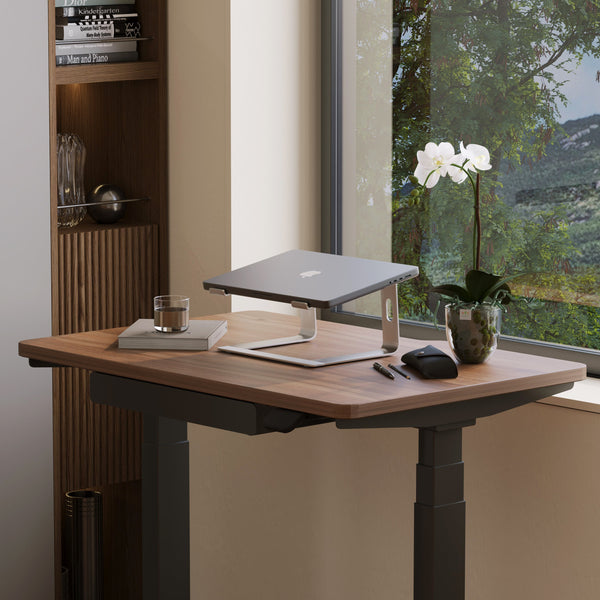 Laptop Stand vs Flat Desk Setup: Which Is Better for Posture and Comfort?
-
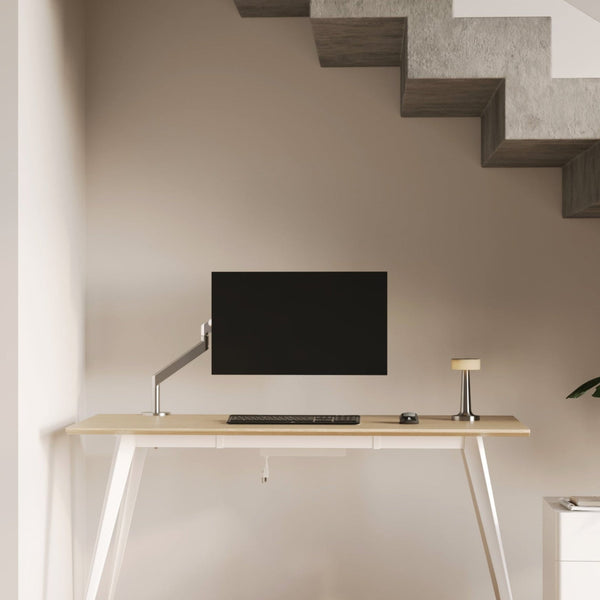 Monitor Stand vs No Stand: What Changes for Posture, Screen Height, and Focus
-
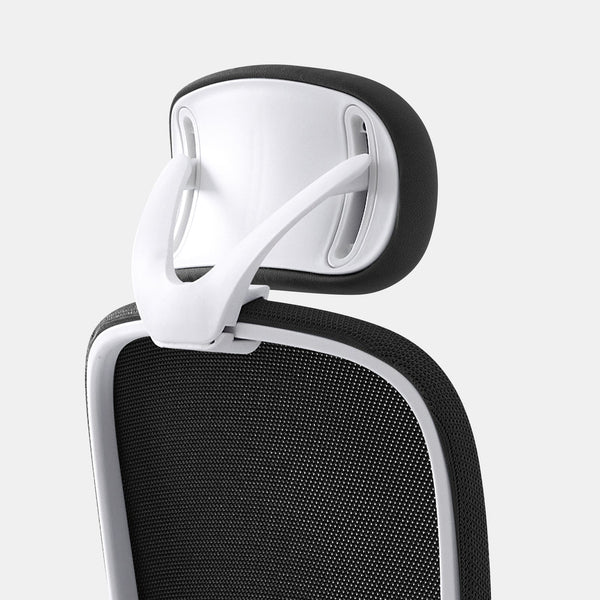 When Office Chair Headrests Help or Hurt for Neck Alignment
-
 Office chair headrest pros and cons and when it helps or hurts
-
 Dual monitor desk setup rules that keep your posture aligned all day
-
 When Office Chair Headrests Help or Hurt
