























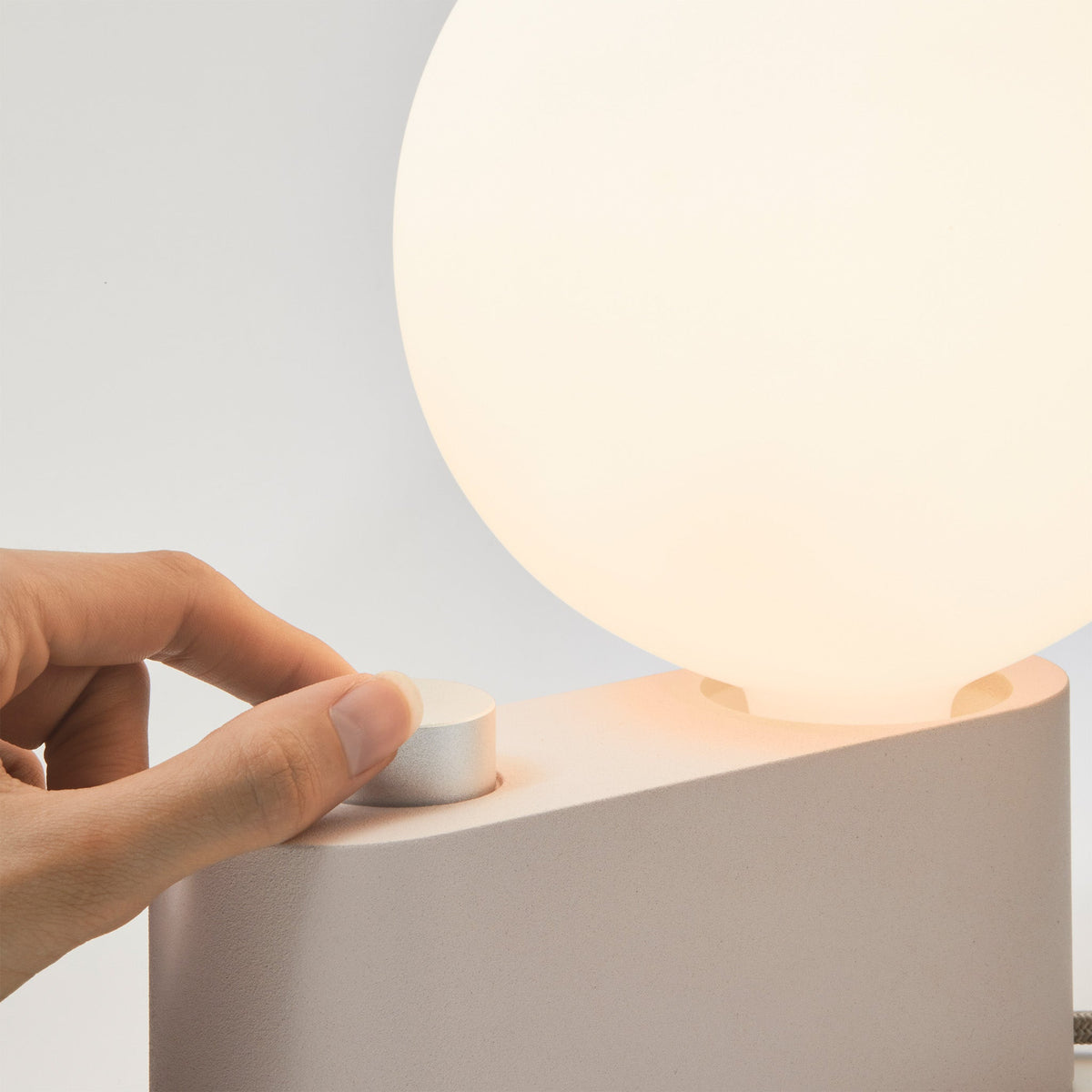
How to Pair a Desk Lamp with a Monitor Setup for Better Visual Comfort

A well-lit monitor setup should feel calm, balanced, and easy to use for long stretches of focused work. When the screen is clear but the surrounding desk is too dark, the eyes constantly adjust between bright and dim areas. When the desk lamp is too strong or aimed poorly, reflections, hot spots, and shadows can make the monitor harder to read. Better visual comfort comes from pairing the lamp and monitor as one coordinated workstation, not treating lighting as an afterthought.
The right pairing helps the screen remain readable, keeps the keyboard and documents visible, reduces glare, and supports a more natural working posture. A desk lamp does not need to dominate the setup. It should fill the visual gap between the glowing monitor and the physical work surface around it.
Why Desk Lamp Placement Matters More Around a Monitor
A desk lamp behaves differently when it is placed near a screen. On a traditional writing desk, the lamp mainly illuminates paper, books, or a tabletop. In a monitor setup, the lamp has to work around a bright digital surface, reflective materials, cables, keyboards, laptop screens, and sometimes multiple displays.
A Monitor Produces Light While the Desk Reflects It
The monitor is an active light source. It sends light toward your eyes. The desk, keyboard, paper, and nearby accessories only become visible when light reflects off them. This difference matters because your eyes are constantly comparing the brightness of the screen with the brightness of everything around it.
If the monitor is bright and the room is dim, the screen can feel like a glowing rectangle in a dark field. If the lamp is bright but aimed toward the display, the monitor can show reflections or lose contrast. A comfortable setup gives every element a clear role:
-
The monitor provides readable digital content.
-
The desk lamp supports nearby physical tasks.
-
Ambient room light softens the difference between the screen and the surrounding space.
Glare, Contrast, and Shadows Shape Visual Comfort
Most lighting discomfort at a monitor desk comes from three sources. Glare happens when the lamp, bulb, window, or another bright object appears directly in your eyes or reflects on the screen. Contrast fatigue happens when the monitor is much brighter than the rest of the workspace. Shadows happen when your hands, laptop lid, monitor arm, or lamp shade block light from reaching the keyboard, mouse, or paperwork.
Good lamp placement solves these issues quietly. The lamp should brighten the task area without creating new distractions on the display. It should help the eyes move naturally between screen, keyboard, notes, and documents.
The Lamp Should Support the Screen, Not Compete With It
A common mistake is treating the desk lamp as a way to overpower a dim or uncomfortable workstation. More brightness is not always better. A harsh lamp can make a monitor setup feel busier, especially if the bulb is exposed or the beam is aimed too close to the screen.
A better goal is visual balance. The monitor should be easy to read, the keyboard should not disappear into shadow, and the nearby desk surface should feel softly visible. When the lamp and monitor work together, the setup feels more stable throughout the day.
The Best Desk Lamp Position for a Single-Monitor Setup
For a single-monitor desk, lamp placement should begin with the screen’s reflection path. Before adjusting brightness or color temperature, place the lamp where it does not bounce light into the monitor or directly into your eyes.
Place the Lamp Outside the Monitor’s Reflection Zone
A lamp usually works best to the side of the monitor rather than directly in front of it, behind it, or centered between you and the display. If your screen is glossy, even a soft lamp can show as a visible reflection. Matte screens reduce reflections, but they can still show bright patches when a lamp is aimed at the wrong angle.
Sit in your normal working position and look at the screen with the lamp turned on. If you can see the bulb, shade, or a bright patch on the display, shift the lamp farther to the side or angle the beam downward. The lamp should illuminate the desk surface, not the monitor panel.
Position the Lamp Opposite Your Writing Hand
Hand shadows are easy to overlook until they become irritating. If you are right-handed, placing the lamp on the left side often keeps your hand from blocking the light while writing. If you are left-handed, placing the lamp on the right side often works better.
This is especially useful for hybrid tasks such as reviewing printed notes while typing, sketching beside a monitor, filling out forms, or marking up documents during a video call. The lamp should support the way your hands move across the desk.
Keep the Light Source Below Eye Level
Even when a lamp is not reflecting on the screen, it can cause discomfort if the bulb or brightest part of the shade sits in your line of sight. A lamp head positioned too high can feel sharp, especially in the evening when the room is dimmer.
The light source should be shielded, angled down, or softened by the lamp’s design. The beam should fall on the desk surface, keyboard, paper zone, or reading area. Compact lighting can be especially helpful when a monitor already takes up visual space, and a sustainably made desk lamp or wall sconce can suit workstations where flexible placement matters.
Lamp Angles for Common Monitor Desk Tasks
| Desk Task | Lamp Position | Beam Direction | Comfort Benefit |
|---|---|---|---|
| Typing and screen work | Side of monitor | Toward keyboard and mouse | Keeps hands visible without lighting the screen |
| Reading printed notes | Opposite writing hand | Toward document area | Reduces hand shadows and improves paper visibility |
| Video calls | Side and slightly forward | Softly toward face or desk edge | Avoids harsh underlighting and screen glare |
| Drawing or writing | Outer side of work zone | Across the page, not into the eyes | Helps maintain clear lines and fewer shadows |
| Evening work | Side or rear-side of desk | Diffused across work surface | Reduces the bright-screen-in-dark-room effect |
How to Balance Desk Lamp Brightness with Monitor Brightness
Brightness balance is one of the most important parts of visual comfort. The monitor, lamp, and surrounding room should feel like they belong together. If one element is dramatically brighter than the rest, your eyes have to keep adapting.
Adjust the Monitor Before Increasing the Lamp
A lamp cannot fully fix a monitor that is too bright for the room. Start by setting the screen brightness so white backgrounds, documents, and browser windows feel readable without forcing you to squint. Then adjust the lamp to support the physical desk area.
During the day, a monitor may need more brightness because daylight competes with the screen. At night, the same setting can feel intense. A lower evening brightness paired with a soft desk lamp often feels more comfortable than a bright monitor alone.
Match Lamp Brightness to the Active Task
The lamp should respond to what you are doing. Reading printed paperwork needs more direct light than typing. Video calls may need softer light that does not reflect on the screen. Focused writing may require side lighting that keeps the page bright while leaving the display undisturbed.
A good rule is to brighten the task, not the whole desk. The keyboard, notebook, and active document area should be visible, but the lamp should not flood the monitor or create a glare path across the screen.
Use Ambient Light to Reduce Harsh Contrast
A small amount of room light can make a monitor setup more comfortable, especially after dark. Without ambient light, the screen becomes the brightest object in the room by far. That contrast can make ordinary work feel visually tiring.
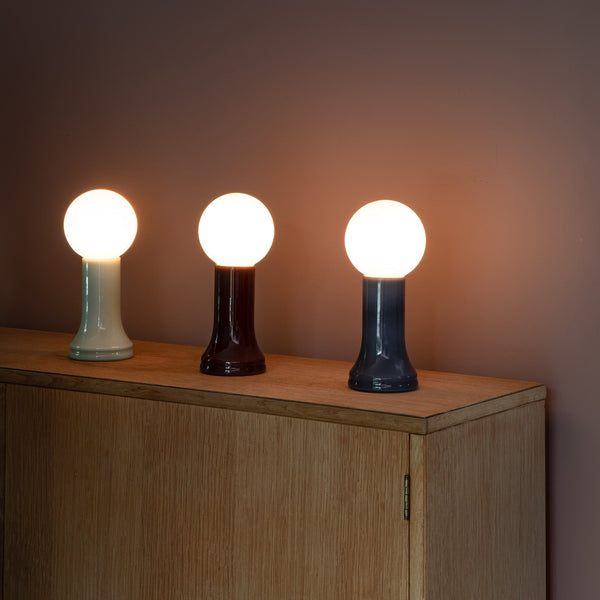
Ambient light does not need to be strong. A nearby table lamp, softly lit shelf, or diffused room light can reduce the contrast between the monitor and its surroundings. For a workstation that benefits from softer background lighting rather than direct task illumination, a recycled glass Shore table lamp can fit into the surrounding space as a supportive table lamp near the desk rather than as the main screen-facing light.
Choosing Color Temperature for Screen-Based Work
Color temperature affects how the workstation feels, but it should be chosen carefully. The goal is not to chase the brightest or coolest lamp. The goal is to create light that supports the task and the time of day.
Neutral Light Supports Detail-Oriented Daytime Work
Neutral-toned light often works well for reading documents, reviewing notes, using spreadsheets, and handling detail-heavy tasks beside a monitor. It keeps the work surface clear without making the desk feel overly warm or dim.
For daytime work, neutral lighting can pair well with a monitor because it helps printed materials and keyboard legends remain easy to see. It should still be positioned carefully. Even a comfortable color temperature can create glare if the lamp points toward the display.
Warmer Light Can Feel Better During Evening Sessions
In the evening, warmer light can make a workstation feel less harsh. It can soften the mood of the desk and reduce the feeling that the monitor is the only light source in the room. However, warmer light still needs to be functional. If it is too dim for paperwork, you may lean forward, squint, or increase monitor brightness unnecessarily.
A warm lamp works best when paired with lower screen brightness and some surrounding ambient light. This creates a more relaxed visual field without sacrificing readability.
Avoid Strong Color Casts Near Visual Work
Colored light can look stylish, but it can interfere with tasks that depend on accurate visual judgment. If you review images, drawings, materials, presentations, or product details on screen, strong colored light around the monitor may change how nearby physical objects appear.
For creative workstations, choose light that keeps the desk surface readable without spilling strong color onto paper, samples, or the monitor area. The cleaner the light environment, the easier it is to trust what you see.
Pairing a Desk Lamp with a Laptop-and-Monitor Workstation
Many modern desks combine an external monitor with a laptop. This layout needs special attention because the laptop screen, lid, keyboard, and stand can all change how light moves across the workstation.
Raise the Laptop Before Fine-Tuning the Lamp
A low laptop can create posture and visibility problems that no desk lamp can fully solve. When the laptop sits flat on the desk beside a monitor, your eyes may move repeatedly between two very different screen heights. Your neck may tilt down, and the laptop lid may cast shadows across the keyboard or notes.
Raising the laptop closer to eye level can make the whole setup easier to organize. A laptop stand for comfort and focus belongs in this conversation because screen height, posture, and light placement all affect how comfortable the monitor setup feels.
Keep the Lamp Away from Laptop-Lid Shadows
An open laptop can block light in unexpected ways. If the lamp sits behind the laptop, the screen may throw a shadow across the desk. If the lamp sits too close to the hinge, the beam may bounce off the laptop surface or keyboard.
Place the lamp on the outer side of the setup, where the beam can reach the keyboard, mouse, or paper zone without being blocked by the laptop lid. If the laptop is on a stand, check the shadow pattern after adjusting the height. A small change in angle can move the shadow away from the active work area.
Use Layout-Specific Lamp Placement
Different laptop-monitor layouts need different lighting choices.
1. Laptop left, monitor center: Place the lamp outside the widest part of the setup and angle it toward the work surface, not across both screens.
2. Laptop right, monitor center: Keep the lamp far enough from the laptop screen to avoid reflections, especially if the laptop display is glossy.
3. Laptop below external monitor: Light the side task zone rather than the area directly under the screen, which can create distracting brightness below your line of sight.
4. Laptop closed in clamshell mode: The lamp can move closer to the keyboard area, but the beam still needs to avoid the monitor panel.
Cable and Power Planning That Supports Better Lamp Placement
Lamp placement often fails for a practical reason: the outlet is in the wrong place. When the cord controls the lamp position, comfort becomes secondary. A visually comfortable setup needs accessible power that allows the lamp to sit where it performs best.
Outlet Location Should Not Decide the Lamp Angle
If the nearest outlet is behind the monitor, the lamp may end up too close to the screen. If the outlet is under the desk, the cord may pull the lamp toward one corner. If multiple chargers share the same area, the lamp base may compete with adapters, power strips, and monitor cables.
The lamp should be placed according to glare control, shadow control, and task visibility. Power access should support that placement rather than force a compromise.
Built-In Power Can Keep the Work Surface Cleaner
A clean power path helps the lamp, monitor, and device chargers stay organized. When power access is integrated into the desk surface, cords do not have to stretch across the main work zone. This can make it easier to keep the lamp in a comfortable side position while preserving room for the keyboard and mouse.
For workstations where charging access and desk organization matter, an in-desk power module with AC and USB ports can help reduce the need to route lamp and device cables through the center of the visual field.
Clamp-On Power Helps Flexible Desk Layouts
Not every desk can or should be modified. Shared workstations, rental spaces, sit-stand desks, and temporary office layouts often need power solutions that can move with the setup. In those cases, accessible edge-mounted power can keep the lamp closer to its ideal position without requiring a permanent installation.
A clamp-on power module with AC outlets and USB ports fits naturally into setups where the monitor, lamp, and charging needs may shift over time.
Cable Paths That Reduce Visual Noise
-
Route lamp cords along the back or side edge of the desk.
-
Keep power modules outside the lamp’s brightest reflection path.
-
Avoid running dark cords across bright desktop surfaces.
-
Leave enough slack to adjust the lamp angle during the day.
-
Separate monitor cables from the mouse and writing zones.
Desk Surface Organization That Reduces Eye Distraction
A desk lamp can only perform well if the surface around it is organized. Clutter creates small shadows, reflective spots, and visual interruptions that compete with the monitor.
Clutter Scatters Light Around the Screen
Pens, stacked paper, glossy packaging, phone chargers, mugs, and loose accessories can all catch light in different ways. Some objects reflect lamp light. Others cast shadows. When these items sit close to the monitor base, the whole screen area can feel visually busy.
A clearer desk makes the lamp easier to aim and the monitor easier to read. This does not mean the workspace has to look empty. It means the most visually active area should be reserved for the screen, keyboard, mouse, lamp, and the one or two items needed for the current task.
Use Three Zones Around the Monitor
A practical monitor desk can be divided into three zones:
-
Screen zone: monitor, laptop, webcam, monitor arm, and speakers if used.
-
Task-light zone: lamp, keyboard, mouse, notebook, document holder, or active paperwork.
-
Storage zone: files, supplies, chargers, backup devices, and items not needed for the current task.
When these zones are clear, the lamp does not have to fight for space. It can sit where the light is useful instead of being pushed into an awkward corner.
Keep Paperwork Close, But Not in the Light Path
Paperwork is often necessary, but stacks of documents near the monitor can make a desk feel crowded and unevenly lit. Papers can also reflect light upward, especially if they sit directly below the screen.
A nearby storage piece can keep documents accessible without letting them interfere with the lamp and monitor. A compact filing cabinet with sliding drawers can support a cleaner screen zone by moving inactive paperwork off the main work surface while keeping it within reach.
Desk Lamp Strategies for Different Monitor Setups
No single lamp position works for every workstation. Desk size, monitor count, screen shape, and work style all change the best approach.
Compact Desk with One Monitor
On a compact desk, every object matters. Choose a lamp with a small footprint or place the lamp where it does not crowd the keyboard and mouse. The monitor should remain centered, while the lamp sits slightly to the side and forward enough to light the work surface.
Avoid oversized shades that block part of the screen or force the monitor off-center. The best compact setup feels intentional, with only the essentials in the visual field.
Wide Desk with Dual Monitors
With two monitors, avoid placing the lamp between the screens. That position can create glare on both displays and make the center of the desk too bright. A better placement is usually outside the monitor span, angled toward the keyboard or document area.
Dual monitors should also be balanced with each other. If one screen is much brighter than the other, the lamp cannot fully correct the uneven feel of the setup. Adjust both displays first, then refine the lamp.
Curved Monitor Setup
Curved monitors can catch reflections across different parts of the screen. A lamp that looks fine from one angle may create a bright streak when you lean back or shift posture. Check the screen from your normal seated position, then from slightly left and right.
Because the screen wraps slightly around the viewing area, side lighting should be controlled carefully. The lamp beam should fall on the desk, not across the curve of the display.
Monitor Arm Setup
Monitor arms free up surface space, which can improve lamp placement. They also introduce clamps, cable channels, and shadow lines. Do not force the lamp into the same edge space where the monitor arm is mounted if that creates clutter or awkward angles.
A monitor arm setup often works best when the lamp is placed on the opposite side of the main clamp or positioned to illuminate the open desk area created beneath the screen.
Creative and Professional Workstations
Creative work often requires close attention to visual details. Strong glare, uneven lighting, and color-heavy lamps can affect how the workspace feels and how physical materials appear beside the screen. A more restrained lamp setup helps the monitor, desk surface, and nearby materials remain visually coherent.
For broader workspace planning, especially where desks, seating, storage, and accessories need to work together, smart, stylish furniture for creative workspaces can support a more cohesive office environment without making the lamp and monitor feel like separate decisions.
Common Desk Lamp and Monitor Pairing Mistakes
Small lighting mistakes can make a good monitor setup feel uncomfortable. Most are easy to fix once you understand what is causing the strain.
Aiming the Lamp Directly at the Display
This is the most common issue. A lamp aimed at the monitor can create reflections, reduce contrast, and make dark areas of the screen harder to see. Aim the lamp at the desk surface instead. If you need more room light, use indirect or ambient lighting rather than pointing a task lamp toward the screen.
Working at Night with Only the Monitor On
A bright monitor in a dark room can feel intense because the eyes keep adapting between the screen and the surrounding darkness. Add soft light near the desk or in the room. The goal is not to make the room bright. It is to reduce the extreme contrast around the screen.
Using an Exposed Bulb in the Eye Line
An exposed bulb can cause discomfort even when it does not reflect on the screen. If you can see the bulb while working, the lamp may be too high, too open, or poorly angled. A shade, diffuser, or lower beam angle can make the light feel calmer.
Letting Window Glare Control the Setup
Daylight changes throughout the day. A lamp position that works in the morning may not work in the afternoon if sunlight starts reflecting off the monitor. Use blinds, adjust the monitor angle, and reposition the lamp when needed. The lamp should complement daylight, not compete with it.
Using Decorative Lighting for Precision Tasks
Decorative lamps can improve the overall mood of the workspace, but they may not provide enough directed light for reading, writing, or detailed desk tasks. A table lamp can support ambient balance, while a task lamp handles the active work surface. Each type of light has a useful role when placed correctly.
A Practical Desk Lamp and Monitor Comfort Checklist
A comfortable lighting setup should be easy to evaluate. Use small adjustments first before replacing equipment or rearranging the entire desk.
Before a Long Work Session
1. Set the monitor brightness to match the room.
2. Place the desk lamp to the side of the monitor.
3. Keep the lamp outside the screen’s reflection path.
4. Aim the beam at the keyboard, paper, or active work surface.
5. Position the lamp opposite your writing hand when paperwork is involved.
6. Raise the laptop or secondary screen if it sits too low.
7. Move cables away from the mouse and writing zones.
8. Clear reflective clutter near the monitor base.
9. Add soft ambient light if the screen feels too bright at night.
10. Recheck the display for glare after changing lamp angle.
During the Workday
Lighting comfort changes as daylight shifts, tasks change, and the room gets darker. Recheck the setup when you move from typing to reading, from daylight to evening, or from solo work to video calls.
If the keyboard looks dim, adjust the lamp before increasing monitor brightness. If paper is bright but the screen looks washed out, move the lamp farther from the display. If your head tilts to avoid a reflection, the lamp is probably in the wrong position.
Signs the Lamp and Monitor Are Not Balanced
-
The lamp appears as a reflection on the screen.
-
The monitor feels bright while the desk feels dim.
-
Paperwork is readable, but the screen looks faded.
-
The keyboard disappears into shadow.
-
You lean forward to see notes beside the monitor.
-
You raise screen brightness even when the room is dark.
-
Your eyes feel more comfortable when the lamp is turned off, but the desk becomes too dim.
Building a Monitor Setup Where Light, Posture, and Focus Work Together
Better visual comfort comes from treating the monitor setup as a complete system. The desk lamp, screen brightness, laptop height, power access, storage, and desk organization all influence how the eyes experience the workstation.
A well-paired lamp does not call attention to itself. It makes the keyboard easier to see, keeps documents readable, softens contrast around the monitor, and avoids reflections on the display. The screen remains the focus, but the surrounding workspace feels supportive instead of dark, cluttered, or visually sharp.
The most comfortable setup is also adaptable. Morning daylight, evening work, video calls, paperwork, and screen-heavy focus sessions each place different demands on the desk. A lamp that can be positioned thoughtfully, supported by clean power access and an organized surface, helps the monitor feel integrated into the workspace rather than isolated from it.
When light, posture, and desk layout work together, the monitor becomes easier to use for longer periods. The result is not a brighter desk for its own sake. It is a calmer, clearer workstation where every visual element has a purpose.
Related Articles
-
 Shore Table Lamp Ideas That Make Desk Lighting Feel Softer
-
 How to Choose a Table Lamp That Adds Warmth Without Reducing Visibility
-
 Can a Table Lamp Support Evening Work Better Than Overhead Lighting?
-
 How to Use a Table Lamp to Make a Home Office Feel Less Harsh and More Lived In
-
 Best Table Lamp Options for Creating a Relaxed But Productive Workspace
-
 What Size Table Lamp Works Best in Small Offices and Compact Rooms?

