























How to Organize Cables, Accessories, and Screen Height Around One Monitor Stand

A one-monitor desk can look calm, capable, and refined, but it can also become cluttered faster than expected. That happens because the monitor stand naturally becomes the center of attention. Anything that crowds it, hangs behind it, or competes with it becomes far more visible than it would in a larger or more equipment-heavy setup.
This is why a one-monitor workspace benefits from a more disciplined layout. The monitor stand is not only holding a screen. It is setting the centerline for posture, determining how cables fall, influencing where lighting belongs, and shaping how accessories should be arranged. When that centerline is clear, the desk feels easier to use and easier to maintain. When it is ignored, the result is often a mix of visual noise and daily friction.
A strong setup does not rely on hiding everything. It depends on placing the right things in the right zones, reducing what does not need to be visible, and making each element support the same organizing logic. Cables should follow a deliberate path. Accessories should stay close without surrounding the screen. Screen height should support a neutral gaze. Lighting should improve focus without competing with the display.
That is what turns a monitor stand into the anchor of the entire workstation.
Build the Desk Around the Monitor Stand, Not the Other Way Around
Many desks become messy because the monitor is treated as the last object to place rather than the first reference point to establish. The result is usually predictable. A lamp claims one side, chargers claim the other, cables start routing wherever there is room, and the monitor stand ends up squeezed into a space that was never really designed for it.
A better approach is to begin with the stand and work outward. The monitor is the item you look at most, so its location should define the rest of the layout. Once the stand is centered according to your sitting position and line of sight, it becomes easier to judge where the keyboard belongs, which side should hold accessories, and how cables can disappear with less effort.
The desk itself also matters more than many people expect. Depth affects viewing distance. Width affects whether a task lamp and a small accessory cluster can coexist without crowding the display. Rear clearance affects whether cables can drop neatly behind the screen instead of spreading across the back edge. Exploring desk collections for workspace planning makes the desk feel less like a passive surface and more like part of the organizational system.
When the desk and monitor stand work together, the space around the display starts to feel intentional. That alone can reduce the urge to keep shifting things around in search of a setup that feels settled.
Divide the Workstation Into Clear Functional Zones
A clean desk is usually the result of zoning, not constant tidying. Without zones, every object competes for the same prime real estate around the monitor stand. With zones, the desk begins to guide placement naturally.
Create a primary sightline zone
The primary sightline zone is the space directly around and beneath the monitor. This area should remain visually quiet because it is where your attention returns throughout the day. The more objects that collect here, the more fragmented the setup feels.
Keep this zone limited to what genuinely supports the monitor itself. In most cases, that means the stand, the screen, and the natural alignment of the keyboard below it. Any extra object in this area should justify its presence.
Create an active reach zone
The active reach zone sits to the left or right of the monitor, depending on your workflow. This is where daily-use items should live. A notebook, pen tray, phone stand, or charging point may belong here if they are used often enough to deserve quick access.
The key is concentration. It is better to create one purposeful cluster than to distribute small items evenly across the desk. A desk that has a little clutter everywhere rarely looks organized, even if every item seems useful on its own.
Create a support zone for non-visual essentials
The support zone holds the things that help the workstation function but do not need to remain in view. Extra cable length, adapters, charging bricks, cleaning tools, and backup accessories generally belong here.
This is also where a broader set of desk accessories for organized work surfaces can be useful when chosen with restraint. The goal is not to fill empty space. It is to support a clearer structure so the monitor zone remains calm and legible.
Route Cables as One Deliberate Vertical Path
Cable disorder usually starts when cords are allowed to spread sideways. A cable leaves the monitor, another leaves a lamp, a charger runs across the rear edge, and before long the desk looks more improvised than planned. On a one-monitor setup, this becomes especially obvious because there are fewer objects to distract from the mess.
The cleanest solution is not necessarily to make every wire invisible. It is to make cable movement consistent.
Start cable routing at the monitor stand
The monitor stand is the natural starting point because it is where visual attention is already concentrated. If cables fall in a unified direction from that point, the entire desk feels more composed. If they branch out unpredictably behind the screen, even a well-designed surface can start to look unfinished.
Keep cables moving downward, not outward
A vertical drop is usually far less distracting than a lateral spread. When cables are guided down in one route, they stop creating little visual interruptions across the rear of the workstation. This is where a vertical cable organizer for the desk edge fits naturally into a monitor-centered setup. Its role is not to make the desk look complicated or overly engineered. Its role is to help the cable descent stay orderly and predictable.
Leave enough slack for movement
Cables should not be pulled tight. A monitor may need slight repositioning, and a cord that is under tension can make simple adjustments frustrating. At the same time, too much slack creates visible loops, side drift, and unnecessary tangles.
A balanced setup leaves enough flexibility for normal use while keeping the cable path visually quiet. That balance is one of the details that separates a desk that merely functions from one that feels resolved.
Move Cable Overflow and Power Hardware Below the Desktop
A desktop can look neat from above while still feeling disorganized in use. This usually happens when the visible surface is controlled but the underside is neglected. Power strips on the floor, charging bricks near the legs, and loops of spare cable under the chair quickly undermine the sense of order created on top.
The underside of the desk should serve as infrastructure space. The desktop should serve as working space.
Create a hidden layer for power and cable slack
Monitor power, charging leads, and lamp cords all need somewhere to go after they leave the visible work area. If they are not given a defined home, they tend to gather at the edge of the desk or fall toward the floor. Neither supports a clean one-monitor setup.
A better approach is to direct those cables into one contained under-desk layer, where they remain accessible without constantly entering the visual field.
Keep the floor clear of cable clutter
Floor-level cable buildup creates several small problems at once. It makes cleaning more awkward, catches attention from across the room, and can lead to cords being nudged or snagged over time. Those issues are avoidable when cable excess is lifted off the floor and contained more thoughtfully.
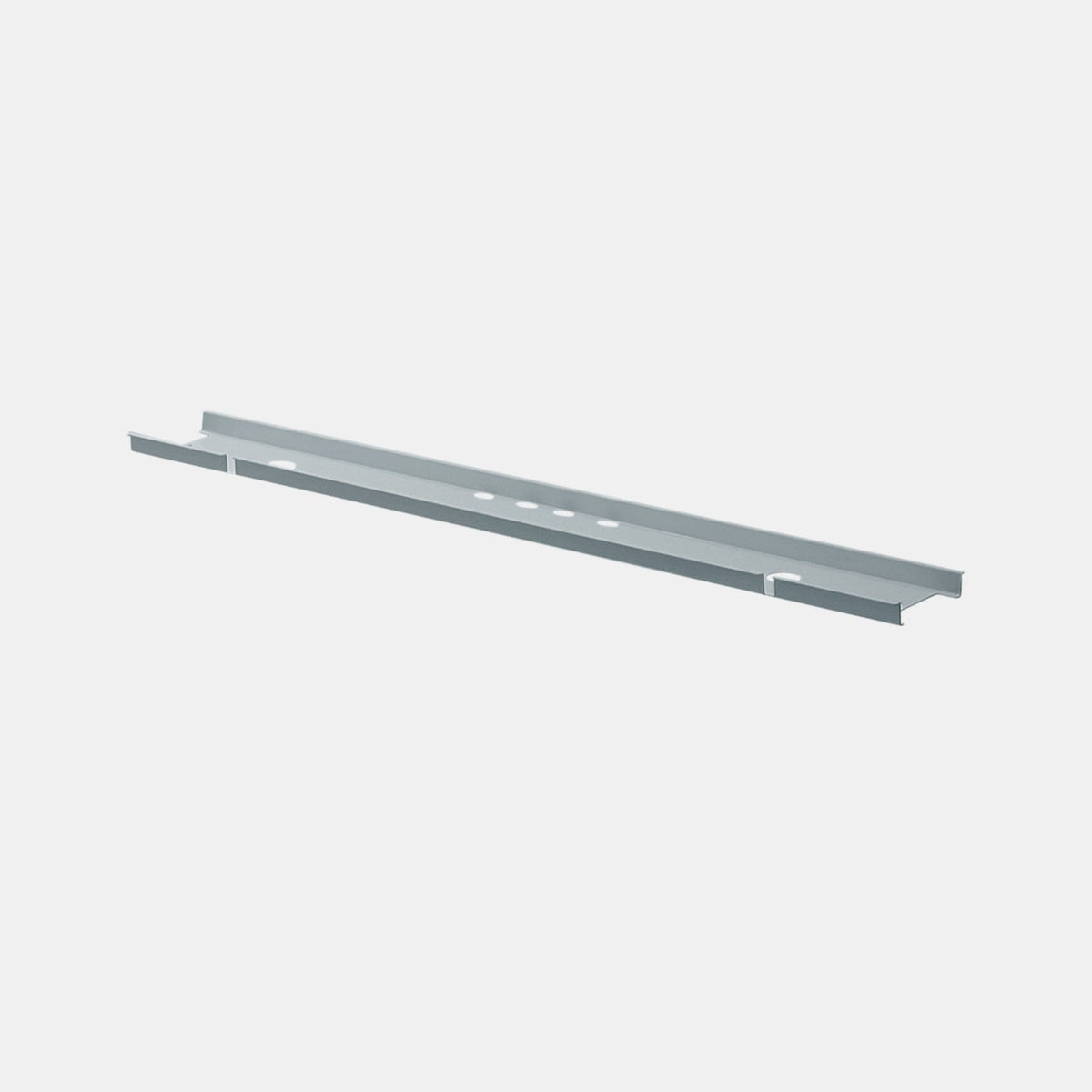
Using an under-desk cable management tray supports that approach by giving cords and power hardware a consistent place to live beneath the desktop. That keeps the upper workspace clearer and helps the full setup look more intentional from a normal seated or standing view.
Keep future changes easy
A well-organized setup should stay adaptable. Overly tight bundling can make a desk harder to live with later. A new charger, webcam, dock, or lighting adjustment should not require rebuilding the entire system. Reusable ties, sensible grouping, and a bit of extra access make the workspace easier to evolve without losing its structure.
Set Screen Height Before Finalizing Everything Else
Screen height should never be treated as a finishing touch. It is one of the earliest and most important decisions because it affects posture, comfort, and how the rest of the desk must arrange itself around the display.
A monitor that sits too low often leads to a forward head position and a collapsed upper body posture. A monitor that sits too high can be just as disruptive, encouraging the eyes and neck to work at an awkward angle. In both cases, users often compensate without noticing at first, then start rearranging other objects to cope with the discomfort.
Let your eyes meet the screen naturally
The most useful rule is simple. The screen should meet your gaze in a way that feels neutral and sustainable during normal work. The goal is not rigid perfection. It is to avoid forcing the body to adapt to an avoidable layout mistake.
Match screen height to desk depth and sitting position
Screen comfort is affected by more than the stand alone. Desk depth changes how close the monitor sits. Chair height changes the eye line. Keyboard placement affects whether the shoulders stay relaxed. These are connected decisions, which is why desks that support monitor distance and daily posture are relevant when planning a one-monitor workstation. The surface below the screen influences how well the whole layout supports daily use.
Adjust accessories only after the screen feels right
A common mistake is arranging notebooks, trays, or lamps first and then fitting the monitor into whatever space remains. That often causes the display to sit too high, too low, or too far off center. Once screen height and position are established, the surrounding objects can be placed in ways that support the monitor instead of competing with it.
Place Accessories So They Support Work Without Surrounding the Screen
Accessories can improve a desk, but they can also erode its clarity. The difference usually lies in whether they are arranged as tools or accumulated as background clutter.
A one-monitor setup looks strongest when the area around the base remains open enough to preserve visual breathing room. That does not mean the desk should feel sparse or sterile. It means the monitor should remain the focal point, with supporting objects positioned in ways that reinforce that role.
Build one purposeful accessory cluster
One of the simplest ways to reduce clutter is to choose a primary accessory side. If you write notes by hand, one side may hold a notebook and pen tray. If you rely more on charging and devices, the cluster may include a phone, dock, or drive. What matters is that the accessories live together rather than orbiting the stand from all directions.
Remove items that do not need premium desk space
The space near the monitor is the most valuable part of the desk because it shapes both the look and feel of the workstation. Backup cables, unopened peripherals, packaging, duplicate chargers, and decorative objects with no daily purpose rarely deserve that space. Removing them often improves the setup more than adding another organizer.
Keep the centerline visually open
When the centerline remains clear, the whole desk reads as more composed. Your eyes have a natural resting point. The keyboard feels properly aligned. The workstation appears balanced even when there are still useful objects nearby. This is one of the main reasons well-organized one-monitor desks often feel better before they even look dramatically different.
Use Task Lighting to Support the Work Surface, Not Compete With the Monitor
Lighting is easy to underestimate in a desk setup. A poorly placed lamp can crowd the stand, interrupt sightlines, and introduce glare that makes the monitor less comfortable to use. A well-placed lamp improves usability while quietly supporting the rest of the composition.
Place light to the side of the monitor zone
In most setups, the lamp works best when it sits slightly outside the main visual axis. That allows the monitor to remain central while still giving the desk surface enough light for writing, reading, and detailed tasks. Side placement also tends to reduce direct reflection on the screen.
Choose lighting that suits a focused desktop environment
A monitor-centered workstation benefits from lighting that feels proportionate to the desk rather than oversized for it. Looking through a task lamp collection for desktop lighting makes the most sense when the question is not simply how to brighten the desk, but how to do so without making the setup feel more crowded.
Add localized light where close work happens most
Some workstations benefit from a smaller, more concentrated light source near the notebook zone, reading area, or side task space. In that context, a table lamp designed for focused work areas can support the surface around the monitor without overwhelming it. This kind of lighting works best when it complements the screen area rather than trying to dominate it.
Shape the Setup for the Room, Not Only the Desktop
A one-monitor desk does not exist in isolation. In a home office, studio, or design-conscious work area, the workstation often contributes to the overall character of the room. Loose cables, crowded accessories, and poor monitor placement can affect how the entire space feels, especially when the desk is visible from more than one angle.
A cleaner monitor-centered arrangement brings visual calm not just to the desk, but to the surrounding environment as well. That matters in compact rooms where every line and surface carries more weight.
Let the desk look resolved from more than one viewpoint
A setup may look acceptable from directly in front of the chair while still appearing cluttered from the side or across the room. A one-monitor workspace benefits from cable control and accessory discipline because they improve the desk as an object within the room, not just as a utility zone.
Support the room with furniture choices that feel coherent
When the workstation is part of a larger interior, furniture decisions play a broader role in creating a composed environment. Browsing office furniture for well-composed workspaces can help frame the desk as one part of a more integrated working space, where visual order, function, and atmosphere all support each other.
Keep the Entire Setup Working as One System
The strongest one-monitor workstations usually do not rely on a single dramatic feature. Their strength comes from consistency. The stand aligns with the body. The cables follow one logic. The accessories stay within clear boundaries. The lighting supports focused work. The under-desk area handles infrastructure quietly.
When something still feels off, the answer is usually hidden in one of those relationships. The desk may be allowing too much surface competition near the stand. The cable route may still be spreading sideways. The lamp may be claiming too much attention. The screen may be centered visually but not ergonomically. These are not separate problems. They are signs that the setup is not yet operating as one connected system.
That is why organizing around one monitor stand works so well. It creates a clear anchor point for every major decision. Once that anchor is respected, the desk starts to feel more disciplined without becoming rigid, more refined without becoming impractical, and more comfortable without relying on exaggerated promises or unnecessary complexity. The result is a workspace that stays cleaner because it has been organized with intention from the center outward.
Related Articles
-
 How Filing Cabinet Storage Supports Office Desk Must Haves
-
 Filing Cabinet Ideas for Better Office Furniture Accessories
-
 Best File Cabinet for Home Office Storage That Feels Easy
-
 Better Multiple Monitor Desk Setup Starts With One Stand
-
 Make Laptop and 2 Monitor Setup Work With Better Stands
-
 Why Dual Monitor Comfort Needs a Monitor and Laptop Stand


